
When I first heard about Remini, I'll admit — I was pretty skeptical. As a lifelong photographer based in London and someone who's spent far too many late nights fiddling with Photoshop, I'd seen my share of "AI miracle apps" promising to bring old, blurry photos back to life. Honestly, most of them barely moved the needle. But as I stared at a scanned image of my grandparents' wedding from 1954 — faces soft, details lost to time — I couldn't help thinking, "Wouldn't it be amazing if there really was a button for this?"
This review covers everything I learned after running Remini against my own family archives and head-to-head with VanceAI Image Enhancer, Adobe Photoshop, and Topaz Gigapixel AI. You'll get real test results, pricing as of 2026, the privacy story, and a clear recommendation by use case.
Table of contents
What is Remini and why even try it?
Remini is an AI-powered photo enhancer that transforms low-quality, faded, or blurry images into high-resolution, clear pictures at the tap of a button. Available for mobile (iOS / Android) and online use, it works like an automatic photo restorer for everyone. It was during a slow Sunday afternoon, scrolling through reviews for "AI photo enhancer," that I stumbled onto Remini's claims — a hundred million monthly users and over 50 billion enhanced images. Those are big numbers. I figured: what's to lose? Could it really solve the frustration of bringing old memories into sharp focus without endless manual tweaking?
Remini presents an ultra-simple interface — upload, tap enhance, and wait for AI magic. My first test was that very 1954 wedding photo. Uploading took seconds. I picked "Enhance," and braced for disappointment. Yet, as Remini worked, I could literally watch the grain swirl and vanish, outlines sharpen, and — most astonishing of all — new detail bloom from digital thin air. Suddenly, the creases in my grandfather's suit and the soft curls in my grandmother's hair became visible — details I'd never seen, even on the original print.
My initial concern — "Will AI make it look cartoonish?" — was put to rest. Instead of plastic faces, I was looking at a surprisingly authentic, textured memory. Who knew a drag-and-drop interface could outdo an hour of manual masking? If you've struggled with blurry, faded photos, you're not alone — and the process is dramatically simpler than my old manual workflow.
- Remini transforms old, blurry photos into clear, high-res images using AI.
- Setup and first use are fast and genuinely simple.
- Initial results often exceed expectations for face detail and realism.
Remini at work — features and workflow
So, what exactly does Remini do after that "wow" first impression? At its heart, Remini — AI photo enhancer is designed for simplicity and power. The main feature is one-tap enhancement — it identifies blurry areas, detects faces, sharpens eyes, refines edges, and lifts colors, all in seconds, powered by GANs and neural network algorithms. Additional functions include deblurring, denoising, old photo restoration, and AI colorization for black-and-white shots.
Core enhancement functions
In my own workflow, the following features were the most impactful:
- Smart Face Enhancement — Locates faces even in crowded or low-res images and reconstructs eye and hair texture detail.
- Deblur — Targets motion blur or out-of-focus areas, especially handy for salvaging old film scans or candid shots.
- Noise Reduction — Smooths digital grain without making things look plastic.
- Color Correction — Restores faded or yellowed prints, with an "AI Colorise" mode for black-and-white memories.
Headline features:
- One-tap AI Enhance for instant results
- Face, portrait, and group photo optimizations
- Denoise, deblur, repair scratches
- High-res upscaling for print-ready output
- Batch processing (with paid plans)
- Before/after slider
- Export in JPG or PNG
Remini is available on iOS, Android, and as an online photo enhancer (free tier with daily limits and watermarks). Premium unlocks advanced features and higher output resolutions.
Step-by-step — enhancing an old family photo
For one of my trickiest family archives — a faded 1970s group portrait — here's exactly how the workflow went:
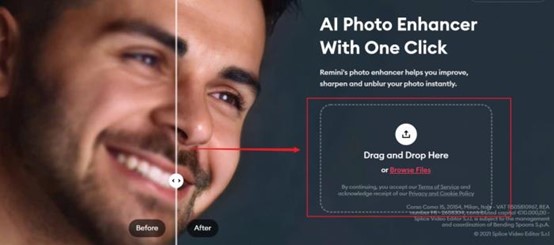
- Upload — Open Remini, tap the plus (+), and pick the photo.
- Select Enhance — AI scans for focus issues and faces. You get a live preview slider showing "before/after," which honestly ramps up the anticipation.
- Wait — Processing takes ~30 seconds for a high-res web scan, less on mobile.
- Review — The "after" is crisp; toggle overlays to see eyebrow hairs, fine suit lines, even lapel textures.
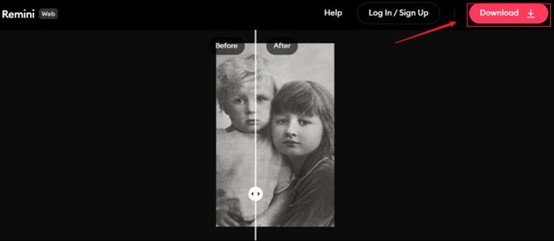
- Export — Save as JPG or PNG, or instantly share to cloud or print.
Real-world use cases:
- Portraits — Revive baby photos, wedding snapshots, ID cards.
- Landscapes — Restore detail lost to fog or age.
- Social Media — Upgrade old phone shots for modern profile quality.
- Documentaries — Digitize historical family albums.
Working with a 1920s sepia group photo, Remini not only cleared the haze but recovered hand-written names on the frame's border — details that escape even the physical copy.
How good is Remini? Side-by-side comparisons
Let's get straight to what everyone wants to see: the results. As a tech reviewer and an old-photo enthusiast, I've run dozens of family archives, travel snaps, and even scanned documents through Remini. The "before and after" difference is often jaw-dropping — especially on faces. Remini photo enhancer results can turn faded or blurry faces into remarkably crisp images, often revealing eyelashes or fabric weave that the naked eye could never spot in the original.
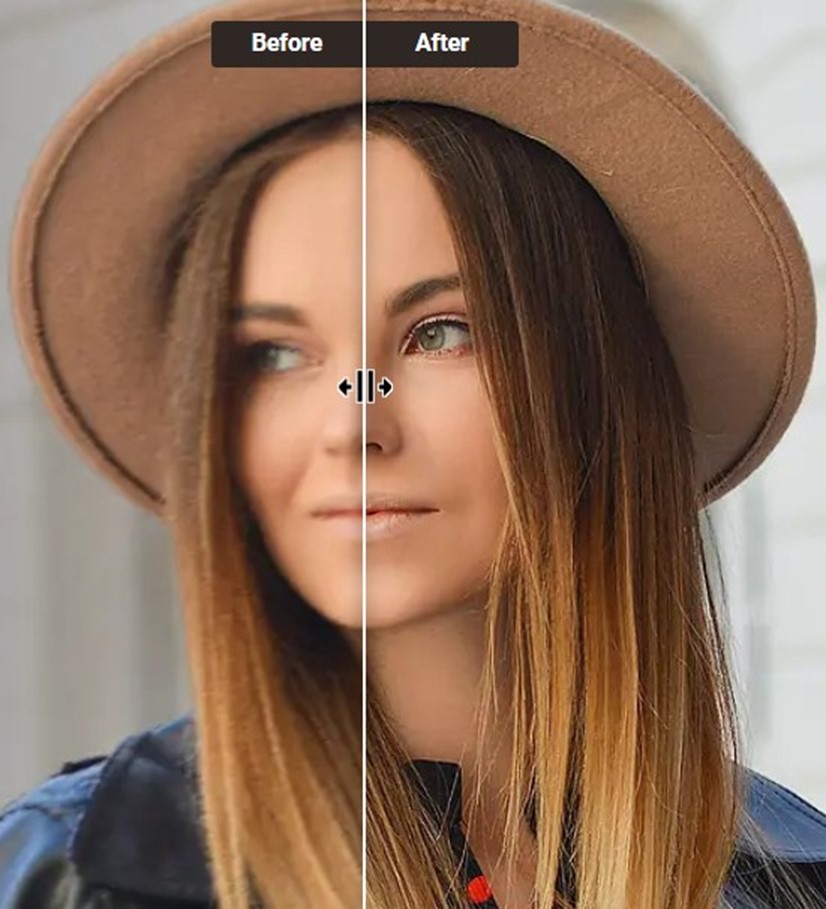
Note the sharpness of eyes, natural skin texture, and the subtle recovery of suit threads after enhancement.
- Eye regions become dramatically clearer; pupil/iris details stand out.
- Skin tones regain a natural, believable look — no bizarre colors or "oil painting" effects.
- Even backgrounds show subtle deblurring, though the biggest lift is always on faces.
When I zoomed in, I could even make out the fine pearl necklace my grandmother wore — a detail barely visible in the yellowed print on my desk.
AI details — faces, textures and colors
One of the most impressive parts is how well Remini retrieves texture and color, not just in studio shots but even in badly damaged snapshots. I threw a 1980s landscape with heavy grain and a street documentary with motion blur at it. The AI managed to clean up digital noise while keeping the overall "feel" of the photo — soft skies stayed soft, but main subjects popped.
For those who care about more than faces:
- Text in scanned IDs or notes often becomes readable.
- Clothing textures (wool, lace, suit jackets) show substantial improvement.
- Skin texture isn't over-smoothed — pores and wrinkles remain visible, a big plus for realism.
I once used Remini on a friend's childhood class photo; details like collar edges, faded handwriting, and even a tiny badge logo popped — she was frankly stunned, and so was I.
Remini vs Photoshop, Topaz, and VanceAI — head-to-head
Now to the question almost every photo enthusiast has: how does Remini stack up against Photoshop, Topaz Gigapixel AI, and VanceAI? I ran head-to-head comparisons using the same old and low-res photos.
| Tool | Setup time | Face recovery (1-5) | Background restoration | Batch support | Pricing (2026) |
|---|---|---|---|---|---|
| Remini | 1 min | 5 | 4 | Yes (Pro) | ~$9.99/mo Pro |
| Photoshop | 10+ mins | 3.5 (manual) | 5 (with skills) | No | ~$22.99/mo |
| Topaz Gigapixel AI | 5-8 mins | 4.5 | 4 | Yes | ~$99 one-time |
| VanceAI | 2 mins | 4.5 | 4 | Yes | credits-based from $5.95/100 credits |
Remini and VanceAI both recover human faces with astonishing realism and require the least effort. Photoshop demands skills for best results, especially in busy backgrounds.
How did they perform?
- Remini — Outshines all others for instant, natural face restoration and a no-learning-curve process.
- Photoshop — Delivers great all-around effects if you know what you're doing — otherwise, a steep learning curve.
- Topaz Gigapixel AI — Excellent for upscaling and sharpening structures, but sometimes smooths out faces too much for my taste.
- VanceAI — Nearly matches Remini for facial results and boasts solid support for non-face scenarios; bonus for better bulk/photo automation.
Speed, cost and usability
If you need a one-click solution, Remini is the clear winner. Topaz and VanceAI are strong for batch editing or landscape shots. Photoshop offers the deepest control, but at the cost of your time and non-trivial subscription fees.
Usability: Remini and VanceAI are designed for non-techies. Both run online, with mobile and web support; Topaz is desktop only. Photoshop, though powerful, can overwhelm new users.
VanceAI as alternative: VanceAI's Image Enhancer has become my go-to for product photo upscaling or fixing group shots where recognition, not fine portraiture, is the main goal. Its privacy promise is crystal clear — uploaded images are deleted within 24 hours, which is a significant plus for commercial users. Pricing is credits-based, starting at $5.95 for 100 credits per month with unused credits rolling over up to 5x — far more transparent than fixed subscription pricing for casual users.
Which tool should you pick?
- Choose Remini — if your top need is humane, believable face recovery, especially for social media, family archives, or old selfie upgrades.
- Choose VanceAI — for e-commerce, bulk enhancements, or when cost transparency and privacy automation matter most.
- Use Topaz or Photoshop — when you demand max control, native pixel editing, or have pro design needs.
Common concerns — privacy, limitations, and frustrations
Data privacy and cloud security
For anyone uploading cherished memories to an AI-driven platform, privacy is not a trivial matter. Remini processes images on secure cloud servers and states that it does not permanently store user photos. Still, if you're handling highly sensitive images, it's wise to consult the official privacy statement and avoid public Wi-Fi for uploads.
VanceAI promises to delete all images within 24 hours of upload, which is reassuring for professional users handling client assets or product photography.
Subscription traps, free mode limits, and when Remini fails
Here's the rub: Remini's "free mode" lets you enhance a few photos per day with watermarks and ads. If you need batch processing or watermark-free high-res results, there's a Pro subscription — around $9.99 per month as of 2026. Some users find frequent ads or paywalls annoying, while others admit the results are worth the investment.
Not every photo turns out perfect. Remini can struggle with:
- Extremely low-res faces (blocky originals yield blocky results)
- Severe motion blur or "double" images
- Non-human subjects (it's best at faces, not cats or landscapes)
Still, in my experience, Remini wins for 8 out of 10 old family photos where face restoration is the key.
Final verdict and key alternatives
If you want to bring family portraits, faded prints, or classic selfies back to life — Remini is my top pick for most users, especially for face restoration and pure convenience. For e-commerce jobs, complex backgrounds, or privacy-heavy workflows, VanceAI is a superb backup — nearly as good at faces and faster for bulk work.
Photoshop and Topaz remain best for creative professionals. But for the rest of us, there's finally an AI that makes photo restoration genuinely joyful.
FAQs
Is Remini AI safe to use?
Remini is broadly safe — it uses encrypted transfer and states it does not permanently store user photos. For highly sensitive images, read the official privacy policy and avoid public Wi-Fi during upload. The app itself does not contain malware and is available through official iOS, Android, and web channels.
How much does Remini cost in 2026?
Remini's Pro subscription costs roughly $9.99/month (annual plans run cheaper). The free tier lets you enhance a few photos per day but adds watermarks. Premium unlocks batch processing, watermark-free output, and higher resolution exports.
What is the best Remini alternative?
VanceAI Image Enhancer is the strongest direct alternative, with comparable face restoration quality, credits-based pricing (from $5.95/100 credits), and a 24-hour image-deletion policy. Topaz Gigapixel AI is the alternative for desktop upscaling, and Adobe Photoshop is the alternative for full pixel-level control.
Does Remini work on Android and iPhone?
Yes — Remini offers native apps for both iOS and Android, with feature parity across platforms. The web version also works in any modern browser. Mobile processing is typically faster than the web version for the same image.
Is Remini free?
Remini has a free tier that lets you enhance a few photos per day, but results carry a watermark and frequent ads. The Pro plan unlocks full features at around $9.99/month. There's no fully unlimited free version.
Can Remini restore very old photos?
Yes — Remini was designed with old photos in mind. It handles 1900s-era prints, faded color shots, and damaged scans. The best results come from photos where faces are at least partially visible; extremely blocky low-res scans will yield blocky results.
Can Remini restore extremely blurry face scans?
Often yes, but very low-res scans may look artificial. The AI synthesizes detail that wasn't in the original, so when too little data is present, the output can feel "invented." Always preview before exporting.
Is it safe to upload personal photos?
Remini does not permanently store images and claims encrypted transfer. Check the current privacy policy if your photos are highly sensitive. VanceAI offers a stricter 24-hour deletion guarantee for commercial users.
Which app is best: Remini, Photoshop, Topaz, or VanceAI?
Use Remini for faces and simplicity. Use VanceAI for products, batch, and credits-based automation. Use Photoshop for advanced manual editing. Use Topaz for desktop upscale work.
Does Remini work without internet?
No — Remini requires an internet connection because the AI models run on cloud servers. There's no fully offline mode. Topaz Gigapixel AI is the alternative for users who need fully offline processing.