


Why a Dedicated Photo Zoom Editor Matters in 2026
When it comes to photo editing, users often feel the need to zoom in on a picture to properly assess detail, check sharpness at pixel level, or edit small areas with precision. A reliable zoom-out picture app is one of the most essential tools in any editor's kit—whether you're cleaning up a portrait, inspecting a forensic photo, prepping a poster, or just trying to read the fine print on a screenshot. Another way to ensure clarity is to enhance and enlarge the image directly with an AI Image Upscaler instead of relying purely on the browser's zoom; modern AI upscalers add real detail rather than just stretching pixels, so we'll include that approach in this list too.
We tested five photo zoom editor apps across desktop browsers, mobile, and Windows, comparing free credits, output quality, supported formats, and how well each one handles the "zoom without losing detail" job in 2026.
Comparison Table: 5 Photo Zoom Editor Apps at a Glance
| # | App | Best For | Free Use | Paid From | Format Support |
|---|---|---|---|---|---|
| 1 ⭐ | VanceAI Image Enlarger | Zooming without quality loss; 2×–8× lossless enlargement | First 3 images free | $9.95 / 200 credits | JPG, PNG, WebP, BMP |
| 2 | VanceAI Image Enhancer | Sharpening blurry source images before zoom | First 3 images free | $9.95 / 200 credits | JPG, PNG, WebP |
| 3 | EasyZoom | Browser-based zoom with collage / annotation | 2 GB free + watermark | From ~$19 / month | JPG, PSD, HDR, PNM, more |
| 4 | LunaPic | Free all-in-one zoom + editing online | 100% free | — | JPG, PNG, GIF, BMP |
| 5 | Ultimate Image Zoomer | Mobile-first zooming with grid layout | Free + ads | In-app purchases | JPG, PNG (mobile) |
Best 5 Photo Zoom Editor Apps Review
1. VanceAI Image Enlarger (AI Upscaler) ⭐
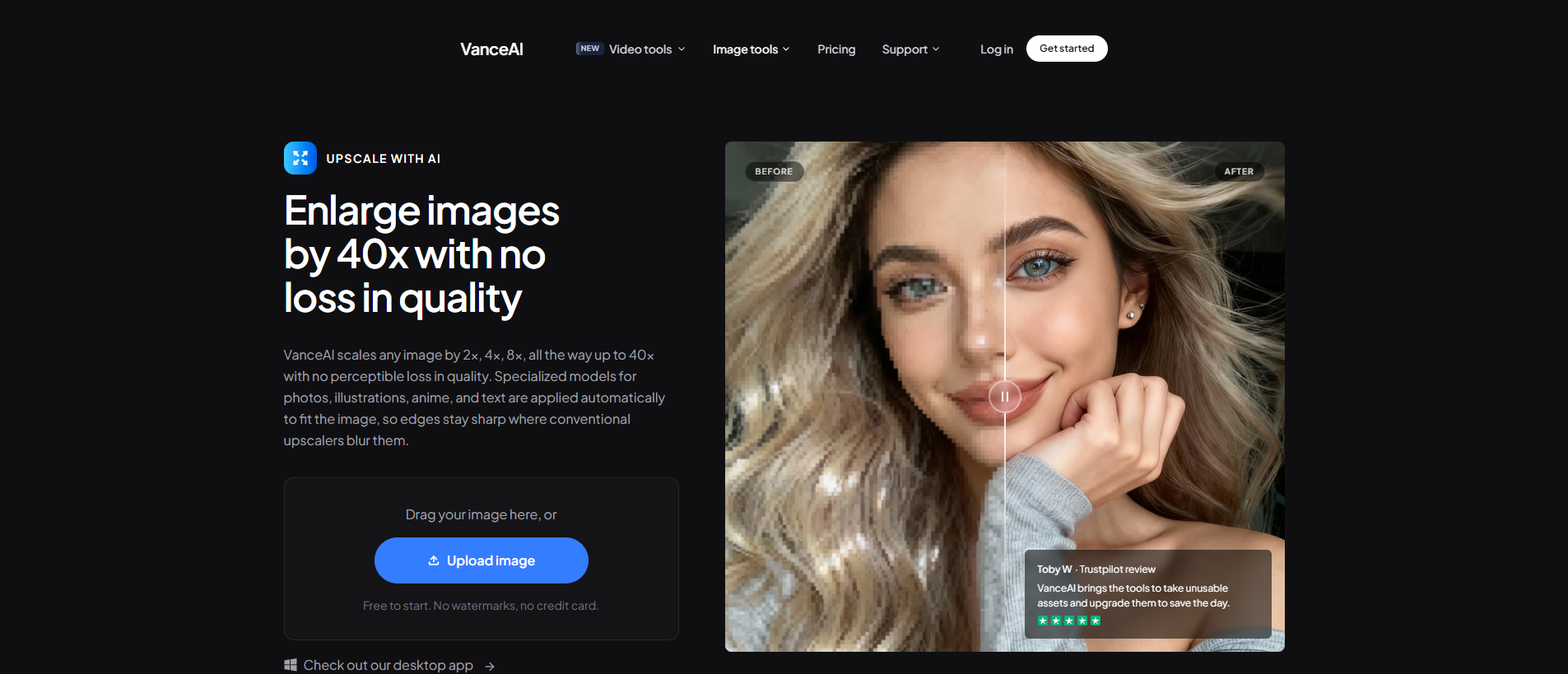
Price: Credits-based. Starter plan from $4.95 / 100 credits, Standard $9.95 / 200, Pro $24.95 / 500, Premium $44.95 / 1000. First 3 images are free, unused credits roll over up to 5×.
AI Image Enlarger is the centrepiece of the VanceAI line-up for users who want to zoom into a picture without losing clarity. Unlike a browser zoom, which simply stretches existing pixels, the enlarger reconstructs detail with AI: edges stay sharp, faces stay recognisable, and text inside the image remains readable even at 4× or 8×. You can start at 2× and scale up to 8× online (the desktop software goes higher). All VanceAI applications delete uploaded images within 24 hours of processing, which keeps the workflow privacy-friendly. For users who need to print a poster, examine a small detail, or zoom into a low-resolution photo for forensic work, this is the lossless option.
Pros:
- Real detail reconstruction (not just bilinear stretching)
- Online and desktop versions
- Output up to 8× in browser
- Automatic 24-hour deletion of uploads
Cons:
- 2 GB upload cap per file in browser
- Cap of 8× online (desktop offers higher)
- Free tier limited to 3 images
2. VanceAI Image Enhancer (Quality Recovery Before Zoom)
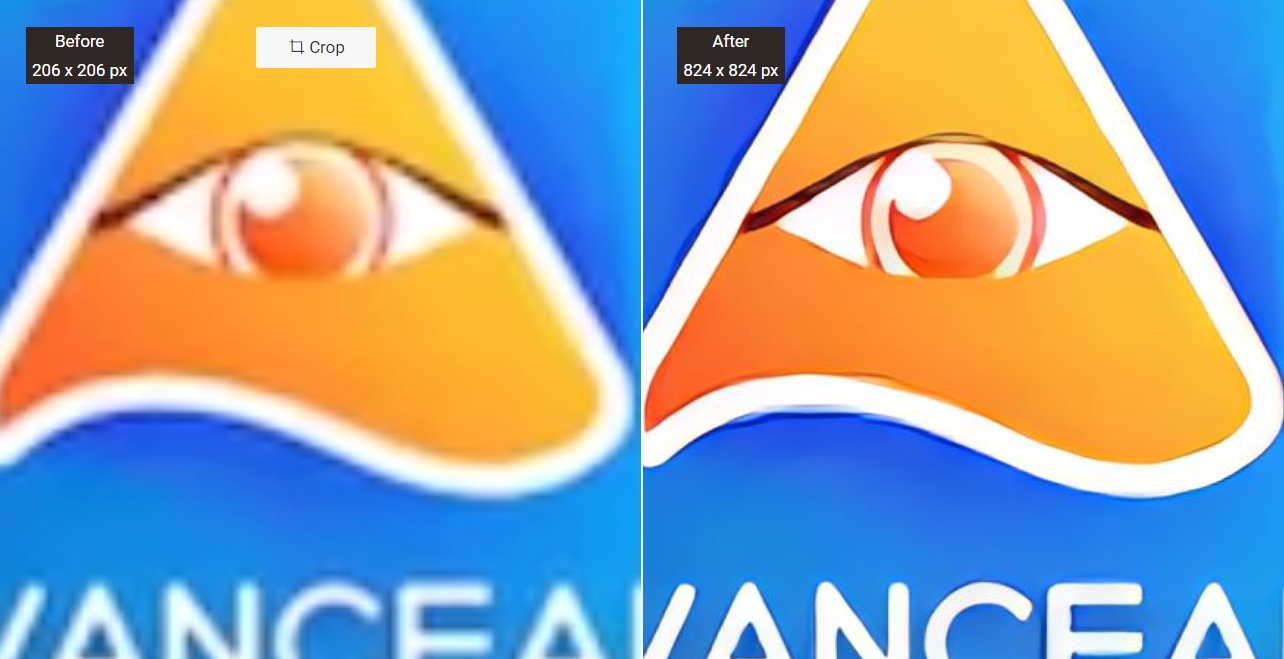
Price: Same credits-based pricing as the rest of the VanceAI line-up. Three images free, $9.95 starter pack.
When you're working with a blurry, low-light, or compressed source photo, zooming before enhancement just magnifies the noise. VanceAI Image Enhancer sits in front of the zoom workflow: AI-based denoising, sharpening, and detail recovery clean the source first, then you zoom into the cleaner version. It runs in any browser with no install, and the workspace also exposes the rest of the VanceAI toolkit (BG remover, retoucher, colorizer) for related fixes. This is the right pick when the source image quality is the bottleneck, not the zoom itself.
Pros:
- Great results on degraded photos
- AI Super HD workflow useful for portraits
- Online and desktop versions
- Same VanceAI account as the Image Enlarger
Cons:
- Limited free use (3 images)
- Workspace can occasionally lag on very large uploads
- Best paired with the Image Enlarger for full zoom workflow
3. EasyZoom
Price: 2 GB free tier with a standard watermark; paid plans start at approximately $19 / month.
EasyZoom is a browser-based photo zoom editor that doubles as a lightweight image-management workspace. It handles a wider range of formats than most browser tools—JPG, PSD, HDR, PNM, and more—and the higher paid tiers unlock even more file types. The collage maker is a nice add-on (non-commercial use only), and the tool supports annotation, watermarking, and instant sharing. Use EasyZoom when you want zoom plus a few light editing utilities in the same browser tab without committing to a full photo editor.
Pros:
- Wide format compatibility
- Built-in collage maker
- Automatic processing
- Browser-based, no install
Cons:
- Free tier carries a watermark
- Collage limited to non-commercial use
- Paid plans get expensive for casual users
4. LunaPic
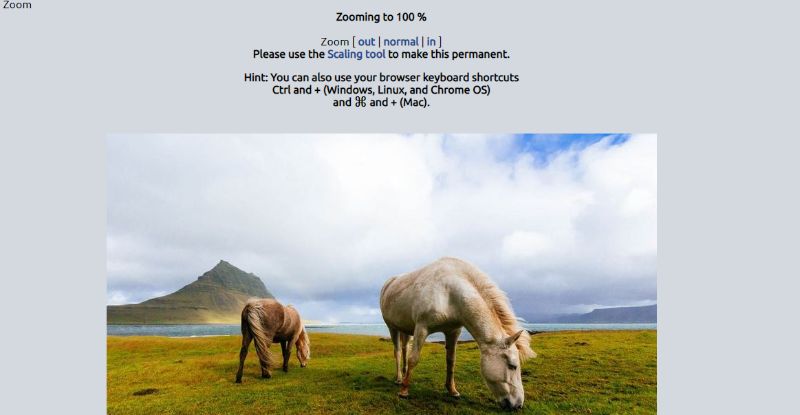
Price: 100% free to use—LunaPic has no paid tier.
LunaPic is the old-school online image editor that still holds up in 2026. The interface looks like Windows Paint with a thousand extra menus, but underneath it offers a full editing stack that rivals desktop apps. The zoom workflow is simple: upload an image or paste its URL, click zoom in / zoom out, then right-click to download or use keyboard shortcuts. There's no account requirement and no ad wall.
Pros:
- 100% free, no account
- Comprehensive editing stack
- Long-running, stable web app
Cons:
- Dated UI takes getting used to
- Constant clicking can be slow
- Processing time noticeable on large files
5. Ultimate Image Zoomer
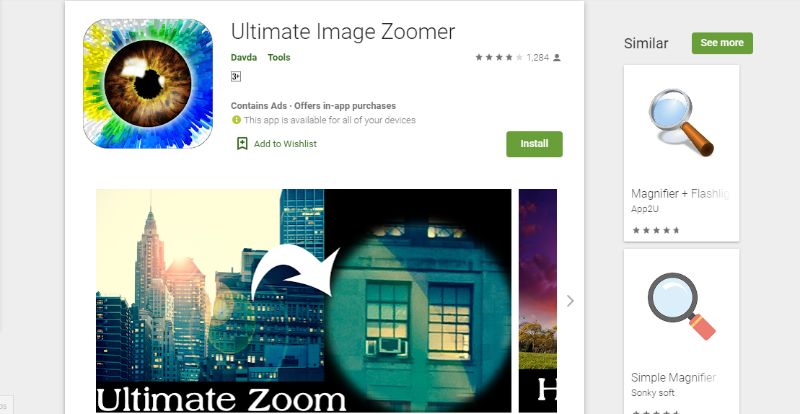
Price: Free with in-app purchases and ads.
Ultimate Image Zoomer is the mobile-first option in this list. It's an Android-only photo zoomer that opens any photo from your camera roll, lets you zoom and pan, and saves the framed view as a screenshot. The newly-added grid layout overlay is genuinely useful for photographers framing prints. It's not as feature-rich as the browser tools, but for "I'm on my phone and need to zoom into one detail right now" it's the fastest path.
Pros:
- Mobile-native experience
- Automatic processing
- Free to download and save zoomed crops
- Grid layout overlay for photographers
Cons:
- Ad-supported
- In-app purchases for power features
- Android only, no extra editing tools
How to Choose Between These 5 Photo Zoom Editors
Pick the VanceAI Image Enlarger when you need lossless zoom—posters, prints, forensic detail, or zooming into a low-resolution screenshot. Pick the VanceAI Image Enhancer when the source image is the problem (blurry, noisy, compressed). Pick EasyZoom when you want browser-based zoom with extras like collage and annotation. Pick LunaPic when you need a free, no-account tool with broad editing capability. Pick Ultimate Image Zoomer when you're on a phone and just need a fast zoom-and-save.
Conclusion
Photo editing in 2026 offers more zoom options than ever before. Even basic tasks like zooming in on a picture without losing detail now have AI-powered solutions that go far beyond what the browser's built-in zoom can do. With an AI-based photo zoom editor such as the VanceAI Image Enlarger, you can do real upscaling work as well as get crystal-clear zoom views without pixelation. The mobile option in this list is the handiest pick when you're away from a computer, and the browser tools (EasyZoom, LunaPic) cover the middle ground when you want quick zoom plus some light editing. Any of these five tools can be used for free—at least for a trial—before you decide what fits your workflow. And once your zoom is set, an image quality enhancer can take the same photo further by sharpening detail and recovering colour, giving you a polished result rather than just a zoomed one.
FAQs
How do I zoom in on a picture and make it clear online?
Use an AI image enlarger rather than the browser's default zoom. Browser zoom just stretches existing pixels and produces blur. An AI tool like the VanceAI Image Enlarger reconstructs detail at 2×, 4×, or 8×, so edges, text, and faces stay sharp at the new resolution. Upload your photo, pick the scale factor, let the AI process, and download the cleaner enlarged version.
How do I zoom and enhance a photo online at the same time?
Two passes work best. First, run the source image through a photo enhancer (denoise, sharpen, fix exposure) so the AI has clean inputs to work from. Then run the cleaned photo through an image enlarger at 2× or 4×. The two-step workflow gives much better results than asking a single tool to do both jobs at once.
What's the best free photo zoom editor in 2026?
LunaPic if you want a complete free browser editor with zoom built in. The VanceAI Image Enlarger if you want true AI lossless zoom and you're OK with the first three images being free and the rest credits-based. For mobile, Ultimate Image Zoomer is the fastest free option.
Can I zoom into a picture without losing quality?
Yes, but only with AI tools that reconstruct detail. Standard zoom (browser, default photo viewer) only stretches existing pixels, so quality drops fast. AI image enlargers analyse the photo content and add plausible detail at the new resolution, which is why a 4× AI enlargement looks sharper than a 4× browser zoom.
What scale factor should I pick when zooming a photo with AI?
Pick the smallest factor that meets your output need. 2× is enough for most online uses, 4× for print, 8× for large posters or forensic detail work. Going to 8× when you only needed 2× wastes credits and sometimes introduces synthetic detail that wasn't in the original.
Does AI photo zoom work on faces?
Yes, and faces are one of the best-supported use cases. AI image enlargers trained on face data reconstruct eyes, mouths, hair, and skin texture more accurately than they do random backgrounds. For portrait zoom, the VanceAI Image Enhancer's face-mode option produces especially clean results.
Is it safe to upload personal photos to online zoom tools?
It depends on the tool's data policy. VanceAI deletes uploaded photos within 24 hours of processing and runs HTTPS end-to-end, which is the standard you should look for. LunaPic and EasyZoom have their own policies—read each one before uploading anything sensitive. For genuinely confidential photos, use a desktop version of the tool that runs locally.
Photo zoom editor vs image upscaler — what's the difference?
A photo zoom editor lets you pan and zoom into an existing image at its current resolution; the output is the same resolution as the input. An image upscaler actually increases the resolution of the photo using AI, so a 1000×1000 input becomes a 4000×4000 output with reconstructed detail. For viewing detail you want the zoom editor; for printing or reuse you want the upscaler.
How does VanceAI's credit system work?
VanceAI uses credits across the whole product line, so Image Enlarger and Image Enhancer share the same balance. Monthly plans run from Starter $4.95 / 100 credits, Standard $9.95 / 200, Pro $24.95 / 500, Premium $44.95 / 1000. Unused credits roll over up to 5×, the first three images on each tool are free, and there's a 7-day money-back guarantee if you've used less than 10% of your credits.
Can I batch-zoom multiple photos at once?
The browser tools in this list (VanceAI, EasyZoom, LunaPic) process one image at a time online. For batch zoom or batch upscaling, switch to the VanceAI desktop software, which queues multiple files and applies the same settings to each one. Ultimate Image Zoomer is mobile only and one-at-a-time by design.


