
"Free" is the most important — and most misleading — word in online video enhancement. One tool's free lets you download a clean, finished clip; another's stamps a watermark across it; a third caps you at ten seconds of 480p. Before you hand your footage to a free online enhancer, it's worth knowing which kind of free you're getting, because it decides whether you end up with a usable video or a locked preview. This guide breaks down the three flavors of free, what to check before you trust a tool, and how to get a genuinely clean result — starting with the free trial credits in VanceAI Video Upscaler.
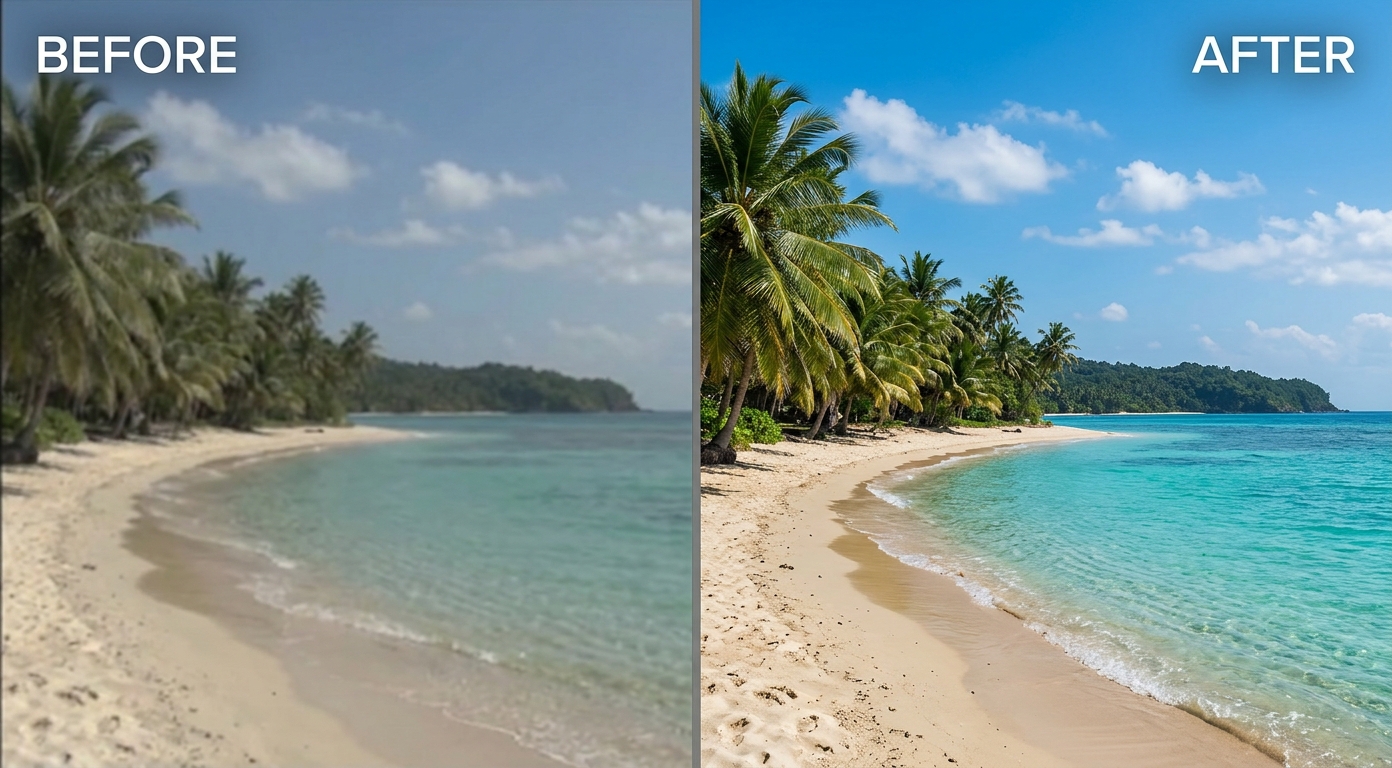
The Three Kinds of "Free" Online Video Enhancer
Not all free is equal, and the differences matter more than the marketing suggests.
1. Free trial credits. You get a limited amount of real processing — enough to enhance short clips and, importantly, download them clean. After that you pay as you go. This is the most honest free, because the output isn't crippled; you're testing the actual tool.
2. Free with a watermark. You can enhance and even export, but a logo is baked across the result. It's fine for judging quality, useless for anything you'll actually publish. The "free" is really a demo.
3. Free with hard limits. No watermark, but strict caps — a few seconds only, low resolution only, or a daily quota. Useful for a tiny clip, frustrating for real work.
The kind you want depends on your goal, but for most people the free trial credits model is the one that produces something you can actually use. Where enhancement itself fits into the bigger picture, the video quality enhancer guide maps the full landscape.
Slider Tools vs AI Reconstruction: Why Some Free Enhancers Barely Help
There's a deeper divide beneath the "kinds of free," and it's the one that most affects your result: what the tool actually does. Free online enhancers fall into two camps.
Slider-based tools adjust brightness, contrast, saturation, and a basic sharpen. They're genuinely free and quick, and for a clip that's only slightly flat they can help. But they can't add detail — so on a low-resolution or heavily compressed video, nudging contrast just makes the flaws more visible. Many of the "free video enhancer" pages you'll find are this type, which is why people try one, see little improvement, and conclude free tools don't work.
AI reconstruction tools use trained models to rebuild real detail, denoise, and upscale. This is the kind that actually rescues soft, grainy, or low-resolution footage — and the kind worth spending free credits on. The practical test is simple: if a tool only shows you sliders, it's the first camp; if it processes your clip through a model and comes back with detail that wasn't visible before, it's the second.
Understanding this split saves a lot of disappointment. When people say "I enhanced my video for free and it didn't do anything," they almost always used a slider tool on footage that needed reconstruction.
What to Check Before You Trust a Free Online Enhancer
Uploading footage to a free tool is a small leap of faith, so run through four quick checks first:
- Can you export clean? The fastest tell of a good free tier is a watermark-free result — or at least a clean preview, so you're not judging quality through a logo.
- What are the caps? Look for resolution and length limits before you invest time enhancing a clip you can't finish.
- Is the quality real? Free doesn't help if the enhancement is weak. Test on a genuinely soft or noisy clip, not a clean one that would look fine either way.
- What happens to your file? Your footage is uploaded to a server. Reputable tools process and delete; check the policy if the clip is sensitive.
A free tool that passes all four is rare, which is why the clean-preview approach is worth seeking out.
How to Test a Free Video Enhancer in Five Minutes
Before you commit real footage — or real money — to any tool, run a quick, honest test. It takes about five minutes and tells you more than any review.
- Pick your hardest clip, not your easiest. Choose something genuinely soft, noisy, or low-resolution. A tool that improves a clip that already looked fine has told you nothing.
- Enhance a short section. Use the free tier or a preview on a five-to-ten-second slice, so you're not waiting on a full render to learn the answer.
- Compare at 100%, not zoomed out. View the result at full size, ideally side by side with the original. Softness hides when a video is small on screen.
- Watch it in motion. A still frame can look great while the moving clip shimmers or flickers. Play the enhanced section before you trust it.
- Check for the "free" catch. Is the output watermarked? Capped in resolution? That's where a tool's free tier really ends.
A tool that clears this test on your worst footage is one worth using; one that stumbles here won't magically do better on the full clip.
The Cleanest Free Start: VanceAI Video Upscaler
On the "can you export clean" test, VanceAI Video Upscaler is built the right way: new users get free trial credits with no credit card, and a five-second preview costs a single credit and comes out without a watermark. So the free experience isn't a locked demo — it's the real output, which is exactly what you need to judge whether a tool is worth it.
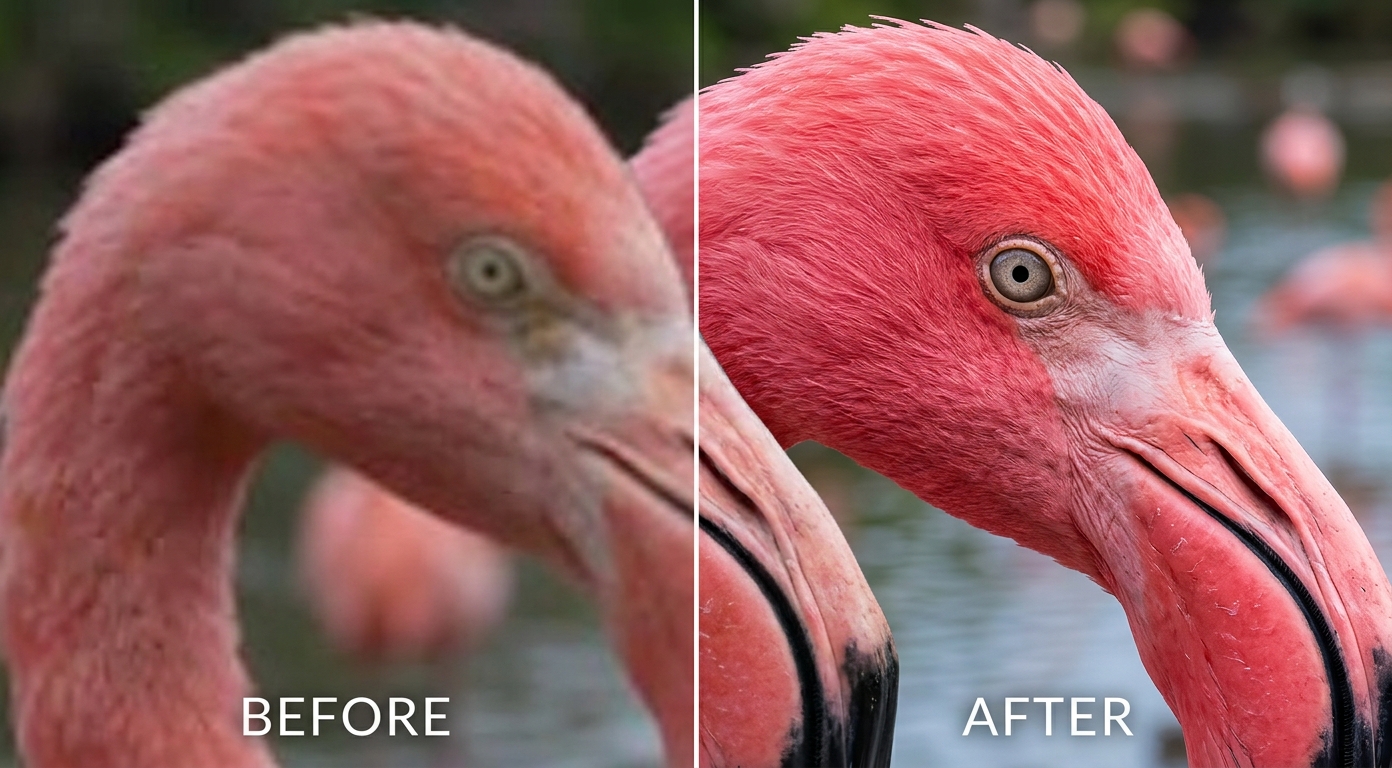
Because it runs in the browser and processes on VanceAI's servers, "free" also means "no install and no GPU" — your laptop's specs don't limit what you can enhance. You pick one of two models — Nexa for everyday clips or Cineva for standard-definition sources — and it denoises, sharpens, and upscales in a single pass, up to 4K. After the free credits, it stays pay-as-you-go rather than a subscription, so there's no recurring charge and nothing that expires and locks you out of work you started.
How to Enhance Video Quality Online Free, Step by Step
- Open VanceAI Video Upscaler in your browser and upload an MP4 or MOV (up to 10GB, up to 4K input) — no download, no signup wall.
- Pick Nexa for a modern clip or Cineva for an older, standard-definition one.
- Set your target resolution or scale, then spend one of your free trial credits on the five-second preview.
- Check the preview — it's clean, so what you see is what you'll get. Confirm the quality is worth finishing.
- Process the clip and download the MP4; it stays available for three days.
The point of the free credits is exactly this: to reach a clean, watermark-free result before any decision about paying.
Free Online vs Free Open-Source: An Honest Comparison
There's a second meaning of "free" worth knowing about: fully free, open-source software. The best example is Video2X, which is genuinely free forever with no watermark and is excellent on anime — but it's a different trade entirely. It runs on your own machine, so it needs a capable GPU and some technical setup, and it renders slowly; the full picture is in our Video2X review. So the real choice is between free online (instant, no install, limited free amount) and free local (unlimited but requires a GPU and setup). For most people who just want a clip enhanced in the next few minutes, free online wins; for a tinkerer with a strong GPU and time, open-source is unbeatable on cost.
Common Free Enhancement Jobs
Most people reaching for a free online enhancer are trying to do one of a handful of things. Here's what to expect from each.
Cleaning up social clips. Videos downloaded or re-shared from Instagram, TikTok, or WhatsApp are usually compressed and soft. Free AI enhancement — clearing compression and bumping resolution — handles these well, since the underlying detail often survives under the blocking.
Reviving old family footage. Standard-definition clips from old phones or camcorders are a low-resolution job. A free trial is a great way to test whether an SD-focused upscale brings them to a watchable near-HD before you process a whole archive.
Quick fixes before posting. A slightly soft clip you want to sharpen before uploading to YouTube or a portfolio. A free preview confirms the improvement in seconds.
One-off personal projects. A wedding highlight, a school project, a single interview — jobs where a subscription makes no sense but you still want a clean result. Pay-as-you-go credits after a free trial fit this perfectly.
For all of these, free credits get you to a finished clip without a commitment; the only jobs where free runs out are high-volume or ongoing ones, where a paid plan simply becomes cheaper per clip.
A Word on Privacy and Your Footage
"Online" means your video is uploaded to a server, so a quick privacy sanity check is worth it — especially for anything personal or sensitive. Use a reputable service, and look for a clear policy on how long files are kept and when they're deleted; VanceAI, for instance, returns your MP4 and keeps it available for three days rather than indefinitely. If a clip is genuinely private and you'd rather it never leave your device, that's the one case where a local, open-source tool has the edge — at the cost of the setup and GPU it requires. For everyday footage, a well-known online tool with a stated retention policy is a reasonable trade for the convenience.
Getting the Most From a Free Tier
- Spend credits on the preview, not the whole clip first. Confirm quality on a five-second sample before committing your free processing to a long render.
- Start from the best source. Free or paid, a cleaner original enhances better — don't waste free credits on a clip you can still reshoot cleanly.
- Don't over-process. Restraint beats cranking every option; over-sharpening looks worse whether you paid for it or not, and the how to enhance video quality guide covers keeping the result natural.
- Match the model to the footage. General for modern clips, SD-focused for old sources — the right model gets more from each free credit.
When Free Stops Making Sense
Free is the right starting point for almost everyone, but it's worth knowing when it stops being the best value — because "free" and "cheapest" aren't always the same thing.
Free tiers are ideal for testing, one-off clips, and low volume. The moment you're enhancing footage regularly — a creator processing weekly uploads, a small business cleaning up a catalog of product videos — the math shifts. Watermarked free tiers force a paid upgrade anyway; hard-capped ones make you split long clips awkwardly; and even a generous free-credit model eventually runs out. At that point the question isn't "free or paid," it's "which paid model wastes the least."
This is where a pay-as-you-go structure quietly wins over a subscription for many people. A subscription charges every month whether you enhance one clip or a hundred; credits charge only for what you actually process, and if they roll over, nothing is lost to an unused month. So the honest progression for most users is: start on free credits to prove the tool, then move to pay-as-you-go for occasional work, and only consider a subscription if your volume is genuinely high and constant.
The takeaway is to use free for what it's best at — trying tools and finishing the occasional clip — without assuming it's the cheapest option once your needs grow. Match the pricing model to how often you actually enhance video, and you'll never overpay.
Frequently Asked Questions
How can I enhance video quality online for free?
Use a browser-based enhancer with free trial credits. VanceAI Video Upscaler gives new users free credits with no credit card, and a clean five-second preview costs one credit, so you can enhance a clip and see the real, watermark-free result before paying — all online, with nothing to install.
Is there a free online video enhancer with no watermark?
Yes. VanceAI's free trial credits and one-credit preview produce a clean, watermark-free result, so you can judge quality honestly. Many free enhancers watermark their output, so look specifically for a tool that lets you export — or at least preview — without a logo.
What's the catch with free online video enhancers?
Usually one of three things: a watermark on the output, hard limits on resolution or clip length, or a small amount of free processing before you pay. The underlying quality is often good; the limits are where "free" ends. Knowing which limit a tool uses tells you whether its free tier fits your job.
Are free online video enhancers good enough?
The best ones use the same AI models as their paid tiers, so quality is genuinely strong — the constraint is the free limits, not the enhancement itself. Test on a truly soft or noisy clip to judge, and prefer a tool with a clean preview so you're not evaluating through a watermark.
Is it safe to enhance video online for free?
With a reputable tool, yes — but your footage is uploaded to a server for processing, so use a well-known service and check how it handles your files. For sensitive footage, a local open-source tool keeps everything on your machine, at the cost of setup and a GPU.
Free online tool or free open-source software — which should I use?
Free online (like VanceAI) is instant, needs no install, and gives you a limited amount of free processing — best when you want a result now. Free open-source (like Video2X) is unlimited and costs nothing, but needs a capable GPU and technical setup and renders slowly — best for tinkerers with time and hardware.
Can I enhance video quality free on my phone?
Yes, if the tool is browser-based. Because VanceAI processes in the cloud, you can enhance a clip from a phone or tablet using your free trial credits, without a powerful device.
How much video can I enhance for free?
It depends on the tool's free tier. VanceAI gives new users free trial credits — enough to test and enhance short clips — and a preview costs just one credit. Beyond the free amount, you pay only for what you process, with no subscription.
Do free online enhancers reduce quality?
A good one improves quality, not reduces it. The thing to avoid is a tool that only adjusts sliders (contrast, brightness) rather than reconstructing detail — those can't rescue genuinely low-quality footage and may not help much at all. AI reconstruction tools with a clean preview are the ones worth your free credits.
What formats can I upload to a free online enhancer?
VanceAI Video Upscaler accepts MP4 and MOV files up to 10GB with input up to 4K, and returns an MP4 — the most widely compatible formats, so the result plays almost anywhere.
Why didn't a free enhancer improve my video at all?
You probably used a slider-based tool on footage that needed reconstruction. Adjusting contrast and brightness can't add detail, so on a low-resolution or heavily compressed clip it does little. Switch to an AI reconstruction tool — one that runs your clip through a model rather than just showing sliders — and the difference is usually obvious.
How do I test a free video enhancer before trusting it?
Run it on your hardest clip, not your easiest. Enhance a short section, view the result at 100% next to the original, play it in motion to check for shimmer, and confirm the output isn't watermarked or capped. A tool that passes on your worst footage is one worth using.
Is a free trial or a fully free tool better?
It depends on volume. A free trial (like VanceAI's credits) gives you clean, capable output for occasional clips, then pay-as-you-go. A fully free open-source tool (like Video2X) is unlimited but needs a GPU and setup. Occasional users are better off with a trial-plus-credits model; high-volume tinkerers with hardware favor open-source.
Can I enhance a long video for free?
Free tiers are best for short clips; a long video usually exceeds the free amount. Test the tool on a short section first with your free credits, and if the quality is right, process the full clip — paying only for what you use, which for a one-off is far cheaper than a subscription.
Do I have to create an account to enhance video for free?
It varies by tool. Some free enhancers make you sign up before you can export, while others let you start immediately. VanceAI's free trial credits require no credit card, so you can reach a clean result quickly. If a "free" tool demands payment details up front, treat that as a sign the free tier may be more limited than it looks.
Will a free online enhancer keep my video's audio?
Video enhancers focus on the visuals, and most preserve the original audio track when they return the file. If audio matters, confirm the exported clip still has sound after processing — and keep your original as a backup, which is good practice with any online tool regardless.
The Verdict
You can absolutely enhance video quality online for free — the trick is choosing a tool whose "free" gives you a clean, usable result instead of a watermarked demo or a hard cap. VanceAI Video Upscaler does that with free trial credits and a watermark-free preview, so you see the real output before spending anything, while free open-source tools like Video2X trade setup and a GPU for unlimited local processing. Know which kind of free you need, spend your credits on the preview first, and enhance from the cleanest source you have.