
Making a video clearer sounds like it should be one button, and with the right tool it nearly is — but only if you start from the right approach. A clip can look unclear because it's low-resolution, because it's blurry, because it's grainy, or because it's been over-compressed, and the fastest way to a clear result is a tool that handles all of those at once instead of making you guess. This guide keeps it simple: what to do, step by step, to make any video clearer — using VanceAI Video Upscaler, which runs in your browser, needs no install, and is free to try.
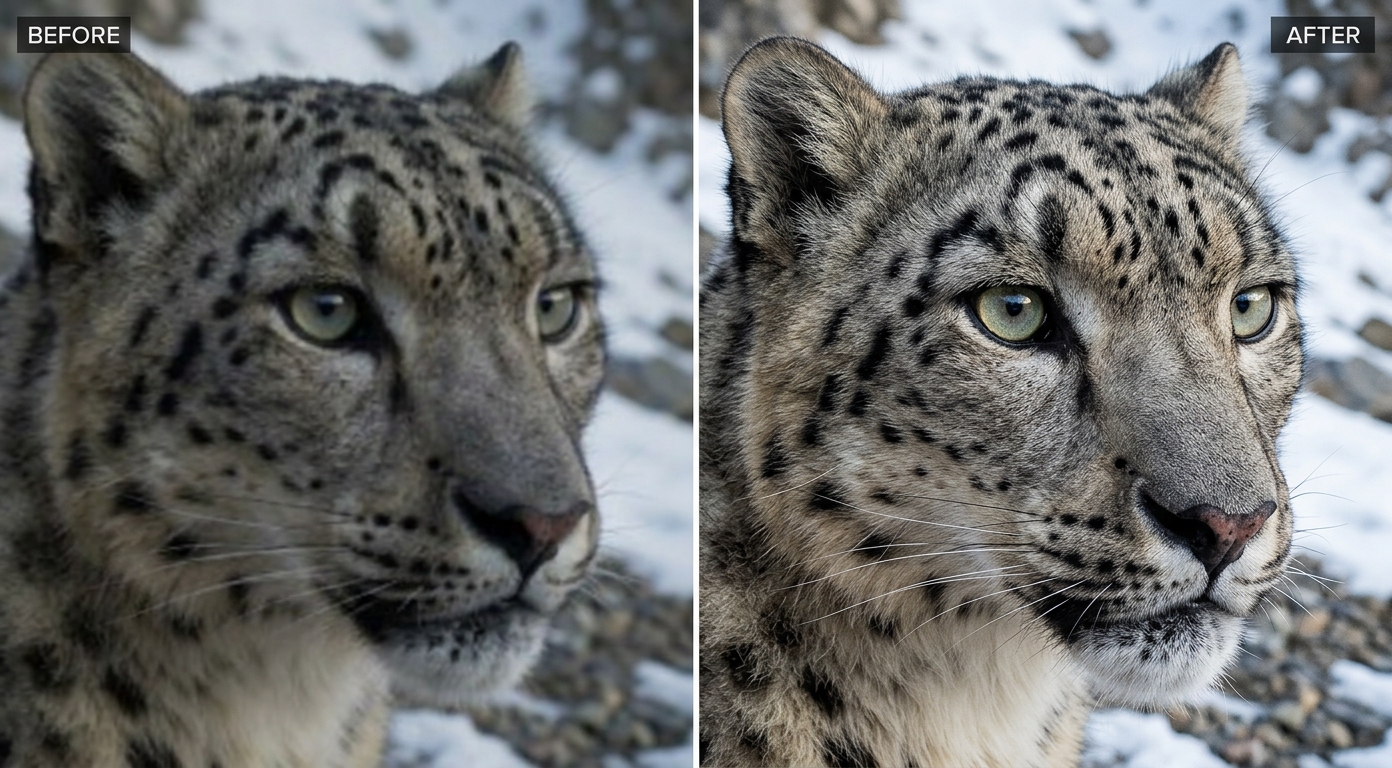
Why Videos Look Unclear (the Short Version)
You don't need a deep diagnosis to make a video clearer, but it helps to know that "unclear" usually comes from four things stacked together: low resolution (too few pixels), blur (soft focus or motion), noise (grain from low light), and compression (blocky damage from sharing or re-uploading). Most real clips have more than one at the same time — a phone video that's low-resolution and compressed, say. That's why a single AI pass that treats all four beats fiddling with separate tools. If you want the full breakdown of causes and fixes, the video clearer guide covers each one in depth.
The Simplest Way to Make a Video Clearer
VanceAI Video Upscaler is built for exactly this: it reconstructs detail, sharpens, removes noise, and clears compression while it raises resolution — all in one render. Because it runs in your browser and processes on VanceAI's servers, how clear your video gets doesn't depend on how powerful your computer is, and there's nothing to install to clean up a single clip.
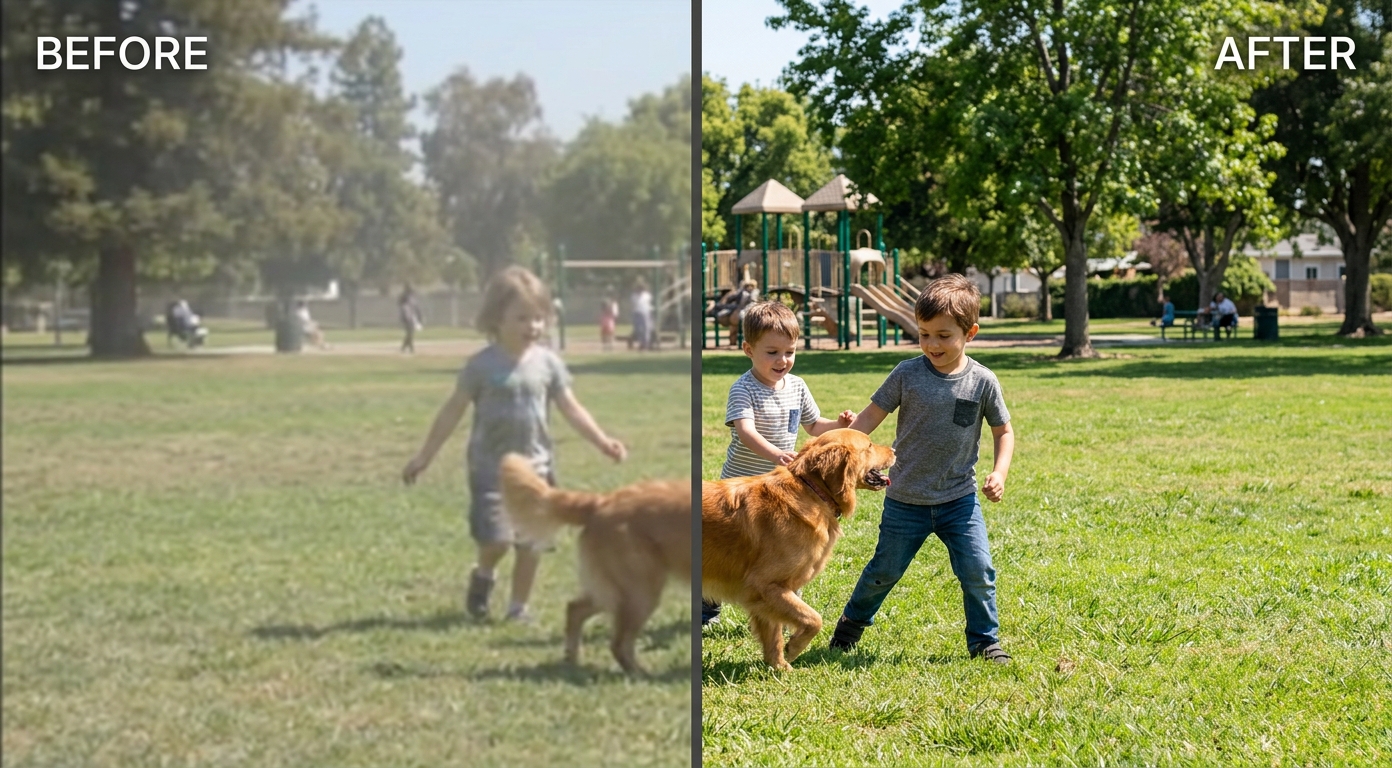
You make one choice — the model. Nexa is for everyday, modern footage and takes it up to 1080p or 4K, which fixes the "too small and soft" problem at the same time. Cineva is for genuinely old, standard-definition clips (up to 1024×540 input), applying a fixed 4× upscale to bring VHS-era footage toward HD. A single credit runs a five-second preview so you can see the clip get clearer before you commit to the whole thing. It handles MP4 and MOV up to 10GB and 4K input, returns an MP4 that stays available for three days, and new users get free trial credits with no credit card.
How to Make a Video Clearer, Step by Step
- Open VanceAI Video Upscaler in your browser and upload your clip (MP4 or MOV, up to 10GB and 4K input).
- Choose the model: Nexa for a modern clip, Cineva if the source is old and standard-definition.
- Set the output higher than the source — 1080p or 4K — so there's room for the recovered detail.
- Run the one-credit preview and look at the part that was unclear to confirm it now reads sharp.
- Process the full clip and download the clearer MP4.
That's the whole process — no timeline, no settings maze, no guessing which filter to use.
Making Different Kinds of Video Clearer
The approach adapts slightly depending on where the clip came from.
Phone videos. Usually a mix of softness, low light, and messaging-app compression. Upscaling gives the tool room to work, and denoising helps clips shot indoors or at night. Much of the improvement comes from clearing the compression a shared clip picked up.
Old home videos. These are a resolution problem at heart, so Cineva's SD-focused 4× upscale is the right tool — aim for clean, watchable near-HD rather than forcing 4K from a tiny source.
Downloaded or re-shared clips. Compression is the main culprit. Clearing the blocking plus a modest resolution bump does most of the work, since the original detail often survives underneath.
Screen recordings. Typically soft from a low bitrate; upscaling to a clean 1080p or 4K restores readable text and sharp UI. When resolution is the core issue, the how to upscale 480p to 1080p guide shows that specific jump.
Making a Video Clearer in an Editor — and Why It Falls Short
You can reach for a video editor's sharpen slider, and for a clip that's only slightly soft it might help a little. But an editor's sharpening only boosts contrast along existing edges — it can't add resolution or rebuild detail that isn't there, so on a genuinely low-resolution or compressed clip it just makes the flaws crisper. Push it and you get bright halos and plastic-looking skin, which is a different kind of unclear. Use an editor for color and trimming; use an AI tool for the actual clarity work of upscaling, deblurring, denoising, and de-blocking.
Tips for the Clearest Result
- Target a higher resolution. Leaving a cleared clip at its original small size means it re-softens on any real screen. Go to 1080p or 4K.
- Don't over-sharpen. Natural definition beats crunchy halos every time.
- Denoise before sharpening. On grainy footage, cleaning the noise first stops it from being amplified.
- Export at a healthy bitrate. A clear clip saved with a low bitrate can go soft again on export.
- Preview first. A five-second sample tells you exactly how clear the result will be before you process the whole file.
Common Mistakes That Keep a Video Unclear
Most failed attempts come down to a handful of avoidable errors:
- Sharpening a low-resolution clip instead of upscaling it. Sharpening can't add missing pixels — it just makes the softness crunchier. Upscale first.
- Skipping denoise on grainy footage. Sharpening or upscaling noisy video amplifies the grain into blotches. Clean it first.
- Leaving the output at the original small size. A cleared clip that stays low-resolution re-softens on any big screen. Target 1080p or 4K.
- Cranking every setting to maximum. Over-processing looks worse than the original softness. Aim for natural.
- Expecting the impossible. Detail that was never captured can't be rebuilt cleanly, so a severely damaged clip has a ceiling.
Avoiding these is most of the battle, and it's why matching the fix to the problem — the heart of the broader video quality enhancer approach — beats reaching for a single slider.
Frequently Asked Questions
How do I make a video clearer?
Use an AI tool that upscales, sharpens, denoises, and clears compression in one pass. Upload the clip to VanceAI Video Upscaler, pick Nexa or Cineva, set a higher output resolution, and preview the unclear area to confirm it reads sharp before exporting. It runs in the browser with no install.
Can I make a video clearer for free?
Yes, to start. VanceAI Video Upscaler gives new users free trial credits with no credit card, and a five-second preview costs one credit, so you can make a clip clearer and confirm the result before paying. It runs online, so there's nothing to download.
How do I make a blurry video clear?
Use AI deblurring paired with a resolution bump if the clip is also small. Keep sharpening restrained so you get natural definition instead of halos. A tool that deblurs, denoises, and upscales together handles the common mix of causes in one step.
Can AI really make a video clearer?
For resolution, blur, noise, and compression, yes — AI reconstructs realistic detail rather than just adjusting contrast, so it genuinely improves soft and low-quality footage. It can't invent detail that was never captured, so severe damage has a ceiling, but most everyday clips get noticeably clearer.
How do I make a low-resolution video clearer?
Upscale it. AI upscaling adds the pixels the clip is missing while reconstructing detail, turning a small, soft video into a genuine 1080p or 4K one. This is the single most effective fix when a clip looks fine on a phone but unclear on a bigger screen.
Why is my video still not clear after enhancing?
Either the source is very low-quality, so it's near its ceiling, or you under-set the tool — try a higher output resolution. If it looks harsh rather than soft, you over-sharpened; dial it back. And check that you picked the model that matches your footage.
Can I make a video clearer on my phone?
Yes, with a browser-based tool. Because VanceAI processes in the cloud, you can make a clip clearer directly from your phone using free trial credits — the heavy work happens on the server, so your device just uploads and downloads.
Do I need editing skills to make a video clearer?
No. Browser-based AI tools are built for exactly this: upload, choose a model, preview, download. There's no timeline or manual settings to learn, which is the main advantage over a traditional editor.
How clear can a video actually get?
It depends on the source. A soft-but-intact clip can look genuinely sharp; a moderately damaged one improves clearly but may keep a trace of the original flaw; a severely degraded clip gets more watchable but not pristine. Judge the result against where it started, and use the preview to set expectations.
Will making a video clearer remove the audio?
No — clarity tools work on the picture and keep the audio track when they return the file. It's still smart to keep your original as a backup and confirm the exported clip has sound before deleting anything.
What's the difference between making a video clearer and upscaling it?
Upscaling specifically raises resolution by adding pixels, while "making a video clearer" is the broader goal that also includes deblurring, denoising, and clearing compression. Modern AI tools do all of these together, so upscaling is usually part of making a video clearer rather than a separate task.
How long does it take to make a video clearer?
With a cloud tool it's quick, because processing runs on remote servers rather than your device. The five-second preview returns almost immediately, which is the fastest way to confirm how clear the result will be before committing to the full render.
Can I make an old, blurry home video clear?
Yes, within limits. Old footage is usually low-resolution, so an SD-focused model that upscales while it sharpens — like VanceAI's Cineva with its 4× scale — is the right approach, paired with denoising for grain. Expect a clean, watchable near-HD result rather than true 4K.
The Verdict
Making a video clearer is simple when you use the right tool: instead of chasing resolution, blur, noise, and compression separately, let one AI pass handle them together. VanceAI Video Upscaler does that in the browser, with a preview that shows exactly how clear your clip will get before you commit — and free trial credits so you can try it on your own footage first. Target a higher resolution, keep the enhancement natural, preview before you render, and make your video clear in a single step.