Introduction
Do you have a massive collection of your favorite movies, but the low quality prevents you from sharing it with others? Whether you are a movie enthusiast or a hobbyist struggling to make a space in the digital arena by posting video clips online, you may need to upscale 480p to 1080p to boost content engagement. Stay tuned to learn about the 5 best offline and online 480p to 1080p upscalers to transform your videos and get sharper, clearer, and high-quality videos in a few minutes.
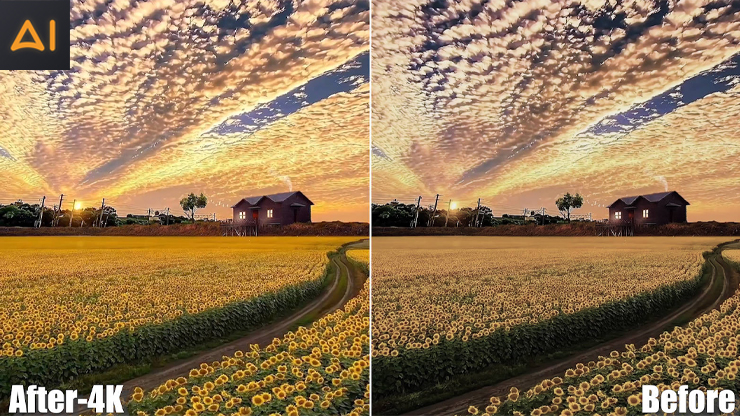
Most households today have advanced equipment and technology to consume digital entertainment in the best way possible. Going by the literal meaning, video upscaling helps upscale or increase the quality and resolution of a low-quality video to higher quality. The higher the video resolution, the better the viewing experience on modern devices. Unlike traditional techniques that require time and effort, many advanced AI-powered 480p to 1080p upscalers are available that analyze individual frames and add the missing pixels to greater clarity while preserving the original quality.
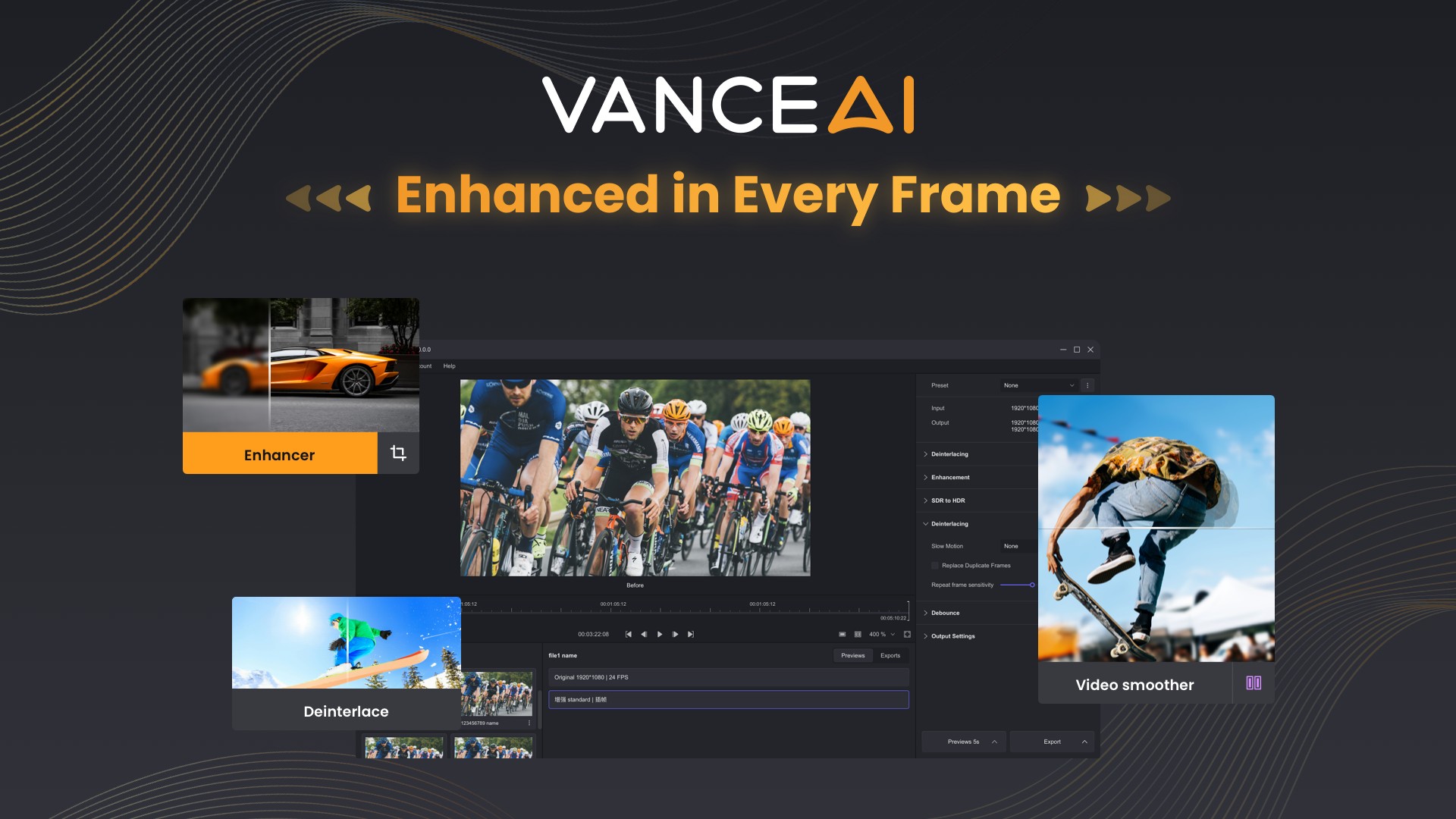
Let us see how upscaling to higher resolutions can benefit you in many ways.
- Improves Clarity and Sharpness: Upscaling improves visual quality, delivering sharper frames and fine-tuned details for a clearer and more wholesome video viewing experience.
- Boost Engagement and Conversions: Upscaling enhances video quality to captivate and retain audience attention, increasing interest in video creativity. Engaging visuals optimize videos for maximum impact, boosting engagement and conversions.
- Qualified for Professional Use: Upscaling old videos makes them suitable for modern and professional standards and valuable for presentations, social media, and other platforms.
- Fun to View: Upscaling makes older or lower-resolution material more fun to watch by increasing the resolution for higher quality. You can watch and enjoy your desired content in HD for a realistic and immersive experience.
- Enhance the Stature of your Brand: Enhance videos with vibrant colors and sharp details to leave a lasting impression, elevating your personal brand image and making your persona reliable and credible.
- Improve IP Recognition and Audience Satisfaction: Upscaling delivers a superior visual experience that aligns with audience expectations. Clear, vibrant videos showcase commitment to quality, enhancing your IP reputation and building a connection with your viewers.
How to Upscale 480p to 1080p in a Web Browser — VanceAI Video Upscaler
VanceAI Video Upscaler
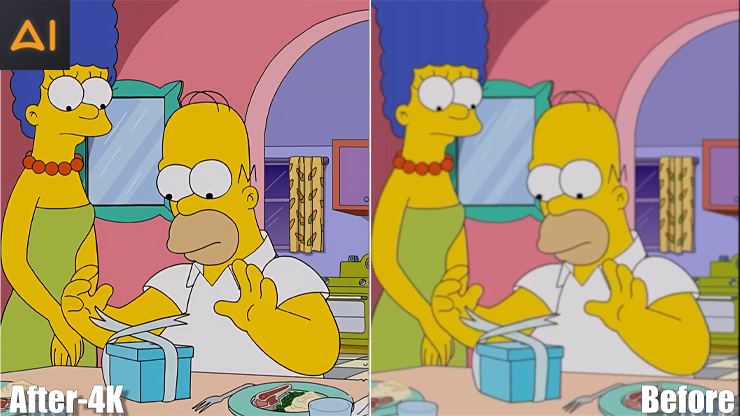
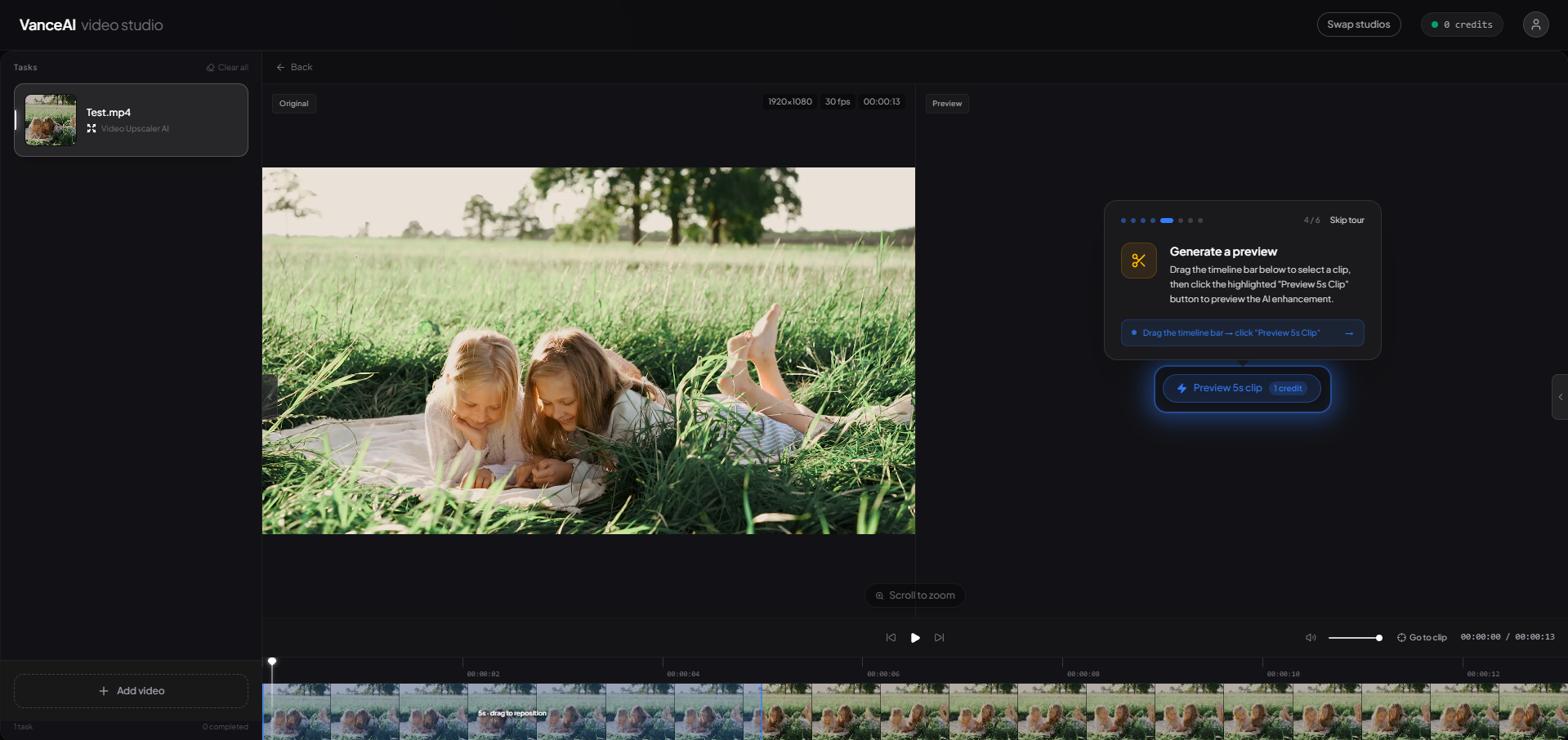
VanceAI Video Upscaler is a browser-based AI video upscaler — no install, no GPU dependency, no version updates. You open vanceai.com/video-upscaler in any modern browser on Windows, Mac, Linux, or Chromebook, drop in your 480p MP4 or MOV, and the cloud GPUs do the heavy lifting. The web app is built around two proprietary AI models: Nexa, a universal enhancement model for everyday footage, and Cineva, optimized for SD restoration with a fixed 4× upscale — perfect for 480p sources. Trusted by 9.8 million artists and creators globally.
Best For: Content creators, hobbyists, and novices who want zero-install 480p → 1080p (or even 4K) upscaling on any modern browser.
Price: Credits-based. Web app plans from vanceai.com/pricing: $4.95 for 100 credits (+100 bonus), $7.95 for 200, $12.95 for 500 credits (Most popular), $17.95 for 1000. Free trial credits on signup, no credit card. 7-day money-back guarantee.
Supported Platforms: Any modern browser on Windows, Mac, Linux, Chromebook — no install
How to Upscale 480p to 1080p with VanceAI Video Upscaler?
Step 1: Open vanceai.com/video-upscaler in your browser, sign in, and click Add video (or drag your 480p MP4/MOV onto the canvas).
Step 2: In the right sidebar, click Video Upscale AI, then choose your model and output resolution. For 480p → 1080p, pick Nexa + 1080p output; for cinematic SD restoration, pick Cineva (fixed 4× upscale).
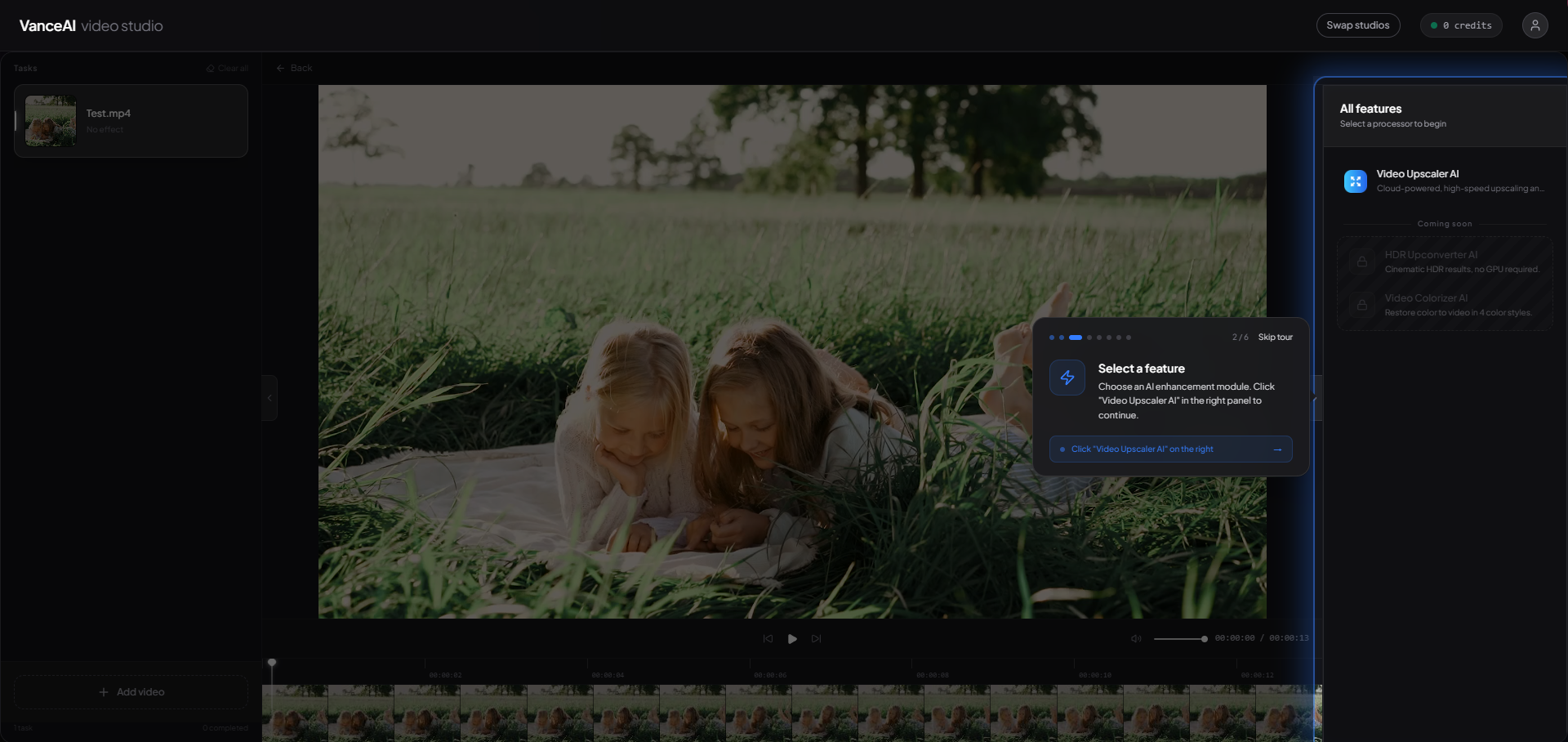
Step 3: Click Generate a preview to verify quality on a 4-second sample, then Start processing for the full clip. When the task shows Processing complete, click Download result to grab the MP4 — files stay in your dashboard for three days.
Pros
- Zero install — runs on any modern browser including older laptops and Chromebooks
- Dual-model architecture (Nexa + Cineva) for everyday vs SD restoration
- Six output resolutions (1×, 2×, 4K, 1440p, 1080p, 720p)
- 4-second preview protects credits during experimentation
- Free trial credits without credit card
Cons
- Browser delivery needs stable internet
- Currently accepts MP4 and MOV only — convert AVI/MKV/WMV first
- Credits-based pricing for heavy batch use can exceed one-time license fees
How to Upscale 480p to 1080p on PC?
AVCLabs Video Enhancer AI
AVCLabs Video Enhancer AI is a professional 480p to 1080p upscaler that boosts low-res videos to high resolutions. It uses neural network deep-learning models to predict missing coefficients and recompose each frame with enhanced quality. It automatically processes the video clips by deblurring, denoising, deinterlacing, sharpening, enhancing color, frame insertion, scratch removal, and more.
Best For: Novices and seasoned editors enhancing vintage home movies or modern web clips on a Windows or Mac workstation.
Price: Free trial. Monthly $39.95, Annual $95.96, Perpetual $299.90.
Supported Platforms: Windows and Mac
How to Upscale 480p to 1080p with AVCLabs Video Enhancer AI?
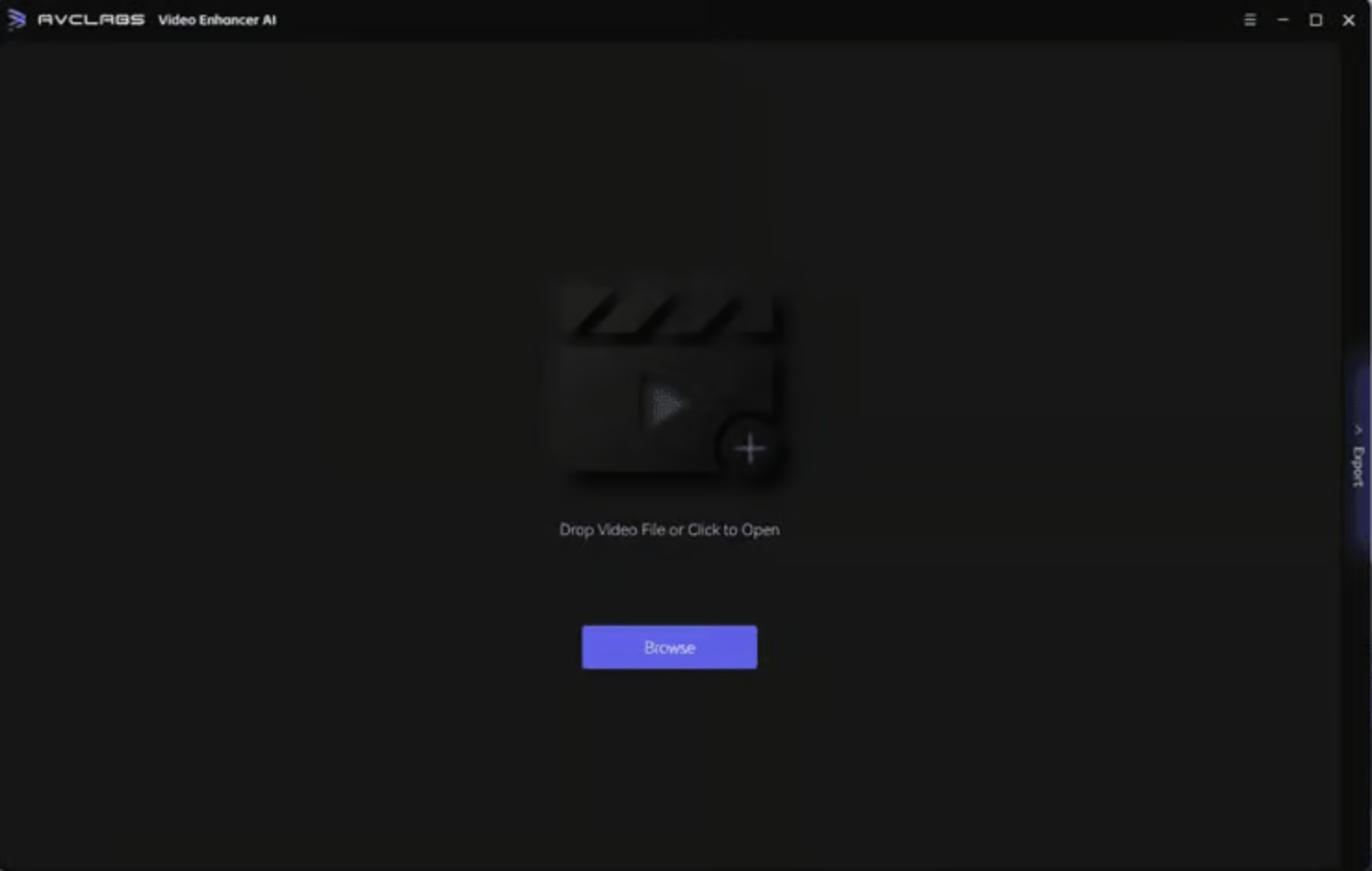
Step 1: Install the upscaler from the official website on your Windows or Mac computer. Run the program and tap the Browse button to select your low-quality video. Select the Upscale to HD Resolution option in Presets.
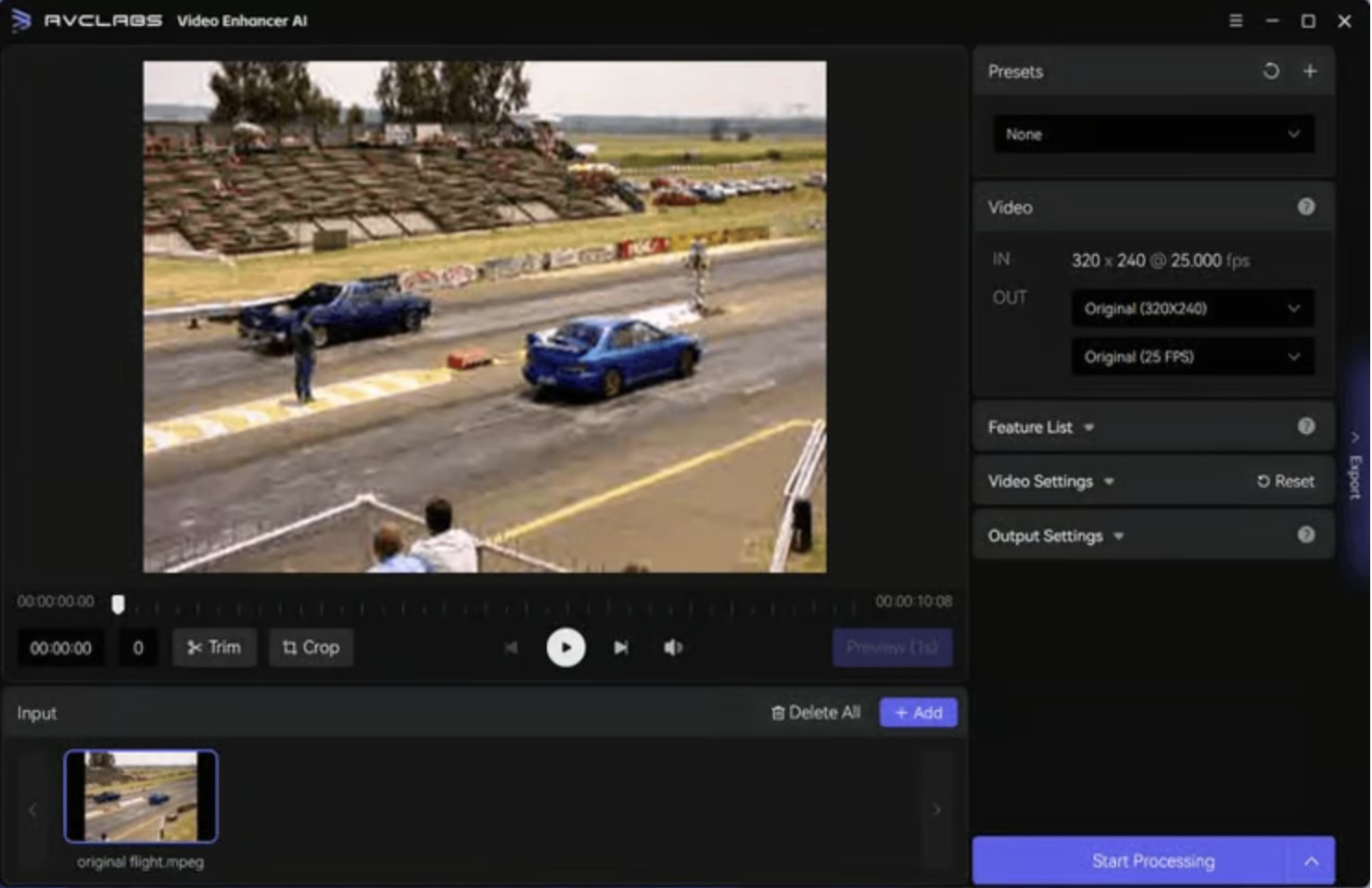
Step 2: In the upper right panel, choose Standard as the AI model. Unfold the output preset and modify the output to FHD (1920 x 1080).
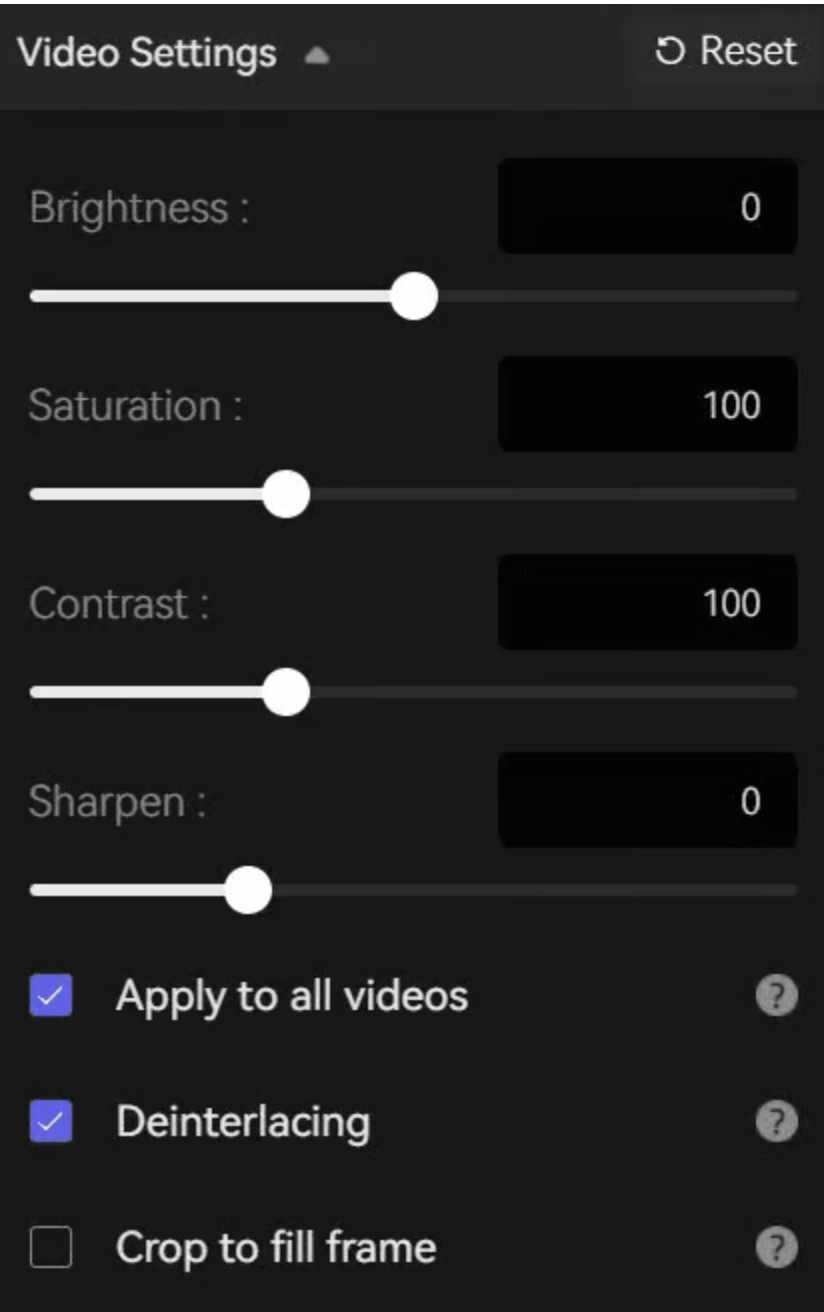
Step 3: Edit to trim the unwanted part frame by frame to save processing time. You can drag the slider to cut or trim your video to the desired length, or enter the start and end of the frames for precise clipping.
Step 4: Tap Start Processing to render your video. After completing the conversion, click Open Folder to check the output video.
Pros
- Uses advanced algorithms to upgrade low-resolution footage to a sharper, more defined output
- Intuitive layout for a smooth workflow, making video enhancement accessible to all
- Handles many video formats, ensuring broad compatibility
- Four AI models with multiple options, including specialized Face Enhancement and AI Colorize models
Cons
- The free trial version has a watermark, and the export length is limited to 30 seconds
- Requires a robust hardware setup; enhancing speed is very slow on low-end hardware
ANYMP4 Free Video Converter Online
ANYMP4 Free Video Converter Online is an online freeware 480p to 1080p upscaler to convert over 300 video formats — MP4, MOV, MKV, AVI, WebM, VOB, MPG, and more — for free at accelerated speed. Besides upscaling, it can extract background music from video footage for loop playback. The program also helps you customize output parameters before conversion.
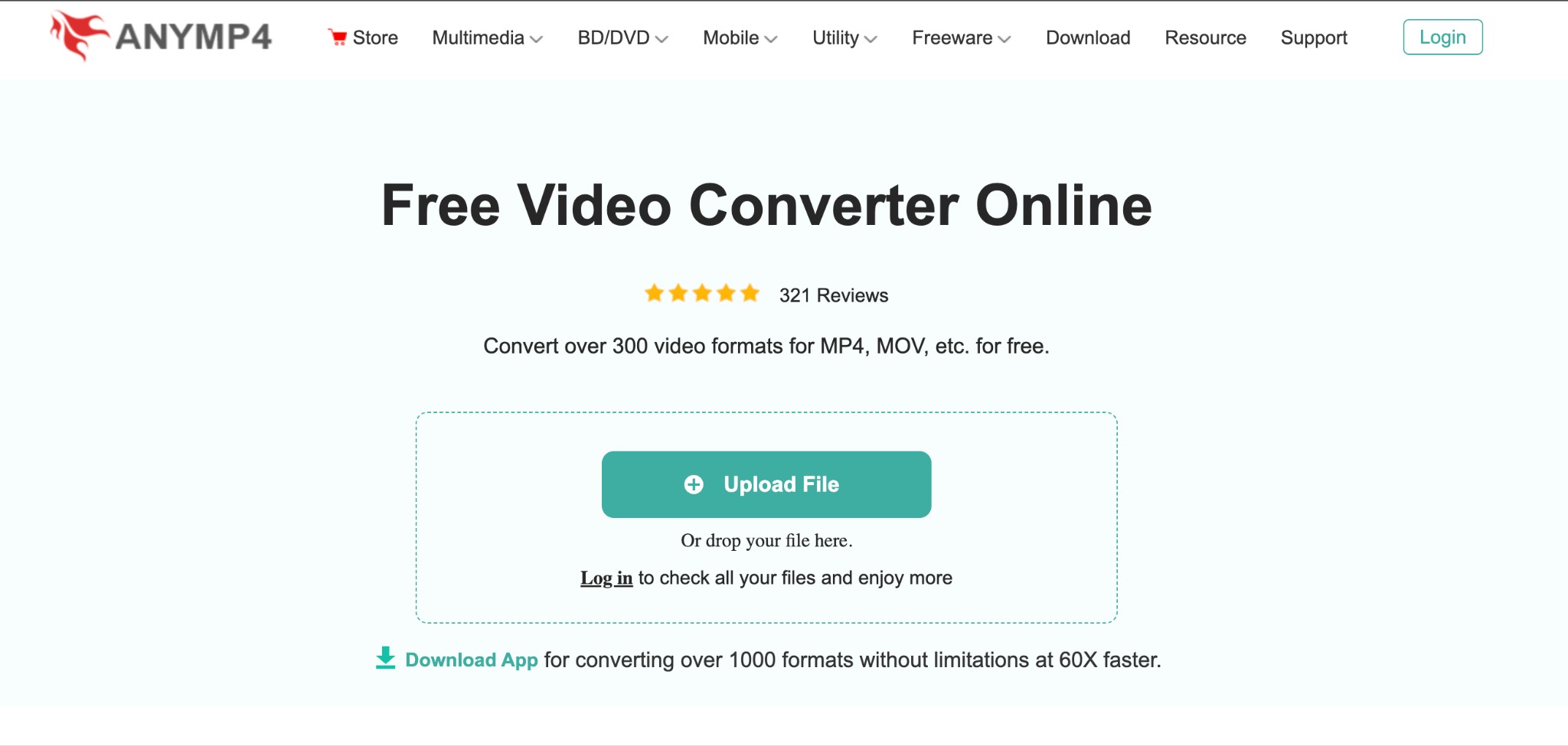
Best For: Beginners and casual editors looking for a free online tool to convert and upscale low-quality 480p videos to 1080p HD without a watermark.
Price: Free version with limited features. Login unlocks slightly upgraded features.
Supported Platforms: Web-based
How to Upscale 480p to 1080p with ANYMP4 Free Video Converter Online
Step 1: Visit the ANYMP4 Free Video Converter Online's official website on your browser.
Step 2: Tap the Upload File button and select the 480p quality video to upscale to 1080p. Alternatively, drag your low-quality video and drop it directly into the designated area.
Note: To access the free version easily, the file size of your uploaded video should be less than 50MB.
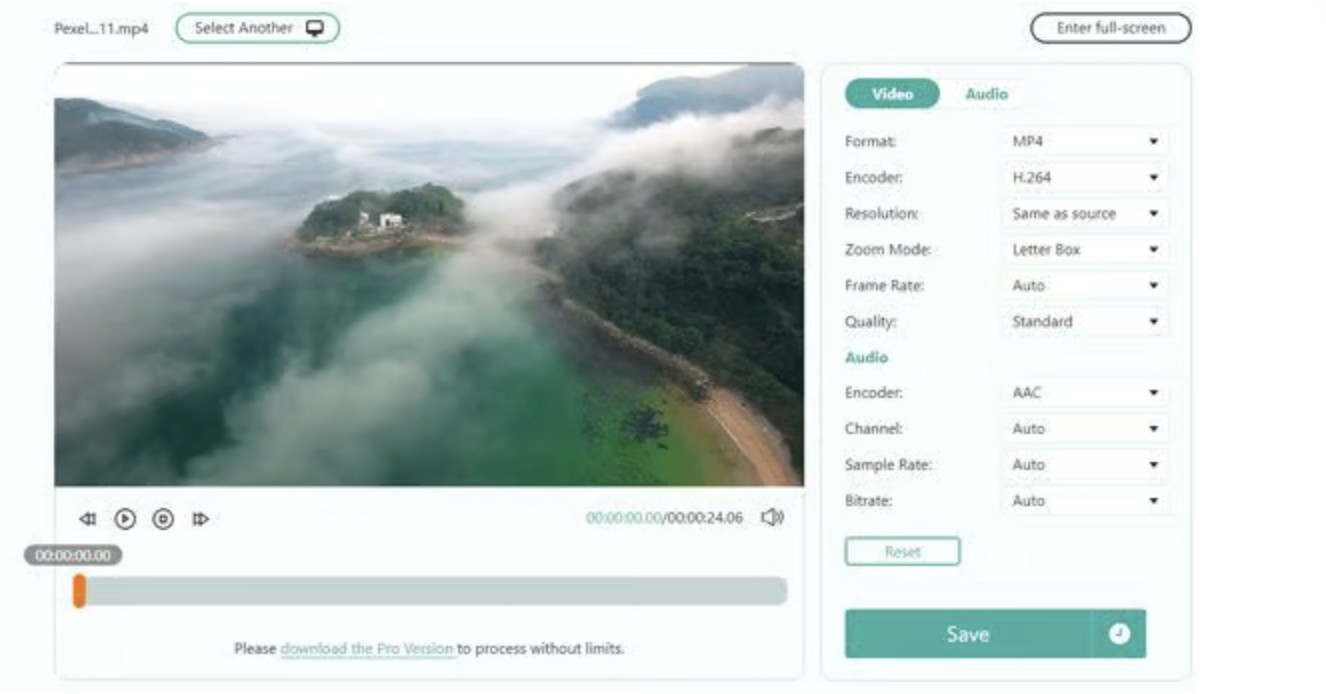
Step 3: Customize the video parameters by selecting the correct settings for video and audio — format, encoder, resolution (1080p), zoom mode, frame rate, quality, audio channel, sample rate, and bitrate.
Step 4: Press the Save button to allow the program to process your video. Depending on the length of your uploaded video, it can take up to a few seconds. Once done, click Download to save your file to local storage.
Pros
- Converts more than 300 video formats including MP4 and MOV — free
- Customize output parameters before conversion
- 100% free with no watermark for Twitter, TikTok, Facebook, YouTube uploads
- Does not collect personal information — respects user privacy
Cons
- Requires creating an account or upgrading to Pro for advanced functionality
- Limited to 2 files per 24 hours under 50 MB
HD Convert
HD Convert is an online 480p to 1080p upscaler that converts and upscales old video clips to higher resolutions without a file size limit. This program enables you to fine-tune parameters for preferred output. It can adjust custom video frame sizes up to 4K on any device — iPhone, Android, Windows, Mac, tablet, and more.
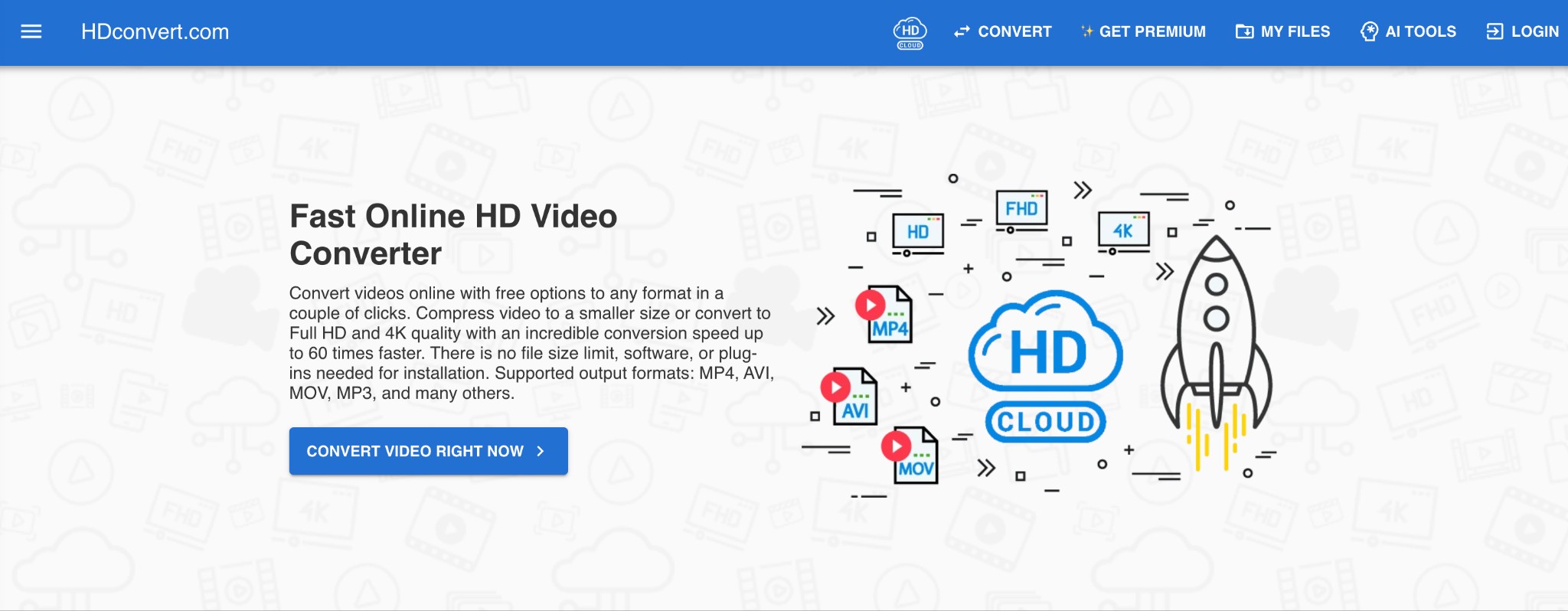
Best For: Beginners and professional creators to convert low-quality videos online with free options to any format while compressing videos to smaller sizes.
Price: Free plan available; Premium Plan at US$9.99.
Supported Platforms: Web-based
How to Upscale 480p to 1080p with HD Convert?
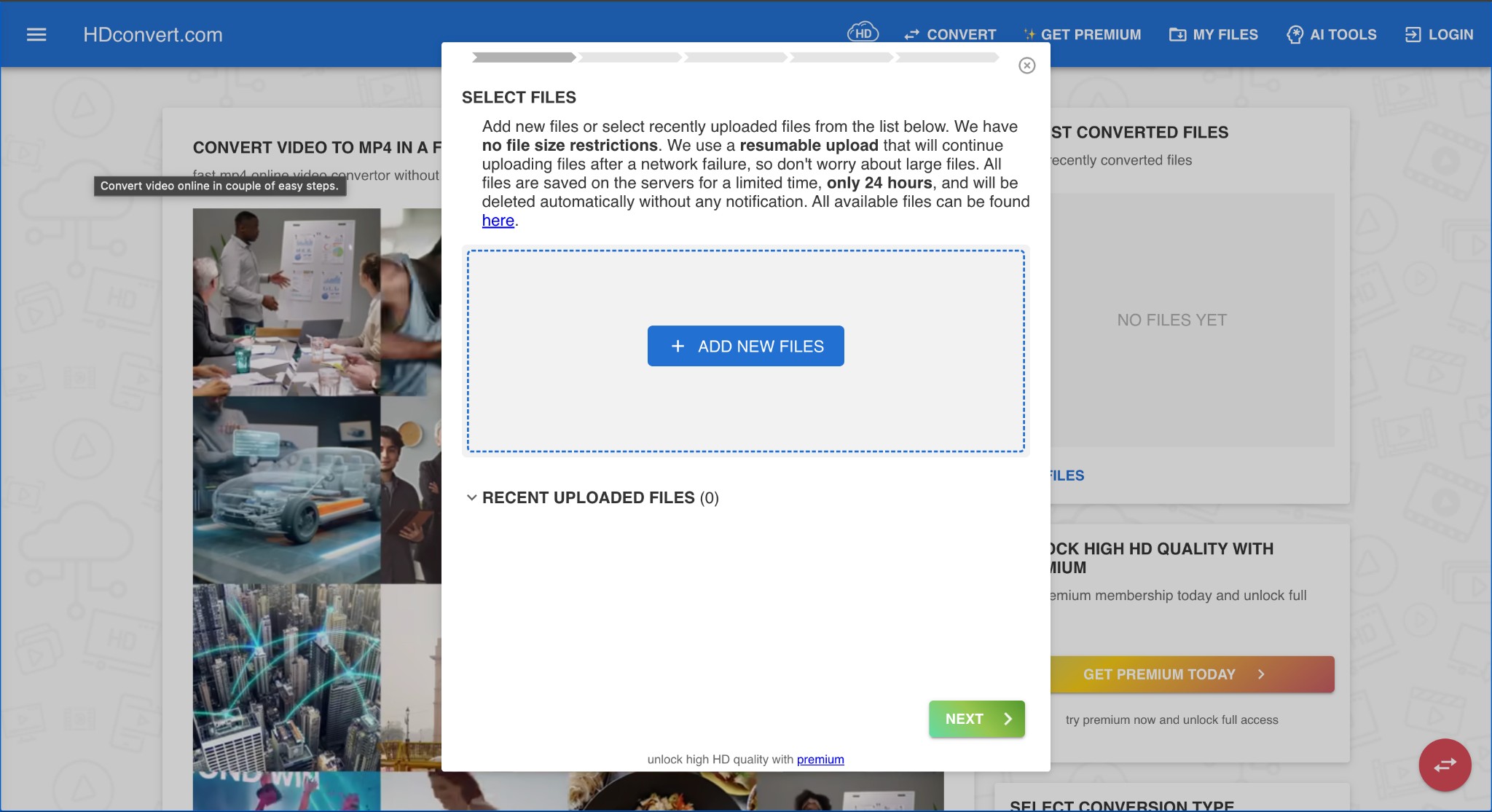
Step 1: Open HD Convert online in your web browser. Click +ADD NEW FILES to upload the low-quality video you want to upgrade to full HD resolution. Tap NEXT >.
Step 2: Select the output file format to convert — MP4 (Most Popular), MOV, AVI, MKV, FLV, or 3GP. Once done, click NEXT >.
Step 3: Choose Full HD 1080p and tap NEXT >. Fine-tune advanced settings — Video Compression Level, Audio Compression Level, Codec, Custom Image Size, Remove Audio Track. Click NEXT > again.
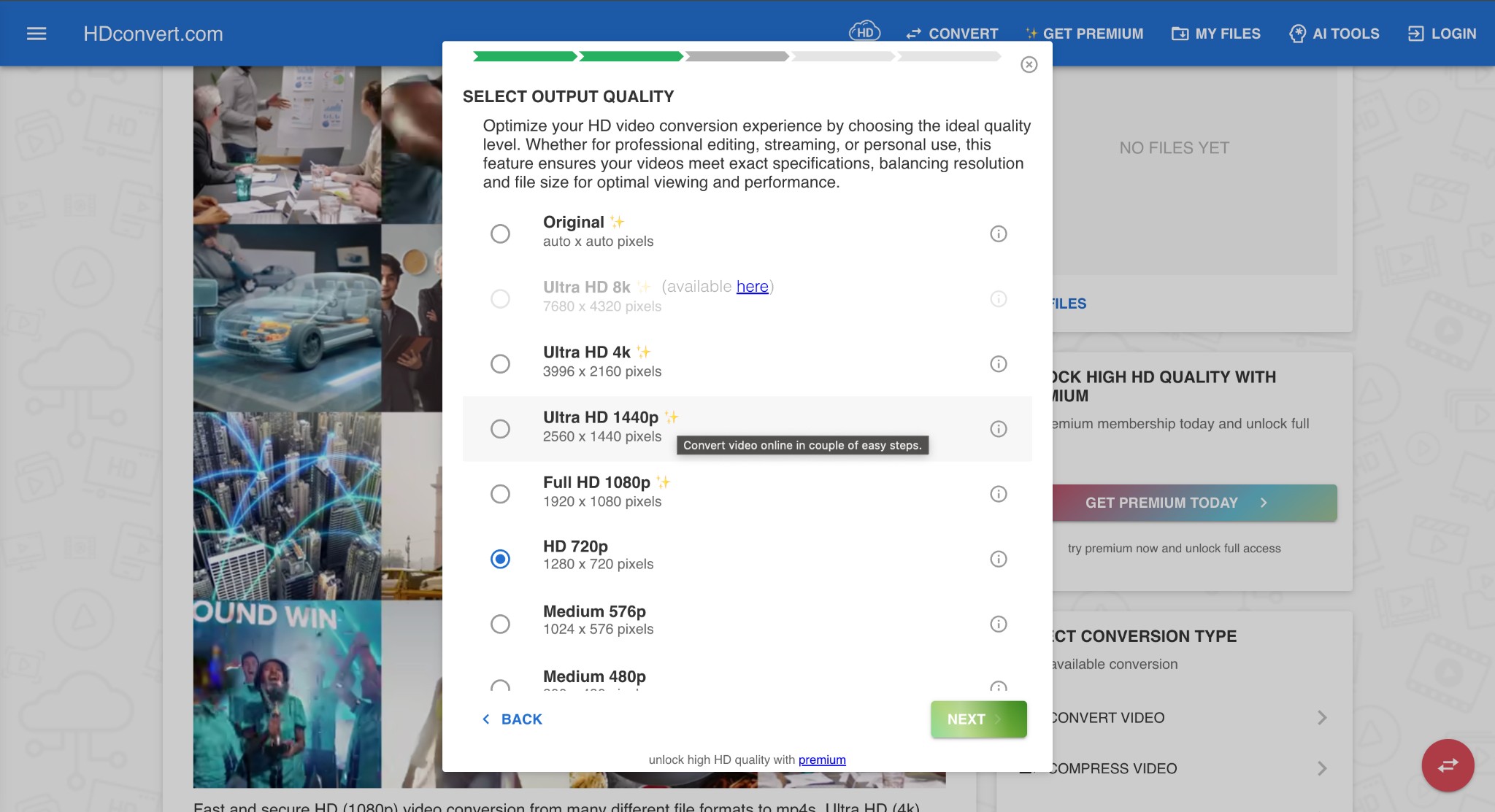
Note: Be careful when changing default parameter values, as this may significantly change the output file.
Step 4: Choose the Premium plan to convert high-quality videos quickly without restrictions. Click NEXT >. Tap GET PREMIUM NOW to join the premium membership. Once done, HD Convert will automatically process your videos. Click Download to save your videos.
Pros
- Easy to use on any device without learning or downloads
- No limit on the uploaded video's file size
- Adjustable custom video and audio bitrate up to 40 Mbit/sec
- Resumable upload option after a network failure
Cons
- Files upscaled with the free version have a watermark
- The free version restricts output to a maximum of 720p (1280 x 720) with limited features
The Bottom Line
Content creators and filmmakers often seek reliable software to upscale 480p to 1080p for sharper and fine-tuned details. We have discussed the 5 best 480p to 1080p upscalers for web, desktop, and online use to upscale your videos without losing quality. For the lowest install friction and consistent output, VanceAI's Video Upscaler wins — Nexa for general use, Cineva for SD-source restoration, and a free trial with no credit card to start. For a deeper guide on improving low-quality footage in general, see how to make a low quality video look better.
FAQs about 480P to 1080P
Does AI upscaling improve video quality?
Yes. Unlike traditional techniques, AI upscalers analyze and add more pixels to improve resolution and quality. They remove noise, reduce shakiness and motion blur, and save time to achieve stunning results.
How long does it take to upscale 480p to 1080p?
The upscaling time depends on the video's file size, the upscaler, and your hardware. A web app like VanceAI processes a one-minute 480p clip to 1080p in minutes thanks to cloud GPUs. Desktop tools can take from several minutes to hours per minute of footage depending on your GPU.
What is the best 480p to 1080p upscaler in 2026?
For most users, a browser-based AI video upscaler offers the best balance of quality, speed, and zero install friction. VanceAI Video Upscaler stands out because it runs as a web app — vanceai.com/video-upscaler — with Nexa for everyday footage and Cineva specifically tuned for SD restoration (480p, 540p input).
What's the difference between VanceAI's Nexa and Cineva models for 480p sources?
Nexa balances speed and quality for general use — output options 720p, 1080p, 1440p, 4K, plus 1×/2×/4× multipliers. Cineva is the cinematic-focused model optimized for SD footage up to 1024×540 with a fixed 4× upscale. Most 480p sources fit Cineva's sweet spot perfectly.
Is there a free way to upscale 480p to 1080p without a watermark?
Yes. VanceAI Video Upscaler gives new web app users free trial credits with no credit card required, and the output MP4 carries no watermark. ANYMP4 Free Video Converter Online is also fully free without a watermark within its size limits.
How much does VanceAI Video Upscaler's web app cost?
Credits-based. From vanceai.com/pricing the web app starts at $4.95 for 100 credits (with a +100 bonus during the limited-time 2× promo), then $7.95 for 200, $12.95 for 500 credits (Most popular), and $17.95 for 1000. PAYG credits stay valid for a year. All plans include a 7-day money-back guarantee.
Can I upscale a 480p video to 4K instead of 1080p?
Yes — VanceAI Video Upscaler's Nexa model supports output up to 4K, and Cineva applies a fixed 4× upscale that takes a 540p source straight to near-2K. Desktop tools like AVCLabs and Topaz can push 480p further (up to 8K or 16K) but the visible quality jump from 1080p to 4K on most consumer screens is more dramatic than 4K to 8K.
VanceAI Video Upscaler (web app) currently accepts MP4 and MOV up to 10GB. AVCLabs and AnyMP4 accept a wider range (MP4, MOV, AVI, MKV, WMV, FLV, more) thanks to their FFmpeg integration. HD Convert supports MP4, MOV, AVI, MKV, FLV, 3GP. Convert exotic inputs to MP4 first if a tool refuses your file.
Yes — AI deblurring is a complementary use case to upscaling, and both Nexa and Cineva models handle it. For severely blurry sources or motion blur from camera shake, see our companion guide on how to make a blurry video clear.
Why does my upscaled 1080p video still look soft?
If your 480p source was already heavily compressed (very low bitrate, high motion compression) or shot in poor lighting, even AI cannot fully recover the missing detail — the model is reconstructing plausible texture, not magically inventing pixels. For best results, choose a higher-quality 480p source when available, and use Cineva (or AVCLabs' Standard model) instead of generic upscaling.