
You film something crisp, post it to TikTok, and it comes back soft, grainy, or blocky — especially on faces and fast movement. That's not your phone; it's a combination of TikTok's aggressive compression and a few settings most people never touch. Making your TikTok quality better comes down to two moves: enhance and prepare your clip before you upload, and flip the in-app settings that quietly cap your quality. This guide covers both, using VanceAI Video Upscaler to sharpen and upscale footage in the browser — no install, free to try.
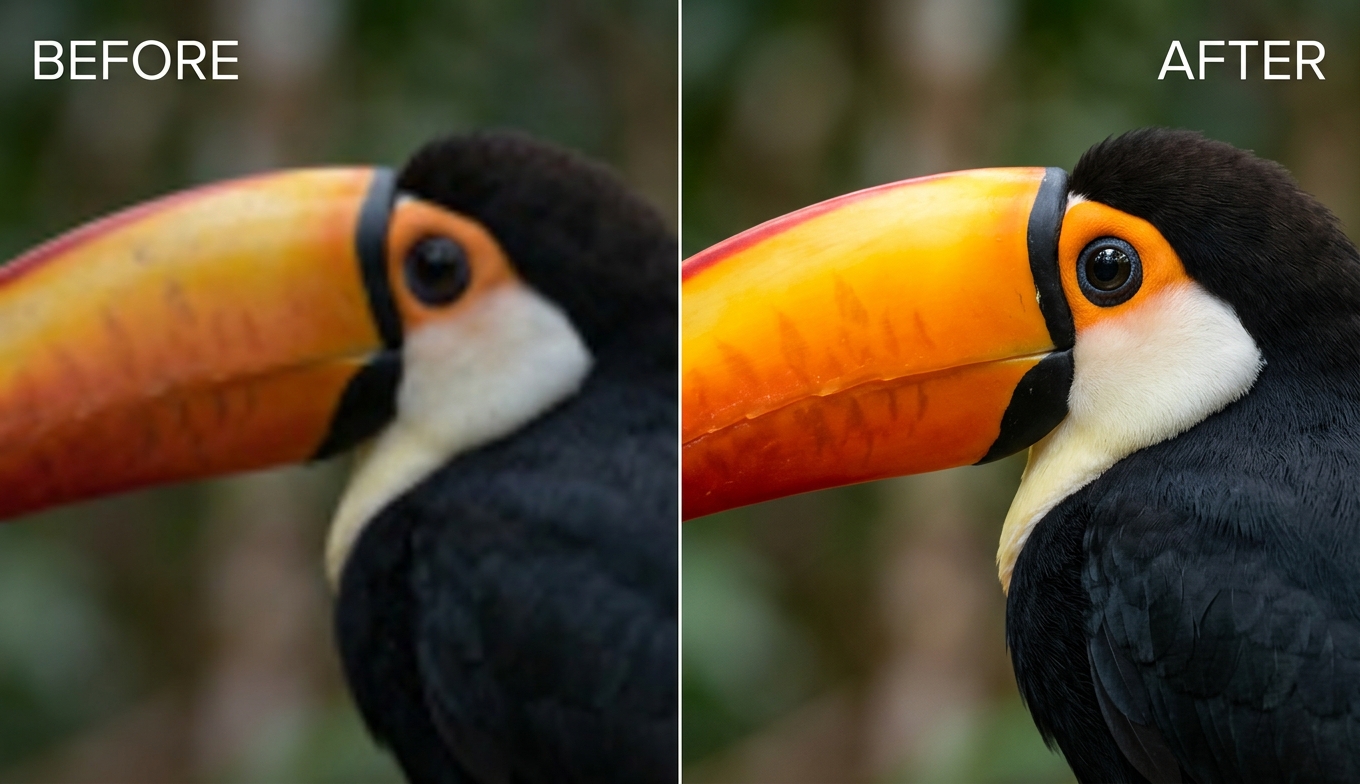
Why TikTok Videos Look Worse Than the Original
TikTok re-compresses every upload so it can stream instantly to millions of phones, and that compression is where your quality goes. But three specific things make it worse than it has to be:
- Uploading a soft or low-resolution source. TikTok's compression is harsher on footage that's already soft, so a weak starting file comes out much worse.
- Filming inside the app. Recording directly in TikTok often produces a more compressed result than filming with your phone's camera app and uploading the high-quality file.
- The "data saver" and upload-quality settings. TikTok has settings that reduce upload and playback quality to save data — and they're not always off by default.
The takeaway is the same one that governs every platform: the cleaner and higher-resolution the file you hand TikTok, the more quality survives its compression. Enhancing before you post is the highest-impact move, and it follows the same logic as the broader how to enhance video quality method.
Fix It Before You Post: Enhance and Upscale Your Clip
The single best thing you can do is upload a sharper, higher-resolution file, and VanceAI Video Upscaler is a fast way to get one. It runs in your browser and processes on VanceAI's servers, so you can prep a clip from a laptop — or a phone — without an app or a powerful device, then upload the enhanced version to TikTok.
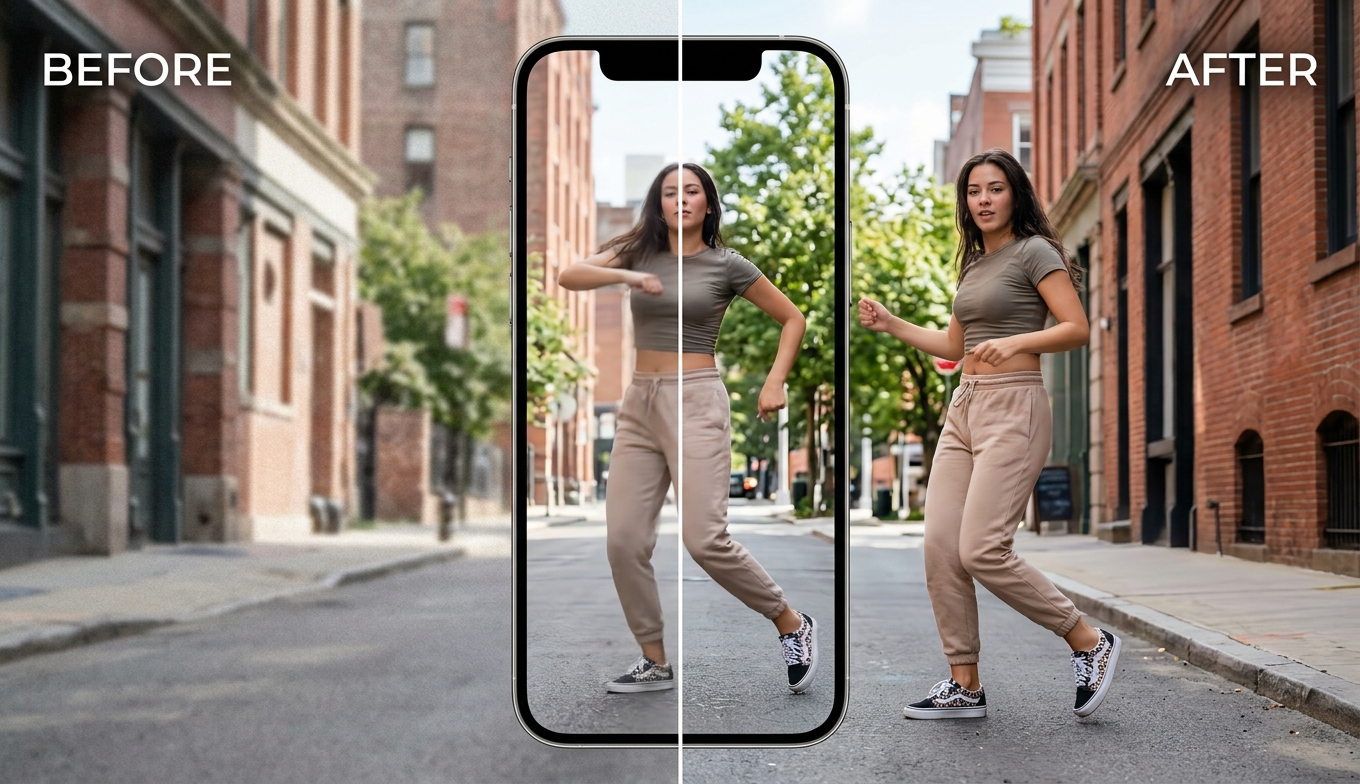
For short-form video, Nexa is the model you'll use — it denoises, sharpens, and upscales modern phone footage up to 1080p or 4K, which gives TikTok's compression a rich source to work from. If you're reviving an older, low-resolution clip for a nostalgia post, Cineva handles standard-definition sources with a fixed 4× upscale. The one-credit preview matters here because TikTok content lives or dies on faces and motion — check those in the five-second sample to confirm the enhancement looks natural before you render and post. It takes MP4 and MOV up to 10GB, returns an MP4, and new users get free trial credits with no credit card.
How to Make Your TikTok Video Higher Quality, Step by Step
- Film with your phone's camera app (not inside TikTok) at the highest resolution it offers — ideally 1080p or 4K.
- Upload that clip to VanceAI Video Upscaler in the browser and choose Nexa (or Cineva for an old source).
- Set the output to a high resolution and run the one-credit preview, checking faces and any fast motion.
- Download the enhanced MP4, then open TikTok and upload it rather than recording in-app.
- Before posting, turn on TikTok's high-quality upload option and turn off data saver (see below).
TikTok's Own Settings That Affect Quality
Even a perfect file can be downgraded by the app's settings, so check these:
- Upload HD / high-quality uploads. Look in TikTok's settings (often under video/playback or in the posting screen) for an option to allow higher-quality uploads, and enable it.
- Data saver. When data saver is on, TikTok lowers both upload and playback quality. Turn it off, at least on Wi-Fi.
- Upload, don't record in-app. Recording inside TikTok tends to compress more than uploading a pre-made high-quality file, so shoot in your camera app and upload.
- Post on a strong connection. A weak connection can push the app toward a more compressed upload.
None of these add quality on their own — they just stop the app from throwing away the quality you prepared.
The Best Export Settings for TikTok
If you edit your clip before posting, the export settings decide how much quality reaches TikTok. Aim for these:
| Setting | Recommended for TikTok |
|---|---|
| Resolution | 1080×1920 (vertical) or higher |
| Aspect ratio | 9:16 vertical |
| Format / codec | MP4 with H.264 |
| Frame rate | 30fps (or 60fps for fast motion), constant |
| Bitrate | High — don't starve it; more data survives compression |
The single most important line there is bitrate: TikTok re-compresses your file, so exporting at a healthy bitrate gives its encoder more to preserve. A 1080×1920 vertical file at a high bitrate is the reliable sweet spot for short-form. If your footage started lower than 1080p, upscale it to fill that frame cleanly rather than letting TikTok stretch a small clip.
Enhancing Different Kinds of TikTok Content
Not every TikTok has the same weak point, so aim your enhancement accordingly.
- Dance and movement. Motion is where compression smears detail most. Upscale for extra resolution and check the preview in motion, not just on a still frame.
- Talking-head and beauty. All about the face — keep sharpening natural so skin doesn't turn plastic under ring lights, and denoise if you filmed indoors.
- Product and unboxing. Crisp texture sells; these are forgiving of stronger enhancement, since fabric, packaging, and text carry hard detail that reconstructs well.
- Screen recordings and gameplay. Usually soft from a low capture bitrate — upscaling and clearing compression restores readable text and UI.
Reviving Old or Low-Resolution Clips for TikTok
A lot of TikTok content is built from older footage — a clip from years ago, a screen recording, a video someone sent you. Uploaded raw, these look rough against the feed. Because the main problem is usually low resolution and compression, upscaling does the heavy lifting: an old 480p clip taken to a clean 1080p, denoised and sharpened, holds up far better after TikTok's re-encode. If your clip is mainly soft or blurry rather than low-res, the video clearer guide covers clearing that specifically before you post.
Common Mistakes That Hurt TikTok Quality
- Recording inside the app. Shoot in your camera app and upload the file instead.
- Leaving data saver on. It silently lowers upload and playback quality.
- Uploading a soft or low-res source. Enhance and upscale first — TikTok punishes weak files.
- Over-sharpening before upload. Halos and plastic skin survive compression and look worse; keep it natural and check the preview.
- Adding heavy filters that darken the clip. Low-light, high-contrast footage compresses worse; keep exposure clean.
Frequently Asked Questions
How do I make my TikTok video higher quality?
Enhance and upscale your clip before uploading, film in your phone's camera app rather than inside TikTok, and turn on TikTok's high-quality upload option while turning off data saver. Uploading a sharper, higher-resolution file gives TikTok's compression more to work with, so the posted video looks far closer to your original.
Why does TikTok make my videos blurry?
TikTok re-compresses every upload to stream it, and that compression hits soft or low-resolution files hardest. Recording inside the app and leaving data saver on make it worse. Uploading a pre-enhanced, high-resolution file and adjusting those settings is how you keep more of your quality.
Does uploading a higher-resolution file really help on TikTok?
Yes. A sharper, higher-resolution source survives TikTok's compression with more detail intact, especially on faces and motion. Upscaling a soft clip to 1080p or higher before uploading is one of the most effective ways to improve how it looks once it's posted.
Should I film in the TikTok app or in my camera app?
Film in your phone's camera app and upload the file. Recording directly in TikTok often produces a more compressed result, whereas your camera app captures at full quality — which, after enhancement, gives you the best possible upload.
Can I improve TikTok video quality for free?
Yes, to start. VanceAI Video Upscaler gives new users free trial credits with no credit card, and a five-second preview costs one credit, so you can enhance a clip and check faces and motion before paying. For more on getting a clean result without cost, the enhance video quality online free guide breaks down what "free" really includes.
What's the best resolution to upload to TikTok?
Upload at 1080p vertical (1080×1920) or higher when you can. TikTok handles higher-resolution uploads better, so filming at 1080p or 4K and enhancing to a high resolution before posting gives the cleanest result after compression.
Why does my TikTok look worse after posting than in the preview?
The posting preview shows your file before TikTok's server-side compression; the published version has been re-encoded. You can't remove that compression, but uploading a higher-quality, higher-resolution source means the compressed result keeps far more of your detail.
How do I fix a grainy TikTok video?
Grain comes from low light and gets worse after compression. Use an AI tool that denoises before it sharpens, like VanceAI Video Upscaler, and film in better light when you can. Denoising before upload stops TikTok's compression from turning the grain into a muddy, blocky mess.
Can I enhance a TikTok video on my phone?
Yes, with a browser-based tool. Because VanceAI processes in the cloud, you can enhance a clip directly from your phone using free trial credits, then upload the result to TikTok — no app or powerful device needed.
Does TikTok's data saver affect video quality?
Yes. Data saver lowers both the quality TikTok uploads and the quality it plays back to save bandwidth. Turning it off — at least on Wi-Fi — lets the app keep more of the quality in the file you prepared.
What resolution and format should I export for TikTok?
Export vertical at 1080×1920 (9:16) or higher, as an MP4 with H.264, at a constant 30 or 60fps, and at a high bitrate. Bitrate matters most, since TikTok re-compresses the file — a higher-bitrate source keeps more detail through the re-encode. If your footage is below 1080p, upscale it to fill the vertical frame cleanly.
Why do my dance videos look worse than my talking videos on TikTok?
Motion is harder to compress than a mostly-still shot, so fast movement loses more detail in TikTok's re-encode. Upscaling to a higher resolution before uploading gives the encoder more to work with, and checking your preview in motion — not on a paused frame — helps you catch the softness before you post.
Can I make an old video good enough to post on TikTok?
Often, yes. Old clips are usually low-resolution, which upscaling addresses directly — an SD or 480p clip enhanced to a clean 1080p, denoised and sharpened, holds up far better in the feed than the raw original. The result won't rival a modern camera, but it's usually more than good enough for a post.
The Verdict
Better TikTok quality is a two-part habit: hand the app a clean, high-resolution file, and stop its settings from downgrading it. Enhance and upscale your clip first — VanceAI Video Upscaler does that in the browser with a preview built for the faces and motion TikTok compresses hardest — then film in your camera app, enable high-quality uploads, and switch off data saver. Prepare the best source you can, flip the right switches, and your posts finally look the way you shot them.