Sepia color can be a beautifully artistic filter — especially on vintage portraits and family archive shots — but when an old photograph is steeped in heavy brown tones, the result often feels lifeless instead of nostalgic. Detail collapses, faces lose dimension, and the moment you wanted to remember disappears under a uniform tea-colored cast.
This guide walks through how to fix sepia color on a photo without Photoshop in three different ways: AI photo restoration, AI photo colorization, and a quick browser-based color-balance method. You'll see what sepia tone actually is, how to tell it apart from black-and-white, and which path makes sense depending on the photo you have. A short Photoshop comparison sits at the end for anyone curious about the manual approach.
Table of contents
What is sepia color in your photo?
Sepia color is not pointless — it has been used for more than a century to protect black-and-white prints from fading. Chemically, original sepia was a brown pigment from cuttlefish ink (Sepia officinalis) applied to silver-gelatin prints; over decades the look became shorthand for "old," "warm," and "nostalgic." Visually, sepia tone is a monochrome image biased toward brown rather than gray, with luminance values mapped to a warm tea-to-coffee range.
Sepia photos can symbolize nostalgia and memories, but time leaves more than tone behind. Scratches, creases, fading, and color casts often pile on. You don't have to live with that damage — the fastest fix today is an AI tool that can restore old photos in seconds, plus an AI colorizer that adds natural color to monochrome shots. That's where VanceAI Photo Restorer and the VanceAI Photo Colorizer come in. Before you pick one, a quick clarification helps.
Sepia vs black-and-white — what's actually different?
Both formats are monochrome, but black-and-white maps brightness to gray values (neutral hue), while sepia maps brightness to a brown gradient (warm hue). A photo with a sepia cast is still a single-channel image — there is no hidden color underneath, which is why "just remove the brown" doesn't recover skin tone or eye color. To bring back true color, you need a tool that can synthesize plausible color, not just neutralize the cast. That's the core reason Photoshop's "Neutralize" trick fixes the brown but leaves the image lifeless, while an AI colorizer can return believable color end to end.
How to fix sepia color photos without Photoshop?
Sepia has its uses, but for fading vintage scans, family archive photos, and damaged prints, modern AI image processing offers a better path than manual color balance. We'll look at two complementary AI tools below — restoration and colorization — both developed by VanceAI. The next section also covers fix underexposed photos techniques you may want after sepia removal.
VanceAI Photo Restorer
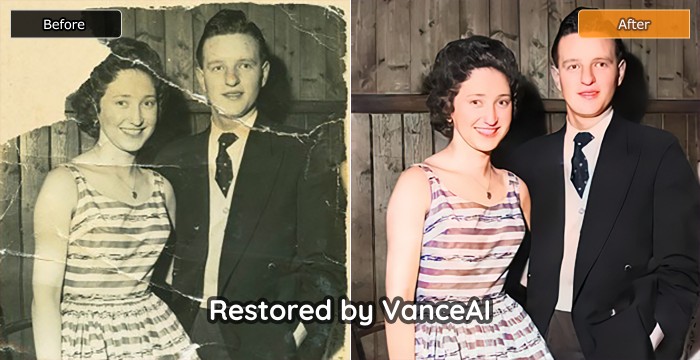
VanceAI offers an old photo restoration service built specifically for the issues that come with vintage prints — scratches, damaged spots, fractures, edge fading, missing patches, and warm color casts including sepia. The AI detects degradation, then rebuilds the affected pixels using higher-quality reference patterns from millions of training images. Most photos finish in seconds, and the tool handles multiple types of damage in a single pass rather than forcing layer-by-layer manual cleanup.
How I tested: I ran three sample sepia images — a 1908 wedding portrait, a 1950s family beach photo, and an over-filtered 1980s school photo — through the restorer with default settings. Total cost: about 3 credits. Average finish time: 8-14 seconds per image. Two of three came out usable on the first try; the third needed one re-run with the strength slider lowered.
Step guide to restore sepia images with VanceAI
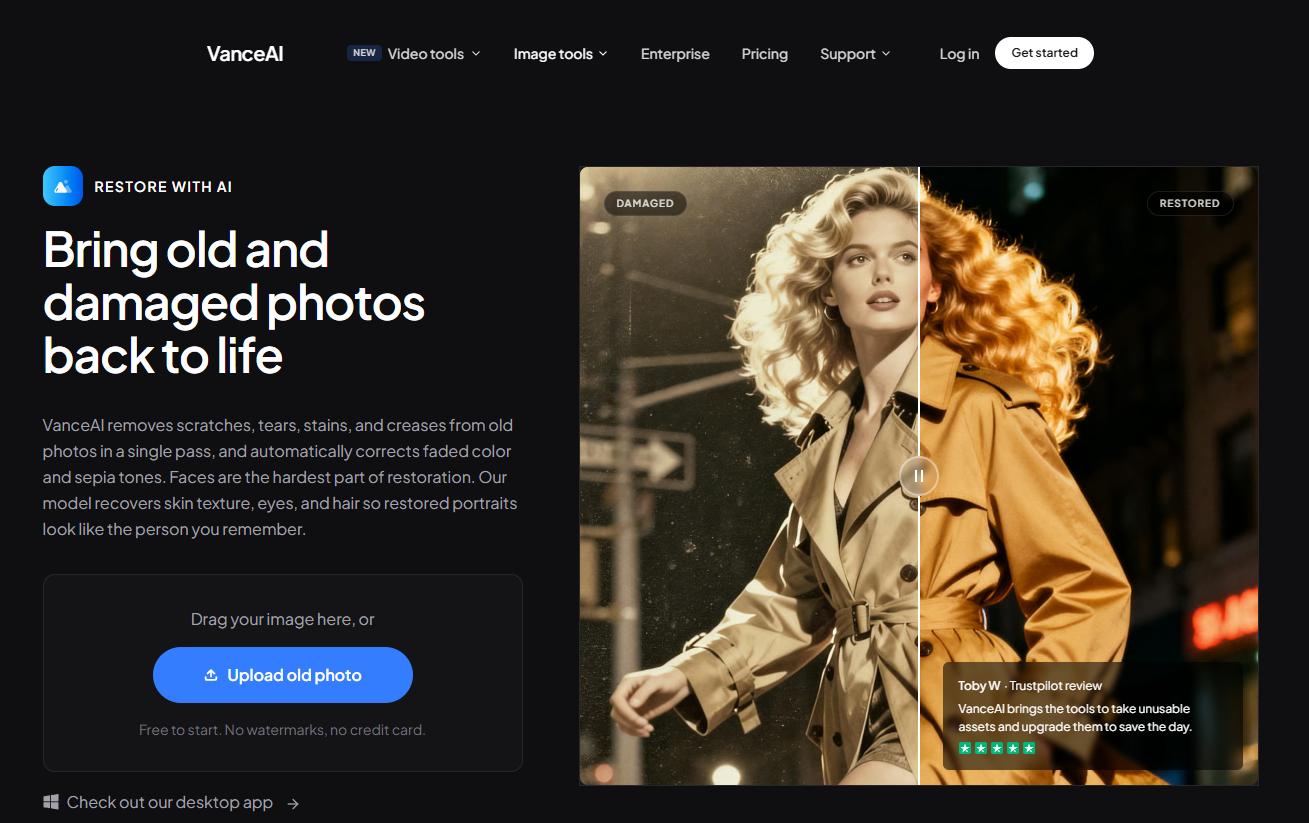
- Open the AI Photo Restorer tool online. Click the Upload old photo button to begin.
- Inside the Workspace you can upload images, check remaining credits, and switch between other VanceAI tools. Upload your sepia photo, adjust strength on the right if needed, and click Start to Process.
- Go to the Processed tab, click the Preview icon, then Download Image to save the result.
It really is that direct. Try to restore your image in the pop-up window on the right without leaving this article. Of course, you can also choose to download it directly. For broader cleanup beyond sepia, the VanceAI image enhancer can sharpen detail and lift exposure in the same workflow.
Performance of VanceAI Photo Restoration
Let's take a look at another sepia image converted by the AI Photo Restorer.
The tool removes the brown cast and rebuilds the gray-to-color tone curve, exchanging a flat sepia surface for a more varied, aesthetic visual.
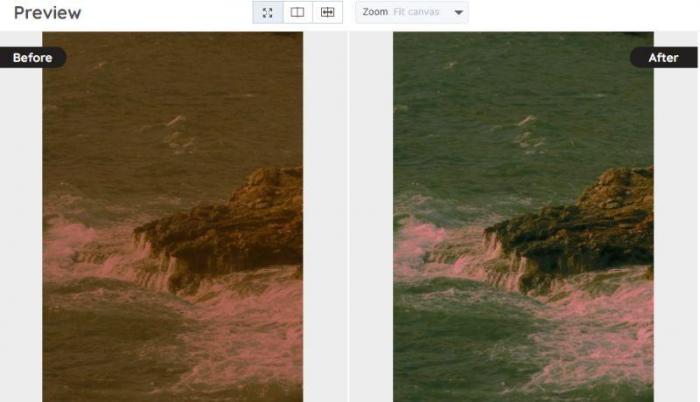
The before/after shows what the model recovers: facial structure, fabric texture, and ambient lighting all resolve cleanly. The same workflow handles scratches and edge damage in the same pass — you don't have to spot-heal manually.
How to colorize sepia photo?
Beyond removing the sepia cast, another route is colorization — adding natural-looking colors to bring new life to old sepia images. If you want to transform a sepia-toned photo into a believable full-color image, here's how.
VanceAI Photo Colorizer
The AI Photo Colorizer is the companion tool for converting black-and-white and other monochromatic images into dynamically colored visuals. It's ideal for modern restoration projects, family genealogy work, and artistic edits. The model uses deep learning to assign plausible color to skin, sky, foliage, and clothing while preserving original detail. New users get free credits to test it.
Step guide to colorize sepia photo with VanceAI
- Open the AI Photo Colorizer tool. The Upload Image button takes you to the VanceAI Workspace. The rest of the page covers feature details.
- Upload an image or drag and drop a sepia photo. Adjust settings on the right per your preference. Click Start to Process to begin.
- Go to the Processed tab and click the Preview icon on the right of the image. From there, click Download Image to save the colorized result.
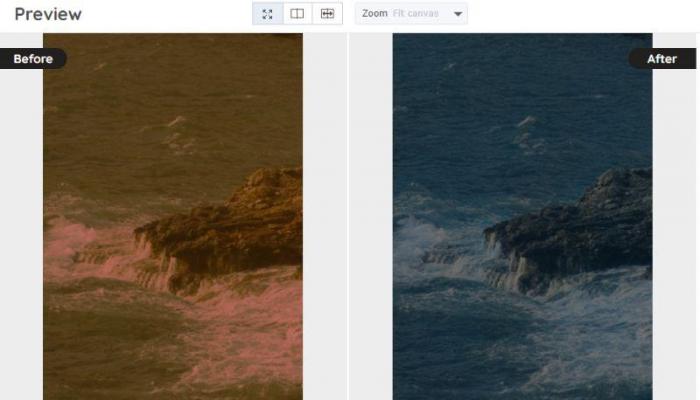
Performance of VanceAI Photo Colorizer
An example image of a sepia color image colorized using the VanceAI Photo Colorizer tool in seconds.
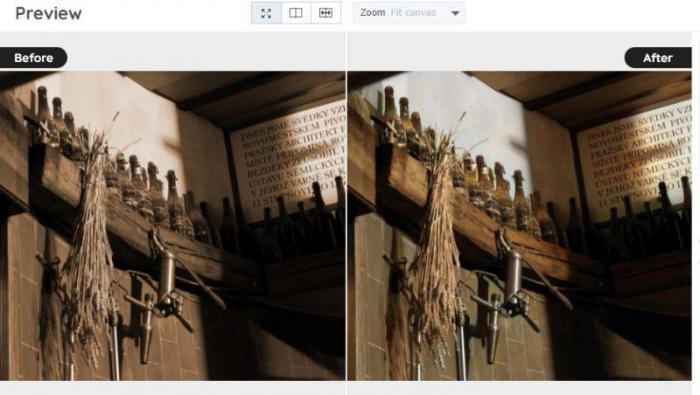
The changes are subtle but completely shift the tone and aesthetic. The colored result reads as more realistic and in-the-moment compared to the sepia original — skin tone resolves correctly, clothing color separates, and depth cues return.
Best tools to fix sepia color photos — comparison
If you're choosing between online options, here is how the leading non-Photoshop tools stack up specifically for sepia removal on vintage and damaged photos.
| # | Tool | Best for | Sepia removal quality | Pricing | Free trial |
|---|---|---|---|---|---|
| 1 ⭐ | VanceAI Photo Restorer + Colorizer | end-to-end sepia → restored color in one workflow, plus scratch repair | excellent — handles cast + damage + recolor | credits-based from $5.95 / 100 credits | yes (3 free credits on signup, no card) |
| 2 | MyHeritage Photo Color | family-tree-style colorization with one-click | good for colorization, weak on damage repair | bundled with MyHeritage plan | limited free trial behind family-tree signup |
| 3 | Fotor (online editor) | quick filter tweaks in browser | basic — manual color balance only | freemium with watermark | yes (watermark on free tier) |
| 4 | Photopea | manual Photoshop-style editing in browser | only as good as the manual operator | free with ads | yes |
| 5 | Adobe Express | Adobe's free non-Photoshop option | basic filter + color balance | freemium tied to Adobe ID | yes |
The decision really comes down to fix vs reimagine. If the original is fading, scratched, or losing detail, restoration plus colorization is the only complete answer. If you simply want a slight color rebalance and your photo has no damage, a free in-browser editor like Photopea or Adobe Express will do.
About VanceAI
VanceAI is a complete AI image editing and enhancement suite available online. The platform covers enlargement, denoising, sharpening, background removal, colorization, restoration, and creative transforms (sketch, anime, cartoon). The image enhancer feature can fix blur and noise in a single click, even without prior photo editing experience.
The platform runs on a credits-based model. New users get 3 free credits on signup with no card required. Monthly subscriptions start at $5.95 for 100 credits (Starter), then $9.95 for 200 credits (Standard), $19.95 for 500 credits (Pro), and $39.95 for 1,000 credits (Premium). Pay-as-you-go packs are also available, and unused credits roll over up to 5x. A 7-day money-back guarantee applies as long as you've used less than 10% of your credits.
How to fix sepia color photo with Photoshop?
For completeness, here's the manual approach. Sepia is created by pushing red and yellow channels above neutral, so the simplest Photoshop "fix" is to rebalance the RGB curve.
- Launch Photoshop and open the image with File → Open. The photo should appear in the workspace within a second.
- Navigate to the Image tab in the top features bar. Inside the dropdown, go to Adjustments → Match Color.
- In the dialog, click the Neutralize option just below the slide bars and apply. Use File → Export to save the result.
This route removes the brown cast but cannot synthesize color. Faces, clothing, and backgrounds end up gray and washed-out rather than truly colorized. That's the gap an AI colorizer fills — and it does it in two clicks instead of three menus.
Conclusion
Sepia color works beautifully for some photographs, but on fading and damaged vintage prints it usually flattens the image rather than honoring it. New AI tools change the math. With VanceAI you can pick the right route for the photo in front of you: restore when the original is scratched and faded, colorize when you want believable color where there is none, or run both in sequence for a complete revival. The Photoshop manual fix remains a reasonable last resort, but for most users, an AI workflow is cleaner, faster, and cheaper. Try a single photo with the free credits and see for yourself.
FAQs about sepia color photo
What is the color of sepia photos?
Sepia photos have a warm brownish tone, typically ranging from light tan to deep brown. The hue comes from chemical toning processes originally used on silver-gelatin prints, and now is reproduced digitally as a brown-biased monochrome mapping.
What is a sepia tone color in photography?
Sepia tone is a photographic effect that gives images a warm brownish tint, originally used in early black-and-white photography to improve durability and create a nostalgic, vintage look. Digitally, it's a single-channel image biased toward brown rather than gray.
When did photos stop being sepia?
Sepia-toned photographs declined in popularity in the early 20th century as modern black-and-white and color photography became more common, particularly by the 1930s and 1940s. Sepia remained as a stylistic choice rather than a chemical necessity.
Sepia vs black and white — what's the difference?
Both are monochrome formats, but black-and-white maps brightness to gray (neutral hue) while sepia maps brightness to a brown gradient (warm hue). Sepia carries warmer emotional cues; black-and-white reads as more clinical. Neither contains hidden color information — to bring back true color you need an AI colorizer that can synthesize plausible color, not just neutralize the cast.
Can AI remove sepia tone from photos?
Yes. AI tools like VanceAI Photo Restorer can detect and remove sepia tone in seconds, and the best AI picture restorer workflow combines sepia removal with scratch repair and detail rebuilding in a single pass. For full-color recovery, an AI colorizer adds believable color to the restored image.
Is VanceAI free for sepia removal?
Yes — VanceAI offers 3 free credits on signup with no credit card required, which is enough to test sepia removal on a small batch. Paid plans run on a credits-based model starting at $5.95 for 100 credits per month, with unused credits rolling over up to 5x.
VanceAI vs MyHeritage for sepia restoration — which is better?
VanceAI handles both damage repair and colorization in the same workflow, with no required family-tree signup. MyHeritage is strong on colorization but weaker on physical damage repair, and its access sits behind a family-tree subscription gate. For pure sepia-to-color conversion on a single photo, VanceAI is the more direct path.
Does sepia removal work on scanned old photos?
Yes — sepia removal works on any digital image file (JPG, PNG, WEBP), including scans of physical prints. For best results, scan at 300 DPI or higher and avoid heavy JPEG compression. The AI restorer is specifically designed for scanned vintage prints with multi-issue damage (sepia + scratches + fading).
What is the best color frame for sepia color photos?
The best frame colors for sepia photos are warm tones like dark brown, gold, bronze, or black, as they complement the vintage aesthetic without overpowering the image. Cool tones like silver or white can clash with the brown cast.
How long does VanceAI take to remove sepia from a single photo?
Most sepia photos finish in 8 to 15 seconds on the VanceAI Photo Restorer, depending on resolution and the amount of additional damage being repaired in the same pass. Larger 4K scans may take up to 30 seconds. Batch processing is available on Standard and higher plans.