

Thinking about Bigjpg to upscale your images? This 2026 review covers how Bigjpg works on web, Android and Mac, its real pros and cons, pricing and safety, and a side-by-side comparison with VanceAI Image Upscaler so you can choose the best AI upscaler for sharper, cleaner results.
Bigjpg Review 2026: Features, Pros & Cons, and the Best Alternative
Last updated: Jun 23, 2026
What Is Bigjpg?
Bigjpg is a free online tool to upscale images. Its neural network is an algorithm tuned specifically for an image's lines and colors, which lets it automatically enlarge a photo and improve its quality at the same time. It also offers a downloadable app for desktop and mobile.
Bigjpg is a solid starting point, but it has real limits: the free tier caps image size and upscale factor, it focuses on upscaling alone with no editing or sharpening tools, and high-ratio jobs can soften fine detail. Below we cover how Bigjpg works, its pros and cons, and how it compares to VanceAI so you can pick the right tool.
What Can Bigjpg AI Do?
- Increase image resolution: Bigjpg can upscale images up to 16x their original size — useful for low-resolution images you want to print or edit.
- Preserve image quality: Instead of simply stretching pixels, Bigjpg uses deep learning to reduce noise and artifacts while keeping colors, lines, and edges defined.
- Handle different image types: It works on photographs, illustrations, and anime, with algorithms tuned for each.
How to Use Bigjpg to Upscale Images
How to Use Bigjpg Online
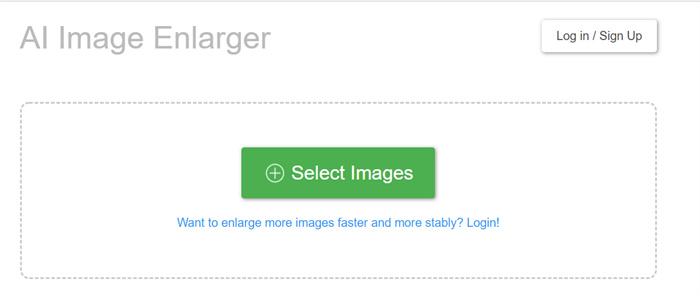
Step 1: Select and upload an image. Go to the Bigjpg website and click the green button to upload your image.
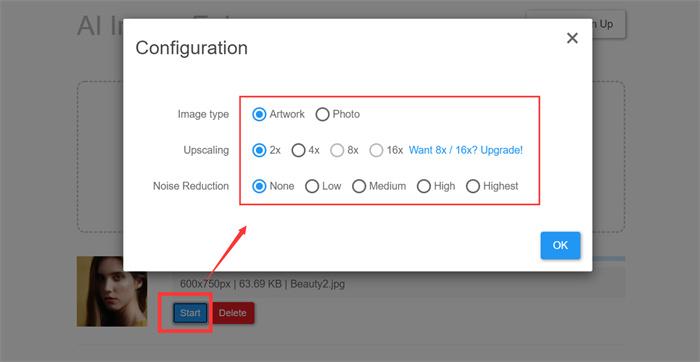
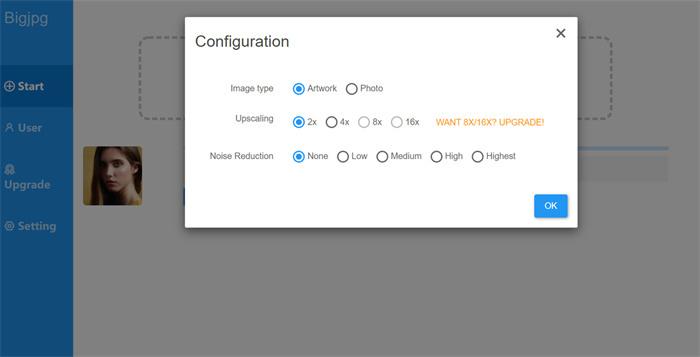
Step 2: Set up the configuration. Your picture appears below the box. Click "Start" to choose the enlargement and noise settings you want.
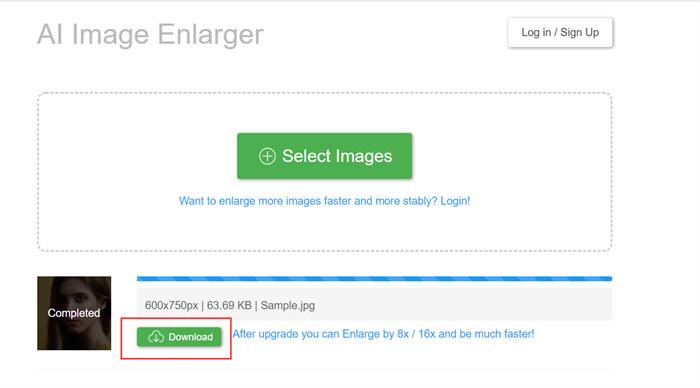
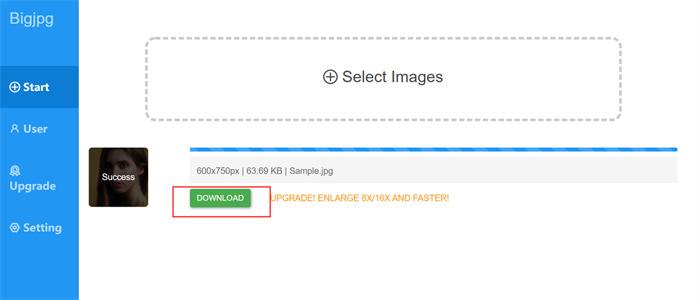
Step 3: Download the result. Processing takes a few minutes; then click "Download" to save the upscaled image.
How to Use Bigjpg on Android
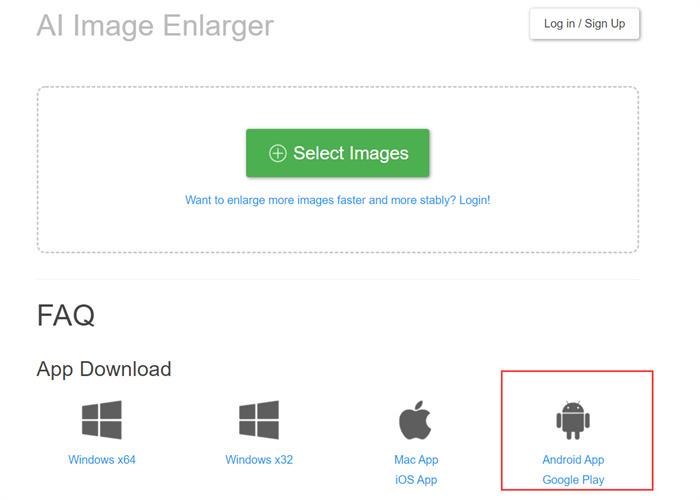
Step 1: Install the app on your device from the link provided.
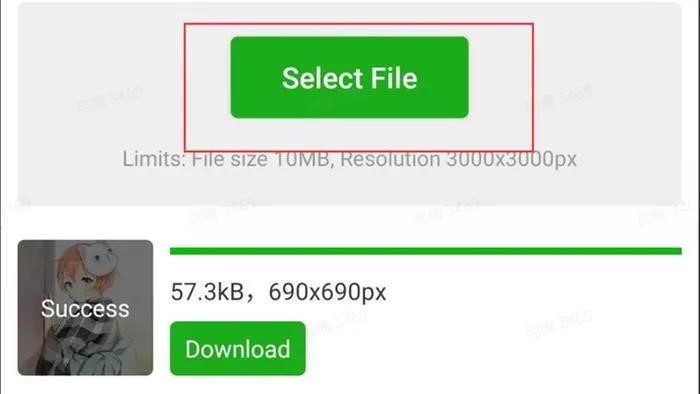
Step 2: Select a file and upload an image into the Bigjpg app.
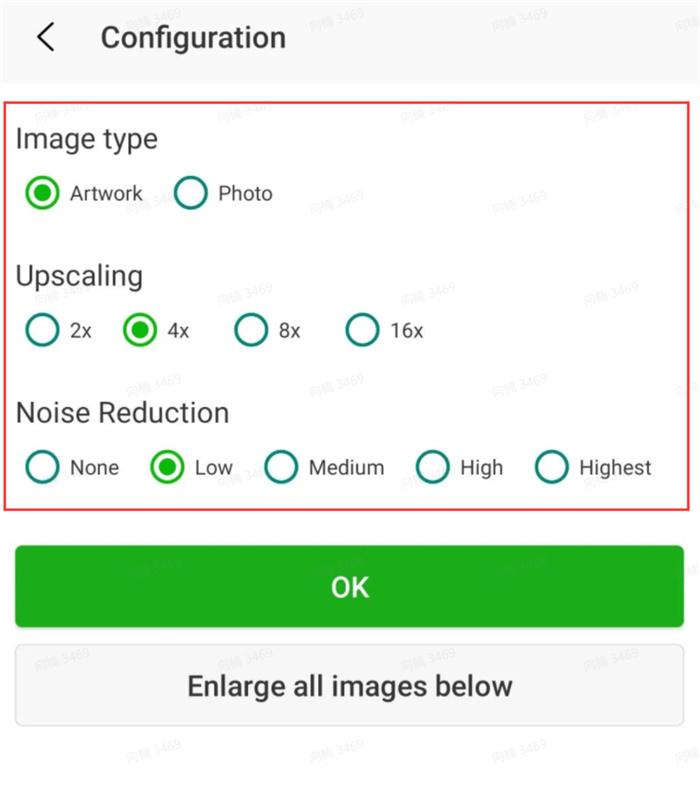
Step 3: Set up the adjustments for your image.
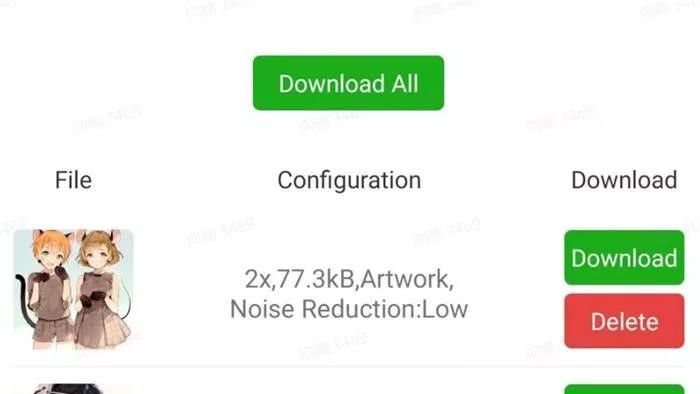
Step 4: Save the result. The app supports batch processing, so you can download everything with one click.
As AI enlargers like Bigjpg and VanceAI grow more popular, they make it easy to make higher resolution image automatically. The rest of this review compares my hands-on results.
How to Use Bigjpg on Mac
Step 1: Install the app on your device from the link provided.
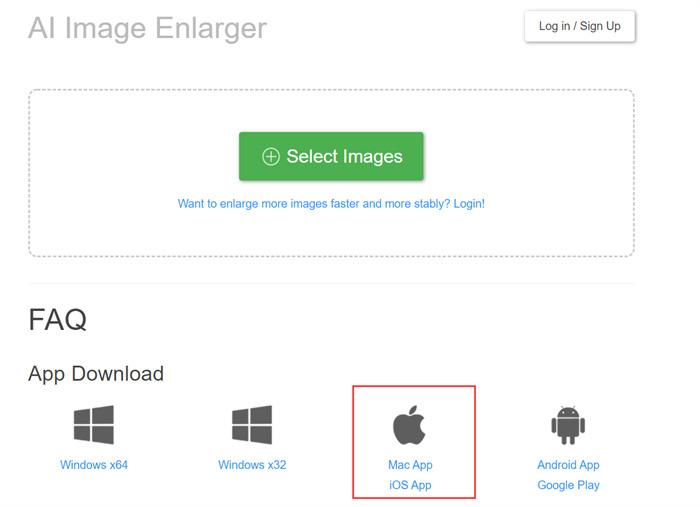
Step 2: Upload your image and start to process.
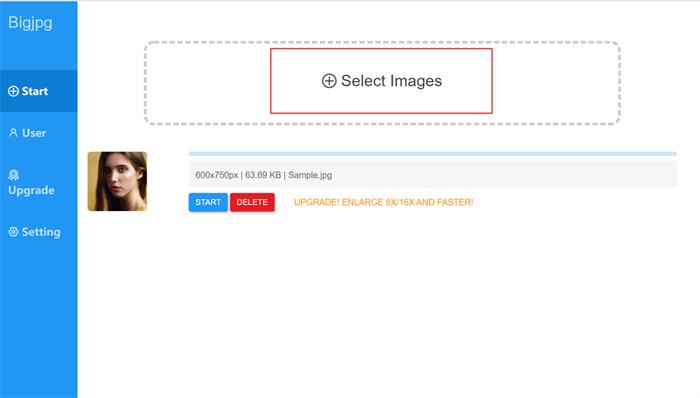
Step 3: Set up the configuration. Hit "Start" to open the settings box and apply them to your image.
Step 4: Download the result.
Is Bigjpg Free?
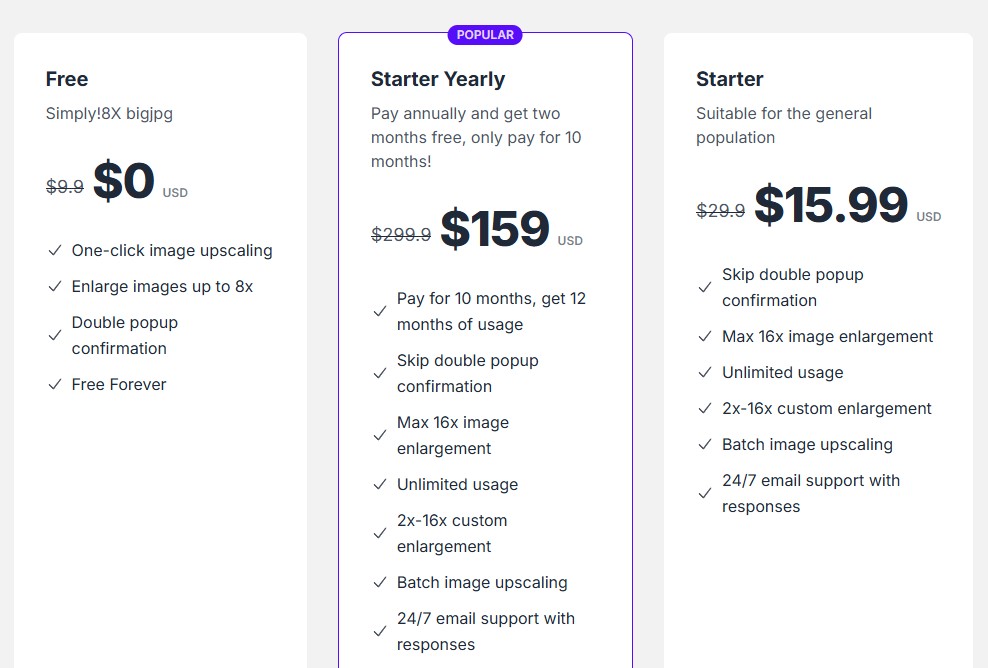
Yes, Bigjpg can be used for free online but with limited functions. To unlock larger images, higher upscale factors, and faster processing, you need a paid plan.
Is Bigjpg Safe?
Yes, it is safe to upload and enlarge images in Bigjpg; uploaded and enlarged images are automatically deleted after a set period. VanceAI Image Upscaler is equally safe — image links are encrypted, and no one else can download your image unless you share it yourself.
Pros and Cons of Bigjpg
Pros of Bigjpg
- Image upscaling: Enlarge images up to 2x, 4x, 8x, or 16x.
- User-friendly interface: The web tool and mobile apps are easy to navigate, with no technical skills required.
- Free version available: A free tier lets you try it with limited capabilities.
Cons of Bigjpg
- Limited free version: The free tier restricts image size and upscale factor, making it less suitable for large or print projects.
- No advanced editing tools: Bigjpg focuses only on upscaling — there's no sharpening, retouching, or color correction.
- Processing time: Higher resolutions can be slow depending on image size and server load.
- Privacy considerations: As with any online uploader, sensitive images are a consideration.
- Not a perfect solution: Bigjpg can't recreate details that weren't in the original low-resolution image.
For another head-to-head, see our ImgBB vs Imgur review.
Bigjpg vs VanceAI: Where the Alternative Wins
Bigjpg handles basic upscaling well, but if you hit its free-tier caps or need cleaner detail, VanceAI is the stronger all-round choice. Here is how they compare directly:
| Feature | Bigjpg | VanceAI Image Upscaler ⭐ |
|---|---|---|
| Max upscale | Up to 16x | Up to 8x (40x on PC) |
| Specialized models | Photo / illustration / anime | 5 models: Standard, Anime, Art & CG, Text, Low-Res & Compressed |
| Built-in deblur & denoise | Limited | Yes, automatic |
| Editing beyond upscaling | None | Enhance, sharpen, retouch in one suite |
| Desktop software | App | VanceAI PC for offline batch upscaling |
| Pricing model | Free tier + paid | Credit-based, 3 free credits/month, money-back, rollover |
| Privacy | Auto-delete | Encrypted, private links |
Where VanceAI also does it better: sharper edges and skin texture at high ratios, automatic blur and noise removal, and a Text model that keeps documents and signatures legible. Where the two are on par: both are beginner-friendly, both run online, and both handle anime and photos. VanceAI's exclusive edge: a five-model engine plus a full editing suite (enhance, sharpen, retouch) and offline VanceAI PC software — so you're not limited to upscaling alone.
Bigjpg Alternative: VanceAI Image Upscaler
VanceAI Image Upscaler is also powered by AI and serves as the best Bigjpg alternative, upscaling images to 4K and beyond. Unlike Bigjpg, it automatically enhances your image by removing blur and suppressing noise as it enlarges.
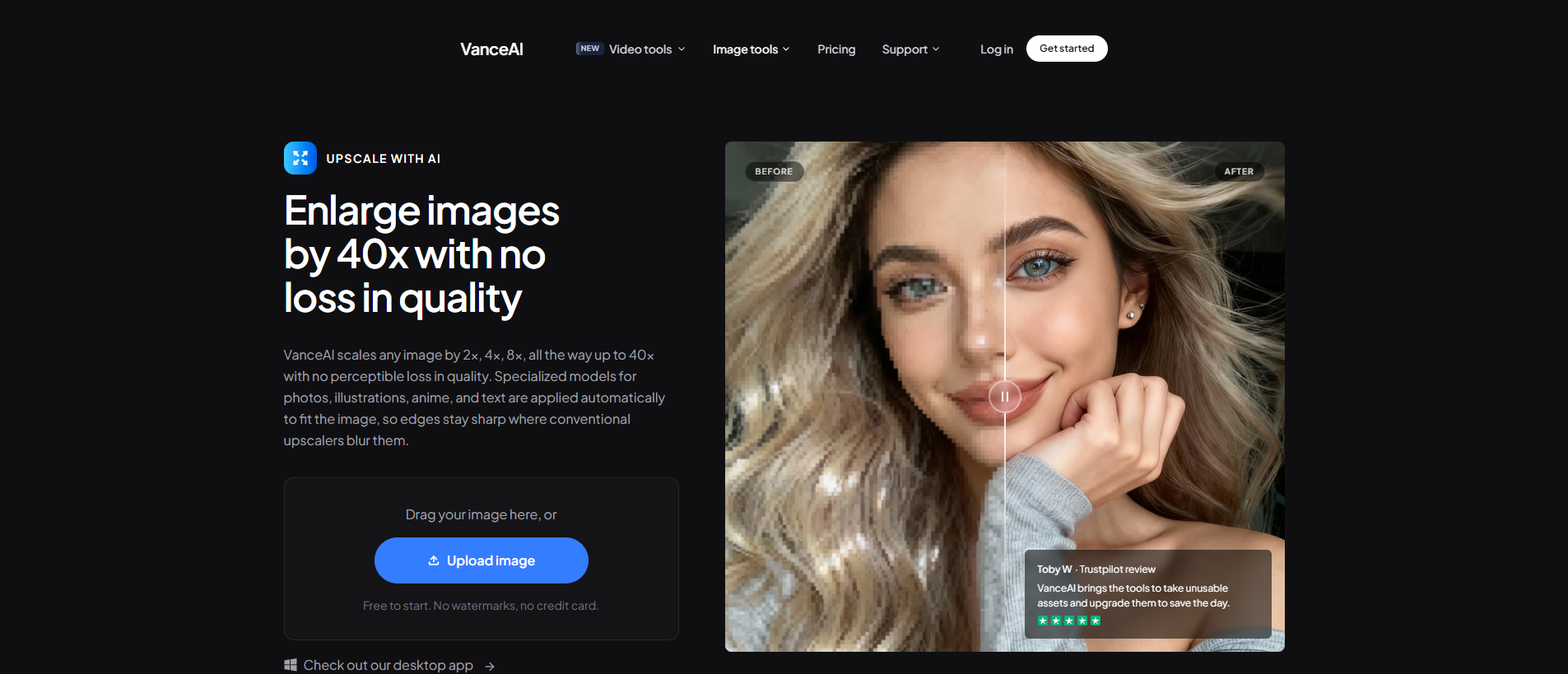
Upscaling Models of VanceAI
VanceAI Image Upscaler provides five upscaling models so you can match the tool to your image.
Low Resolution & Compressed
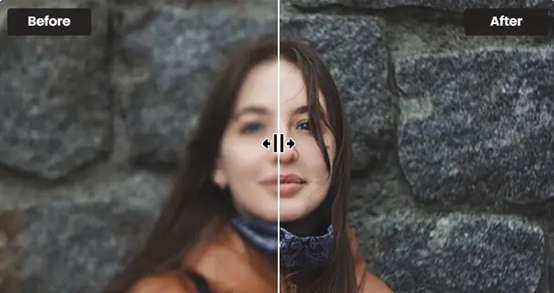
This model upscales low-resolution and compressed pictures to HD in one click — ideal for product photos, portraits, and wallpapers that Bigjpg's free tier would struggle with.
Standard
The Standard model (EnlargeStable) upscales any general image — camera photos, paintings, and landscapes. For everyday upscaling, this is the go-to.
Anime
The Anime model is the best option for anime upscaling, converting old cartoons, anime, and comics to high definition with three sub-models for different art styles. Upscale animation to 2K, 4K, or 8K.
Art & CG
The Art & CG model (Universal_UltraSharp_4x) enlarges CG, art, drawings, and paintings online while restoring the original texture — perfect for showing fine detail.
Text
The Text model (Text_4x_TextSharpV1) upscales blurred text such as e-signatures, e-contracts, and scanned files, keeping them legible where Bigjpg often blurs them.
VanceAI PC
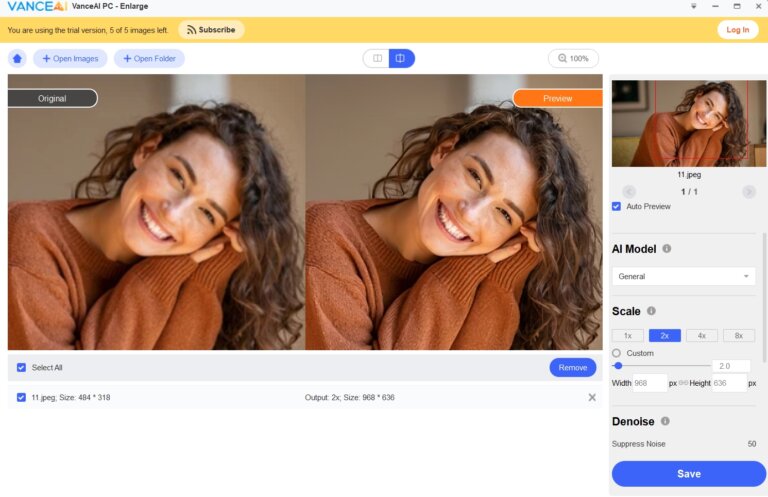
For more convenient, professional upscaling, VanceAI PC enlarges images without pixel loss, improving quality with precise detail and helping you make photo hd offline in batches.
Bigjpg AI vs VanceAI: Performance Comparison
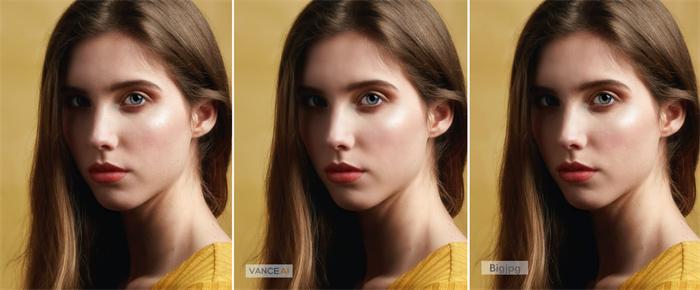
Using a portrait photo as an example, both AI enlargers produce good results — but VanceAI performs noticeably better in detail enhancement, keeping skin, hair, and edges cleaner at high upscale ratios.
Conclusion
Bigjpg is a capable free upscaler for quick, basic jobs, and it satisfies a lot of everyday needs. But once you run into its free-tier caps, slower high-ratio processing, or the lack of editing tools, a more complete option pays off. VanceAI Image Upscaler matches Bigjpg on ease of use and then goes further — five specialized models, automatic blur and noise removal, a full editing suite, and offline VanceAI PC software — making it the Bigjpg alternative most users will be happiest with.
FAQs
What is Bigjpg used for?
Bigjpg is an AI image upscaler used to enlarge photos, illustrations, and anime up to 16x while reducing blur and noise. It's popular for printing low-resolution images or improving small web pictures.
Is Bigjpg really free?
Bigjpg has a free online tier, but it limits image size, upscale factor, and the number of images you can process. Larger jobs and faster processing require a paid plan.
What is the best Bigjpg alternative?
VanceAI Image Upscaler is the best Bigjpg alternative for most users. It offers five specialized AI models, automatic deblurring and denoising, a full editing suite, and offline VanceAI PC software.
Is Bigjpg safe to use?
Yes. Bigjpg automatically deletes uploaded and processed images after a set period. For extra privacy, VanceAI uses encrypted, private image links that only you can share.
How much can Bigjpg enlarge an image?
Bigjpg can upscale images up to 16x. However, very high ratios can soften fine detail, so the practical limit depends on your source image quality.
Does Bigjpg work on mobile?
Yes. Bigjpg offers Android and iOS apps in addition to its web tool, and the apps support batch processing so you can upscale multiple images at once.
Is VanceAI better than Bigjpg for anime?
Both handle anime, but VanceAI's dedicated Anime model includes multiple sub-models tuned for different art styles, which often yields cleaner lines and fewer artifacts on cartoons and comics.
Can these tools upscale blurry text or documents?
Bigjpg focuses on photos and art, while VanceAI includes a dedicated Text model that keeps signatures, contracts, and scanned documents legible after upscaling.
How does VanceAI pricing work?
VanceAI runs on a credit system rather than a one-time license. You get 3 free credits per month, paid plans add more credits, every plan has a money-back guarantee, and unused credits roll over.
Which should I choose, Bigjpg or VanceAI?
If you only need occasional basic upscaling, Bigjpg's free tier is fine. If you want sharper detail, automatic deblur and denoise, specialized models, and editing in one place, VanceAI is the more capable choice.
Was this article helpful?

A passionate content writer. Mostly likes to write about technology and social media related topics. You can see more of my work over on my own blog Amaya Hamilton.


