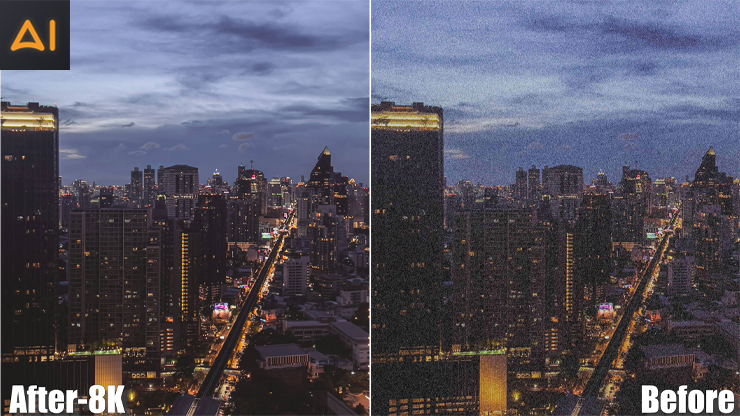
What Causes Blurry Video?
Even though all the blurry videos give you more or less the same visual dissatisfaction while watching them on your HD-quality display screen, the reasons for blurry videos are different from each other. So, to remove any specific kind of video blur, you need to target the specific cause behind it. Before trying out how to make a blurry video clear, let's see their most common causes.
Common Reasons to Blurry Video
- Capturing video in inadequate or inappropriate lighting
- Shooting in the dark or overexposure to light
- Due to inappropriate camera settings or camera malfunction
- Sudden shake of your hand or camera
- Shooting movable objects or motion action
- Recording video while walking or from the moving car
- Excessive video file compression adds artifacts while compromising original video data
- Recording video in low resolution with less pixel count
- Using old or poor-quality cameras with outdated specifications and configuration
How to Make a Blurry Video Clear in a Web Browser?
Make a Blurry Video Clear Using VanceAI Video Upscaler
VanceAI Video Upscaler is a browser-based AI video upscaler that handles deblurring entirely on the web — no install, no GPU dependency, no version updates. You open vanceai.com/video-upscaler in any modern browser on Windows, Mac, Linux, or Chromebook, drop in your blurry MP4 or MOV, and the cloud GPUs do the heavy lifting. The web app is built around two proprietary AI models you can switch between depending on the type of blur: Nexa, a universal enhancement model that balances speed and quality for everyday clips, and Cineva, a cinematic-grade model fine-tuned for film and TV restoration. VanceAI is trusted by 9.8 million artists and creators globally.
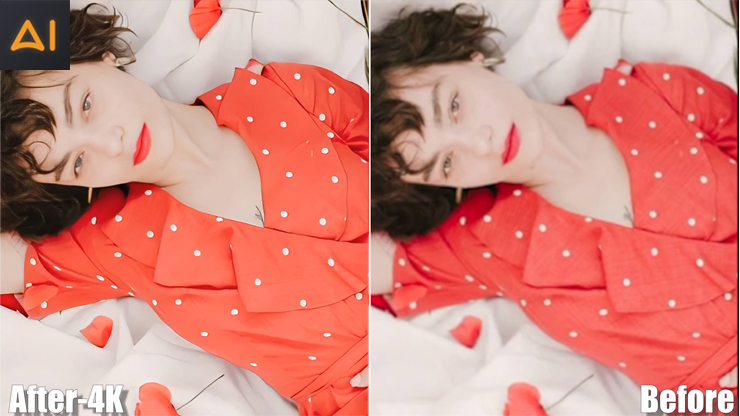
Price: Credits-based with free trial credits on signup (no credit card required). Web app plans from vanceai.com/pricing: $4.95 for 100 credits (+100 bonus, limited time), $7.95 for 200 credits, $12.95 for 500 credits (Most popular), and $17.95 for 1000 credits. 7-day money-back guarantee; unused credits roll over.
Compatible: Any modern browser on Windows, Mac, Linux, or Chromebook — no install
Key Features:
- Nexa + Cineva dual-model architecture — universal AI for everyday footage or cinematic-grade AI for restoration
- Six output resolutions: 1×, 2×, 4K, 1440p, 1080p, and 720p
- Accepts MP4 and MOV up to 10GB / 4096×2160 input
- Four-second preview verifies quality before spending credits on the full upscale
- Cloud-side processing — even a Chromebook can deblur to 4K
- Output MP4 downloadable for three days
Pros
- Zero install — runs on any device, including older laptops and Chromebooks
- Dual-model architecture gives genuine flexibility instead of one-size-fits-all deblurring
- Preview-first workflow protects credits when experimenting with settings
- 9.8M-user community and free trial without credit card = lowest-risk entry point
Cons
- Browser-based delivery means you need a stable internet connection
How to Make a Blurry Video Clear with VanceAI Video Upscaler?
Step 1: Open VanceAI Video Studio and add your clip. Sign in at vanceai.com/video-upscaler, then in the left Tasks panel click Add video or drag your MP4/MOV onto the canvas.
Step 2: Pick Video Upscale AI. Once the clip is loaded, the right sidebar lists all available features — click Video Upscale AI.
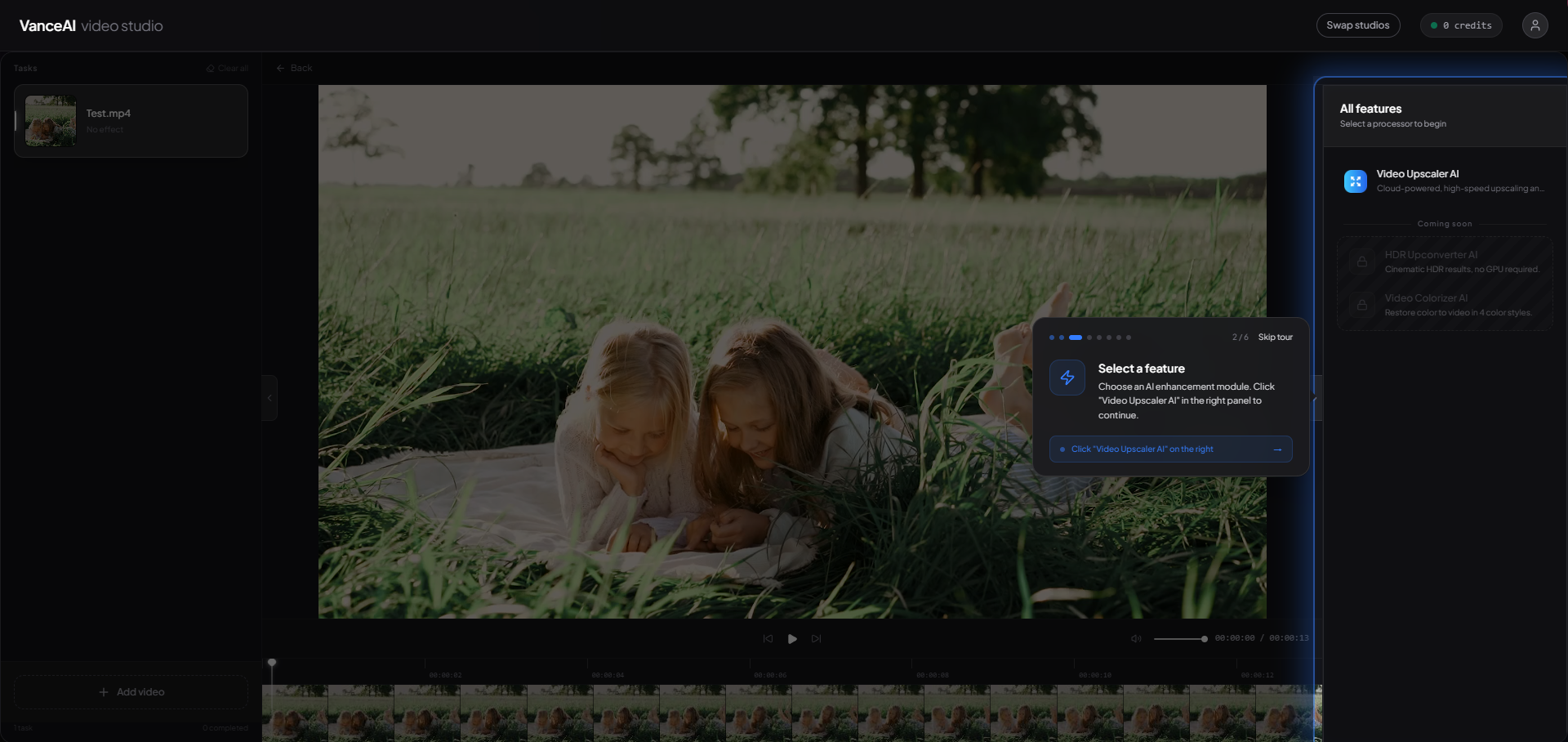
Step 3: Configure model and output resolution. Choose Nexa for modern phone or YouTube clips, or Cineva for old DVD/VHS restoration. Pick output resolution from six options.
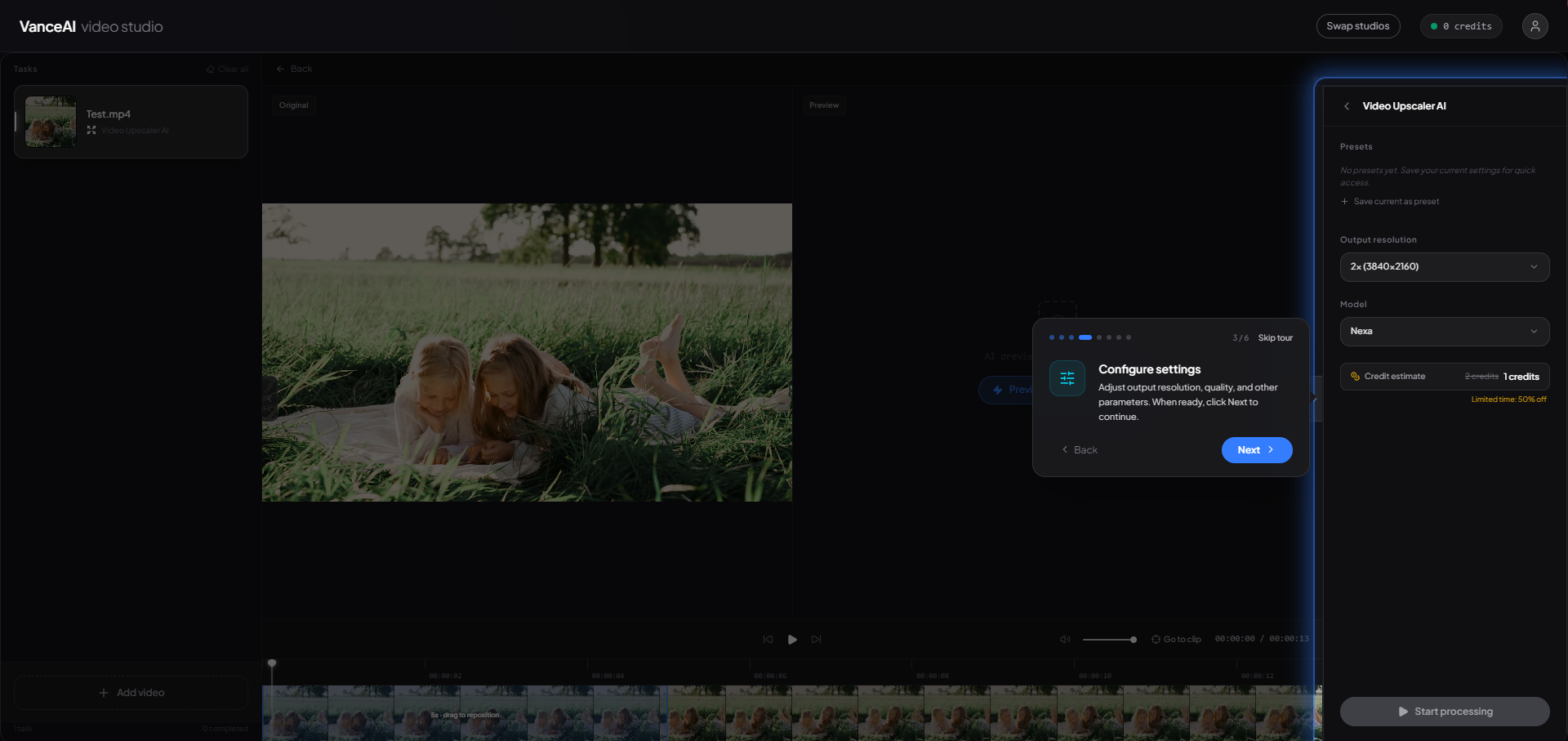
Step 4: Generate a 4-second preview, then compare and apply. Drag the white bar to choose the segment that best represents your footage, click Generate a preview, then A/B-test original vs deblurred at full resolution. Happy with the result? Click Start processing for the full clip.
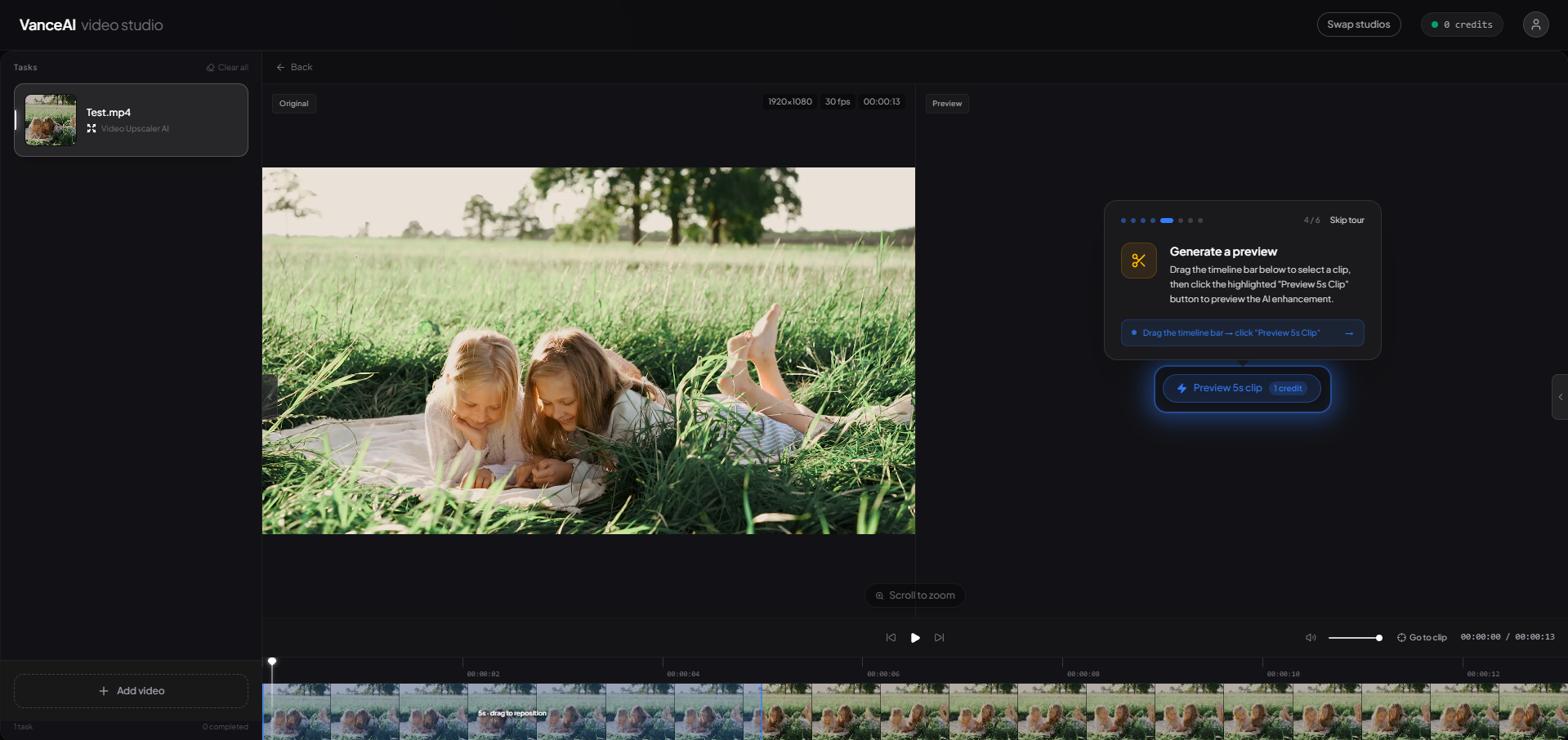
Step 5: Download. When the task shows Processing complete, click Download result. Files stay in your dashboard for three days. For a related cluster guide on low-quality footage, see how to make a low quality video look better.
Make a Blurry Video Clear Using Clideo Video Clearer
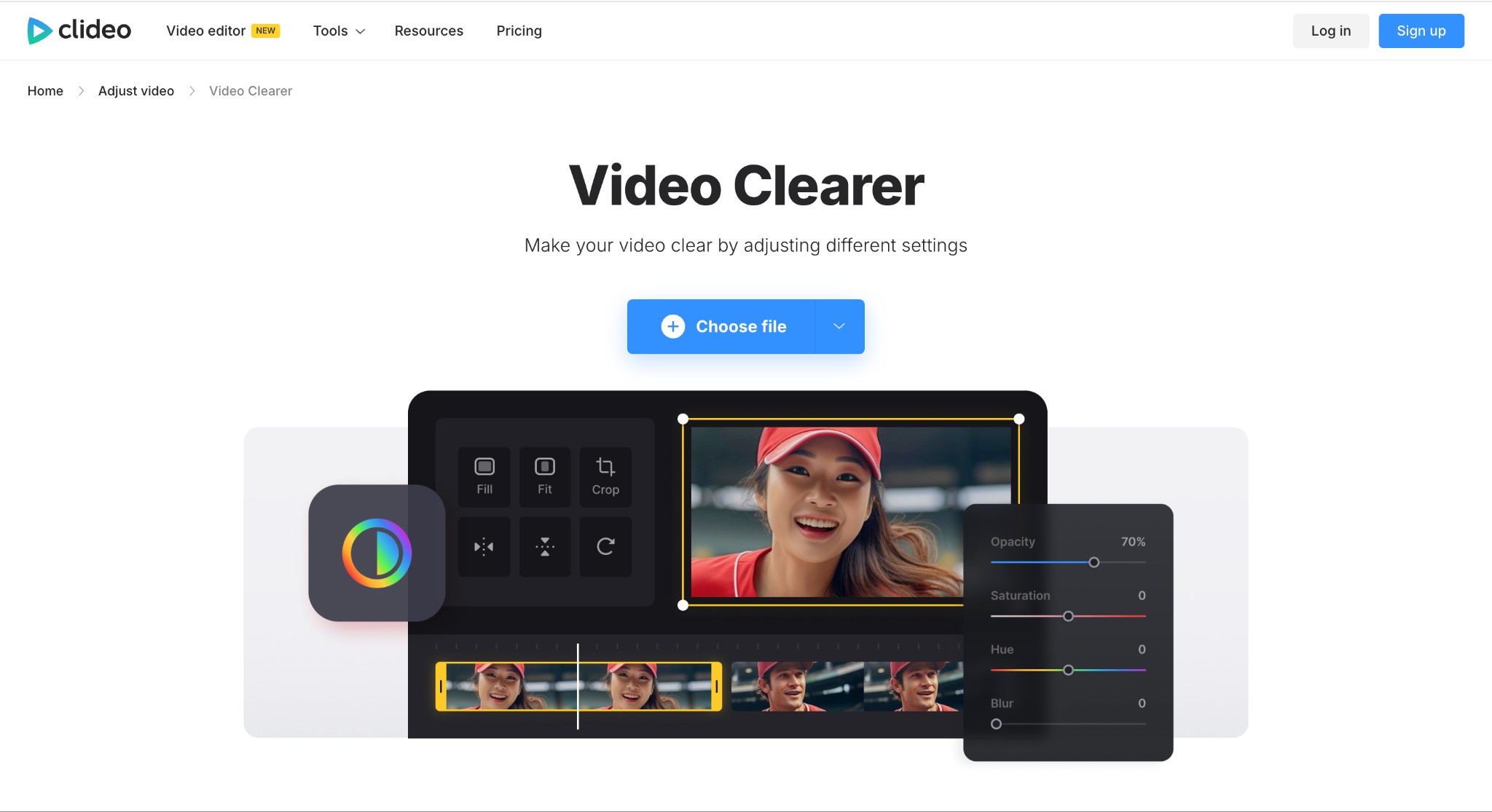
Clideo Video Clearer is a great option for removing blur from any video on any platform or device at a time. Using this online tool, you can unblur videos instantly and automatically with the setting adjustment option. The best part of this tool is that it doesn't involve any complicated steps. Therefore, anyone can use this tool with ease and get the most realistic output with professional perfection.
Pros
- Installation & registration free tool doesn't need any skill to unblur video
- A broad range of format support with MOV, AVI, MP4, etc
- Unblur the video while adjusting parameters like brightness, contrasts, saturation, etc
- Unblur video on desktop, Android, or iOS using any web browser
Cons
- There is no denoising or resolution upscaling option
- Very average & basic settings adjustment without having control over deblurring
How to Make a Blurry Video Clear Using Clideo Video Clearer?
Step 1: Once you open the Clideo app on your device, select the "Choose File" option to import the blurry video for unblurring. You can also upload the video from online storage like Google Drive, Dropbox, etc., by clicking the drop-down arrow.
Step 2: After uploading the video, you will be taken to the clear video editor option, where you can adjust parameters such as brightness, saturation, contrast, etc. To unblur the video, you should increase the brightness and decrease the contrast.
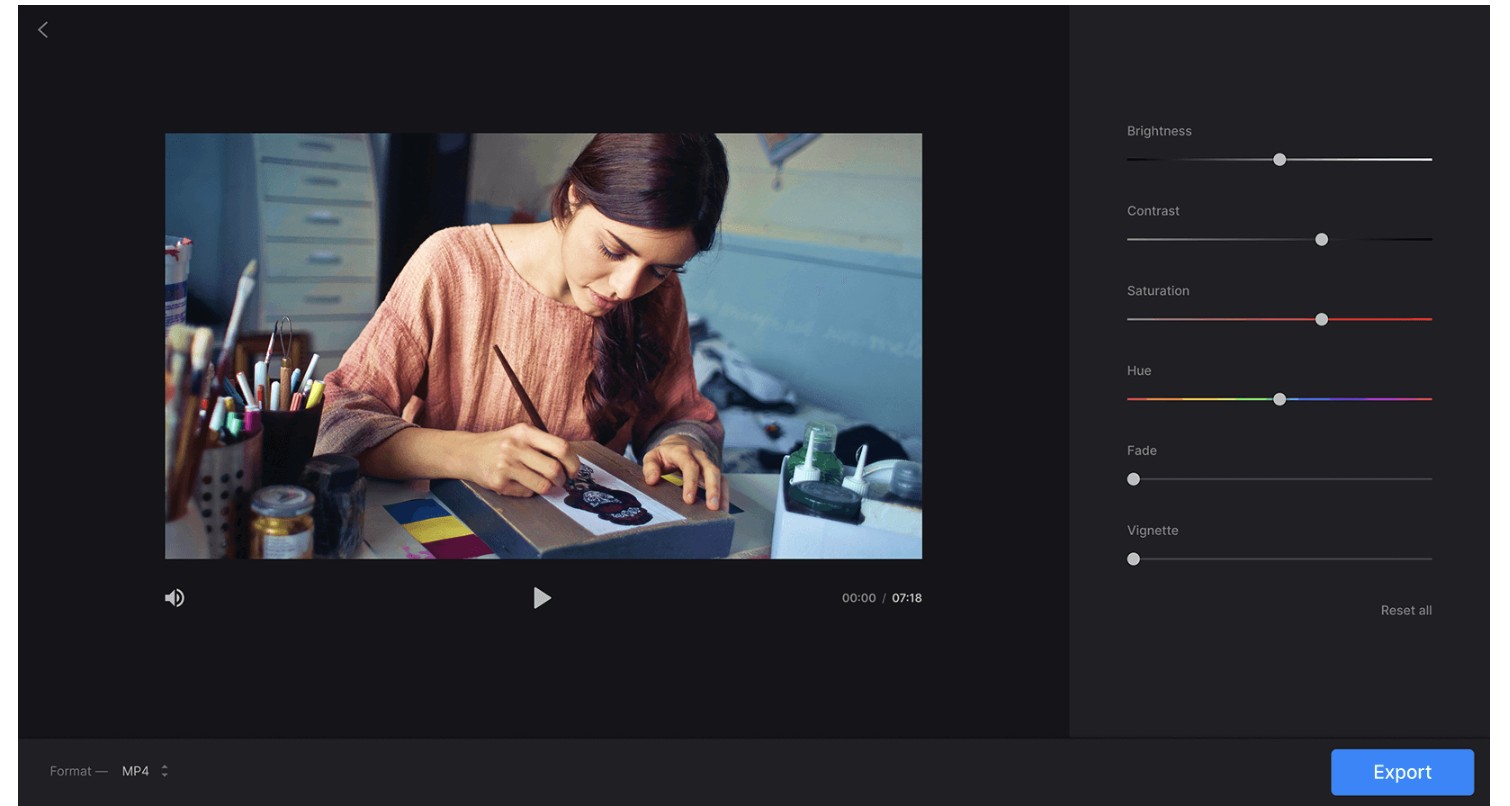
Step 3: Next, choose the export option, get a preview of the exported unblur video, and, once you are happy with the outcome, select "Download" to save the unblurred clip to cloud storage.
Step 4: If anything goes wrong or is unsatisfying, instead of starting the entire deblurring process over again, you can select the "Edit" option for further adjustment and alterations.
How to Make a Blurry Video Clear On iPhone?
If you are struggling to find the most authentic and effective way to make a blurry video clear, here are the two most useful options for hassle-free video editing on iPhone.
Option 1: Using iMovie to Make Video Clear
iMovie is one of the most convenient built-in apps for all Apple devices. Using this all-in-one video editing app, you can unblur any video with various functions such as color correction, shake stabilization, adding video transitions, etc. It lets you enjoy voice-over recording while adding a music soundtrack. For creating movie trailers, it offers ready-to-use templates with titles. It offers extensive file format support to ensure the maximum flexibility and compatibility of your unblurred video.
Pros
- Unblur video while controlling video speed
- Enjoy multi-clip video effect with green/blue screen effect for background removal
- Explore split screening with picture-in-picture effect
- Huge ready-to-use audio library with built-in sound effects
- Try the Magic Movie function to add & combine transitions to the video clips automatically
Cons
- It's only for Apple devices without 360° video tackling support
- Unblurring large video is time-consuming
How to Make a Blurry Video Clear On iPhone Using iMovie?
Step 1: To initiate the unblurring process on your iPhone through iMovie, you need to connect your iPhone and Macbook. Select the "Video" sign from the upper icons panel to upload the blurry video for unblurring.
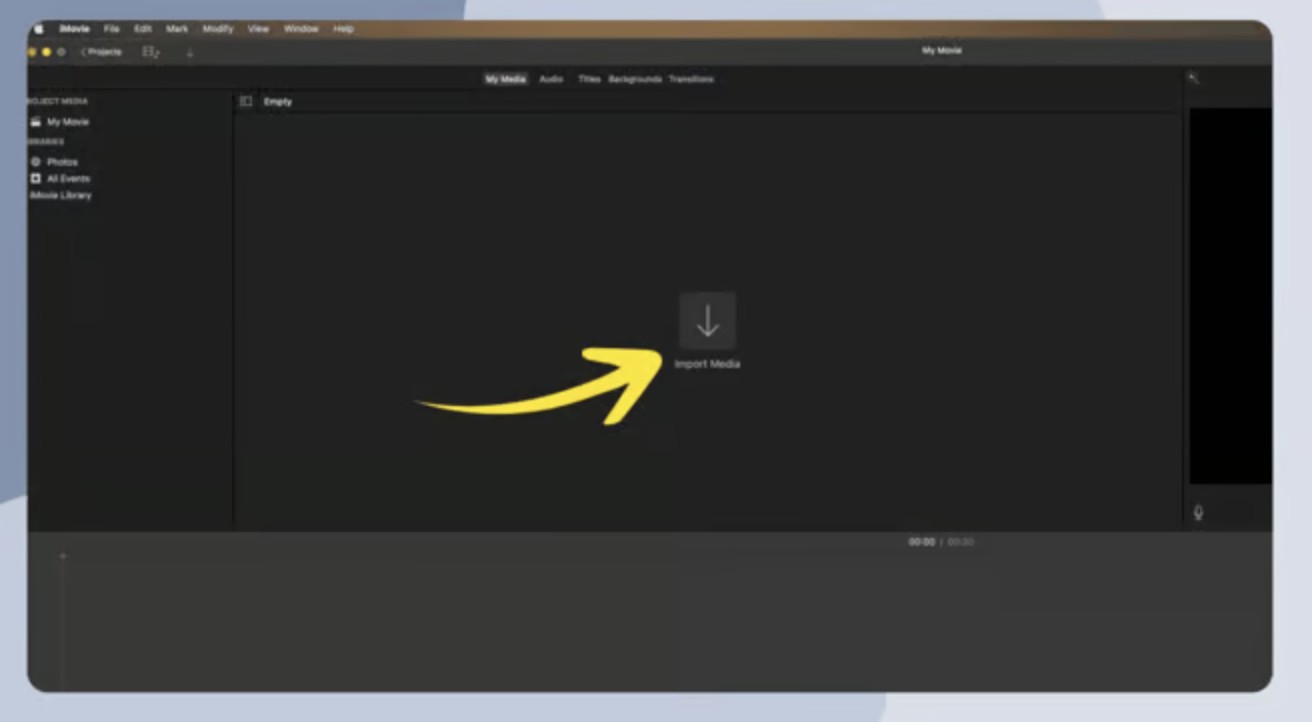
Step 2: Click on the uploaded video > select "Shaky Video" > go for "Stabilization" > select the "Fix Rolling Shutter" option. You can see the checkmark on the "Fix Rolling Shutter" option once the uploaded video is unblurred.
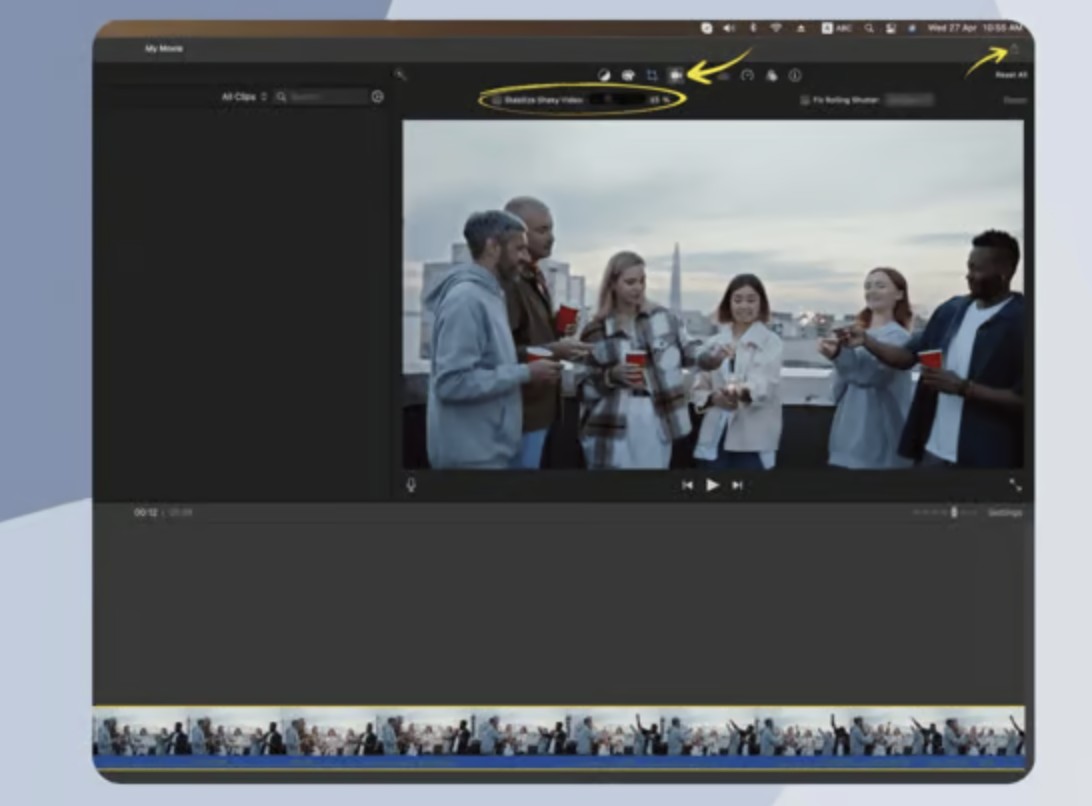
Step 3: Once you are done with checking, you can save the video on your Mac, and to enjoy the video on your iPhone, you can send it again to the iPhone.
Option 2: Make Video Clear Using VN Video Editor
VN Video Editor is a potent video deblurring tool with extensive video editing functions and parameter settings. Its beginner-friendly interface allows you to enjoy video unblurring without compromising original data. It supports real-time collaboration with multiple devices while editing any video. You can create customized text with your desired font size, color, style, etc., that best matches your unblurred video to make it look more appealing to its audience.
Pros
- It offers various dedicated filters, effects, and transitions to transform the overall video quality
- During customizing parameters such as upscaling up to 4K resolution, increasing bit rate or frame rate up to 60 fps, you can get crisp and clear video
- It has a dedicated video sharpening menu
- Try the denoising function to unblur any video, including HDR videos
Cons
- Users experience sudden crashes and freezes during unblurring video
- The confusing folder organization with slow video processing speed
How to Make a Blurry Video Clear Using VN Video Editor?
Step 1: Download the VN app on your iPhone > select the "+" sign from the shown screen > select the "New Project" to choose your unblur video from the collection.
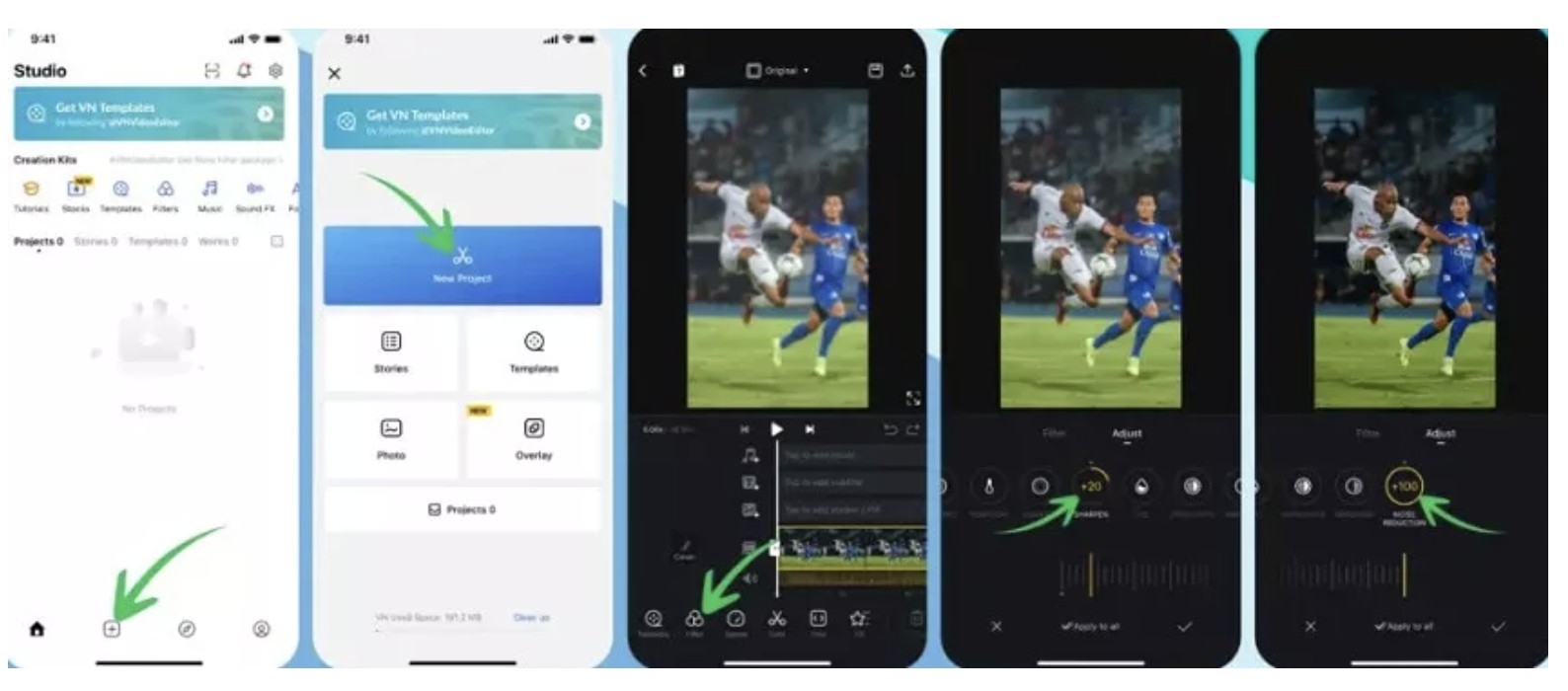
Step 2: Go to the "Filter" panel, select "Adjust" from the available options, scroll to the right to navigate to the "Sharpen" menu, and increase the tempo to 30.
Step 3: Select "Noise Reduction" > increase the parameter up to 100 > click on the checkmark > permit to initiate the process > save the unblurred video.
Conclusion
Now you know the most effective and easy ways of how to make a blurry video clear across browser, desktop, and iPhone. AI automation combined with smart manual customization gives you the best results. For the lowest install friction with cinematic-grade output, a browser workflow like VanceAI Video Upscaler is hard to beat — Nexa + Cineva dual-model architecture, a 4-second preview to protect your credits, and a free trial that needs no credit card to start. For online tools without AI muscle, Clideo handles quick brightness/contrast fixes. On iPhone, iMovie and VN cover the most common stabilization and sharpening needs. If your source footage is grainy or low-resolution rather than just blurry, check our companion guide on how to unblur videos.
FAQs
How to Make a Blurry Video Clear On Android?
There are several apps that you can use to unblur any video on your Android. PowerDirector is one of the trending apps that you can try safely.
- Step 1: Download the "PowerDirector" app on your Android
- Step 2: Select "AI Video Upscaler" to import the blurry video
- Step 3: AI will unblur the uploaded video
- Step 4: You can do the final adjustment > share the unblur video online
How Long Will It Take to Clear a Blurry Video?
Video unblurring time depends on various factors such as resolution, file format, and the tool you choose. Cloud-based AI video upscalers like VanceAI process clips on server-side GPUs and typically deliver a 4K result in just minutes, while desktop apps may take 30 minutes to several hours per minute of footage depending on your GPU.
For most users, a browser-based AI video upscaler offers the best balance of quality, speed, and zero install friction. VanceAI Video Upscaler stands out in 2026 because it runs as a web app — vanceai.com/video-upscaler — that gives you a choice of two specialized AI models (Nexa for everyday footage, Cineva for cinematic restoration). No install, no credit card to start, and a 4-second preview before committing to a full deblur.
Can I unblur a video without losing quality?
Yes. Modern AI video upscalers like VanceAI Video Upscaler use deep-learning models trained on millions of video frames. Instead of stretching pixels (which loses quality), the AI predicts plausible fine detail frame by frame, so the output looks shot, not enhanced.
What's the difference between VanceAI's Nexa and Cineva models?
Nexa is a universal enhancement model that balances speed and quality for everyday clips — output options 720p, 1080p, 1440p, and 4K, plus 1×, 2×, and 4× scale multipliers. Cineva is cinematic-focused, optimized for SD footage up to 1024×540 with a fixed 4× upscale. Pick Nexa for phone clips and YouTube uploads; pick Cineva for old DVD rips, vintage anime, or VHS digitizations.
Is there a free way to unblur video without a watermark?
Yes. VanceAI Video Upscaler gives new web app users free trial credits with no credit card required, and the output MP4 carries no watermark. iMovie on iPhone is also fully free for Apple users. Clideo offers a free tier but with a watermark.
How much does VanceAI Video Upscaler's web app cost?
VanceAI is credits-based. From vanceai.com/pricing the web app starts at $4.95 for 100 credits (with a +100 bonus during the limited-time 2× promo), then $7.95 for 200, $12.95 for 500 credits (Most popular), and $17.95 for 1000. Pay-as-you-go is available at the same per-credit rates and the credits stay valid for a year. All plans include a 7-day money-back guarantee.
Can AI fix motion blur from a shaky camera?
Yes — motion blur is one of the textbook cases for AI deblurring. Both VanceAI's Nexa and Cineva models are trained on millions of frames with motion blur and reconstruct sharp edges by predicting what the underlying detail should look like. For severe shake at capture time, combine AI deblurring with software stabilization (iMovie's Shaky Video > Stabilization filter, or Clideo's edit panel).
VanceAI Video Upscaler (web app) currently accepts MP4 and MOV files up to 10GB and delivers output as MP4. For AVI, MKV, or WMV input, run a quick free conversion to MP4 first. iMovie, VN, and Clideo accept a wider range of formats since they integrate FFmpeg or proprietary codec libraries.
If a clip is severely under-exposed or shot at very low resolution (under 360p), even AI cannot fully recover the missing detail — the model is reconstructing plausible detail, not magically inventing pixels that never existed. For best results, pair AI deblurring with manual brightness/contrast tweaks (Clideo or VN's adjustment panels), and consider re-shooting if possible with a tripod and a fast shutter for future clips.