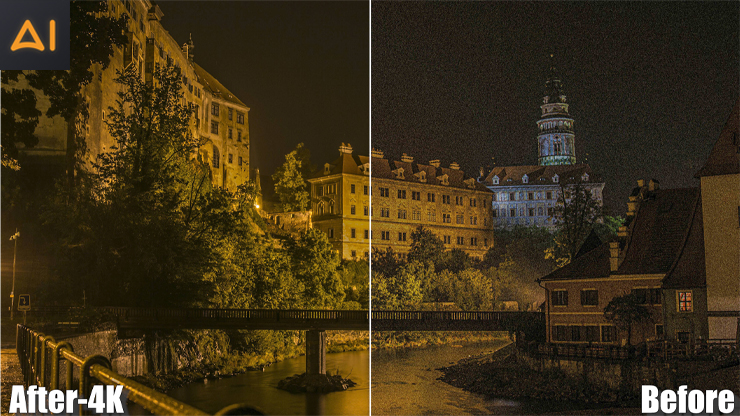
What is Video Quality: Reasons For Low Video Quality
Video quality refers to a video's visual and auditory clarity. It encompasses several factors, including:
- Resolution: It tells how clear and detailed a video's picture is, measured in pixels (e.g., 480p, 720p, 1080p, 4K).
- Frame Rate: The number of pictures or frames you see in one second of a video, measured in frames per second (FPS).
- Bitrate: The amount of video data a platform transfers every second.
- Color Accuracy: The richness and correctness of colors in the video.
- Audio Quality: Clear, balanced sound that complements the visuals.
Higher-quality video clips usually have better resolution, smooth motion, rich colors, sharper edges, and clear sound. However, several factors can contribute to low-quality videos, such as
- Low video resolution (SD quality) appears blurry and pixelated.
- Poor lighting causes grainy or dark footage.
- Overly aggressive video compression degrades quality, particularly noticeable in fine details or rapid motion areas.
- A low frame rate (FPS) can make videos look choppy.
- Incorrect camera settings produce underexposed, overexposed, or color-shifted footage
- A low bitrate leads to poor video clarity.
High-quality videos typically feature sharp images, smooth motion, vibrant colors, and clear sound. However, issues like low resolution, poor lighting, excessive compression, low frame rates, improper camera settings, and insufficient bitrate can all contribute to poor video quality. The good news is that modern AI video upscalers can address most of these issues after the fact — restoring detail, suppressing grain, and pushing 480p footage all the way to 4K. In the following sections we introduce 11 tools across online, desktop, and mobile categories to help you enhance and optimize video quality regardless of where it was filmed.
1. Best Way to Enhance Video Quality Using VanceAI Video Upscaler
VanceAI Video Upscaler is a browser-based AI video upscaler that runs entirely on the web — no install, no GPU dependency, no version updates to manage. You open vanceai.com/video-upscaler in any modern browser on Windows, Mac, Linux, or Chromebook, drag in your clip, and the heavy lifting happens on optimized cloud GPUs. The web app is built around two proprietary AI models you can switch between depending on your source footage: Nexa, a universal enhancement model that balances speed and quality for everyday clips, and Cineva, a cinematic-grade model fine-tuned for film and TV restoration work. VanceAI is trusted by 9.8 million artists and creators globally; a Trustpilot review from Cynthia Macdonald captures the consensus: "Amazing upscale capabilities. Best in its class."
Price: Credits-based — free trial credits on signup (no credit card required). Web app plans (from vanceai.com/pricing): $4.95 for 100 credits (+100 bonus, limited time), $7.95 for 200 credits (+200 bonus), $12.95 for 500 credits (Most popular, +500 bonus), $17.95 for 1000 credits (+1000 bonus). Pay-as-you-go available with a 7-day money-back guarantee; unused credits roll over and stay valid for a year.
Compatible: Any modern browser on Windows, Mac, Linux, or Chromebook — no install
Key Features:
- Nexa + Cineva dual-model architecture — pick universal AI for everyday footage or cinematic-grade AI for film and TV restoration
- Six output resolution options: 1×, 2×, 4K (3840×2160), 1440p (2560×1440), 1080p (1920×1080), and 720p (1280×720)
- Accepts MP4 and MOV files up to 10GB with input resolution up to 4096×2160
- Four-second Preview lets you verify quality before committing to a full upscale
- Cloud-side processing means no local GPU bottleneck — even a Chromebook can upscale to 4K
- Output delivered as MP4, downloadable for three days after processing
- Web app credits work across both Image and Video workspaces — switch anytime
Pros
- Zero install — runs on any device including older laptops and Chromebooks that can't run heavy upscaling apps
- Dual-model architecture (Nexa + Cineva) gives genuine flexibility instead of forcing one-size-fits-all upscaling
- Preview-first workflow protects credits when experimenting with settings
- 9.8M-user community and free trial without credit card make it the lowest-risk entry point in this comparison
Cons
- Browser-based delivery means you need a stable internet connection — not ideal for fieldwork or offline editing
- Credits-based pricing can become more expensive than one-time license fees on a workstation tool if you batch hundreds of long clips per month
- Currently accepts only MP4 and MOV — AVI, MKV, or WMV files need to be converted to MP4 first (any free converter handles this)
How to Make a Low-Quality Video Look Better with VanceAI Video Upscaler (Web App)?
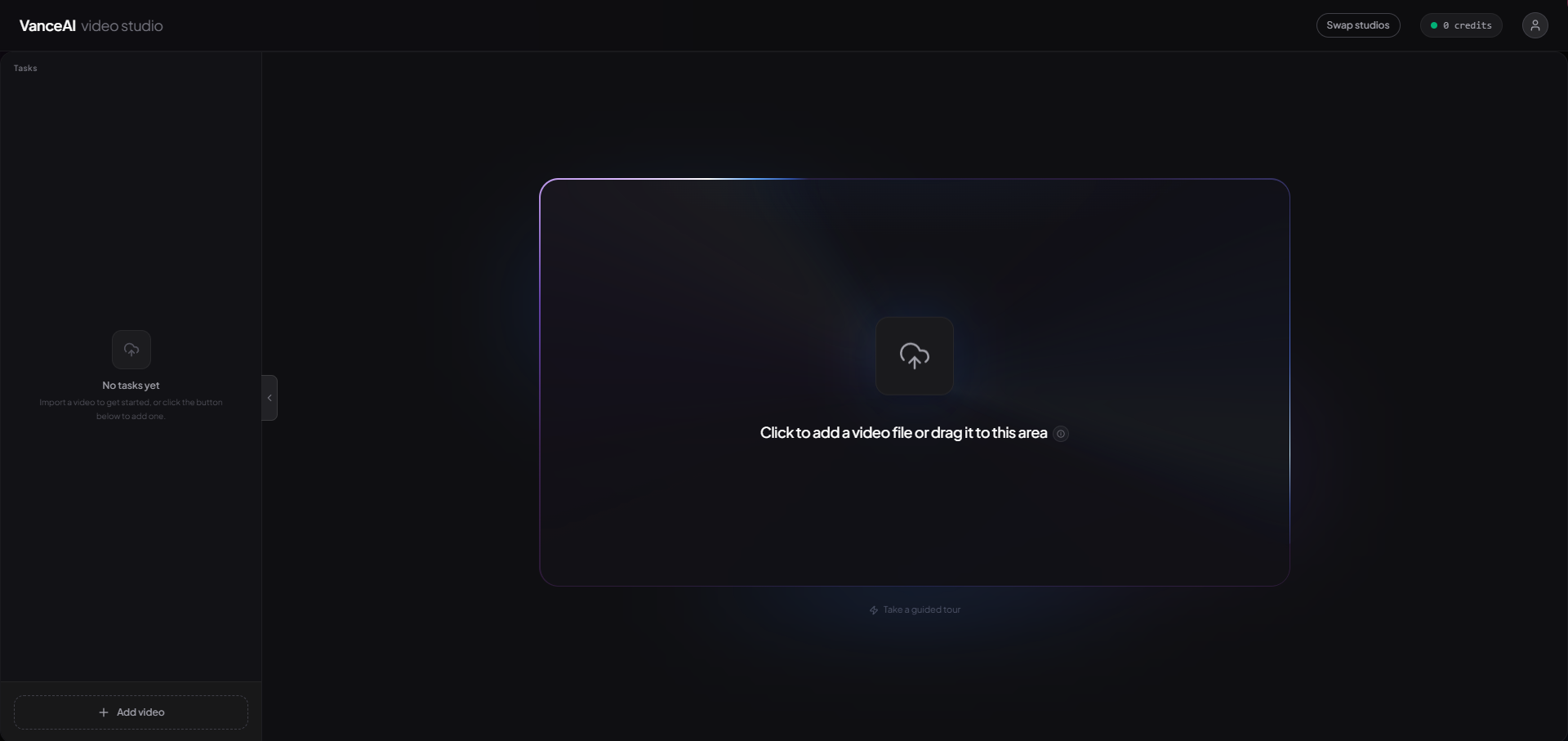
Step 1: Open VanceAI Video Studio and add your clip. Sign in at vanceai.com/video-upscaler, then in the left Tasks panel click the Add video button or drag your MP4/MOV file straight onto the canvas. The web app accepts files up to 10GB and 4096×2160 input.
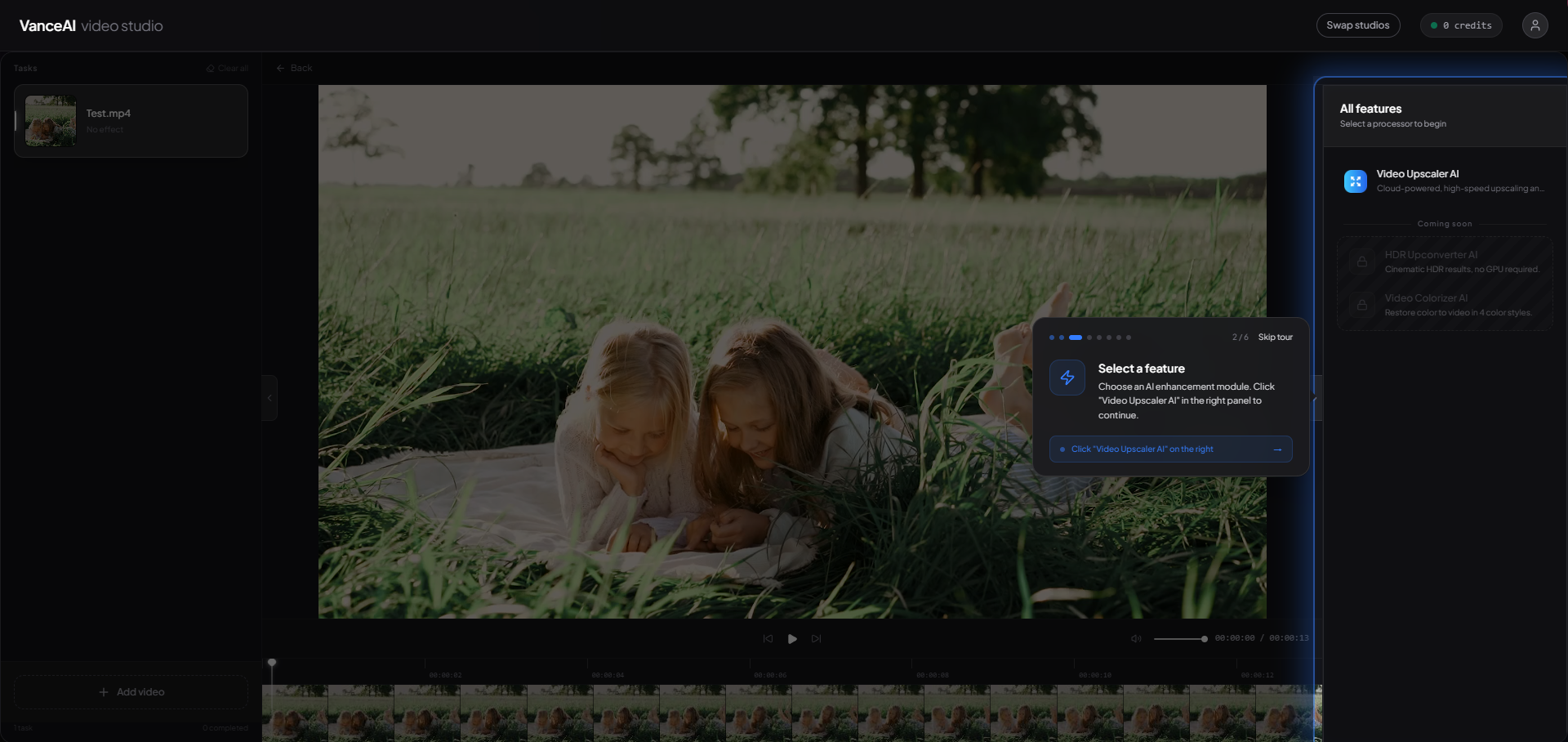
Step 2: Pick Video Upscale AI from the feature panel. Once the clip is loaded, the right sidebar shows all available features. Click Video Upscale AI at the top of the list — the same panel also previews other tools (denoise, sharpen) you can chain in a single workflow.
Step 3: Configure model and output resolution. The settings panel asks for two choices. First, the Output resolution dropdown gives you six options — 1× (1704×960), 2× (3408×1920), 4K (3840×2160), 1440p (2560×1440), 1080p (1920×1080), and 720p (1280×720, marked as Downscale).
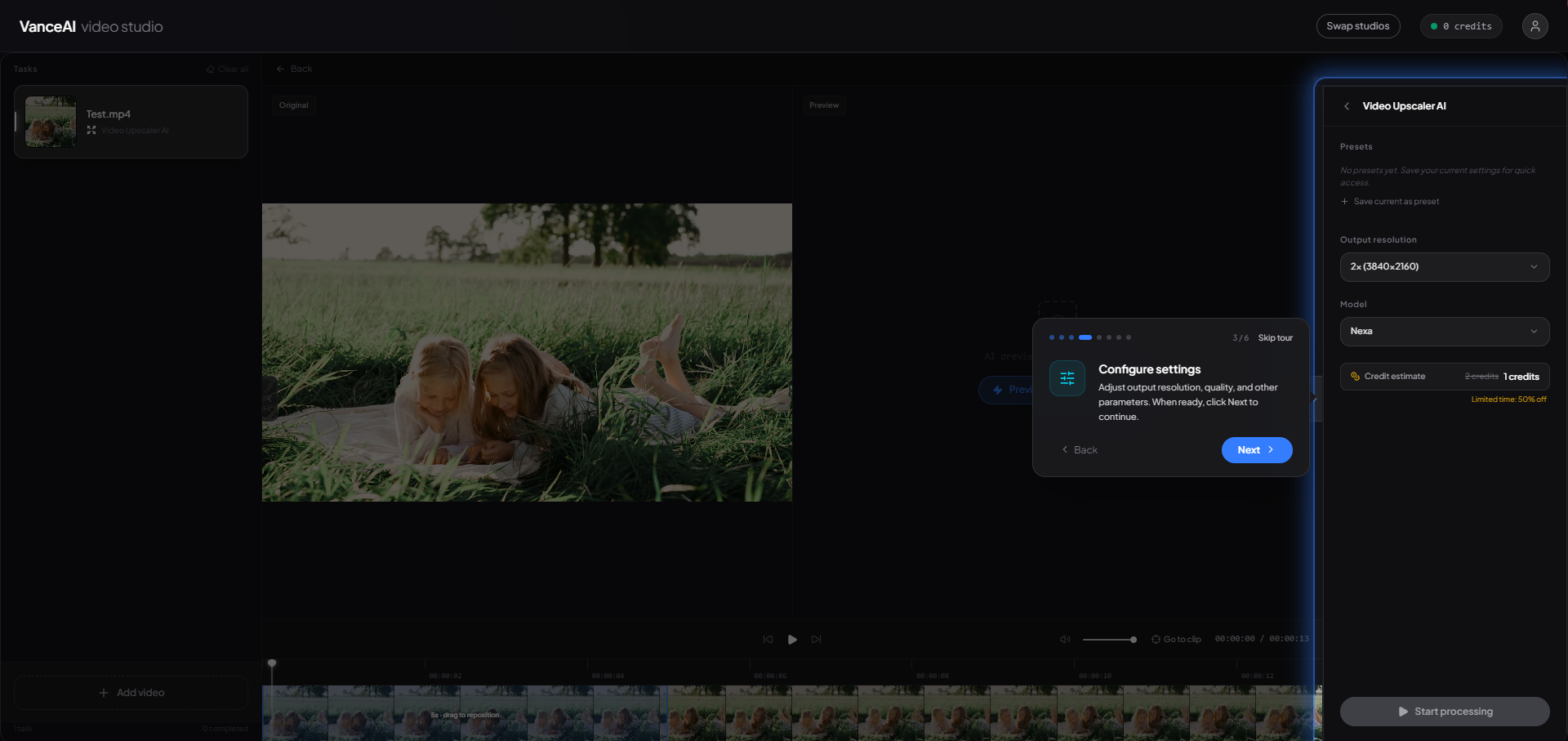
Step 4: Generate a 4-second preview. Drag the white timeline bar to choose the segment that best represents your footage (a face close-up or a high-detail action shot is ideal), then click Generate a preview. The preview takes only seconds and lets you see exactly how the chosen model and resolution will look before you spend credits on the full clip.
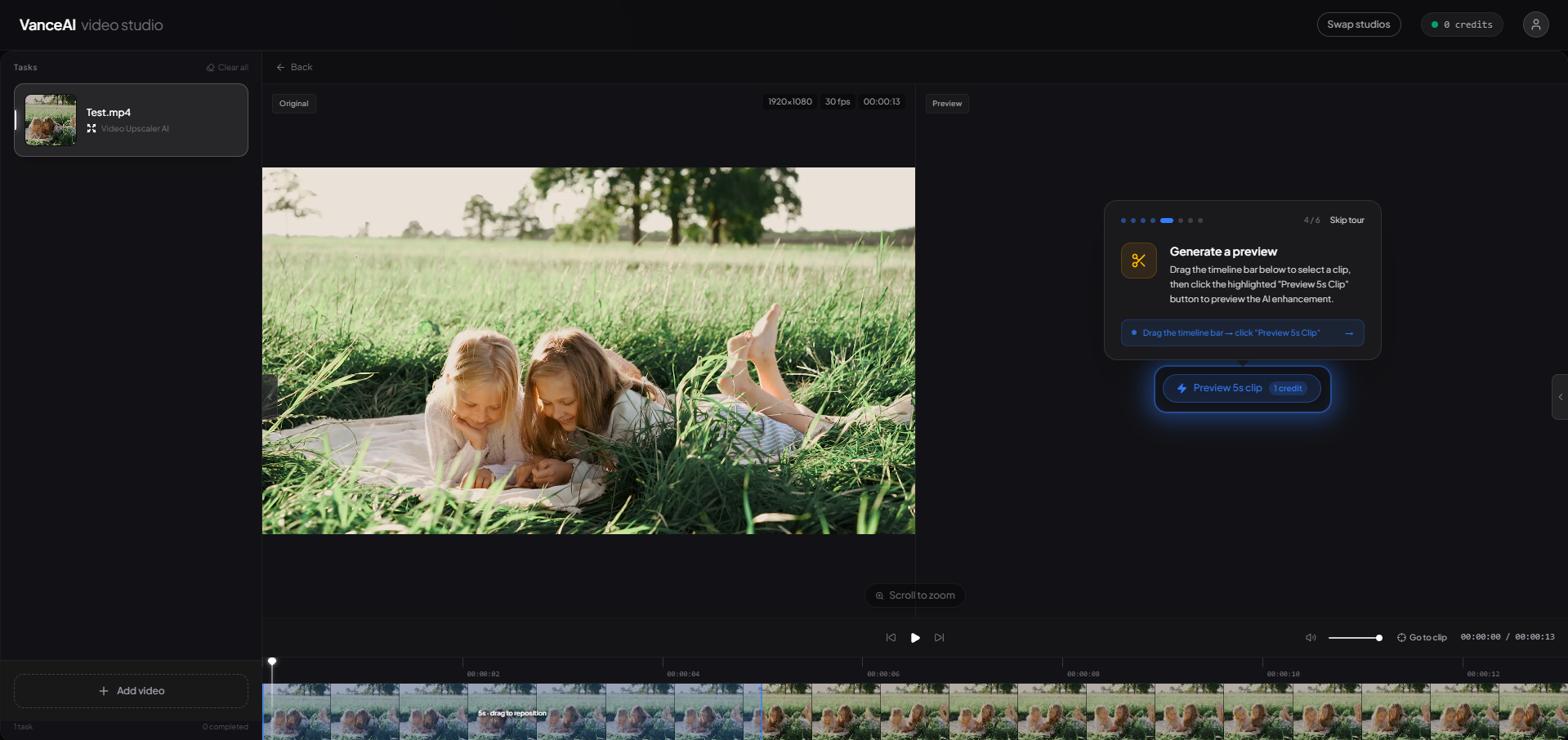
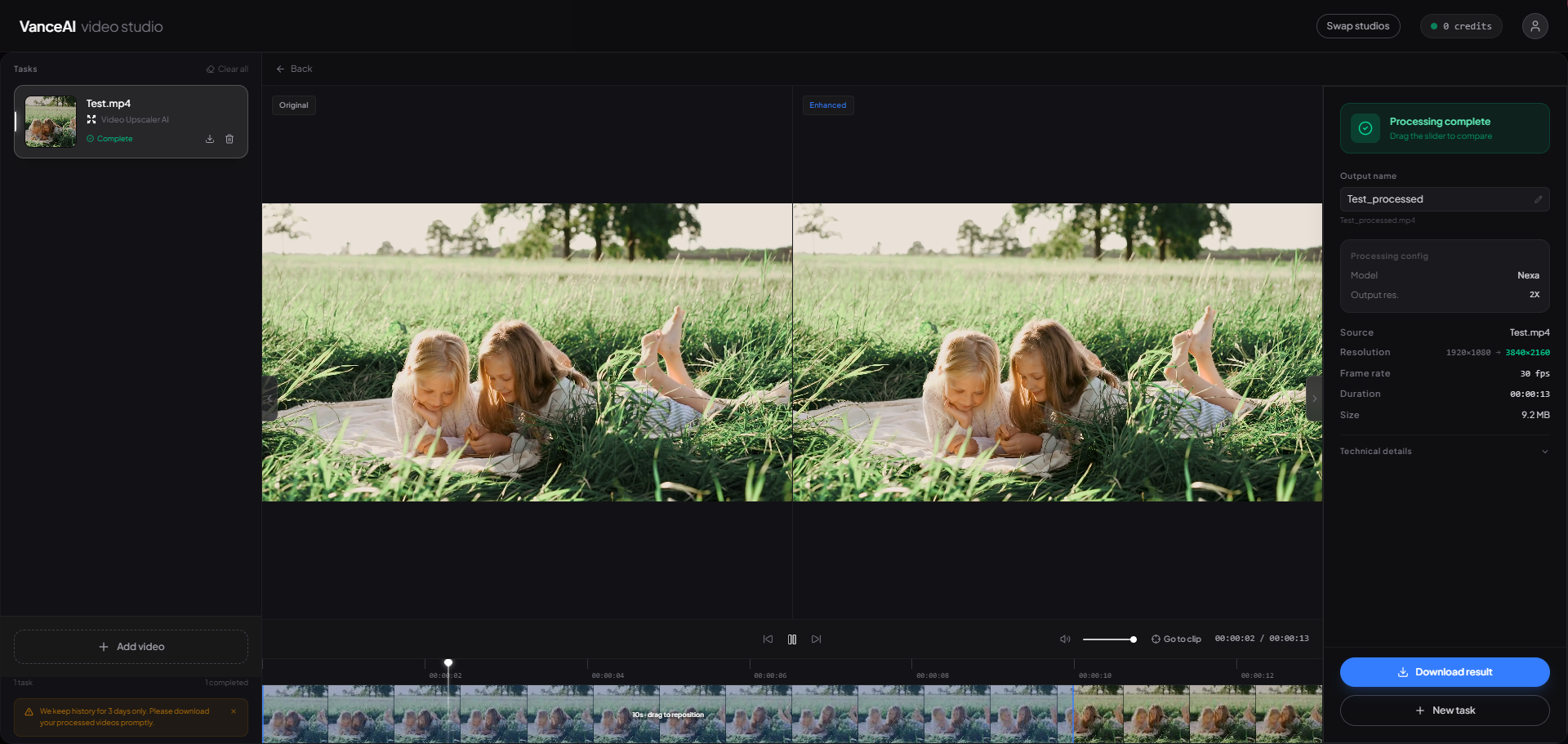
Step 5: Compare original vs upscaled, then apply. The preview view splits the canvas: the original frames sit on the left, the upscaled frames on the right. Drag the slider to A/B-test any frame at full resolution. If the result matches what you want, click Start processing to run the full clip; otherwise tweak the model or resolution and re-preview.
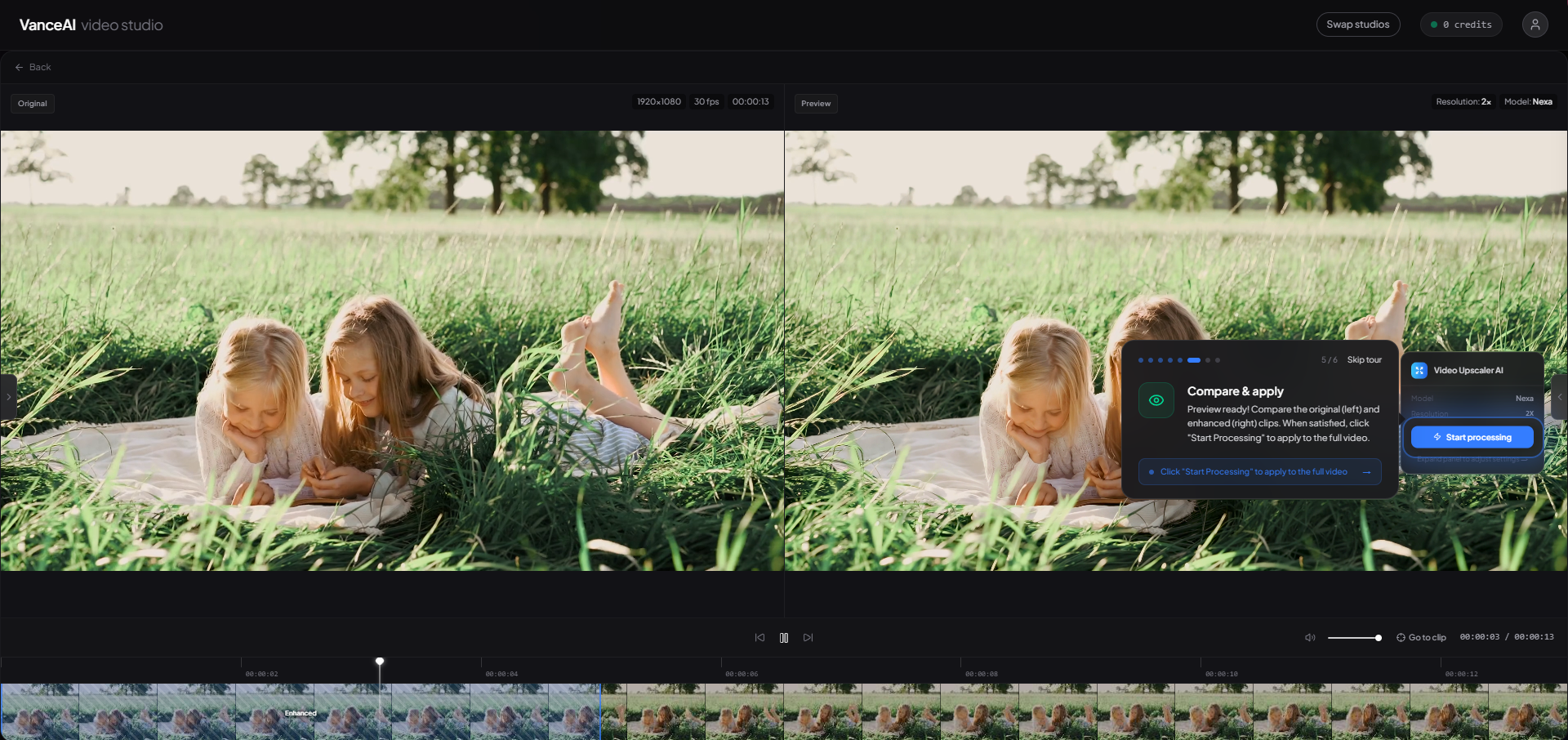
Step 6: Download your processed MP4. Full processing runs in the background on cloud GPUs — you can close the tab and come back later. When the task shows Processing complete, click Download result to grab the MP4. Files stay in your dashboard for three days. For a deeper deblurring workflow on stubborn footage, see our companion guide on how to unblur videos.
2. Flixier
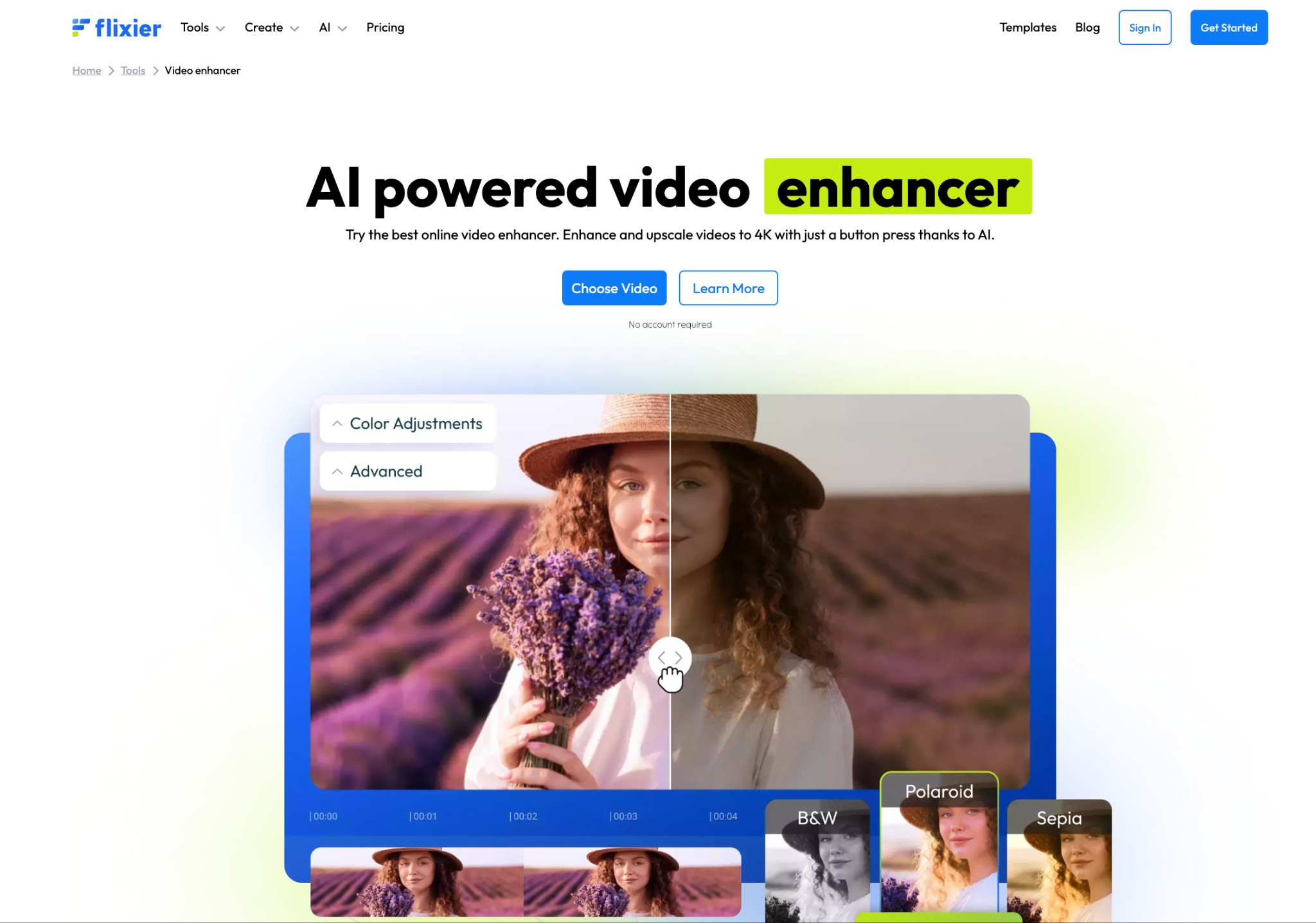
Flixier is an online video editor program that can upscale your video clips to 4K while adding text, images, sounds, transitions, and auto-subtitles. You can perform basic video editing options like trim, crop, and cut videos without downloading the program. Enjoy the convenience of built-in motion titles, transitions, and access to over 2 million stock files, enabling you to create captivating videos for platforms like YouTube, Facebook, and Instagram.
Price: Free plan available. Pro plan starts at US$8.00/month for Creators and US$20.00/month for Business
Compatible OS: Web-based
Pros
- Upscale video to 4K with AI on any device at super speed
- Endless options for audio, video effects, and transitions
- The manual toolset offers sharpening and detail enhancement, color correction, filters, noise reduction, and more
- Removes noise and color correct, restoring old and damaged footage
Cons
- Offers only a 2 GB storage limit and 10 minutes of free downloads/exports
- Beginners can take some time to learn the program and struggle with editing
3. Fotor Video Enhancer
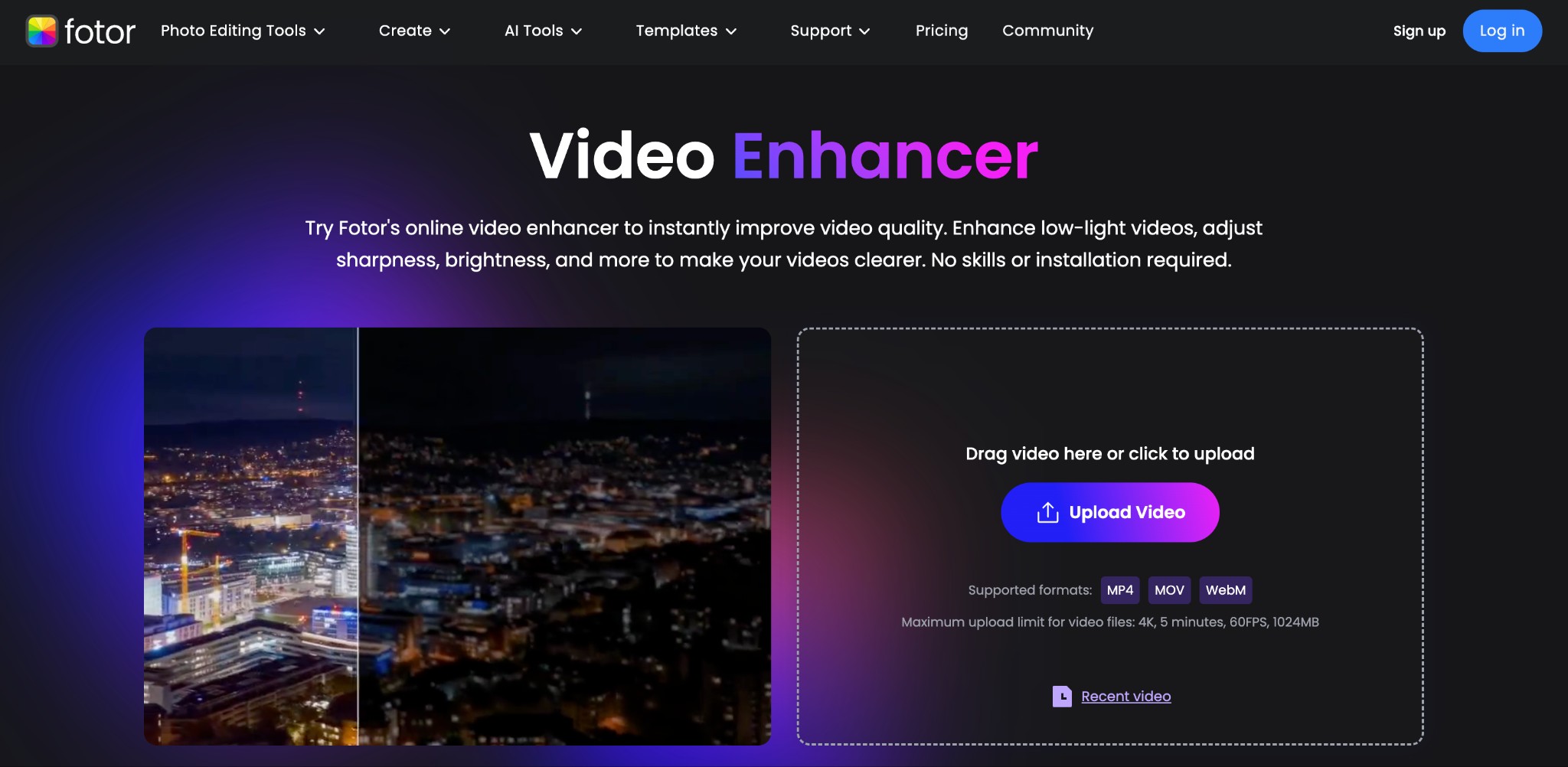
Fotor Video Enhancer is an incredible AI-powered online tool that elevates video quality within a few hits on any device or platform. It can upscale video up to 4K with 60fps without the hassle of separate software installation. The program analyzes the video and then adjusts the lights, brightness, contrast, sharpness, and many other parameters to improve overall quality. The program can handle various videos with support in MOV, MP4, and WebM formats.
Price: Free version available. The pro version starts at US$3.33/month and Pro+ at US$7.49/month
Compatible OS: Web-based
Pros
- Intuitive and straightforward interface, suitable for beginners with no technical skills
- Enhance low-light videos, modify sharpness, brightness, and more to make your videos clearer
- No software installation is required; it works on any device and OS via a web browser
- Breathe new life into old and blurry family videos to transform them into clear and vivid moments
Cons
- Lacks fine detail restoration, leaving the image slightly over-smooth
- The AI enhancement gives the output a processed or artificial look, potentially reducing its natural feel
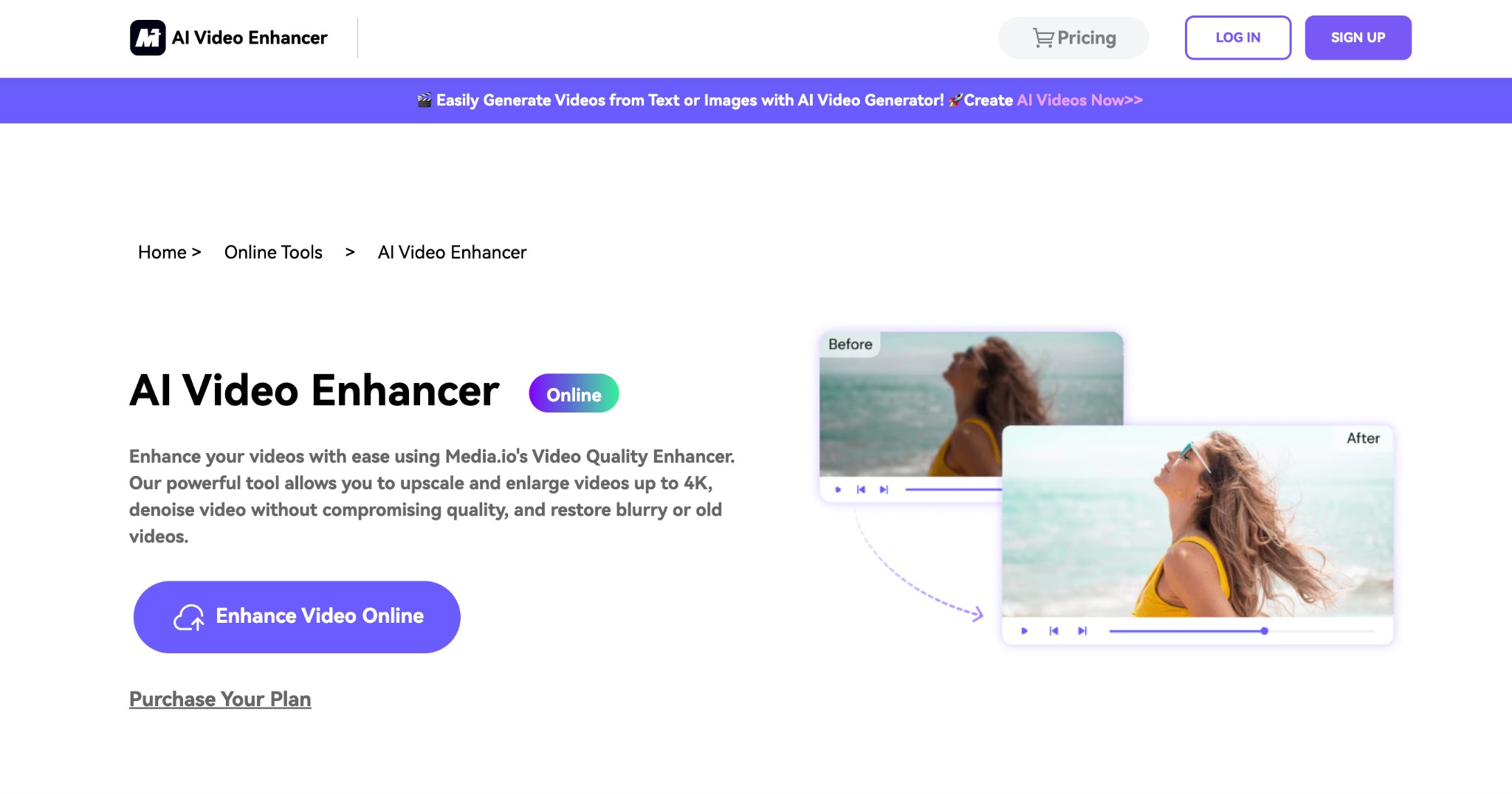
Media.io is a popular online video enhancer to enhance your videos. It is a powerful tool that allows you to upscale videos up to 4K, denoise footage without compromising quality, and restore blurry or old videos. Media.io Video Enhancer helps increase the overall video clarity and improve the final result.
Price: Free version available. US$17.90/month and Pay As You Go Plan at US$59.90
Compatible OS: Web-based
Pros
- Breathe new life into your videos using Media Enhancer
- Provides 2x and 4x proportional super-resolution, upscaling video clarity up to 4K
- Convert low-res animated videos into high-res videos, resulting in a clearer image with finer details
- Utilizes AI algorithm to stabilize shaky footage, resulting in a more engaging viewing experience
Cons
- The final edited videos have watermarks
- Requires upgrading to the pro version for high-quality and watermark-free results
5. Kapwing
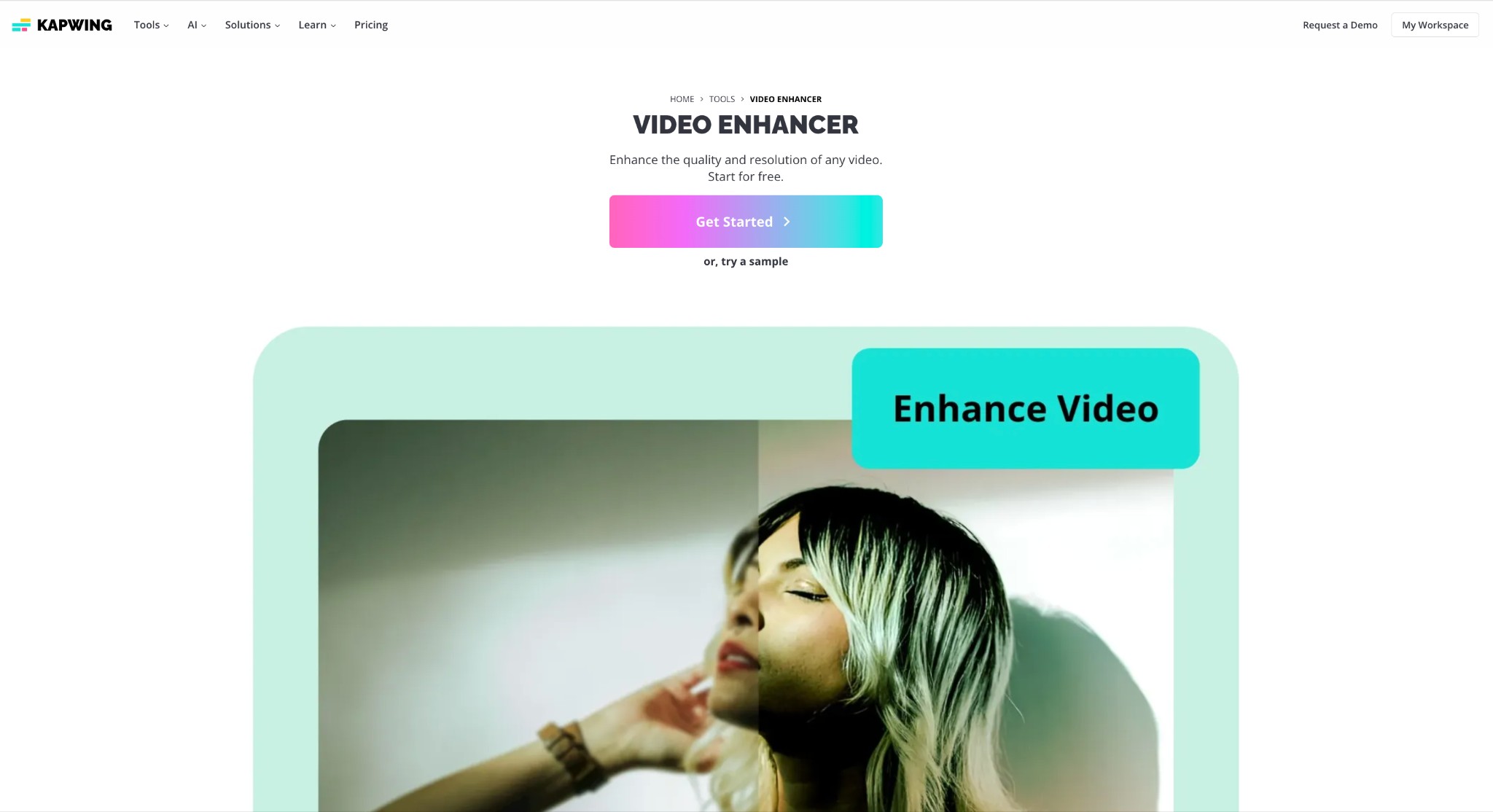
Kapwing is a top online video editor designed to create fast and efficient videos for users of any skill level. Its content repurposing tools make resizing, converting, and compressing videos for different platforms accessible. You can trim videos by editing auto-generated transcripts, speeding up the editing process. AI-powered tools improve productivity with one-click automation, including Smart Cut for automatic silence removal and Magic Subtitles for accurate, editable subtitles.
Price: Free version available. Pro starts at US$16/member/month (billed annually), Business plan at US$50/member/month (billed annually)
Compatible OS: Web-based
Pros
- Easy to use, and videos render very quickly
- The silence remover and the audio enhancer
- Easily add different shapes, emojis, and waveforms to your video
- A rich dashboard that allows you to crop, add photos/backgrounds and monitor your slides easily
Cons
- Lacks customer support and has glitches
- The media sometimes crashes and slows when we put some pictures in one moment
Part 2: For Windows/Mac, Make a Low-Quality Video Look Better
1. UniFab Video Upscaler AI
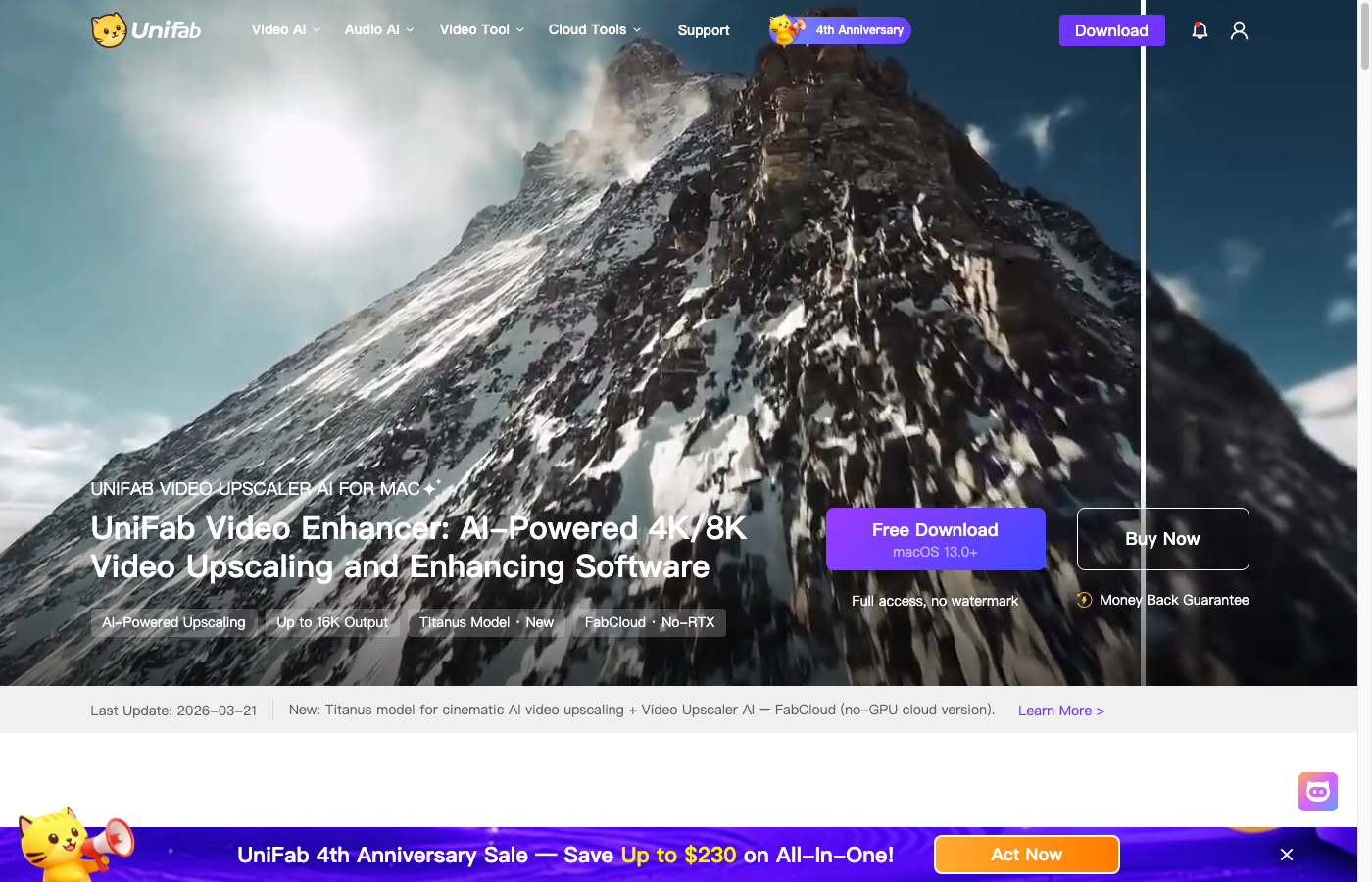
UniFab Video Upscaler AI is a Windows and Mac application built around four specialized AI models — Equinox, Vellum, Kairo, and the new Titanus — that lift footage all the way to 4K, 8K, and 16K. Each model is tuned for a different use case: Equinox handles every video type from low-resolution old movies and TV recordings to home footage, restoring sharpness while keeping the original colors, lighting, and motion intact; Kairo is built for anime AI upscaling and preserves line-art style; Vellum enhances textures with cinematic speed; and the new Titanus model delivers 3× faster cinematic upscaling for film and TV restoration. For users without a high-end GPU, UniFab also offers a FabCloud option that runs in the browser — same models, no local hardware requirement.
Price: Lifetime licenses from US$84.99; 30-day free trial with full access and no watermark.
Compatible OS: Windows 10/11 (64-bit) and macOS 2015+ (Apple M-series chip supported); FabCloud version runs in any browser
Key Features:
- Four specialized AI models — Equinox (universal), Kairo (anime), Vellum (texture), Titanus (cinematic, NEW)
- Upscale to 4K, 8K, or 16K with crystal-clear detail
- FabCloud option — runs in the cloud with no local GPU required, browser-based instant output
- 30-day free trial on desktop (full access, no watermark)
Pros
- Specialized models (anime, cinematic, texture) deliver more targeted results than one-size-fits-all upscalers
- Highest output ceiling in this comparison — up to 16K
- Dual delivery (desktop + FabCloud) covers both high-end workstations and underpowered laptops
- 12-in-1 toolkit means the upscaler chains naturally with colorize, HDR, and frame-rate enhancement
Cons
- Desktop version needs a capable GPU (NVIDIA RTX 30+ or Apple M-series) for 4K and above
- Bundle pricing can feel steep if you only need the upscaler — pay attention to single-tool vs All-In-One plans
- Reference benchmarks show 1080p → 4K takes about 3.5× the original video length on an RTX 4070 — plan for long processing windows on slower machines
2. Topaz Video Enhance AI
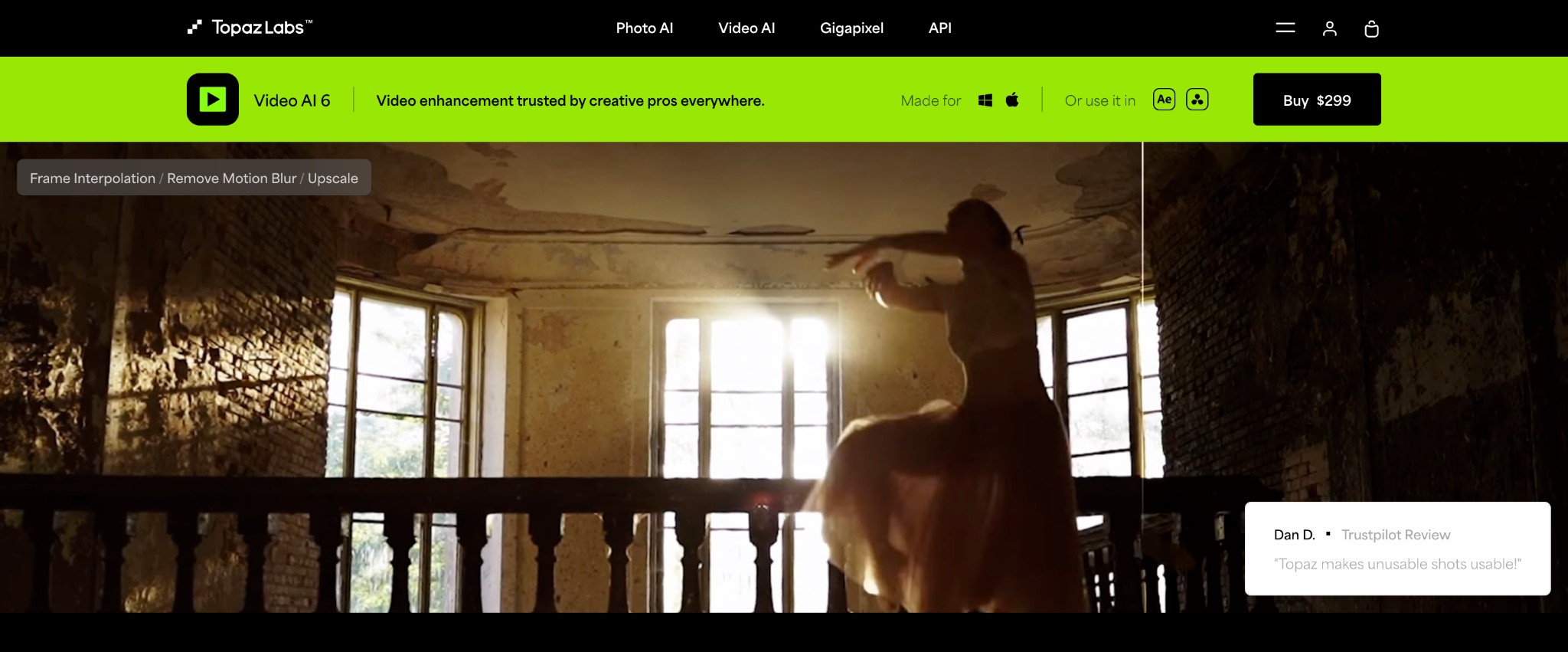
Topaz Video Enhancer AI also stands out as an ultra-smooth, sharp, and steady enhancer that uses machine learning algorithms to improve video quality up to 16K. It analyzes video patterns and fills in missing details by adding new pixels, reducing noise and artifacts for a cleaner, polished video. It offers multiple AI filters and models designed to provide users with the best output, showcasing the vibrant charm of their videos.
Price: US$299
Compatible OS: Windows 10/11 and Mac OS Big Sur 11 and higher
Pros
- Upscales content up to 4K, 8K, and 16K for naturally enhanced files
- AI Models like Gaia and Artemis intelligently increase resolution while reducing artifacts and noise
- Different slow motion factors and AI models available to achieve smooth slow motion effects
- Stabilizes frames while reducing motion blur caused by slow shutter speeds and motion
Cons
- Excessive processing time and relatively expensive program than its competitors
- Hogs system resources and requires high system requirements
3. AVCLabs Video Enhancer AI
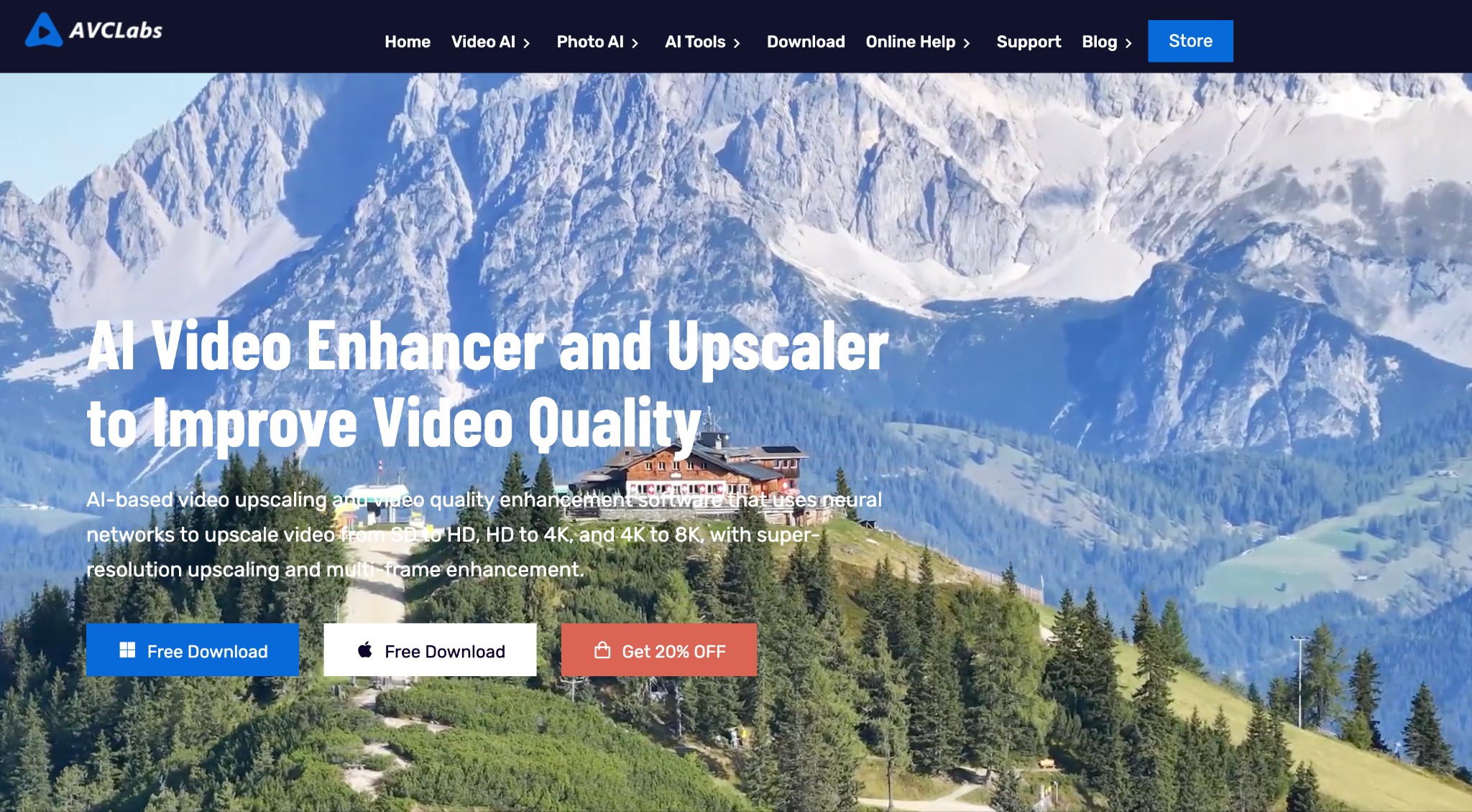
AVCLabs Video Enhancer AI emerges as professional software offering exceptional facial recognition capabilities. It uses a blend of facial recognition and motion tracking to deblur and enhance faces, whether they're stationary or in motion. Its automated multi-frame super-resolution feature upscales videos from SD to HD and further to 4K or 8K while keeping them uncompressed and eliminating unwanted parts for a more natural look.
Price: US$39.95/month, US$95.96/year, and US$299.90/lifetime
Compatible OS: Windows 10/11 and Mac OS 10.15 and above
Pros
- Upgrades low-res videos to a sharper, more defined output
- Intuitive layout for novices and seasoned users for smooth workflow
- Handles various video formats, ensuring broad compatibility
- Offer four AI models with multiple options, including specialized Face Enhancement and AI Colorize models
Cons
- Limited video categories and functionalities with high system requirements
- Basic video enhancement: it cannot upscale SDR to HDR nor upmix audio tracks
4. HitPaw Video Enhancer
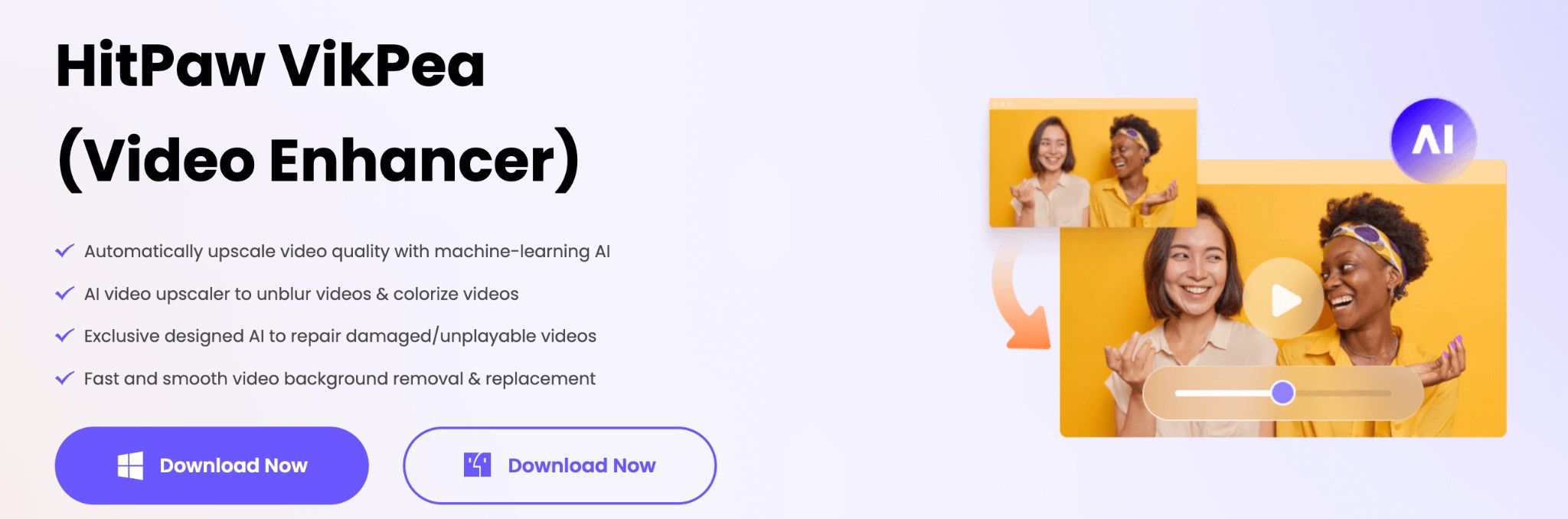
HitPaw Video Enhancer is a go-to choice for many users because its enhanced models denoise, animate, colorize, repair, and do more with a single click. It can upscale low-resolution videos to 1080p or 4K and 8K, preserving quality while enlarging up to eight times. It simplifies the enhancement process and features video background removal and sky replacement, making it ideal for creators seeking professional results.
Price: Pro price plans start at US$52.99/month (US$79.99/month for Mac), US$119.99/year (US$129.99/month for Mac), and US$399.99/lifetime
Compatible OS: Windows 10/11 and Mac OS 10.15 and above
Pros
- Supports video enhancement up to 8K standard with machine-learning AI
- Restore old and corrupted videos by utilizing deep-learning AI
- Enables batch processing to upscale, unblur, and colorize multiple videos together
- Users can restore the picture clarity in both 2D and 3D animations
Cons
- It is time-consuming, especially for upscaling videos to high-resolution
- Some models produce poor results, as seen in the performance above
Part 3: For Android/iOS, Make Video Quality Better on Your Phone
1. Vivid Glam Video/Photo Retouch
Vivid Glam Video/Photo Retouch is an AI-powered video editing app that dramatically improves the quality of your videos using powerful AI video enhancement, AI color correction, and stylish filters. It allows you to boost the quality of a video in just a few clicks. Different color and lighting effects can significantly enhance your look as you move, pose, and dance.
Price: Free app. Premium features start at US$29.99/year
Compatible OS: iOS, Mac OS, and Apple Vision only

Pros
- Modern, intuitive, and innovative app with AI video enhancement tools
- Unique portrait and video selfie tools to enhance the video content
- Impressive AI effects for professional-looking videos for social media
- Automatic color correction with a range of stylish filters to change the mood
Cons
- Unavailable on Android devices
- Very limited hairstyles & custom doesn't get it either
2. Winkit - AI Video Enhancer
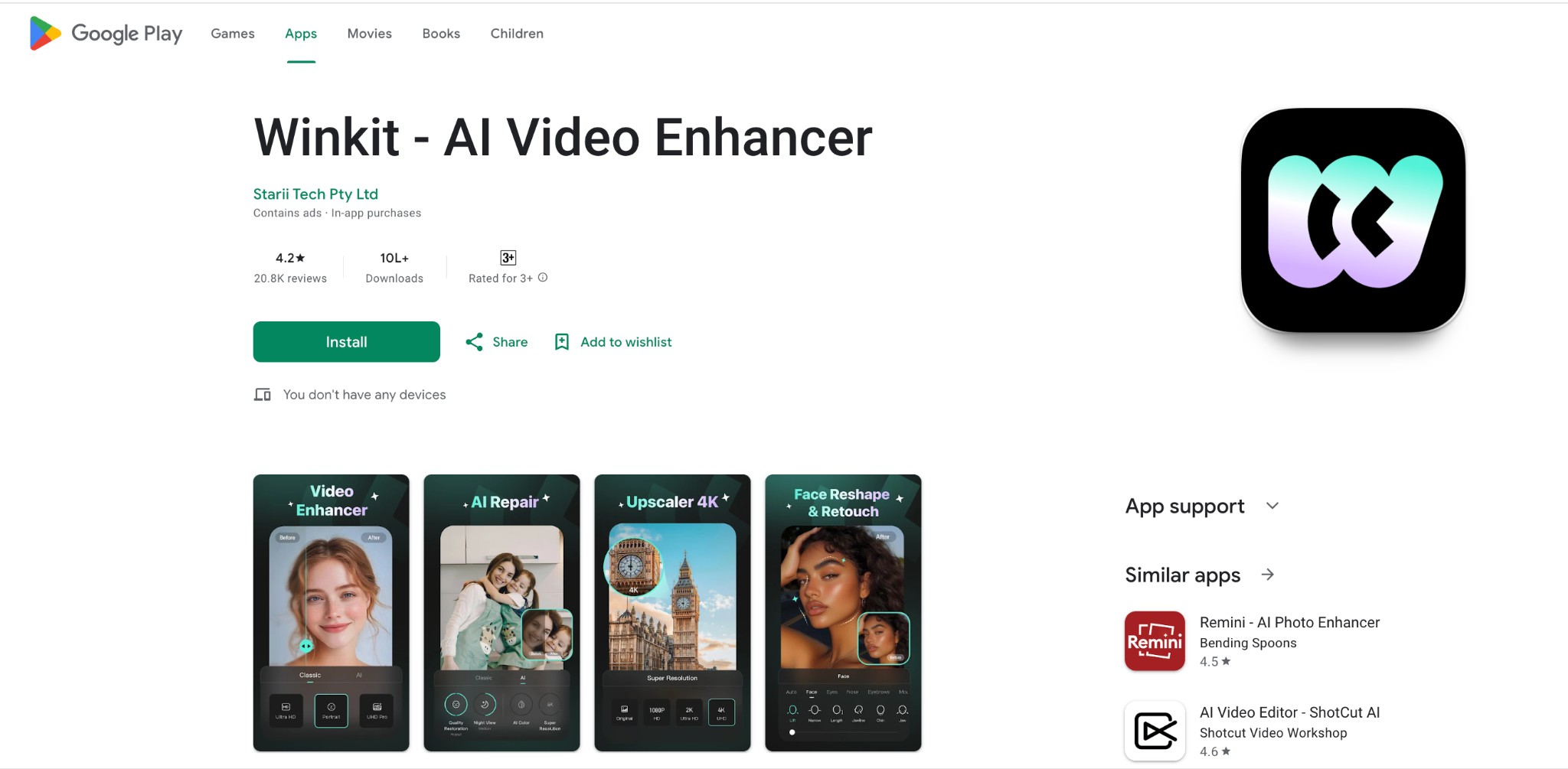
Winkit - AI Video Enhancer is a powerful AI-powered video editing app for enhancements, comprehensive retouching capabilities, and intuitive editing tools. The app's advanced features, ease of use, and high-quality results will satisfy users seeking a powerful and efficient video editing solution. The app's AI-powered tools make restoring and enhancing videos easy, ensuring that even those with limited editing skills can produce professional-quality results.
Price: Free version available. Premium features start at US$49.99/year
Compatible OS: Android, iOS, Mac OS, and Apple Vision
Pros
- Creative Filters to apply diverse, stunning styles to elevate your visuals
- Create dynamic AI-powered live photos from stills
- Smooth slow-motion or choppy videos with AI-driven frame rate enhancements
- Reduce background noise or video grain for cleaner, sharper visuals
Cons
- It relies on device processing power and memory
- Hardware limitations can pose a hiccup to some users
Final Wrap Up
Low quality videos can be a disaster for any event coverage, family memory, or social-media drop. The 11 AI video upscalers in this guide cover almost every use case — but they fall into clear lanes. If you want the lowest install friction, a browser-based workflow wins: VanceAI Video Upscaler runs entirely in your browser with a Nexa + Cineva dual-model architecture, a 4-second preview that protects your credits, and a free trial with no credit card required. If you have a capable Windows or Mac workstation and want a desktop application with the highest output ceiling, UniFab Video Upscaler AI offers four specialized models all the way to 16K, plus a FabCloud fallback for machines without a high-end GPU; Topaz Video Enhance AI and AVCLabs remain strong premium desktop alternatives. If you shoot mostly on a phone and want everything in one app, Vivid Glam (iOS) or Winkit (cross-platform) get the job done. Test a short preview or free trial first, then commit to a full upscale only when you're happy with the look. If your footage is specifically blurry rather than just low-resolution, our companion guide on how to make a blurry video clear walks through the deblurring workflow in detail.
FAQs
How can I improve my video quality?
Follow these measures to improve your video quality from scratch.
- Use the right equipment, such as a camera, microphone, tripod, etc., to achieve the highest video quality during filming.
- Focus on adequate lighting for clear video and images to look warm and joyful.
- Use diffusers and reflectors to soften harsh sunlight, avoid shadows for outdoor recording, or ring lights for indoor shoots.
- Frame your subject wisely for focus.
- Use the correct file size for faster uploading, easier storage, and smoother playback.
Can I enhance my video quality?
Yes. Various tools and apps are available to improve your video quality. You can adjust your equipment's settings and lighting or use a competent video editor to improve the quality of a video you've already recorded. And if you want to clear the blur videos, here is a wonderful guide for you.
Can AI fix a grainy video?
Yes. AI technology has seen incredible advancements in recent years. Compared to traditional tools and manual processes, AI-powered tools can transform grainy, low-resolution footage into stunning high-definition videos without a fuss.
For most users, a browser-based AI video upscaler offers the best balance of quality, speed, and zero install friction. VanceAI Video Upscaler stands out in 2026 because it runs as a web app — vanceai.com/video-upscaler — that gives you a choice of two specialized AI models (Nexa for everyday footage up to 4K and Cineva for cinematic-grade restoration). It needs no install, no credit card to start, and lets you preview a 4-second sample before committing to a full upscale. If you have a powerful workstation and want the highest output ceiling on the desktop, UniFab Video Upscaler AI offers four specialized models (Equinox, Vellum, Kairo, Titanus) up to 16K with a 30-day free trial.
What's the difference between VanceAI's Nexa and Cineva models?
Nexa is "a universal enhancement model designed to balance speed and quality, providing reliable enhancement for all types of media" — output options 720p, 1080p, 1440p, and 4K, plus 1×, 2×, and 4× scale multipliers. Cineva is for "professional video upscaling for film and TV. Enhanced AI models improve quality for restoration work" — always a fixed 4× upscale, ideal for SD input up to 1024×540. In practice, pick Nexa for modern phone clips, YouTube videos, or ad drafts; pick Cineva when you are restoring old DVD rips, vintage anime, 2000s cartoons, VHS digitizations, or any source that started below 720p.
Is there a free way to enhance low quality video without a watermark?
Yes. Several AI video upscalers offer a no-watermark free tier or free trial credits that let you produce a clean output. VanceAI Video Upscaler gives new web app users free trial credits with no credit card required, and the output MP4 carries no watermark. UniFab offers a 30-day free trial of its desktop app with full access and no watermark, plus a free FabCloud online trial for short clips. Free plans on Flixier and Fotor also offer watermark-free exports within a short duration cap.
How much does VanceAI Video Upscaler's web app cost?
VanceAI is credits-based. From vanceai.com/pricing the web app starts at $4.95 for 100 credits (with a +100 bonus on top during the limited-time 2× promo), then $7.95 for 200 credits, $12.95 for 500 credits (the Most popular tier), and $17.95 for 1000 credits — each higher tier doubles credits and lowers the per-credit cost. Pay-as-you-go is available at the same per-credit rates without a subscription; PAYG credits stay valid for a year. All plans come with a 7-day money-back guarantee, and unused credits roll over to the next billing cycle.
How long does AI video upscaling take?
Processing time depends on the source length, input resolution, target resolution, and whether the tool runs locally on your hardware or in the cloud. Desktop tools like UniFab, Topaz, and AVCLabs can take 30 minutes to several hours for a one-minute clip going to 4K, depending on your GPU — UniFab's published reference benchmarks put 1080p → 4K at about 3.5× the original video length on an RTX 4070. Cloud-based services like VanceAI process video on optimized server-side GPUs, so your browser only handles upload and download — meaning even a Chromebook can finish a 4K upscale quickly. Always run a 4-second preview first so you can estimate full-run time before committing your credits.
Yes — and this is exactly the scenario where AI video upscalers shine. SD footage from VHS rips, old DVDs, and digitized camcorder tapes typically caps at 480p or 540p and lacks the detail to look acceptable on a modern 4K screen. AI upscalers infer plausible detail from millions of training frames and rebuild the missing pixels. VanceAI's Cineva model is specifically optimized for this case: it always applies a fixed 4× upscale on SD input up to 1024×540, restoring vintage anime, 2000s cartoons, or childhood home tapes to near-HD quality without the harsh "AI plastic" look that plagues older upscalers. UniFab's Kairo and Titanus models target the same use case at desktop scale, with output ceilings reaching 8K and 16K.
Format support varies. VanceAI Video Upscaler (web app) currently accepts MP4 and MOV files up to 10GB and delivers output as an MP4 file — for AVI, MKV, or WMV input, run a quick free conversion to MP4 first. UniFab, Topaz Video Enhance AI, and AVCLabs accept a wider range of formats (MP4, MOV, AVI, MKV, WMV, FLV, and more) thanks to their desktop FFmpeg integrations. Mobile apps like Vivid Glam and Winkit usually only accept the formats your phone camera produces (MP4 or MOV on iOS, MP4 on Android). Always check the supported formats list before uploading a long file.