Why So Many People Are Looking for a Topaz Video AI Alternative in 2026
Topaz Video AI earned its reputation the hard way, and it still deserves most of it. Its library of specialized models can pull a watchable 4K clip out of a soft, noisy 480p source in a way that felt like magic the first time you saw it. So the spike in searches for a Topaz Video AI alternative this year is not really a verdict on quality. It is a verdict on who the tool now fits.
Three things changed the calculation, and only one of them is about pixels.
The price model flipped.
In October 2025 Topaz Labs retired the perpetual license that long-time users built their workflows around and moved everything to a subscription. The Personal plan is now $299 a year (or $59 a month), and Pro is $699 a year. The "buy it once, own it forever" deal that made a $300 outlay feel like an investment is gone for new customers — and a subscription resets every twelve months whether you opened the app twice or two hundred times. Worse for occasional editors: when a subscription lapses, the application stops opening. It is not a watermark or a feature downgrade; you lose access to the tool you were paying for until you pay again.
The hardware bill is real.
Topaz renders locally and leans hard on your GPU. On an RTX 4070 or better, that is a genuine strength — you keep your footage offline and the throughput is high. On an average laptop, a Mac with integrated graphics, or an older AMD card, it means fan noise, thermal throttling, and a few minutes of 4K output that can occupy your machine for the better part of an hour while you wait.
The learning curve is steep.
Fifteen-plus models — Proteus, Iris, Nyx, Gaia, Artemis, Starlight, and the rest — each tuned for a different failure mode, plus multiple sliders per model, give you enormous control and just as many ways to make a clip look worse. Pick the wrong model for the source, or over-push "recover detail," and faces turn into plastic mannequins. That power is exactly why pros love it and why newcomers bounce off it.
None of that makes Topaz a bad tool. It makes Topaz a poor fit for a large and fast-growing group of people who want a sharp clip without a yearly contract, a gaming GPU, or a weekend learning model taxonomy. The seven alternatives below are the ones actually built for that group — ranked, tested against the same footage, and explained by who each one really serves.
How I Compared These Topaz Video AI Alternatives
A ranked list is only useful if you know what it is ranking. I put each tool through the same four questions rather than chasing one "best quality" number, because the right answer genuinely depends on your footage and your computer.
- Output quality on hard sources. Anyone can sharpen a clean 1080p clip. The real test is degraded material: a noisy low-light interview, a soft 480p home video, and a jagged piece of SD anime. I looked for genuine detail reconstruction (not just edge sharpening), how well noise and compression blocks were removed, and whether motion stayed temporally stable instead of shimmering frame to frame.
- Hardware demand and accessibility. Does the tool need a powerful local GPU, or does it run in the cloud on whatever laptop you own? For a lot of readers this single factor decides everything.
- Cost of ownership. Subscription, one-time license, or pay-as-you-go credits — and what that adds up to over a few years of real use, including whether you keep access after you stop paying.
- Ease of getting a good result. How many decisions stand between dropping in a file and exporting something you are happy with, and how easy is it to ruin the output.
Two patterns showed up immediately. First, if your reason for leaving Topaz is cost, hardware, or hassle, a browser-based tool erases all three at once. Second, if you specifically want a powerful desktop engine but hate the new subscription, the field has narrowed to a couple of genuinely strong options. That is why the top two picks split along exactly that line.
The Best Topaz Video AI Alternatives at a Glance
The table is ordered by how well each tool serves the largest number of everyday users, not by raw feature count. Read it by the row that matches your situation.
| Rank | Tool | Form factor | Hardware needed | Pricing model | Best for |
|---|---|---|---|---|---|
| 1 ⭐ | VanceAI Video Upscaler | Browser-based, online | None (cloud) | Credit-based, free trial, no lock-out | Fast 4K upscales on any computer, no install |
| 2 | UniFab Video Upscaler AI | Desktop (Win/Mac) | RTX 30-series+ recommended | One-time lifetime license + 30-day free trial | A powerful desktop engine without a subscription |
| 3 | HitPaw Video Enhancer | Desktop | Mid-range GPU | Subscription | Simple, preset-driven desktop cleanup |
| 4 | AVCLabs Video Enhancer AI | Desktop | Strong GPU (AMD-friendly) | Subscription | Heavier restoration, AMD machines |
| 5 | VideoProc Converter AI | Desktop | Mid-range GPU | One-time + AI features | Upscaling bundled with conversion/editing |
| 6 | Video2X | Free, open-source | Capable GPU + setup | Free | Tinkerers who want zero cost and full control |
| 7 | TensorPix | Browser-based, online | None (cloud) | Subscription / minutes | Quick one-click cloud enhancement |
The headline: the two strongest alternatives are a cloud tool and a desktop tool that, between them, answer the two reasons people leave Topaz. If you do not want to install or maintain anything, start with VanceAI Video Upscaler. If you want local power but refuse to rent your software, UniFab is the one that kept a lifetime license. The rest of this guide explains exactly when each wins.
1. VanceAI Video Upscaler — Best Browser-Based Alternative
When the goal is "make this clip sharper and bigger without installing anything or signing a yearly contract," VanceAI Video Upscaler is the first tab I open. It targets the same core problem as Topaz — rebuilding soft, low-resolution footage into something crisp and 4K-ready — from the opposite direction: fully online, credit-based, and free to try with no signup. The processing runs on VanceAI's servers, so a thin ultrabook gets the same output as a tower with a $1,500 graphics card, and the tool counts 9.8 million users.
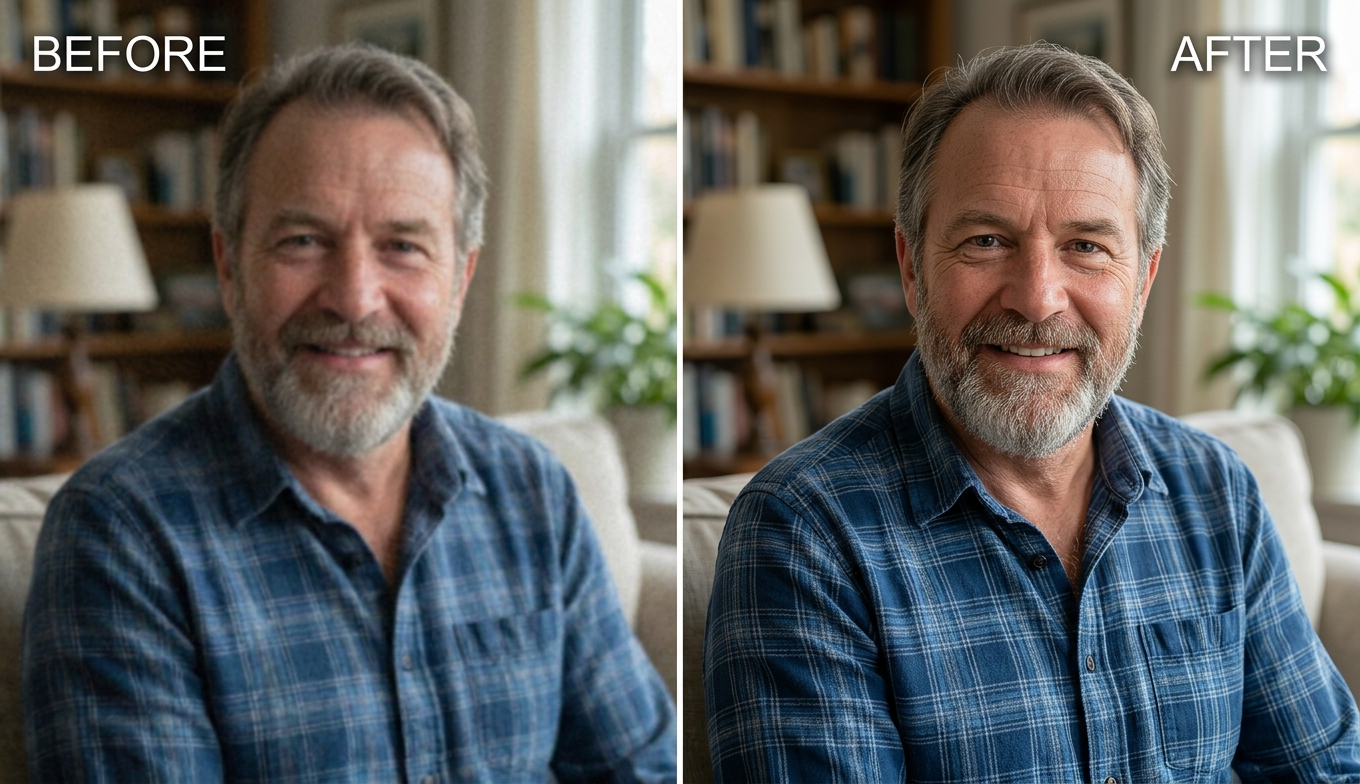
What earns it the top spot is that it removes the two things that push people off Topaz — the install and the GPU — without collapsing into a one-button black box. You still get to match the model to the footage:
- Nexa — the general-purpose engine for everyday clips. It outputs 720p, 1080p, 1440p, and 4K, with a 1×, 2×, or 4× scale factor. This is what I reach for on talking-head footage, screen recordings, and modern phone video that just needs more resolution.
- Cineva — the cinema-focused model tuned for standard-definition sources up to 1024×540 input. It applies a fixed 4× upscale, which is the right tool for dragging an old SD home movie or a ripped DVD toward near-HD without the smeared, waxy look cheaper upscalers produce.
The practical envelope is generous and removes most of the guesswork that makes desktop upscaling feel like a gamble: it accepts MP4 and MOV files up to 10GB and 4K input, returns an MP4, keeps your processed files available for three days, and — the detail I value most — lets you generate a five-second preview for a single credit before committing to the full render. On a tricky clip that one habit has saved me from burning credits on a model that was never going to work.
On cost, VanceAI is credit-based rather than a yearly lock-in. New users get free trial credits with no credit card, and credit cost scales with the video's duration, input resolution, and chosen scale factor — you pay for what you actually process, and buying more credits lowers the per-credit price. There is no perpetual-versus-subscription trap and nothing that expires and locks you out of your own tool.
Where it gives ground, honestly: because processing happens in the cloud, you upload and wait in a queue rather than watching a local progress bar, and very long files climb in credit cost as duration grows. For a colorist exporting hours of timeline a day, that math eventually favors a desktop app — which is exactly where the next pick comes in.
2. UniFab Video Upscaler AI — The Desktop Engine That Kept Its Lifetime License
If your objection to Topaz is the subscription specifically — you want a powerful local app, you just refuse to rent it — UniFab Video Upscaler AI is the most direct answer on this list. It is a desktop application for Windows and macOS that still sells a one-time lifetime license, which makes it the natural landing spot for the exact users Topaz's October 2025 pricing change pushed away.
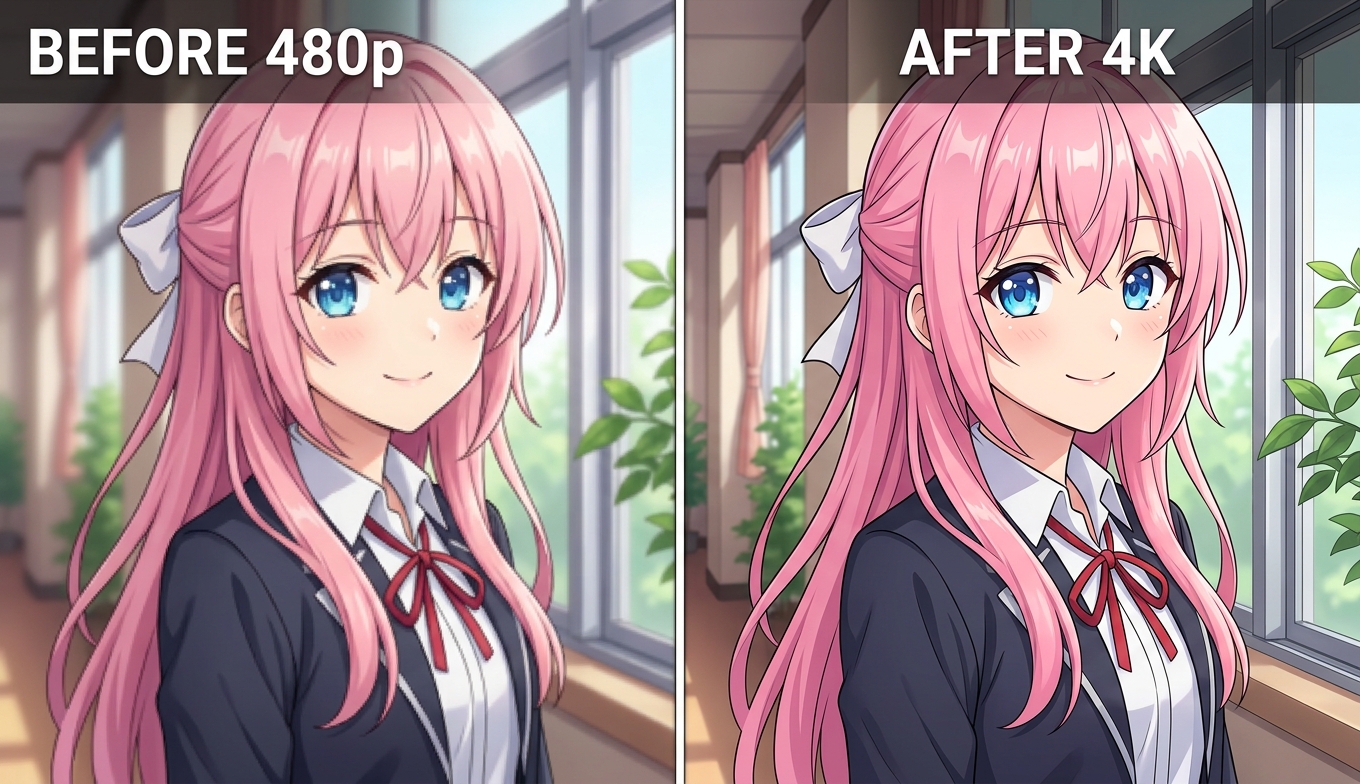
It is not a single-model tool either. UniFab ships four engines mapped to the content types that trip up generic upscalers:
- Equinox — general-purpose for everyday footage, with selectable Fast or High-Quality modes when you want to trade speed for fidelity.
- Kairo — built for anime and cartoon footage, focused on sharpening line art and holding flat colors without the haloing that ruins cel animation.
- Vellum — tuned to boost surface textures and fine detail, which is what you want on landscapes, nature, and product shots.
- Titanus — aimed at movies and cinematic content, and roughly 3× faster than the heavier models for long-form work.
Its ceiling is genuinely high: UniFab upscales from SD, 720p, or 1080p all the way to 4K, 8K, and even 16K on the desktop build, with GPU/CUDA acceleration and batch processing for queueing a whole folder overnight. The honest trade-off is that all of that power is local — UniFab recommends roughly 16GB of RAM, 8GB of VRAM, and an NVIDIA RTX 30-series card or better, so this is a tool for a reasonably capable machine, not a budget laptop. The upside that matters: a 30-day free trial with full access and no watermark lets you confirm it on your own footage before paying, and there is a money-back guarantee on top.
The clean way to think about the top two: VanceAI wins when you do not want to own or maintain anything, and UniFab wins when you want desktop horsepower and a one-time purchase instead of a recurring bill.
3. HitPaw Video Enhancer
HitPaw is the friendly one. It exposes a small, curated set of models — general, animation, face, and a colorize option — behind an interface that deliberately hides the complexity Topaz puts front and center. For someone who wants to drop in a clip, pick a preset, and export without learning what "Proteus" means, that restraint is the entire value proposition, and on everyday "clean this up a bit" jobs the results are perfectly respectable.
The trade-offs are the familiar desktop ones, and they are the reason it sits below the top two: it installs locally, benefits from a decent GPU, and runs on a subscription rather than a one-time license. On genuinely degraded sources it does not reach the depth of Topaz's or UniFab's specialized models. If you specifically want a desktop app and value a gentle learning curve over a deep toolbox, it is a sensible pick — just know you are paying monthly for simplicity, not for the strongest engine.
4. AVCLabs Video Enhancer AI
AVCLabs is the tool people reach for when their machine is built around an AMD GPU and they feel underserved by software tuned mainly for NVIDIA. It covers upscaling, denoising, face refinement, and frame interpolation, and it is willing to push footage aggressively — sometimes past the point of subtlety, which can be a feature on very rough archival material and a liability on faces.
The cost of that ambition is speed. AVCLabs is one of the more hardware-hungry options here; on a modest machine, exports crawl and the app dominates your system while it works, and it runs on a subscription as well. For someone with capable hardware who wants heavier restoration than HitPaw offers and a tool that treats AMD as a first-class citizen, it earns a place on the shortlist. Budget the render time and test it on a representative clip before you commit to a plan.
5. VideoProc Converter AI
VideoProc is the multitool of the group, and it is honest about that. AI upscaling and frame interpolation sit alongside a full conversion, compression, recording, and basic editing suite, so it is less a dedicated enhancer than a Swiss-army app that happens to include AI. If your actual workflow is "convert this format, trim it, and bump the resolution," getting all three done in one place is genuinely convenient and saves you bouncing between programs.
Its pricing is also friendlier to license-averse users than most, leaning on one-time purchase tiers rather than a pure subscription — a real point in its favor for anyone leaving Topaz over exactly that issue. The AI upscaling will not out-restore a dedicated engine on a difficult source, so I would not buy it for that alone, but as the practical generalist in a small toolkit it earns its keep.
6. Video2X — The Free, Open-Source Option
If your budget is zero and you do not mind getting your hands dirty, Video2X is the open-source answer. It wraps upscaling engines like Real-ESRGAN and waifu2x into a pipeline for enlarging video, and it is genuinely capable on the right material — especially animation, which these models were practically built for.
The catch is everything around the result. Video2X expects you to install dependencies, work with configuration, and bring your own capable GPU; there is no polished interface holding your hand, and processing can be slow. For a hobbyist who enjoys tinkering or a developer comfortable on the command line, it is a remarkable free tool that asks for time instead of money. For anyone who wants a clip upscaled in the next ten minutes without a setup project, it is the wrong door — which is precisely the gap the two cloud tools on this list fill.
7. TensorPix
TensorPix keeps you in the browser like VanceAI but with a narrower aim: a handful of one-click enhancement toggles — upscaling, denoising, deinterlacing, stabilization — built for fast, low-effort cleanups rather than fine control. As a grab-and-go cloud enhancer for a quick fix, it is fine, and the zero-install convenience is real.
It runs on a subscription or minutes-based plan, and its model depth is shallower than a dedicated upscaler's, so heavy restoration is not its strength and you have less say over how the result is reached. If you want the convenience of the cloud with more control and a cheaper way to test before you spend, VanceAI's two-model approach and one-credit preview give you more for the same browser-based promise.
The Real Cost of Switching: A 5-Year Comparison
Quality matters, but for most people leaving Topaz the trigger was the bill, so it is worth doing the math honestly. This is cost of ownership over five years of steady use, with access terms spelled out because they are the part that actually stings.
| Tool | Pricing | Approx. 5-year cost | Keep access if you stop paying? |
|---|---|---|---|
| Topaz Video AI (Personal) | $299 / year | ~$1,495 | No — app locks you out |
| VanceAI Video Upscaler | Credit-based, pay per use | Varies with usage; free to start | Yes — buy credits only when you need them |
| UniFab Video Upscaler AI | One-time lifetime license | One payment, then $0 | Yes — you own the license |
| HitPaw / AVCLabs | Subscription | Recurring | No |
| VideoProc | One-time tiers | One payment | Yes |
| Video2X | Free | $0 | Yes |
Two honest caveats keep this fair. VanceAI's pay-as-you-go cost depends entirely on how much footage you push through it — for heavy, daily volume a one-time desktop license like UniFab's can work out cheaper, while for occasional projects pay-per-use almost always wins. And a one-time license only beats a subscription if the software keeps getting updates you actually need. But the structural point is hard to argue with: Topaz's model now charges you every year and revokes the tool the moment you stop, and every alternative here changes at least one half of that equation.
How to Choose: Match the Tool to Your Footage and Your Computer
Skip the spec sheets and start with your own situation. Three questions settle it.
What computer are you on?
If you do not own a strong GPU — a laptop, a Mac with integrated graphics, or an older AMD system — a cloud tool sidesteps the whole problem. VanceAI and TensorPix run on remote servers, so your machine never becomes the bottleneck. If you do have a capable workstation and prefer keeping footage local, UniFab, HitPaw, AVCLabs, or VideoProc all keep processing on your own drive.
How often do you actually upscale, and on what?
Constant, high-volume work rewards a one-time desktop license that amortizes fast — UniFab's lifetime model is built for exactly that, and its content-specific engines (Kairo for anime, Vellum for textured landscapes) pay off when you process the same kind of footage repeatedly. Bursty, occasional work — a batch this month, nothing next — is the case credit-based pricing was made for, and it is also the everyday scenario the how to upscale 480p to 1080p walkthrough is built around.
How much control do you want?
Tinkerers and restoration pros want deep model libraries and per-clip tuning, which is where Topaz, UniFab, AVCLabs, and Video2X live. Most people want a good result with as few decisions as possible, which is where a two-model tool with a one-credit preview shines — enough choice to match the footage, not so much that you can wreck it. And if you over-sharpen anyway, you will learn the same lesson everyone does the first time a face comes out looking like wax: dial "detail" back and let the model breathe.
Where Topaz Video AI Still Wins
A fair guide names the cases where staying put is the right call. Topaz remains the better tool if you are a working professional restoring archival or commercial footage on a powerful machine and you use it often enough to justify the yearly cost. Its model library is the deepest on the market — fifteen-plus specialized engines for denoising, sharpening, frame interpolation, stabilization, and deinterlacing — and the recent Precision update pushes high-accuracy enhancement up to 4K across live action, animation, and generative content.
It also slots directly into a professional pipeline through its Premiere Pro panel and DaVinci Resolve integration, which a cloud tool cannot match for an editor living inside an NLE all day, and because processing is local there is no upload step and no queue. If that describes your work, Topaz is not the thing to leave; it is the thing to keep. The alternatives in this guide are for the much larger group the 2026 pricing change quietly moved to the sidelines.
How to Upscale a Video Online With VanceAI Video Upscaler
If you landed here ready to try the top pick, the browser workflow is short by design.
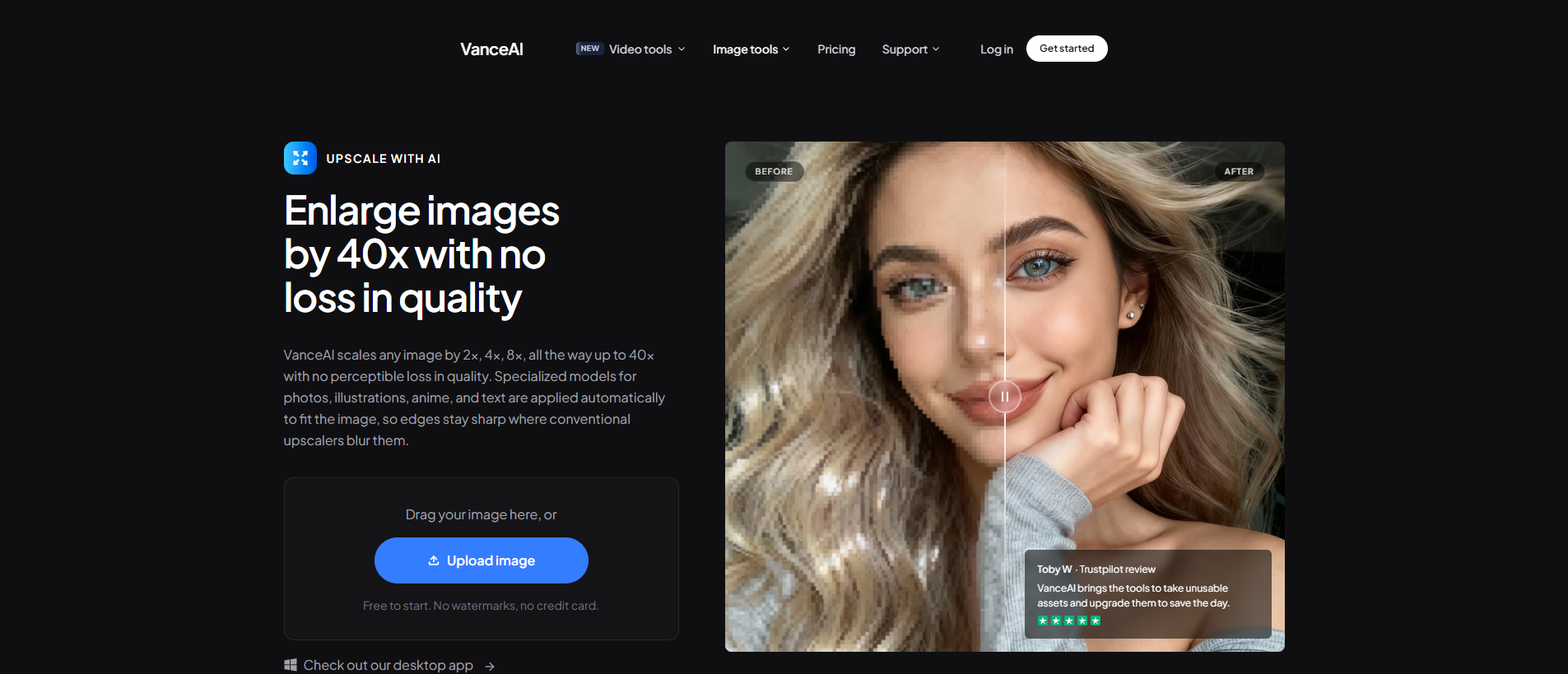
1. Open VanceAI Video Upscaler in your browser and upload an MP4 or MOV (up to 10GB, up to 4K input).
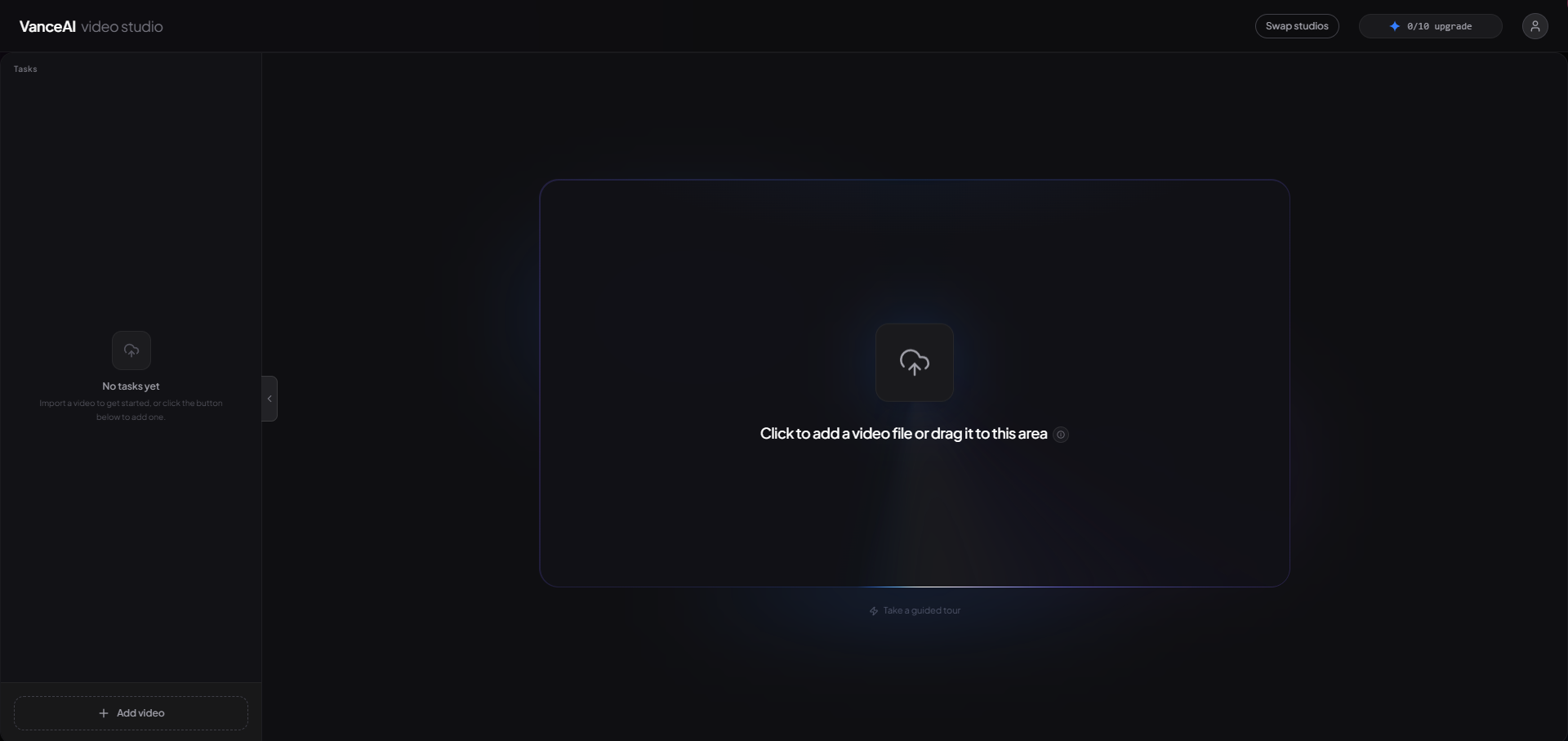
2. Choose your model — Nexa for everyday footage, Cineva when you are restoring a standard-definition source.
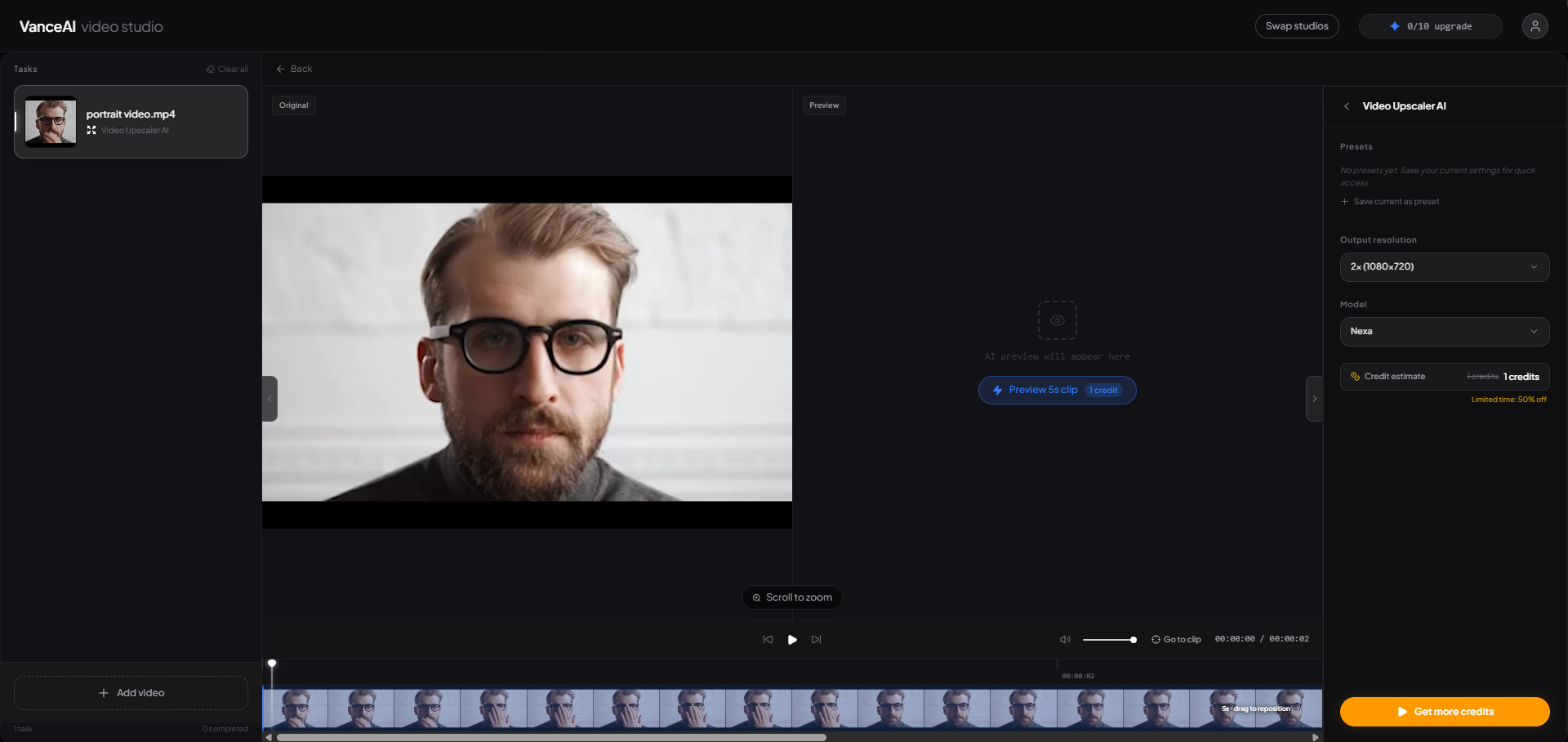
3. Set your target resolution or scale factor (720p to 4K, or 1×/2×/4× on Nexa).
4. Click Preview to generate a five-second sample for one credit and confirm the quality before committing.
5. Process the full clip, then download your MP4 — it stays available for three days.
No install, no GPU anxiety, no project file to babysit. For still images rather than video, the same logic carries over in this Topaz Gigapixel review, which reaches a similar conclusion about cloud versus desktop.
Frequently Asked Questions
What is the best Topaz Video AI alternative in 2026?
It depends on whether you want cloud or desktop. For most people the best browser-based option is VanceAI Video Upscaler: it runs entirely online, needs no powerful hardware, gives new users free trial credits with no credit card, and uses two purpose-built models (Nexa and Cineva) to upscale toward 4K. If you specifically want a powerful desktop app without a subscription, UniFab Video Upscaler AI is the strongest pick because it still sells a one-time lifetime license.
Is there a free Topaz Video AI alternative?
Yes. Video2X is fully free and open-source, wrapping engines like Real-ESRGAN and waifu2x, though it requires installation, a capable GPU, and some technical setup. VanceAI is also free to start — new users get trial credits without entering a card and a five-second preview costs one credit — and UniFab offers a 30-day free trial with full access and no watermark.
What's the best Topaz alternative that isn't a subscription?
UniFab Video Upscaler AI. While Topaz moved to annual subscriptions in 2025, UniFab still offers a one-time lifetime license for its desktop app, with four content-specific models and upscaling up to 8K and 16K. VideoProc also leans on one-time purchase tiers, and VanceAI's credit system means you only pay when you actually process a video rather than on a recurring schedule.
Why did people start looking for a Topaz alternative in 2026?
In October 2025 Topaz Labs ended its perpetual license for new customers and moved to subscriptions — $299 a year for Personal and $699 a year for Pro. The recurring cost, the fact that a lapsed plan locks you out of the app entirely, and Topaz's heavy hardware demands and steep learning curve pushed many casual and budget-conscious users to look for something cheaper, lighter, or simply one-time.
Do I need a powerful computer to replace Topaz Video AI?
Not if you choose a cloud tool. VanceAI Video Upscaler and TensorPix process on their own servers, so any laptop gets full-quality output. Desktop alternatives — UniFab, HitPaw, AVCLabs, VideoProc — still rely on your local GPU; UniFab, for example, recommends around 8GB of VRAM and an RTX 30-series card or better for its higher-resolution work.
What's the difference between VanceAI's Nexa and Cineva models?
Nexa is the general-purpose engine for everyday footage and outputs 720p, 1080p, 1440p, or 4K with 1×, 2×, or 4× scaling. Cineva is the cinema-focused model built for standard-definition sources up to 1024×540 input, and it always applies a fixed 4× upscale — ideal for restoring old SD video toward near-HD quality.
Can I keep using Topaz if I cancel my subscription?
No. Because Topaz is now subscription-based, access ends when your plan lapses and the application stops opening. Credit-based and one-time tools behave differently: with VanceAI you buy and spend credits as needed, and with a lifetime license like UniFab's you keep the software you paid for regardless of any renewal.
Which Topaz alternative is best for anime upscaling?
For anime specifically, look for a model trained on cel animation. UniFab's Kairo model is built for anime and cartoon footage and focuses on clean line art and flat colors, and the open-source Video2X (via waifu2x and Real-ESRGAN) handles animation well if you are comfortable with setup. VanceAI's Cineva model is also a strong choice for upscaling older standard-definition anime sources toward HD.
What file formats and sizes can VanceAI Video Upscaler handle?
It accepts MP4 and MOV files up to 10GB with a maximum input resolution of 4096×2160 (4K). The processed result is delivered as an MP4 file and stays available to download for three days.
Is a desktop or browser-based Topaz alternative better?
It depends on your hardware and how often you upscale. Browser-based tools like VanceAI win for people without strong GPUs, occasional users, and anyone who hates installs and contracts. Desktop tools like UniFab win for users with capable machines, heavy daily workloads, and a need for deep offline control and the highest output resolutions. For most everyday creators, the browser route is the simpler and cheaper starting point.
The Verdict
Topaz Video AI is still a genuinely powerful engine, and for professionals with the hardware and the workload it remains worth keeping. But the 2026 move to a $299-a-year subscription that locks you out the moment it lapses narrowed who that value reaches, and the field has two clear answers depending on what you actually want. If you want to upscale a clip today on whatever computer you own, with no install and no contract, start with VanceAI Video Upscaler and let the free trial credits prove it on your own footage. If you want real desktop horsepower up to 8K and refuse to rent your software, UniFab Video Upscaler AI is the lifetime-license alternative built for exactly that. Either way, you no longer have to choose between Topaz's annual bill and a worse result — and that is the real story of 2026.