
What Topaz Video AI Actually Is in 2026
Topaz Video AI is the desktop application most editors think of first when a clip needs to go from soft and noisy to sharp and watchable. It runs locally on your own machine, leans hard on your GPU, and ships a library of specialized AI models for five jobs: upscaling, frame interpolation, stabilization, denoising, and deinterlacing. If you have restored a grainy wedding tape or pushed 1080p footage toward 4K, you have probably bumped into it.
What changed in 2026 is not the engine. It is the price tag and the terms attached to it. In October 2025 Topaz Labs retired its long-running perpetual license and moved the whole product to an annual subscription. That single decision reshaped the "is it worth it" question for almost everyone, so this review treats pricing as a feature, not a footnote.
By the end you will know exactly what Topaz does well, where it now frustrates people, and which browser-based tool I reach for when I do not want to install anything or babysit a render. Short version: Topaz is still a serious professional engine, but it is no longer the obvious default for casual and budget-conscious creators.
Topaz Video AI Pricing in 2026: The $299 Story
Here is the part that surprises returning users. The "buy it once, keep it forever" Topaz is gone for new customers. The current structure is subscription-only:
| Plan | Price | Who it targets |
|---|---|---|
| Personal | $299 / year | Individual creators and hobbyists |
| Pro | $699 / year | Studios, commercial and agency work |
Two consequences matter more than the numbers themselves.
First, the spend never ends. A perpetual license was a one-time hit you could amortize over years. An annual plan is a recurring line item that resets every twelve months whether or not you used the app much that year. First-time buyers also feel the jump immediately, because $299 is a real commitment for something you have not yet tested on your own footage at scale.
Second, and this is the one that stings, a lapsed subscription locks you out of the application entirely. This is not a watermark or a feature downgrade. When the plan expires, the software stops working. For anyone who edits seasonally or in bursts, paying year-round for a tool you touch a few weeks at a time is hard to justify.

None of this means Topaz is overpriced for the right user. A professional restoring archival footage on a powerful workstation gets genuine value. It means the math now excludes a large group of people it used to serve. That gap is exactly where a Topaz Video AI alternative becomes worth a serious look.
Features and Models: Where Topaz Earns Its Reputation
Topaz Video AI is not coasting. The 2026 build carries 19-plus specialized models — names like Nyx, Apollo, Chronos, Rhea, Starlight, and Iris — each tuned for a different failure mode in degraded footage. The newest addition, Astra 2, landed in April 2026 as an upscaling model designed to add clarity and detail without giving footage that over-processed, plastic look.
The model spread is the real strength. Denoise grain without smearing motion. Recover detail on a soft source. Interpolate frames to smooth slow-motion. Stabilize a handheld shot. Deinterlace old broadcast captures. When you pair the right model with the right clip on capable hardware, the results are genuinely impressive, and that is why restoration professionals keep paying.
The 2026 update also improved the workflow around the models. Workspaces 2.0 lets you pause and resume exports and juggle multiple projects, and Topaz now integrates directly with DaVinci Resolve, Premiere Pro, and After Effects so it can sit inside an existing editing pipeline instead of beside it.
If your work lives in a professional NLE and your machine has the horsepower, these are meaningful upgrades. Hold onto that "if," because it is doing a lot of work.
Where Topaz Video AI Frustrates People
A fair review names the friction, and Topaz has more of it in 2026 than it used to.
It demands serious hardware. Topaz runs locally and lights up your GPU. On a modern, powerful machine that is a feature. On an average laptop it means fan noise, thermal throttling, and renders that crawl. A few minutes of 4K output can tie up your computer for a long time, and you cannot do much else while it churns.
Installation and updates are real overhead. This is multi-gigabyte desktop software with model downloads, driver sensitivities, and periodic updates. You manage all of it before you touch a single frame.
The learning curve is steep. Nineteen models, multiple settings per model, preview windows, and export presets give you power, but they also give a newcomer a lot of ways to get a worse result than they started with. Choosing the wrong model for the source is easy.
The subscription lock-out changes the relationship. Stop paying and the app stops opening. Your past purchases do not keep working. For seasonal editors, that recurring obligation is the single biggest reason to look elsewhere.
None of these are dealbreakers for a working professional with a strong workstation and steady projects. For everyone else, they add up fast.
The Best Topaz Video AI Alternative: VanceAI Video Upscaler
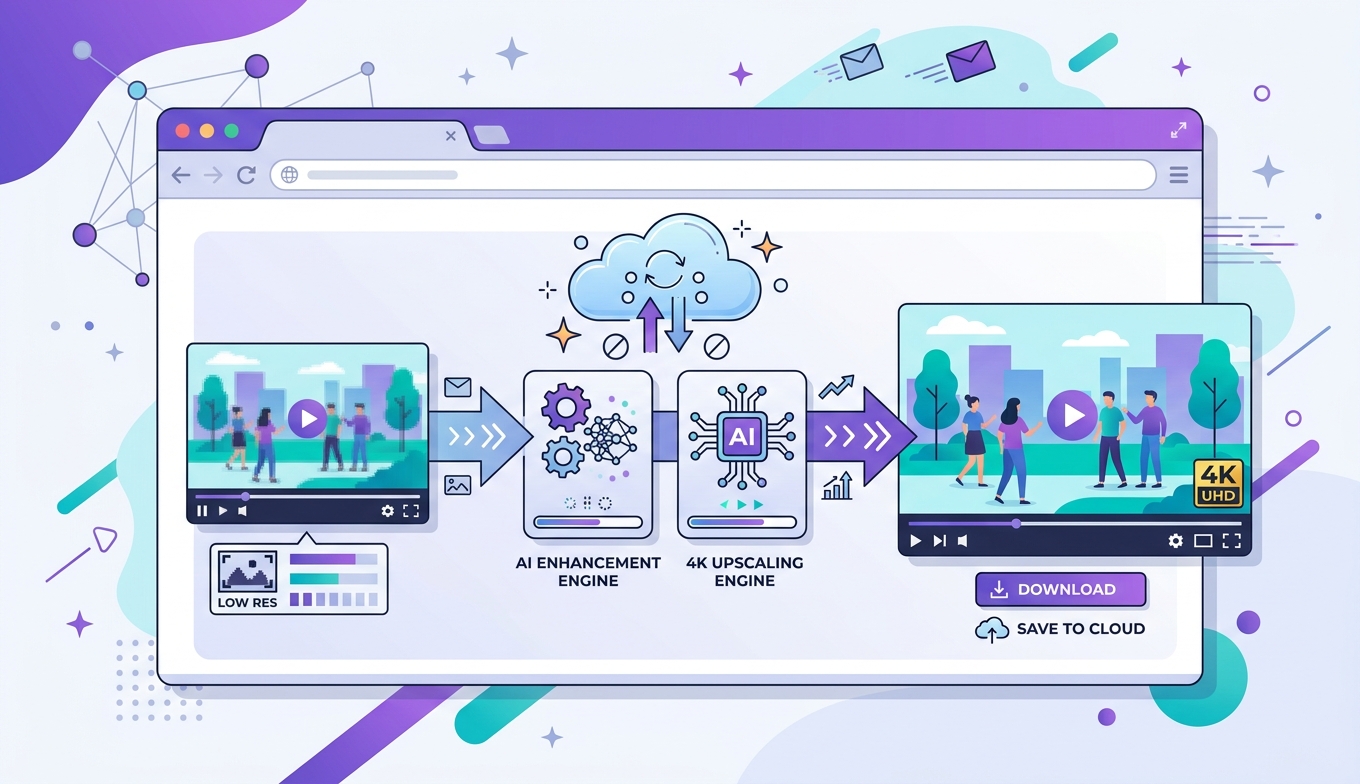
When I want a clip cleaned up without installing anything, taxing my GPU, or signing a yearly contract, I open VanceAI Video Upscaler in a browser tab. It attacks the same core problem — turning soft, low-resolution video into something sharp and 4K-ready — from the opposite direction: fully online, credit-based, and free to try with no signup.
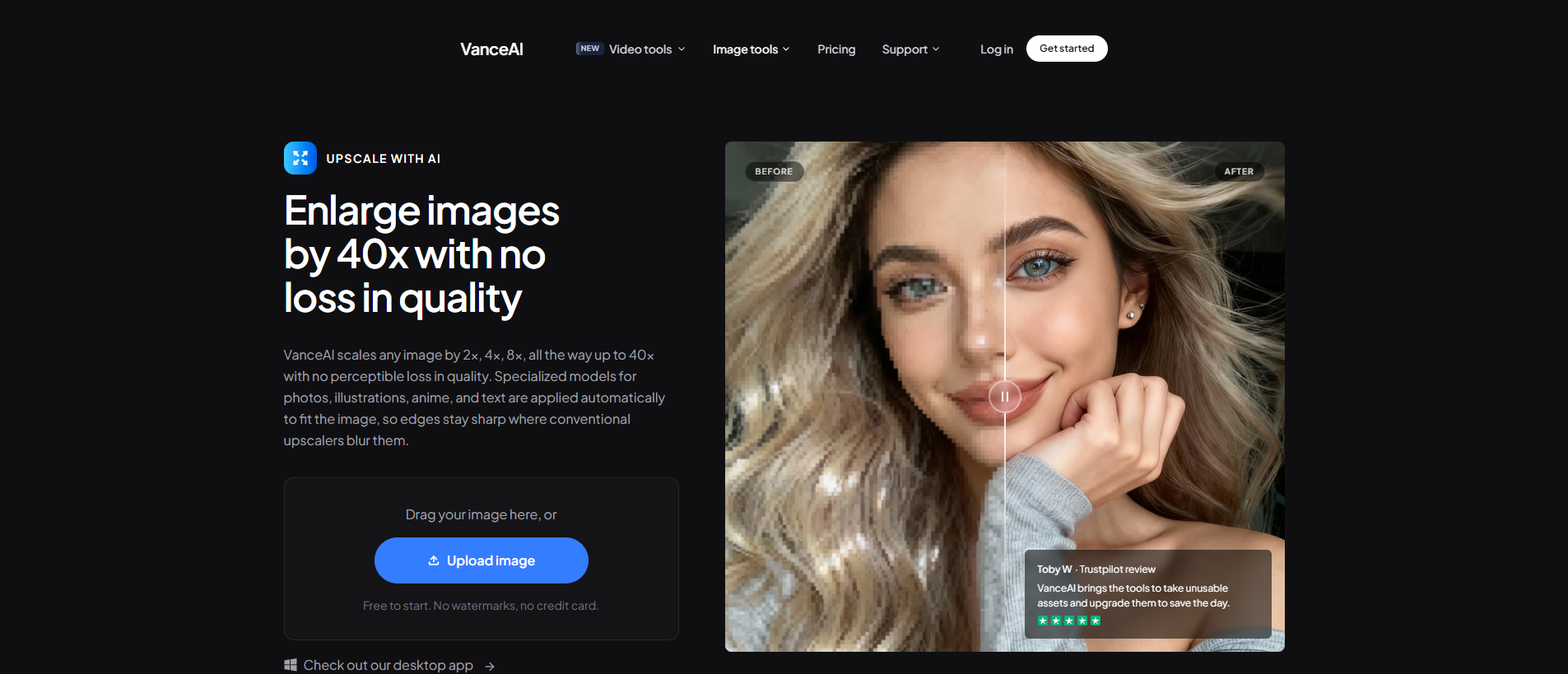
That positioning is why it sits at number one in the comparison below, and it is not a marketing claim. It is about who actually gets served. The processing runs on VanceAI's servers, so a thin laptop gets the same output as a tower. There is nothing to download, the tool counts 9.8 million users, and you can start on free trial credits without entering a card.
It is also not a one-model black box. VanceAI ships two purpose-built engines:
- Nexa — the general-purpose model for everyday footage. It outputs 720p, 1080p, 1440p, and 4K, and you can pick a 1×, 2×, or 4× scale.
- Cineva — the cinema-focused model optimized for standard-definition sources (up to 1024×540 input). It applies a fixed 4× upscale, which is ideal for restoring old SD footage toward near-HD quality.
Practical details round it out: it accepts MP4 and MOV files up to 10GB and 4K input, delivers an MP4, keeps your processed files available for three days, and lets you generate a five-second preview for a single credit before you commit to the full render. That preview alone removes most of the guesswork that makes desktop upscaling feel like a gamble.
On pricing, VanceAI is credit-based rather than a yearly lock-in. New users get free trial credits with no credit card, and credit cost scales with the video's duration, input resolution, and chosen scale factor — you pay for what you process, and the more credits you buy the lower the per-credit cost. There is no perpetual-versus-subscription trap and no expiry that locks you out of your own tool. For a closer look at how VanceAI stacks up across the wider Topaz lineup, the best alternatives to Topaz Labs breakdown is a useful companion read.
Topaz Video AI vs VanceAI Video Upscaler: Side by Side
| Tool | Form factor | Hardware needed | Pricing model | Models | Best for |
|---|---|---|---|---|---|
| VanceAI Video Upscaler ⭐ | Browser-based, online | None (runs in the cloud) | Credit-based, free trial, no lock-out | Nexa (general) + Cineva (cinematic SD) | Fast 4K upscales without installs or yearly fees |
| Topaz Video AI | Desktop app (local) | Powerful GPU | $299/yr Personal, $699/yr Pro, lapse = locked out | 19+ models (Nyx, Apollo, Astra 2, etc.) | Pro restoration on strong workstations |
| HitPaw Video Enhancer | Desktop app | Mid-range GPU | Subscription | Several enhancement models | Casual desktop enhancement |
Read the table by the row that matches your situation, not by the longest feature list. If you have a workstation, steady professional projects, and a budget for $299 a year, Topaz remains a strong engine. If you want a clip upscaled today, on whatever computer you have, without a contract, VanceAI is the more sensible default — which is also why a Topaz Gigapixel review reaches a similar conclusion for still images.
It is worth being honest about what the cloud approach trades away. Because processing happens on VanceAI's servers, you upload your footage and wait in a queue rather than watching a local progress bar, and very long files cost more credits as duration climbs. For most clips that is a fair exchange for skipping installs and GPU heat, but a colorist exporting hours of timeline every day will still feel at home in a desktop app. The point of this review is not that one form factor wins for everyone — it is that the 2026 pricing change moved the dividing line, and a lot of people who sat on the Topaz side of it last year now sit on the other.
How to Upscale a Video With VanceAI Video Upscaler
The web workflow is short on purpose.
- Open VanceAI Video Upscaler in your browser and upload an MP4 or MOV (up to 10GB, up to 4K input).
- Choose your model — Nexa for everyday footage, Cineva when you are restoring an SD source.
- Set your target resolution or scale factor (720p to 4K, or 1×/2×/4× on Nexa).
- Click Preview to generate a five-second sample for one credit and confirm the quality.
- Process the full clip, then download your MP4 — it stays available for three days.
No install, no GPU anxiety, no project file to manage. That is the whole appeal.
Who Should Pick Which
Choose Topaz Video AI if you are a professional or serious hobbyist with a powerful machine, you restore footage often enough to use the app year-round, and you want the deepest library of specialized models for tricky jobs like deinterlacing and frame interpolation.
Choose VanceAI Video Upscaler if you want results without owning powerful hardware, you edit in bursts and hate paying for tools you are not using, or you simply want to upscale a clip to 4K in a browser tab today. For most everyday creators, that is the better fit — and the free trial credits mean you can confirm it on your own footage before spending anything.
If your goal leans more toward a stylized, generative reinterpretation of an image than faithful video restoration, that is a different job and a different toolset; this Magnific AI review covers that creative-upscaling angle. For straightforward "make this video look sharper and bigger" work, though, VanceAI Video Upscaler stays the cleaner starting point.
Frequently Asked Questions
Is Topaz Video AI still a one-time purchase in 2026?
No. In October 2025 Topaz Labs ended its perpetual license for new customers and moved to annual subscriptions — $299/year for the Personal plan and $699/year for the Pro plan. The old buy-it-once option is no longer available to new buyers.
What happens to Topaz Video AI if my subscription lapses?
The application locks you out entirely. Unlike some tools that drop to a limited free tier, an expired Topaz subscription stops the software from running, so seasonal editors pay year-round to keep access.
Do I need a powerful computer to run Topaz Video AI?
Yes. Topaz processes locally and relies heavily on your GPU. On a strong workstation it is fast; on an average laptop, exports are slow and the machine is tied up while rendering. This is the main reason many people prefer a cloud-based alternative.
What is the best free alternative to Topaz Video AI?
VanceAI Video Upscaler is the strongest browser-based option. It runs entirely online, requires no installation or powerful hardware, and gives new users free trial credits with no credit card, so you can test it on your own clips before paying.
Is VanceAI Video Upscaler really free?
You can start for free. New users receive free trial credits without entering a card, and previews cost just one credit. After that, VanceAI uses credit-based pricing where the cost depends on the video's length, input resolution, and scale factor — there is no yearly subscription or lock-out.
What is the difference between VanceAI's Nexa and Cineva models?
Nexa is the general-purpose model for everyday footage and outputs 720p, 1080p, 1440p, or 4K with 1×, 2×, or 4× scaling. Cineva is the cinema-focused model built for standard-definition sources up to 1024×540 input, and it always applies a fixed 4× upscale for restoring old SD video toward near-HD quality.
What video formats and sizes does VanceAI Video Upscaler accept?
It accepts MP4 and MOV files up to 10GB with a maximum input resolution of 4096×2160 (4K). The processed result is delivered as an MP4 file and stays available to download for three days.
Can I preview the result before processing a full video?
Yes. After choosing your model and settings, click Preview to generate a five-second sample. A preview costs only one credit, which lets you confirm the upscaled quality before committing to the full render.
How many AI models does Topaz Video AI include?
The 2026 build carries more than 19 specialized models, including Nyx, Apollo, Chronos, Rhea, Starlight, Iris, and the newer Astra 2. Each targets a specific task such as denoising, sharpening, frame interpolation, stabilization, or upscaling.
Topaz Video AI or VanceAI Video Upscaler — which should I use?
Use Topaz if you have a powerful workstation, restore footage regularly, and want the widest model library for professional jobs. Use VanceAI Video Upscaler if you want fast 4K upscaling in a browser, with no install, no GPU requirement, and no annual contract — the better default for most everyday creators.
The Verdict
Topaz Video AI in 2026 is still a capable, professional-grade engine — the model library is deep, Astra 2 is a real step forward, and the NLE integrations make it a natural fit inside a serious editing pipeline. But the move to a $299-a-year subscription that locks you out the moment it lapses narrows who that value actually reaches. If you own the hardware and the projects to keep it busy, it earns its keep. For everyone else — the creators who want a clean 4K clip today, on the computer they already have, without a contract — VanceAI Video Upscaler is the alternative I would start with, because you can prove it works on your own footage before you spend a cent.