A 4K video upscaler uses AI to turn a lower-resolution clip — 480p, 720p, or 1080p — into a sharp 3840×2160 one, rebuilding detail instead of just stretching pixels. This guide explains what a 4K upscaler actually does, what separates a good result from a mushy one, and the fastest way to get there: VanceAI Video Upscaler runs in your browser, needs no powerful GPU, and is free to try. If you want your footage to look crisp on a big screen, here's how to upscale it to 4K.
What a 4K Video Upscaler Does
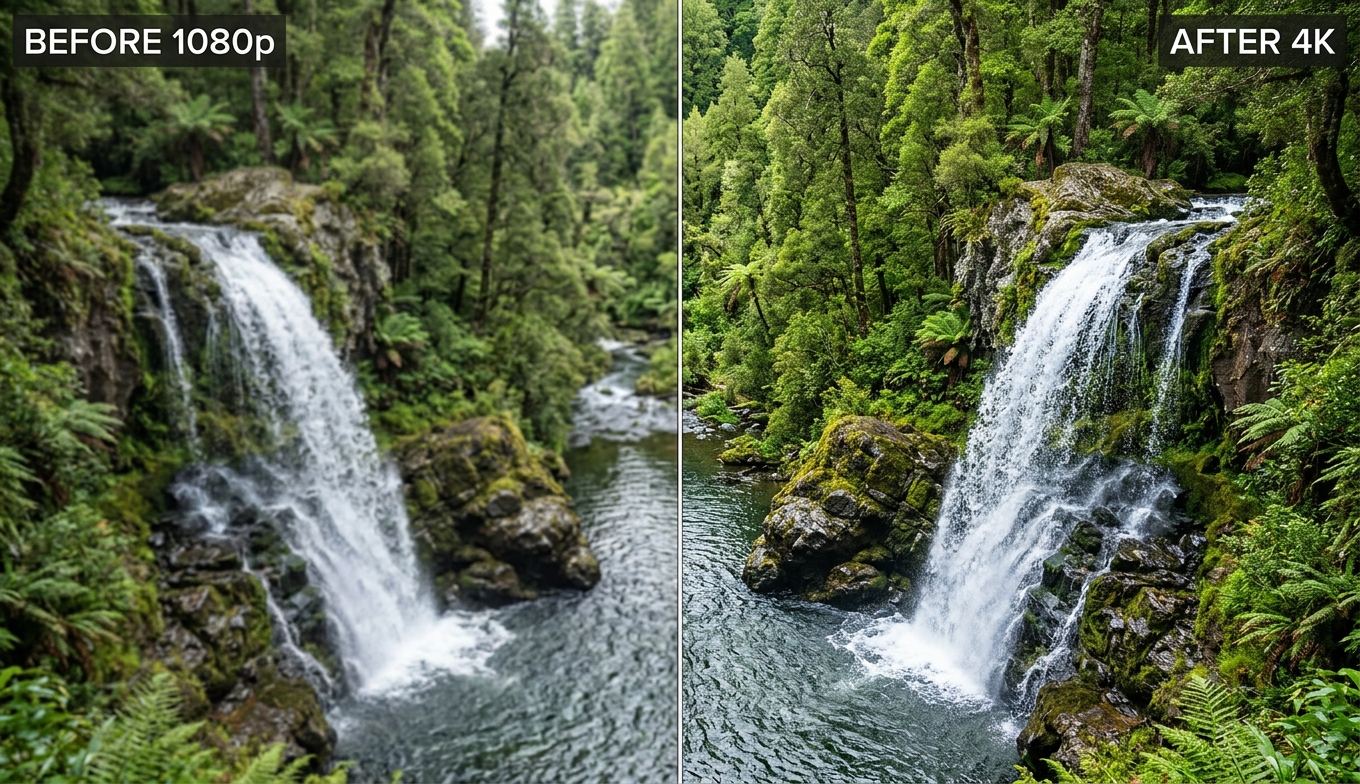
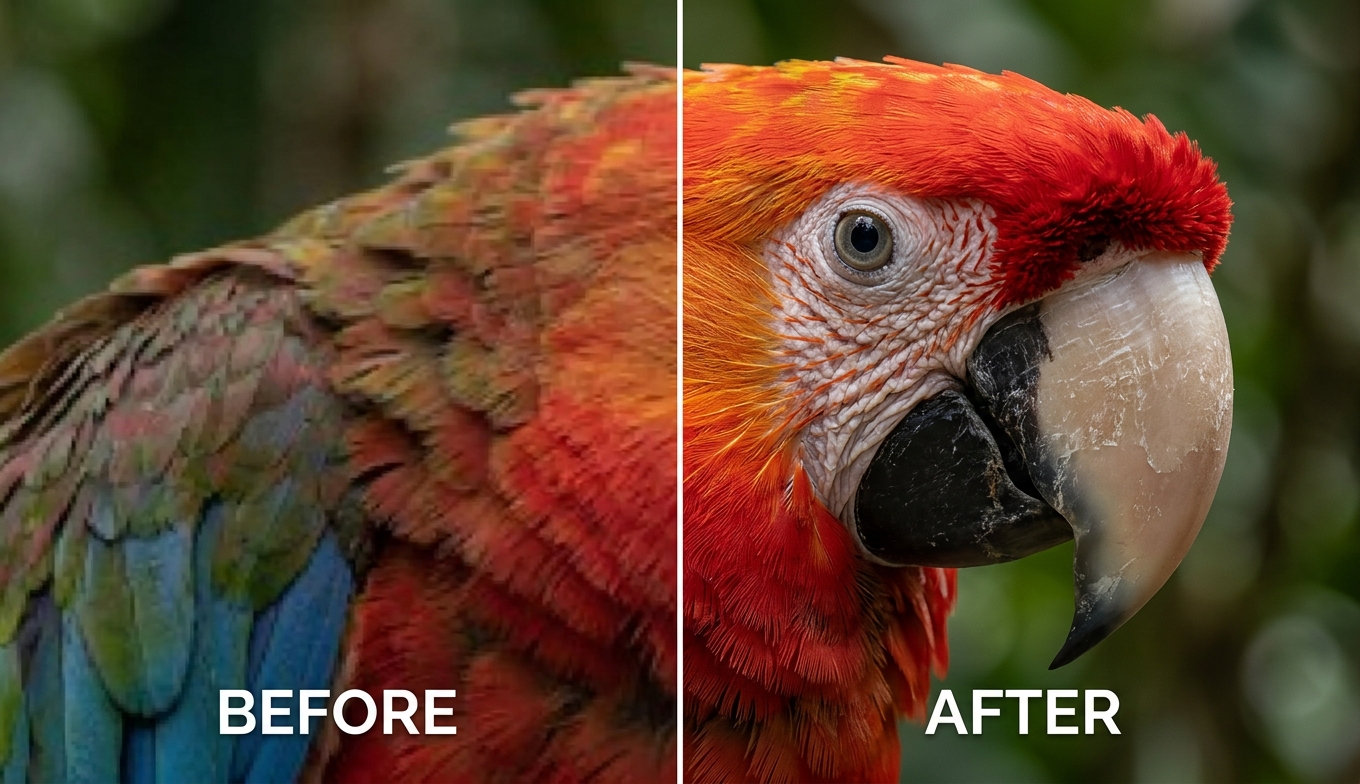
A 4K frame holds over 8 million pixels — roughly four times a 1080p frame and more than seventeen times a 480p one. Simply resizing a small clip to fill a 4K frame can't create that missing information, so the result looks soft and stretched. A 4K video upscaler solves this with AI: a model trained on huge numbers of low- and high-resolution frame pairs predicts what the extra detail should be and reconstructs it, so edges stay crisp and textures gain believable definition.
The practical payoff is footage that actually holds up on a 4K TV or monitor, where a naive resize would look worse the bigger the screen. Because upscaling and cleanup go hand in hand, a good 4K upscaler also removes noise and compression artifacts in the same pass — the full picture is covered in the video quality enhancer guide.
The Best 4K Video Upscaler: VanceAI
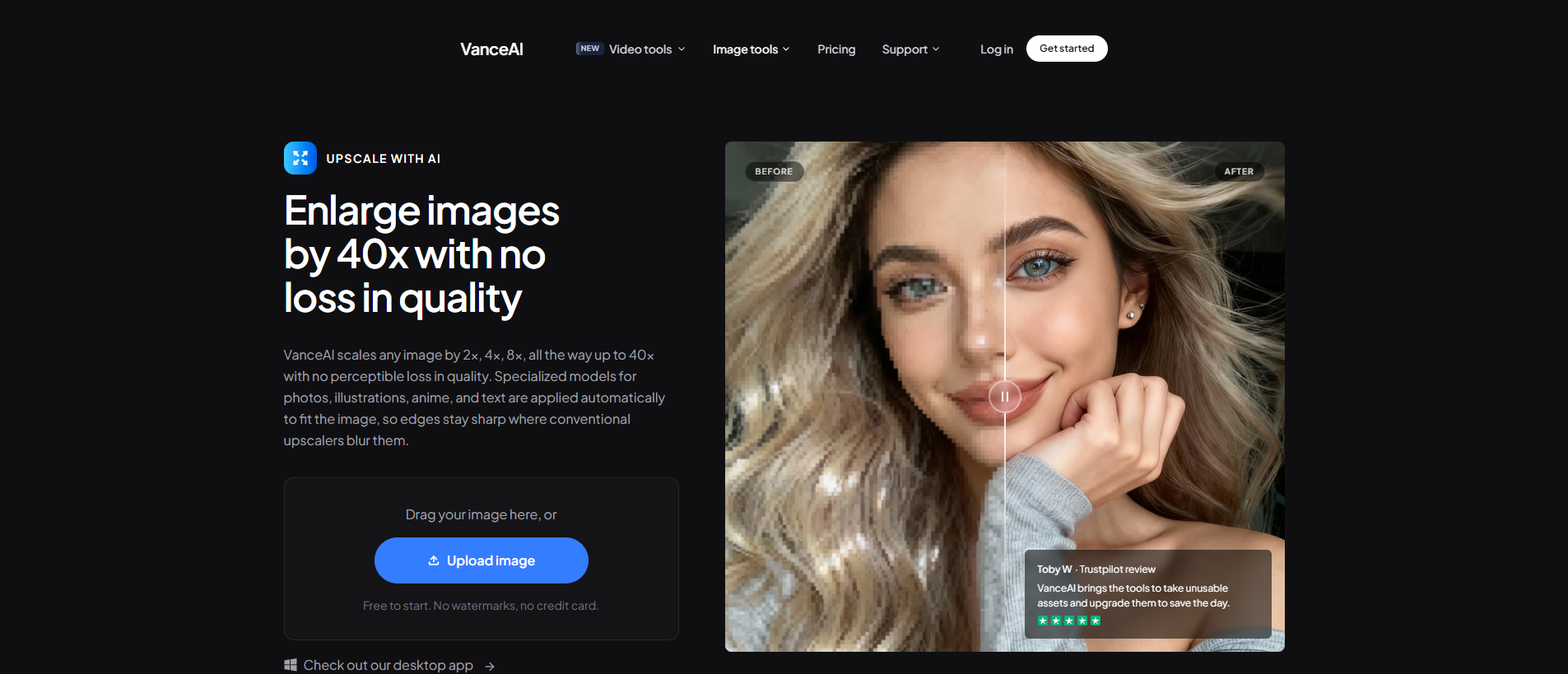
For most people the simplest and most accessible 4K upscaler is VanceAI's AI Video Upscaler. It runs entirely in your browser, so there's nothing to install and no need for an expensive graphics card — the processing happens on VanceAI's servers, and a basic laptop produces the same 4K output as a high-end workstation.
It offers two models tuned for different sources:
- Nexa — the general-purpose engine for everyday footage, outputting 720p, 1080p, 1440p, and 4K with a 1×, 2×, or 4× scale.
- Cineva — the cinema-focused model for standard-definition sources up to 1024×540 input, applying a fixed 4× upscale that's ideal for pushing old, very low-res footage toward 4K-adjacent quality.
It accepts MP4 and MOV files up to 10GB and 4K input, delivers an MP4 that stays available for three days, and lets you spend a single credit on a five-second preview so you can confirm the 4K result before rendering the whole clip. Pricing is credit-based, not a subscription: new users get free trial credits with no credit card, and you pay only for what you process — no annual plan, no lock-out.
How to Upscale Video to 4K
- Open VanceAI Video Upscaler in your browser and upload an MP4 or MOV (up to 10GB, up to 4K input).
- Choose your model — Nexa for everyday footage, Cineva for a standard-definition source.
- Set the target to 4K (or a 4× scale on Nexa).
- Click Preview to generate a five-second sample for one credit and confirm the quality.
- Process the full clip and download your 4K MP4 — it stays available for three days.
No install, no GPU, no learning curve.
What Separates a Great 4K Upscale From a Mushy One
The single biggest factor is your source. A 4K upscaler can only rebuild detail that has some basis in the original, so a clean 1080p clip becomes a genuinely crisp 4K one, while a tiny, badly compressed clip has a ceiling no tool can fully overcome.
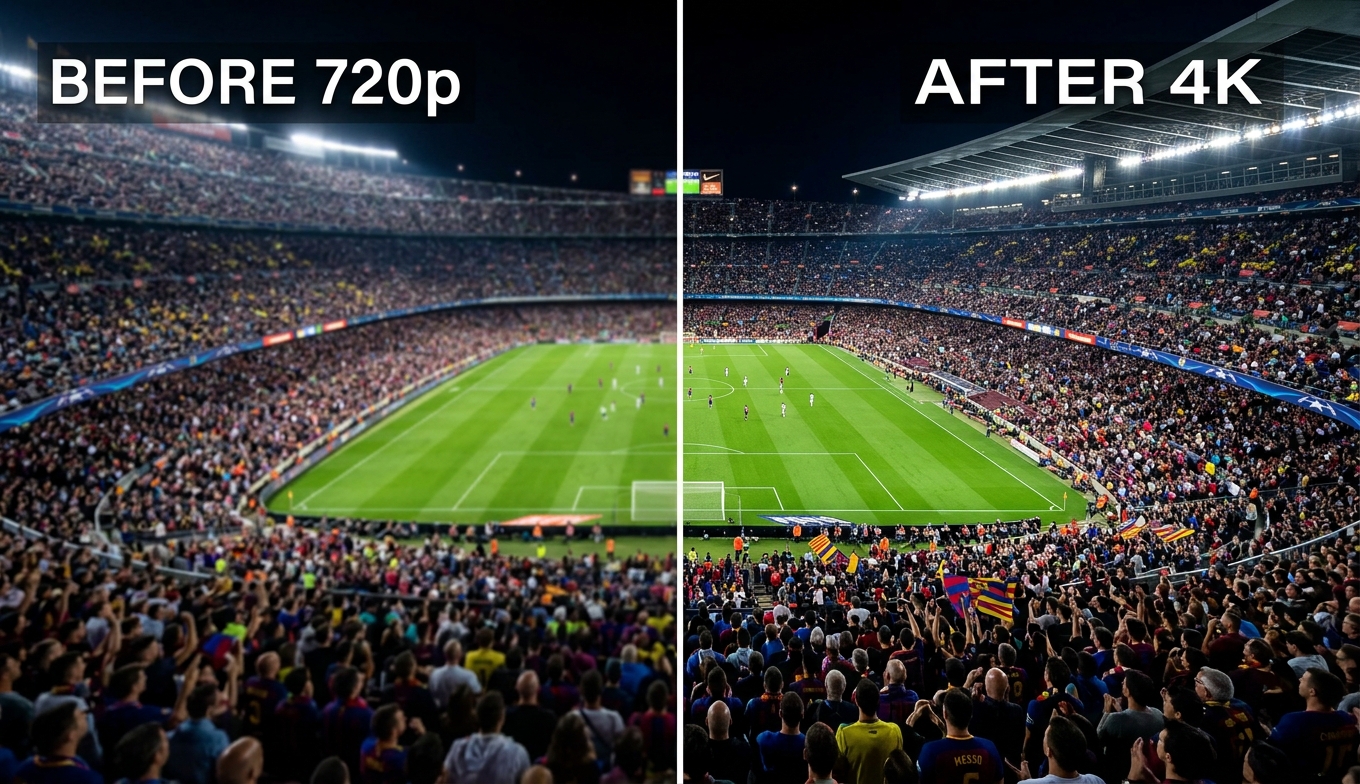
Two more things matter. First, don't over-target: 4K from a decent 1080p or SD source is the sweet spot, whereas chasing 8K from a low-resolution clip mostly enlarges softness and multiplies render time — which is why VanceAI's 4K ceiling fits the vast majority of real footage. Second, preview before you commit; a still frame can look sharp while motion reveals shimmer, and a five-second sample catches that early.
4K Upscaler Options Compared
Browser tools aren't the only way to reach 4K. Desktop apps like Topaz Video AI give deep manual control and run locally, which suits professionals with strong hardware and heavy workloads — but they carry a subscription, need a capable GPU, and take time to learn; the Topaz Video AI alternative roundup weighs that field. Free, open-source upscalers can hit 4K too, but expect installation, configuration, and your own GPU doing the work. For anyone who just wants a 4K clip today without a setup project, a browser-based 4K upscaler is the fastest, simplest choice.
Tips for the Best 4K Results
- Feed it the cleanest source you have. Higher-quality input always yields a better 4K result.
- Aim for 4K, not 8K. 4K is the practical ceiling for almost all footage; beyond it you mostly pay in render time.
- Preview first. Check a five-second sample, ideally on a fast-motion section, before the full render.
- Let the upscaler carry the load. Don't stack heavy extra sharpening on top — it adds halos and an artificial look.
Frequently Asked Questions
How do I upscale a video to 4K?
Use an AI 4K video upscaler. Upload your clip to VanceAI Video Upscaler, select the Nexa model, set the target to 4K, preview a five-second sample, then process and download. Because it runs in the browser, you don't need a powerful computer, and the AI rebuilds detail rather than just stretching the pixels.
What is the best 4K video upscaler?
For most people it's VanceAI Video Upscaler: it runs online with no install, needs no powerful GPU, offers free trial credits, and uses two purpose-built models to reach 4K. Professionals with strong hardware may prefer a desktop app like Topaz for deeper manual control, but the browser route is faster and simpler for everyday 4K upscaling.
Can I upscale a video to 4K for free?
Yes, to start. VanceAI Video Upscaler gives new users free trial credits with no credit card, and a five-second preview costs one credit, so you can produce a 4K sample before paying. Open-source tools can reach 4K for free too, but require installation and a capable GPU.
Can any video be upscaled to 4K?
Most can, but quality depends on the source. A clean 1080p or good SD clip upscales to a genuinely crisp 4K; a tiny, heavily compressed clip has limits, because the AI can only rebuild detail that has some basis in the original. Starting from the best available source always gives the best 4K result.
Do I need a powerful computer to upscale to 4K?
Not with a cloud tool. VanceAI Video Upscaler processes on its own servers, so any laptop can produce 4K output with nothing to install. Desktop 4K upscalers run locally and need a capable GPU, which is the main reason many people choose a browser-based option.
Is upscaling to 4K the same as real 4K?
It's AI-reconstructed 4K, not native 4K captured by a 4K camera. A good upscaler produces a result that looks genuinely sharp on a 4K screen, but it's rebuilding detail rather than recording it. For most footage that can't be re-shot, upscaling is the best way to get a convincing 4K version.
VanceAI Video Upscaler accepts MP4 and MOV files up to 10GB with input up to 4K, and returns an MP4. These formats are widely compatible, so your upscaled 4K clip plays almost anywhere.
Should I upscale to 4K or 8K?
Target 4K. It's the practical ceiling for almost all footage and the best balance of quality and effort. Pushing to 8K from a lower-resolution source mainly enlarges existing softness while sharply increasing processing time and cost, with little visible benefit.
How long does 4K upscaling take?
It depends on the clip's length, input resolution, and scale factor — a short clip is quick, while longer jobs take more time and credits. The five-second preview renders fast, so use it to confirm quality before committing to the full 4K render.
Will 4K upscaling fix noise and blur too?
To a degree. A good 4K upscaler cleans noise and compression as it raises resolution, so mildly soft or noisy clips improve noticeably. If blur or heavy noise is the main issue, treat the upscaler as part of a broader enhancement rather than expecting resolution alone to solve everything.
The Verdict
A 4K video upscaler is only as good as the source you feed it and the tool you choose — but for the vast majority of footage, AI upscaling to 4K produces a result that looks genuinely crisp on a big screen where a plain resize would look worse. Desktop apps offer deep control for professionals; for everyone else, a browser-based 4K upscaler is faster and simpler. VanceAI Video Upscaler upscales to the 4K most footage actually needs, with a one-credit preview to check before you commit and free trial credits to prove it on your own clip first. Start from the cleanest source you have, aim for 4K, and preview before you render.


