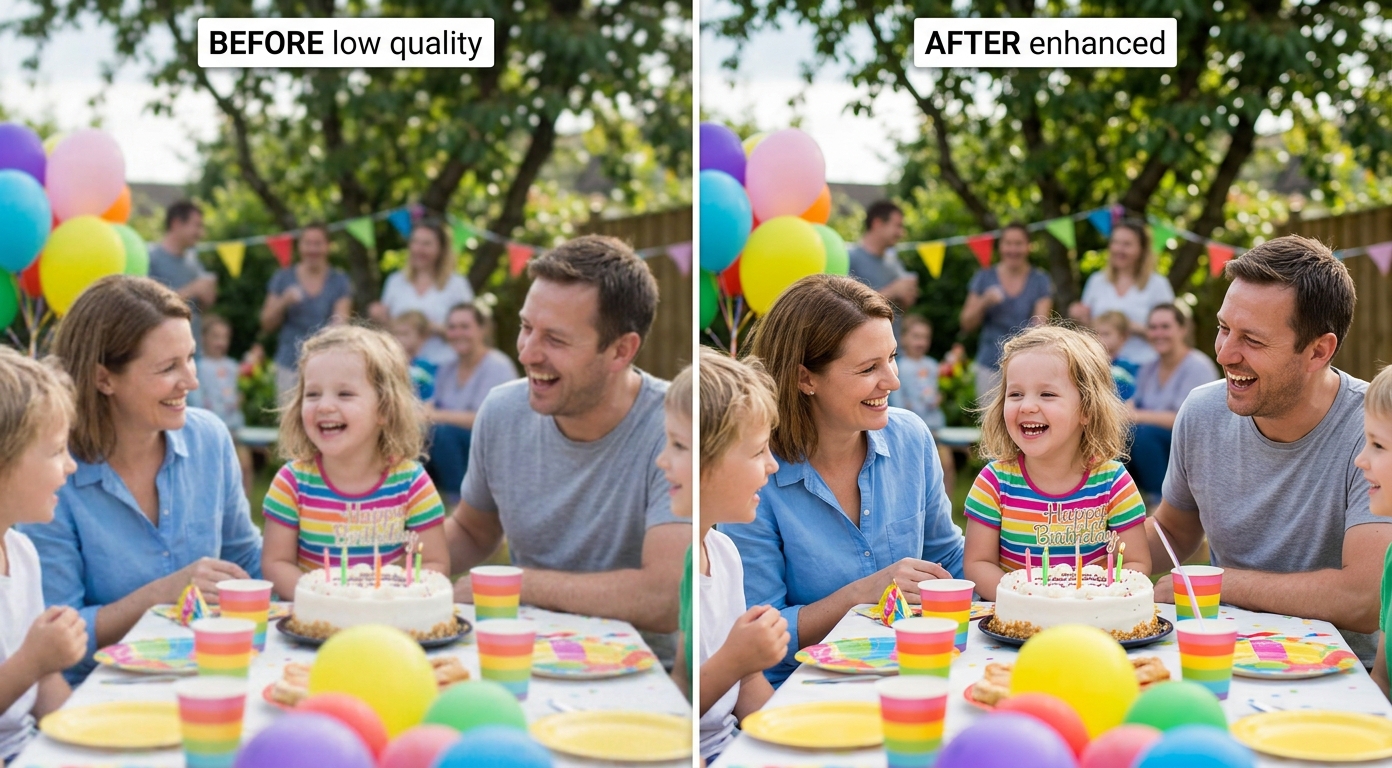
What a Video Quality Enhancer Actually Does
A video quality enhancer is software that takes a video that looks bad — soft, blurry, noisy, low-resolution, or just old — and makes it look noticeably better. That sounds simple, but "better" hides two different jobs that people constantly confuse, and confusing them is the main reason DIY attempts disappoint.
The first job is enhancement: cleaning up the image you already have. Removing grain and compression blocks, sharpening soft edges, recovering detail in shadows, steadying a shaky shot. The second is upscaling: increasing the resolution itself, turning a 480p or 720p clip into something that holds up at 1080p or 4K. Modern AI tools do both, often in one pass, which is why "video quality enhancer," "video upscaler," and "video enhancer" increasingly point at the same kind of tool.
This guide is the hub for that whole topic. It explains what these tools fix, how the AI actually works, which tool to reach for, and how to get a clean result without a powerful computer or a film-school education. Where a specific task deserves its own walkthrough — fixing a blurry clip, upscaling to 4K, restoring an old tape, cleaning up anime — you'll find a link to a deeper guide. And throughout, the practical recommendation is VanceAI Video Upscaler: a browser-based enhancer that handles both jobs without an install.
Enhancement vs Upscaling: Two Jobs, One Goal
Get this distinction right and everything else gets easier.
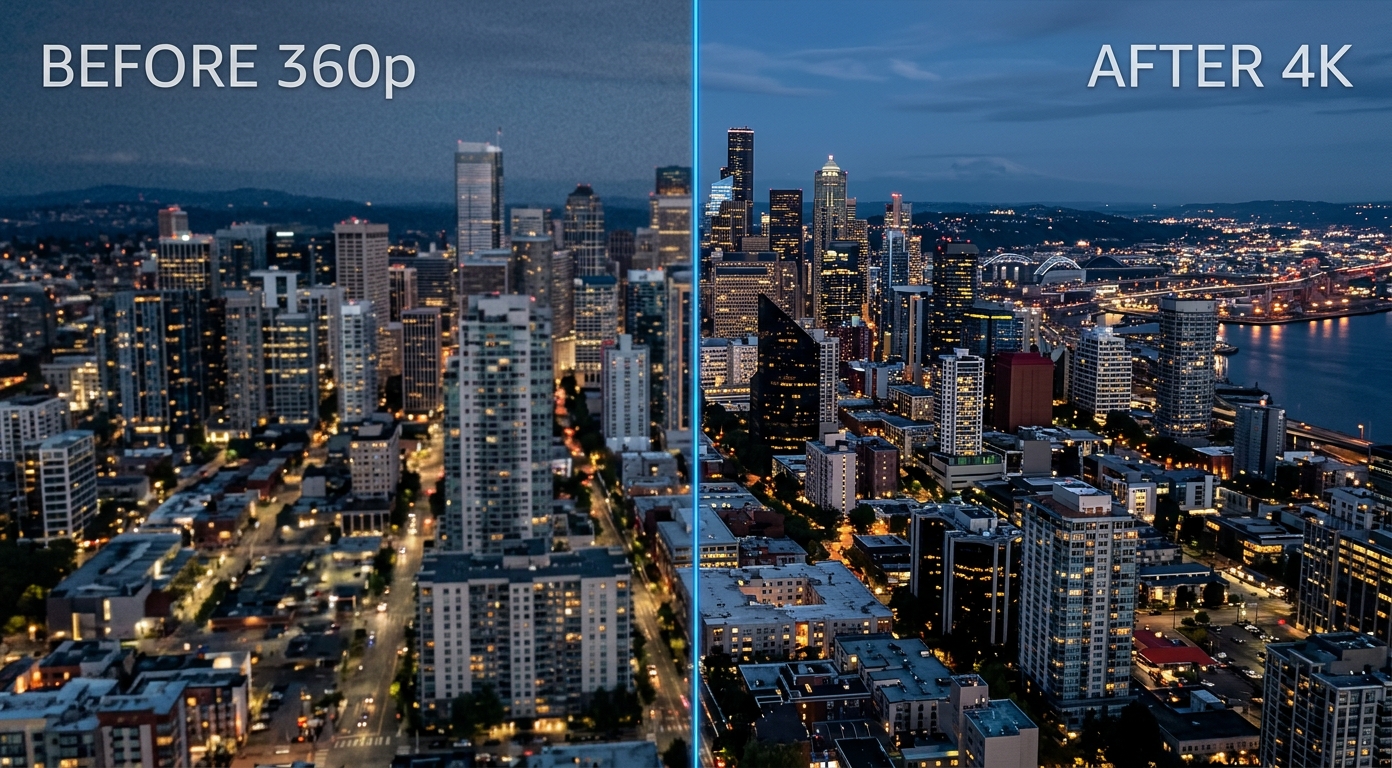
Upscaling changes the resolution. A 480p clip has roughly 0.4 megapixels per frame; 4K has over 8. Upscaling uses AI to invent the missing pixels intelligently — predicting plausible detail rather than just stretching what's there and going soft. It is the right tool when your footage is genuinely low-resolution: old downloads, SD camcorder tapes, ripped DVDs, small social clips.
Enhancement improves the pixels you already have. Your clip might already be 1080p but still look poor because it is noisy, soft, dimly lit, or chewed up by compression. Enhancement denoises, sharpens, deblurs, and restores — without necessarily changing the resolution at all.
Most real footage needs both, and good AI tools apply them together: they upscale the resolution and clean the image in a single render. The mental model to keep is simply, "is my problem not enough pixels (upscale) or bad pixels (enhance)?" Often it's both, and you want a tool that does both.
The Problems an AI Video Enhancer Solves
Here is the practical map. Each of these is a common reason a video looks bad, what the fix is called, and where to go deeper.
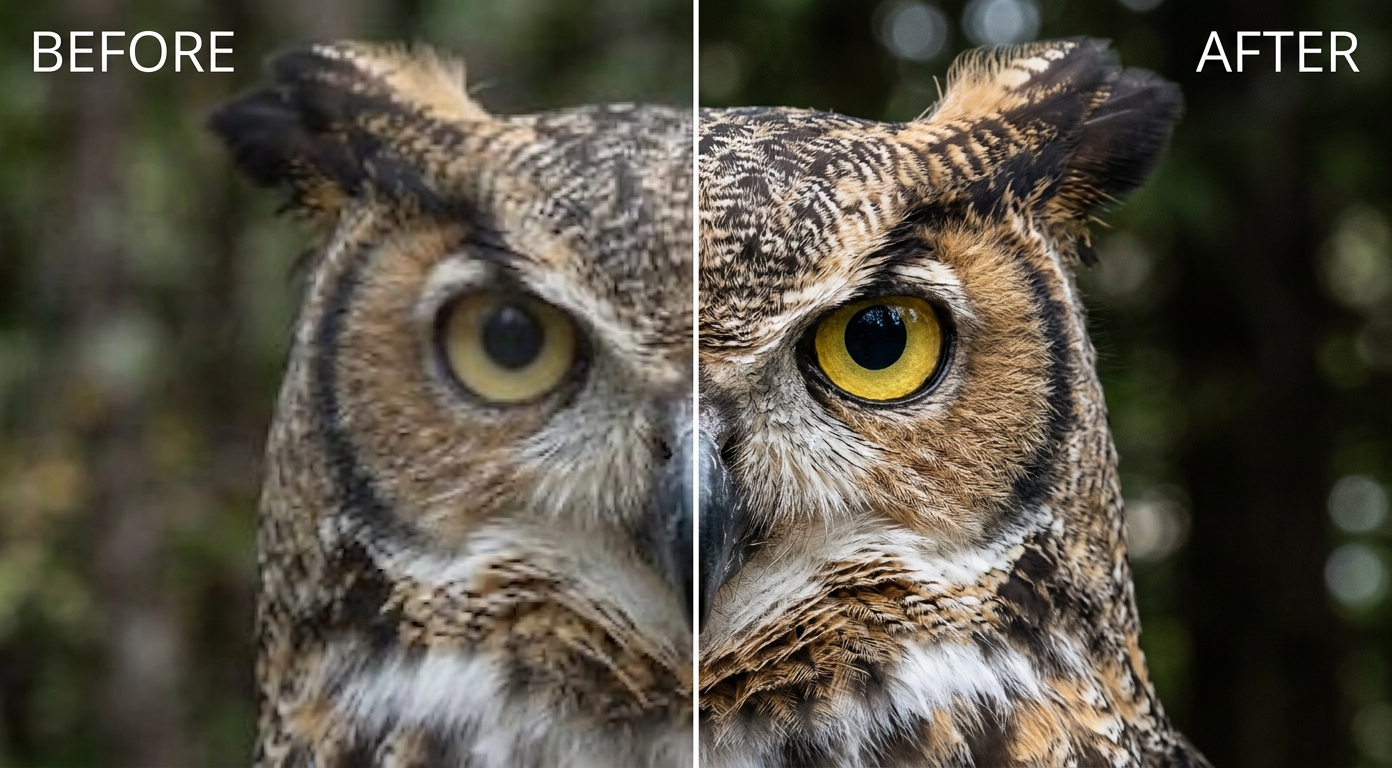
- Blurry or soft footage. Out-of-focus, motion-blurred, or just lacking definition. The fix is deblurring and sharpening — see how to make a blurry video clear. The cardinal sin here is over-sharpening, which trades blur for halos and plastic skin.
- Low resolution. A small or old clip that looks fine on a phone and falls apart on a TV. The fix is AI upscaling toward 1080p or 4K.
- Noise and low light. Grain and color speckle from a dark scene or a cheap sensor. The fix is denoising — which must be balanced, because heavy denoise flattens real texture and faces.
- Old and standard-definition video. VHS tapes, camcorder footage, ripped DVDs. The fix is restoration: deinterlacing, denoising, and upscaling together.
- Compressed or re-uploaded social clips. Video that lost quality being re-saved and re-shared. The fix is removing compression artifacts and rebuilding detail.
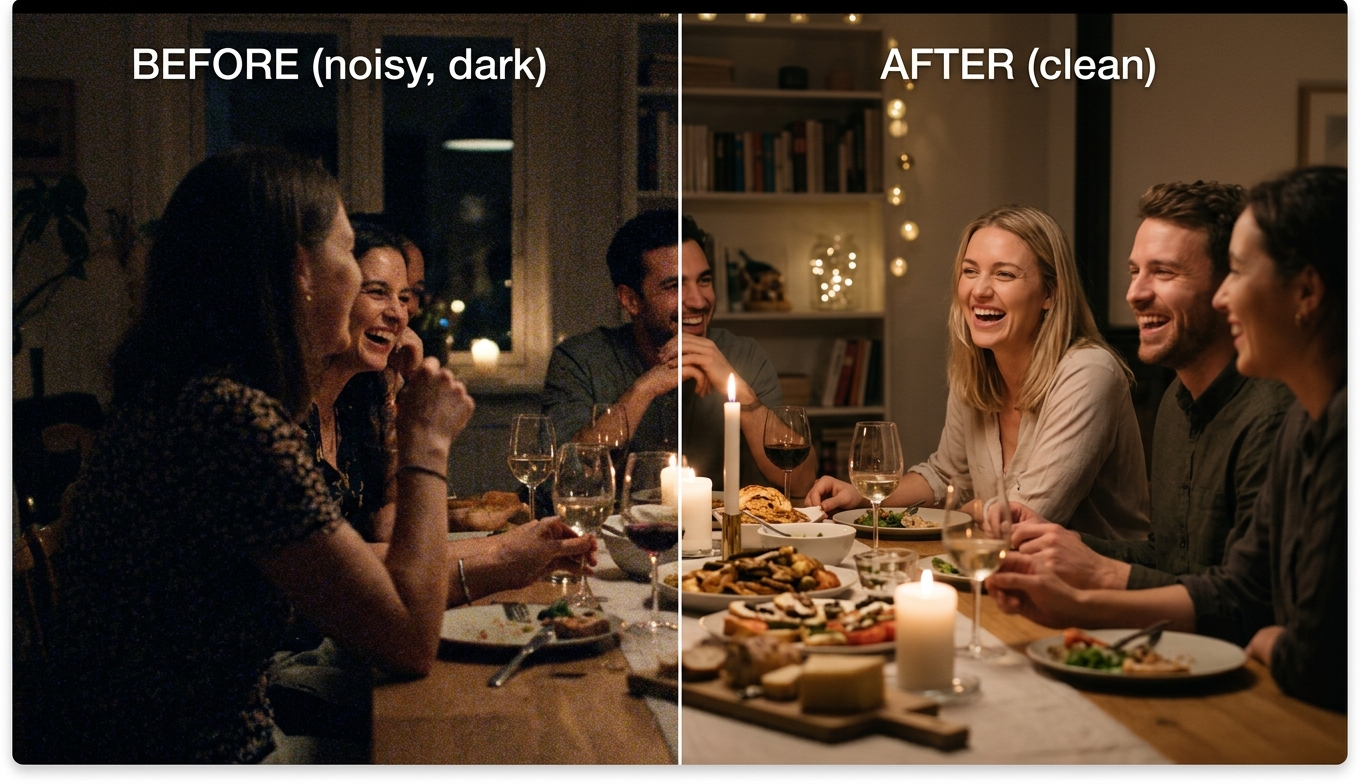
The thread running through all five: you want the AI to fix the specific defect and otherwise leave the image alone. Tools that let you crank every slider invite you to overcorrect; the best results usually come from doing less, not more.
How AI Video Enhancement Works
Older "enhancers" just applied sharpening filters and contrast curves — the same math whether your problem was blur or noise. AI changed that. Modern enhancers are trained on millions of pairs of low- and high-quality frames, so the model learns what real detail looks like and reconstructs it rather than faking it with edge contrast.
In practice that means a few specialized capabilities working together:
- Super-resolution upscaling predicts new pixels to raise resolution while keeping edges clean — the aim when pushing toward a 4K video upscaler result.
- Denoising separates real detail from sensor or compression noise and removes only the noise.
- Deblurring and sharpening rebuild definition lost to soft focus or motion.
- Restoration handles the compound damage in old footage — interlacing, grain, and low resolution at once.
The important consequence for you is that the model doing the work matters more than any slider. Pick a model trained for your kind of footage and most of the result is already decided, which is exactly why the better tools ask you to choose a model first and fiddle with settings second — or not at all.
The Best Video Quality Enhancer: VanceAI Video Upscaler
For most people, the right tool is the one that does both jobs without an install, a powerful GPU, or a settings tutorial. That is VanceAI Video Upscaler: it runs entirely in your browser, enhances and upscales in one pass, and is free to try with no signup. Because the processing happens on VanceAI's servers, a basic laptop produces the same result as a workstation, and nothing ties up your machine while it renders. The tool counts 9.8 million users.
It keeps the one decision that matters — which model — and removes the dozen that mostly cause trouble:
- Nexa is the general-purpose engine for everyday footage. It outputs 720p, 1080p, 1440p, and 4K, with a 1×, 2×, or 4× scale, cleaning and enlarging in the same render.
- Cineva is the cinema-focused model for standard-definition sources up to 1024×540 input, applying a fixed 4× upscale — the right pick for old SD video and tapes heading toward near-HD.
It accepts MP4 and MOV files up to 10GB and 4K input, returns an MP4 that stays available for three days, and — the feature that replaces all the guesswork — lets you spend a single credit on a five-second preview before committing to the full render. On pricing it is credit-based rather than a subscription: new users get free trial credits with no credit card, and you pay only for what you process, with nothing that expires and locks you out.
One honest limit worth stating up front: VanceAI's video output tops out at 4K, which is the right target for the overwhelming majority of footage. If you genuinely need 8K, that is a different (and rarely necessary) job.
Enhance Video Quality by Use Case
The best tool depends a little on what you're holding. A few of the most common cases:
- Anime and animation. Anime breaks generic enhancers because it is flat color and line art with no hidden texture — sharpening it just adds halos. Use an anime-aware approach; the Topaz anime guide covers why animation is its own problem and how to upscale it cleanly.
- Old and SD video. VHS tapes, camcorder footage, and ripped DVDs need restoration plus upscaling. VanceAI's Cineva model is built for exactly these standard-definition sources.
- Social media clips. Re-uploaded TikTok, Instagram, and YouTube video that lost quality in compression benefits most from artifact removal plus a modest resolution bump.
- Low-light and noisy footage. Concert clips, night video, and dim indoor scenes need denoising first and sharpening barely — the order matters, because sharpening before denoising just amplifies the grain.
The market splits into desktop apps and browser tools. Desktop apps like Topaz Video AI, the HitPaw Video Enhancer and AVCLabs Video Enhancer, offer deep control and run locally, which suits professionals with strong hardware — but they cost a subscription, demand a capable GPU, and have a real learning curve. There's also a free, open-source route in the Video2X review. Browser tools like VanceAI trade some manual control for zero install, no GPU requirement, and pay-as-you-go pricing.
Topaz is the reference point most people compare against, so it's worth knowing where it lands. It is powerful but moved to a $299/year subscription in 2026 and is easy to misconfigure; our Topaz Video AI review covers whether it's still worth it, and the Topaz Video AI alternative roundup compares the field for people who want something lighter or cheaper. For a broader ranking across cloud, desktop, and free options, see the best AI video upscaler comparison. The short version: if you have the hardware and the workload, a desktop app earns its place; if you want a clean result today on the computer you already own, a browser enhancer is the simpler start.
How to Enhance Video Quality With VanceAI
The browser workflow is short by design.
- Open VanceAI Video Upscaler in your browser and upload an MP4 or MOV (up to 10GB, up to 4K input).
- Choose your model — Nexa for everyday footage, Cineva for a standard-definition source.
- Set your target resolution or scale factor (720p to 4K, or 1×/2×/4× on Nexa).
- Click Preview to generate a five-second sample for one credit and confirm the quality.
- Process the full clip and download your MP4 — it stays available for three days.
No install, no GPU, no project file to manage.
Tips for the Best Results
A few rules save most people from a worse-than-they-started result.
Match the model to the footage. General clips, SD sources, and animation each want a different approach. This single choice decides most of the outcome.
Do less, not more. Over-sharpening creates halos and plastic skin; over-denoising erases real texture. Fix the actual defect and leave the rest alone.
Denoise before you sharpen. On grainy footage, removing noise first prevents you from amplifying it.
Don't over-target resolution. 4K from a soft 1080p clip is reasonable; pushing a tiny source far beyond its detail just enlarges its flaws and multiplies render time.
Always preview. A still frame can look great while motion reveals shimmer. Check a few seconds — especially a fast-motion shot — before rendering the whole clip.
Frequently Asked Questions
What is a video quality enhancer?
It's software that improves how a video looks — removing noise, blur, and compression artifacts, sharpening detail, and often increasing resolution. Modern AI enhancers like VanceAI Video Upscaler combine enhancement (cleaning the image) and upscaling (raising the resolution) in a single pass, so one tool handles both soft, noisy footage and low-resolution clips.
What's the difference between enhancing and upscaling video?
Enhancing improves the pixels you already have — denoising, sharpening, deblurring — without necessarily changing resolution. Upscaling increases the resolution itself, using AI to add plausible detail when turning, say, 480p into 4K. Most footage benefits from both, and good tools apply them together.
How can I enhance video quality for free?
VanceAI Video Upscaler is free to start: new users get trial credits without a credit card, and a five-second preview costs just one credit, so you can enhance and upscale a clip and see the result before paying. It runs in your browser with no install required.
Can AI really improve low-quality video?
Yes, within limits. AI enhancers are trained to reconstruct realistic detail rather than just sharpen, so they genuinely improve soft, noisy, and low-resolution footage. They cannot invent detail that has no basis in the source — a tiny, badly damaged clip has a ceiling — but for most everyday low-quality video the improvement is substantial.
Do I need a powerful computer to enhance video quality?
Not if you use a cloud tool. VanceAI Video Upscaler processes on remote servers, so any laptop gets full-quality output with nothing to install. Desktop enhancers like Topaz, HitPaw, and AVCLabs run locally and need a capable GPU, which is the main reason many people prefer a browser-based option.
What's the best resolution to upscale video to?
Match the target to your source. 4K is the practical ceiling for most footage and a sensible goal from a 1080p or even a good SD source. Pushing far beyond what the source supports mostly enlarges existing softness while dramatically increasing processing time, so 4K is the right target for the vast majority of clips.
How do I fix a blurry video?
Use an AI enhancer with deblurring and sharpening, but keep the sharpening restrained — overdoing it creates halos and an artificial look. Upload the clip to VanceAI Video Upscaler, let it rebuild detail as it upscales, and preview the result before the full render to confirm the balance looks natural.
Can I enhance old VHS or SD video?
Yes. Old standard-definition footage needs restoration plus upscaling. VanceAI's Cineva model is built for SD sources up to 1024×540 and applies a 4× upscale toward near-HD, which suits VHS tapes, camcorder footage, and ripped DVDs heading for a modern screen.
Is a desktop or online video enhancer better?
It depends on your hardware and needs. Online enhancers like VanceAI win for people without strong GPUs, occasional users, and anyone who hates installs and subscriptions. Desktop apps win for professionals with powerful machines and heavy daily workloads who want deep manual control. For most everyday creators, the online route is simpler and cheaper.
Will enhancing video make faces look fake?
Only if it's overdone. Excessive sharpening and detail-recovery give skin a waxy, plastic look. A good enhancer — and restrained settings — keeps faces natural. Previewing before the full render lets you catch an over-processed look early and dial it back.
The Verdict
A video quality enhancer is really two tools in one: an enhancer that cleans bad pixels and an upscaler that adds missing ones. Once you know which problem you have — not enough pixels, bad pixels, or both — the path is clear. For deep, professional control on strong hardware, a desktop app still has a place. But for the far larger group who just want a soft, noisy, or low-resolution clip to look genuinely better, without an install or a GPU, VanceAI Video Upscaler is the place to start: it enhances and upscales in one browser-based pass, tops out at the 4K most footage actually needs, and lets free trial credits prove it on your own video before you spend anything.