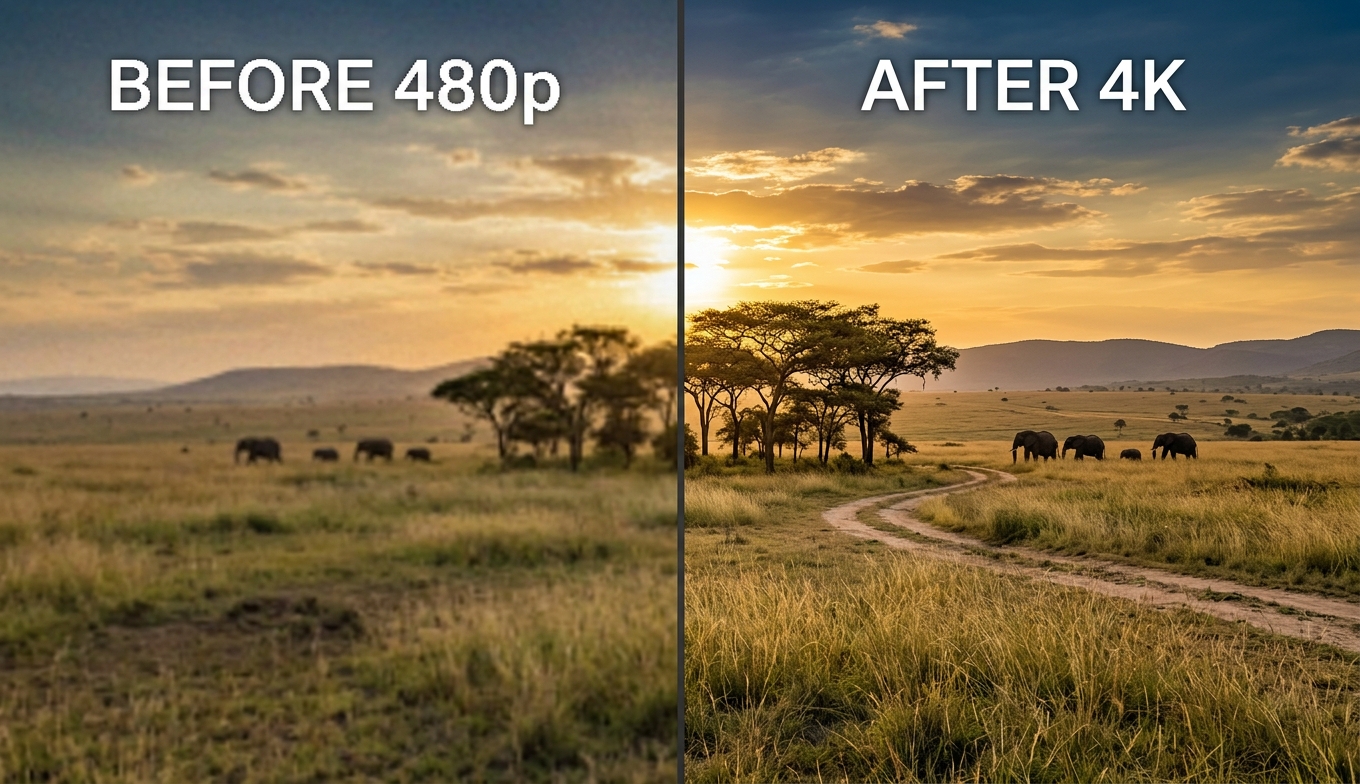
AVCLabs Video Enhancer AI at a Glance
| - | AVCLabs Video Enhancer AI |
|---|
| Type | Desktop app (Windows, macOS) |
| AI models | 10+ (Standard, Ultra, multi-frame variants, Anime, Denoise, Face, Colorize, Motion, Blur, Stabilization) |
| Max output | Up to 8K |
| System needs | 4GB RAM, 4GB GPU VRAM; Intel (2015+) / AMD (2016+) |
| GPU note | NVIDIA recommended — AMD and Apple Silicon run noticeably slower |
| Free trial | 3 watermarked conversions |
| Pricing | ~$199.90 lifetime (often ~$299.90 list; monthly available; 30-day money-back) |
| Best for | Users with a strong NVIDIA rig who want aggressive, hands-on restoration |
Quick verdict: AVCLabs is powerful and model-rich, and its assertive detail recovery genuinely helps on rough footage — the Anime model in particular is a strength. But it's slow, strongly prefers NVIDIA hardware, its output can be inconsistent (unnatural faces and "painterly" textures), and it's priced at the premium end. It's a solid pick for a specific user — someone with a capable NVIDIA machine and real restoration work — and overkill or frustrating for everyone else.
What AVCLabs Video Enhancer AI Is
AVCLabs Video Enhancer AI is a desktop application for Windows and macOS that upscales, denoises, sharpens, colorizes, and restores video through a large menu of specialized AI models. You feed it old SD footage, blurry clips, or compressed downloads and enhance them to HD, 4K, or even 8K while reducing noise. Its identity is depth: where lighter tools give you a couple of options, AVCLabs gives you more than a dozen. For how these jobs relate, our video quality enhancer guide covers the landscape.
AVCLabs' AI Models Explained
The lineup is the headline, so here's what each part does:
- Standard and Standard (Multi-Frame) — general upscaling; the multi-frame version analyzes several frames together for cleaner detail at a big speed cost.
- Ultra and Ultra (Multi-Frame) — maximum detail recovery, the slowest and most aggressive.
- Anime — sharpens line art, boosts vibrancy, and restores character detail; one of AVCLabs' genuine strengths.
- Denoise — removes grain and compression noise.
- Face Enhancement — portrait detail; effective but prone to unnatural skin and eyes if pushed.
- AI Colorize — context-aware color for black-and-white footage, applying different tones to faces, objects, and backgrounds.
- Motion Compensation — slow motion from 2× up to 16×.
- Video Blur AI and Stabilization — deblurring and steadying shaky footage.
The important nuance: multi-frame and Ultra models produce the best detail but are dramatically slower, which sets up the tool's central trade-off.
System Requirements, GPU Support, and Trial
AVCLabs is light on paper — around 4GB of RAM and 4GB of GPU VRAM, with Intel (2015+) or AMD (2016+) processors — but the real story is the GPU. NVIDIA is officially recommended, and AMD and Apple Silicon run noticeably slower. This corrects a common misconception: AVCLabs is one of the few enhancers that runs on AMD at all, which is why AMD users seek it out, but "runs on AMD" is not "fast on AMD." The trial is limited to three watermarked conversions, so you can sample output but can't produce a clean file or work through much footage before buying.
How to Use AVCLabs Video Enhancer AI
Despite the depth, the workflow is a simple three steps:
- Install and launch AVCLabs Video Enhancer AI, then import your clip.
- Select an AI model that matches your footage (Standard or Ultra for general upscaling, Anime for animation, Denoise for grain, Face for portraits) and set the output resolution.
- Preview, then export — remember the trial produces only watermarked conversions.

Tested across old home videos, compressed footage, anime, and low-light clips, AVCLabs delivers noticeably sharper results in many cases — but with real caveats.
Old home video and compressed clips. Ultra recovers detail assertively and can rescue rough sources, though it sometimes crosses into a "painterly" look — smeared, over-processed texture rather than true detail.
Anime. This is a highlight: the Anime model sharpens line art and restores character detail well, making AVCLabs a reasonable desktop choice for animation.
Faces. The weak spot. Testers consistently note unnatural eyes and over-smoothed skin from the Face model — a side effect of aggressive processing.
Low-light. Denoise helps, but heavy settings flatten real texture, so restraint matters.
Speed is the defining limit. On a mid-range NVIDIA setup, a 30-second 720p→4K clip takes roughly 2 minutes 30 seconds on Standard (about 6 fps) and jumps to around 8 minutes 20 seconds on Ultra Multi-Frame (about 1.8 fps). Stabilization is far slower still. Scale that to a full project and you're looking at overnight renders — on recommended hardware; on AMD or Apple Silicon it's worse.
AVCLabs Pricing in 2026
AVCLabs sits at the premium end but is more flexible than a pure subscription. Reported pricing centers on a lifetime license around $199.90 (often listed near $299.90 before promotions), tied to a single PC, with a 30-day money-back guarantee; a monthly plan is available for short projects. Always confirm current pricing. The perpetual license is single-PC, so multi-machine users pay more, and combined with a three-conversion watermarked trial and steep hardware demands, the total cost of good results — money, hardware, and time — is high relative to lighter options.
Common Problems and Complaints
- Inconsistent output. The same aggressive processing that rescues rough footage produces "painterly" textures or unnatural faces on the wrong sources.
- Slow. Heavy models mean long renders even on recommended NVIDIA hardware.
- Hardware-demanding. Real performance needs a strong GPU; AMD and Apple Silicon lag.
- Slow support. Users report slow response times from support.
- Premium price for a single-purpose enhancement tool.
Pros and Cons
Pros
- Deep model lineup (10+), with a genuinely strong Anime model
- Aggressive detail recovery that helps on rough, degraded footage
- Runs on AMD (unlike NVIDIA-only tools); batch processing; simple 3-step workflow
- Lifetime license option with a 30-day money-back guarantee
Cons
- Slow — Standard ~6 fps, Ultra Multi-Frame ~1.8 fps, Stabilization far slower
- NVIDIA strongly preferred; AMD and Apple Silicon noticeably slower
- Inconsistent quality — unnatural faces, "painterly" textures on clean sources
- Premium pricing and a restrictive three-conversion watermarked trial
- Desktop-only and GPU-dependent
What Users Actually Say
AVCLabs draws a mixed-to-positive reception, with an average rating in the low-4s. Enthusiasts praise the model variety and results on hard footage (especially anime); critics cite slow processing, slow support, unnatural faces, and price. It's a capable tool with a real ceiling — loved by users whose hardware and workload fit it, frustrating for those who expected fast, hands-off results.
The Lighter Alternative: VanceAI Video Upscaler
If you don't own a strong NVIDIA GPU — or you simply don't want to install and babysit a heavy, slow desktop app — VanceAI Video Upscaler reaches a similar goal without the hardware baggage. It runs entirely in the browser and processes on VanceAI's servers, so the graphics card in your machine (AMD, Intel, integrated, Apple Silicon, or none) stops being the bottleneck. Nothing installs, and nothing ties up your computer for an overnight render.
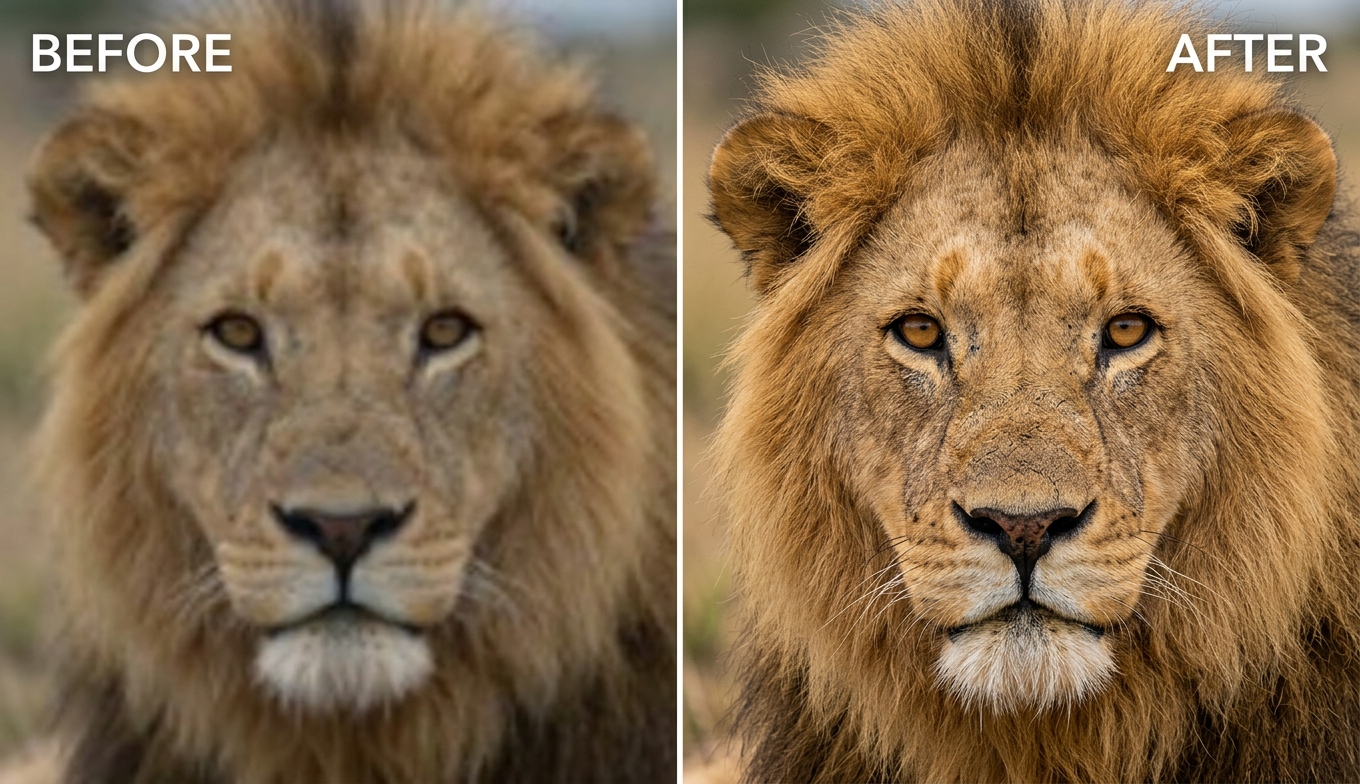
Where AVCLabs hands you a dozen models and a long render to test each, VanceAI keeps it to two engines and a fast preview:
- Nexa — the general-purpose engine, outputting 720p, 1080p, 1440p, and 4K with a 1×, 2×, or 4× scale.
- Cineva — the cinema-focused model for standard-definition sources up to 1024×540 input, applying a fixed 4× upscale.
It accepts MP4 and MOV files up to 10GB and 4K input, returns an MP4 that stays available for three days, and lets you spend a single credit on a clean five-second preview before the full render — a direct answer to AVCLabs's watermarked, hardware-bound trial. Pricing is credit-based, not a subscription: free trial credits with no credit card, and you pay only for what you process. The trade-off is a 4K output ceiling versus AVCLabs's marketed 8K — which, for almost all footage, is the right target anyway. For the method, see how to upscale video, and how to enhance video quality for cleanup.
AVCLabs vs VanceAI: Side by Side
| Dimension | VanceAI Video Upscaler ⭐ | AVCLabs Video Enhancer AI |
|---|
| Form factor | Browser-based, online | Desktop (Windows/macOS) |
| Hardware | None (runs in the cloud) | Strong GPU; NVIDIA preferred |
| Speed | Server-side, machine stays free | Slow (Ultra ~1.8 fps, Stabilize far slower) |
| Consistency | Predictable output | Unnatural faces / painterly on some sources |
| Free evaluation | Free credits + clean 1-credit preview | 3 watermarked conversions |
| Model choice | 2 focused models | 10+ models, quality varies |
| Pricing | Credit-based, pay per use | ~$199.90 lifetime (1 PC) |
| Max output | 4K | Up to 8K |
For a broader view of desktop tools, the Topaz Video AI alternative roundup compares the field.
Who Should Choose Which
Choose AVCLabs if you have a capable NVIDIA machine, you restore genuinely rough footage often (especially anime), you want a deep model library with aggressive detail recovery, and you don't mind slow renders, a premium price, or a watermarked trial.
Choose VanceAI Video Upscaler if you don't have a strong GPU (or you're on AMD/Apple Silicon), you'd rather not install software, you want consistent output, and you want to test on a clean preview and pay only for what you use.
How to Upscale a Video With VanceAI
- Open VanceAI Video Upscaler in your browser and upload an MP4 or MOV (up to 10GB, up to 4K input).
- Choose your model — Nexa for everyday footage, Cineva for a standard-definition source.
- Set your target resolution or scale factor (720p to 4K, or 1×/2×/4× on Nexa).
- Click Preview to generate a clean five-second sample for one credit and confirm the quality.
- Process the full clip and download your MP4 — it stays available for three days.
Frequently Asked Questions
Is AVCLabs Video Enhancer AI worth it in 2026?
For a user with a capable NVIDIA machine who needs aggressive restoration and a deep model library, AVCLabs is a strong desktop option — its Anime model is especially good. But it's slow (Ultra Multi-Frame around 1.8 fps), premium-priced, inconsistent on faces, and its trial only allows three watermarked conversions. Many people get faster, more consistent results from a browser tool like VanceAI Video Upscaler.
Is AVCLabs good for AMD computers?
It's one of the few enhancers that runs on AMD at all, which is why AMD users consider it — but AVCLabs officially recommends NVIDIA, and AMD and Apple Silicon run noticeably slower. To avoid the GPU question entirely, VanceAI processes in the cloud regardless of your graphics card.
How much does AVCLabs Video Enhancer AI cost?
Reported pricing centers on a lifetime license around $199.90 (often listed near $299.90 before promotions) tied to one PC, with a 30-day money-back guarantee, plus a monthly plan for short projects. Check the current page as promotions vary. VanceAI, by contrast, is credit-based with a free trial and no subscription.
Why is AVCLabs so slow?
Its models are computationally heavy, and the multi-frame ones analyze several frames together for better detail at a big speed cost — a 30-second 720p→4K clip can take over eight minutes on Ultra Multi-Frame, and stabilization is far slower. A cloud tool like VanceAI offloads processing to servers, so your machine stays free.
Does AVCLabs make faces look unnatural?
It can. Testers commonly note over-smoothed skin, odd eyes, and "painterly" textures from aggressive processing, especially the Face model. Dialing settings back helps, and previewing before a full render — as VanceAI's one-credit sample allows — catches an unnatural look early.
What AI models does AVCLabs include?
AVCLabs offers 10+ models: Standard and Ultra (each with a Multi-Frame variant), Anime, Denoise, Face Enhancement, AI Colorize, Motion Compensation (2×–16× slow motion), Video Blur AI, and Stabilization. The multi-frame and Ultra models give the best detail but are the slowest; the Anime model is a standout.
Is AVCLabs good for anime?
Yes — its Anime model sharpens line art and restores character detail well, making it one of AVCLabs' strongest use cases. For a no-setup option, VanceAI's Cineva model handles standard-definition anime in the browser, and the open-source Video2X is the best free anime route.
Does AVCLabs have a watermark?
The paid version exports without a watermark, but the free trial is limited to three watermarked conversions, so you can't produce a clean file or work through much footage before buying. VanceAI lets you check a clean five-second preview for one credit before committing.
Can AVCLabs upscale to 8K?
AVCLabs markets up to 8K, but 8K from a low-resolution source mostly enlarges softness while multiplying render time. For almost all footage, 4K is the practical ceiling — which is what VanceAI targets without the long renders.
Do I need a powerful computer for AVCLabs?
Effectively yes. While its listed minimums are modest, real performance depends heavily on a strong GPU — ideally NVIDIA — and without one, renders crawl. If your hardware is modest or AMD-based, a cloud tool like VanceAI is the more practical choice.
Does AVCLabs support batch processing?
Yes, AVCLabs supports batch processing, which helps when you have several clips to enhance — though the slow per-clip render times mean large batches still take a long time on local hardware.
Is AVCLabs beginner-friendly?
Reasonably — despite the deep model list, the core workflow is a simple three steps (import, pick a model, export). The complexity is in choosing the right model and settings for your footage, and in the long render times, rather than in the interface itself.
What's the best alternative to AVCLabs Video Enhancer AI?
For most people it's VanceAI Video Upscaler: browser-based, no GPU required, consistent output, and free to try with a clean preview. Other desktop alternatives include Topaz Video AI and HitPaw, which offer different strengths but share the install-and-GPU model.
AVCLabs vs Topaz — which is better?
Both are capable desktop tools. Topaz has the deeper, more mature model library and is the professional benchmark, while AVCLabs is cheaper (lifetime option) and one of the few that runs on AMD. Both are slow and GPU-dependent; if you want to skip local hardware entirely, VanceAI is the browser-based alternative to both.
The Verdict
AVCLabs Video Enhancer AI is a capable, ambitious upscaler with a deep model set, a genuinely strong Anime model, and real strength on rough footage — and it deserves credit for running on AMD when many rivals won't. But that power is demanding: it's slow even on recommended NVIDIA hardware, slower on AMD, premium-priced, and prone to unnatural faces and painterly textures if you're not careful. VanceAI Video Upscaler reaches a similar goal without the hardware baggage — browser-based, no GPU, consistent output, credit-based with a clean preview, and free to try on your own footage first. If you want strong results without a strong (NVIDIA) computer, start there.