How We Ranked These (Methodology)
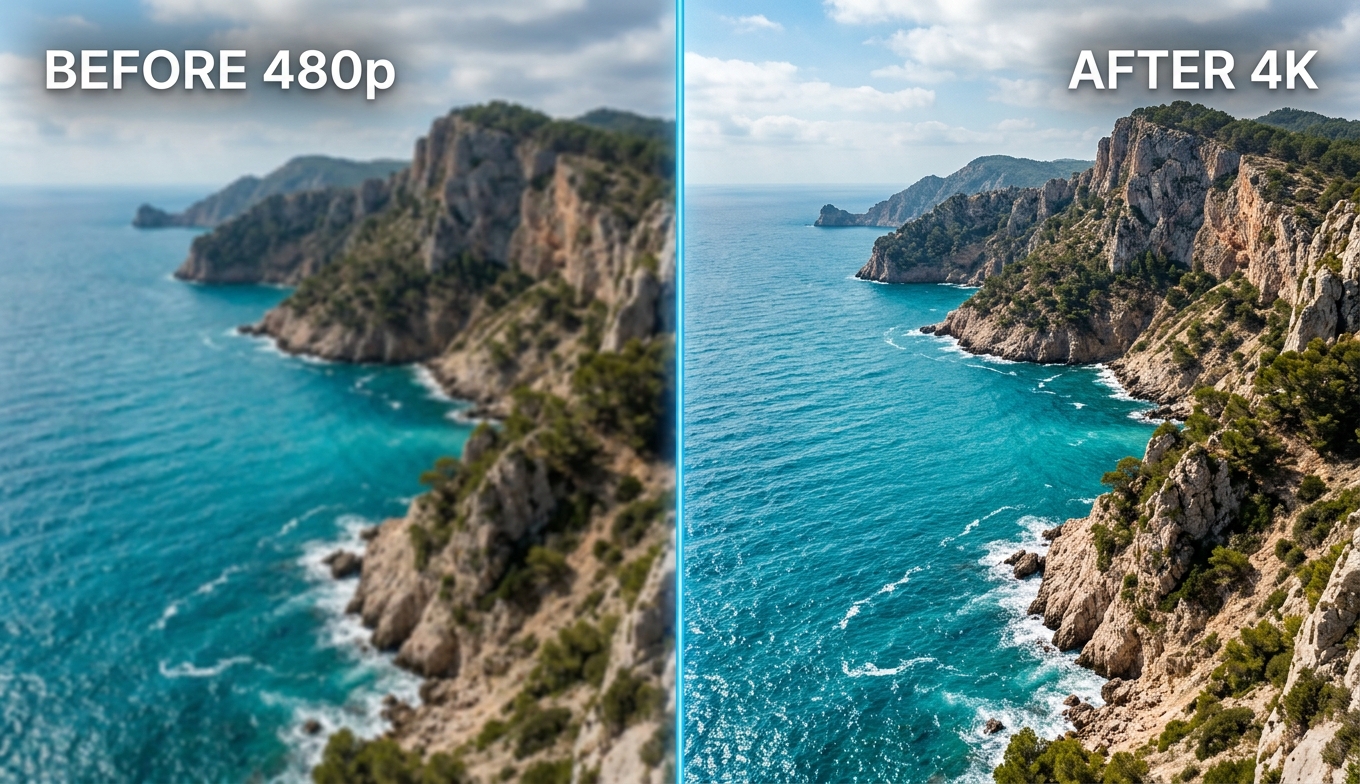
A ranking only helps if you know what it measures. We weighed five things, because "best" depends on your machine and your patience as much as on raw output.
- Reconstruction, not stretching. A real AI upscaler predicts and rebuilds plausible detail so edges stay crisp; a weak one enlarges and softens. Model choice drives this more than any resolution claim.
- Hardware and accessibility. Does it need a powerful local GPU, or run in the cloud on any laptop? For a huge share of users this single factor is decisive.
- Measured speed. We use real render behavior — some heavy desktop models run under 2 fps, meaning overnight jobs, while cloud tools keep your machine free.
- Real pricing. Subscription, one-time, free, or pay-as-you-go — and whether you can test on a clean result before paying.
- Ease of use and consistency. How many decisions stand between a raw clip and a good result, and whether quality holds up across footage types.
We looked at each tool across four common footage types — old SD home video, compression-damaged social clips, anime, and low-light — because a tool that shines on one can fall apart on another. The list is ordered by how well each serves the largest number of everyday users. For the bigger picture of enhancement plus upscaling, the video quality enhancer pillar guide is a good primer, and how to upscale video covers the method itself.
The Best AI Video Upscalers at a Glance
| Rank | Tool | Type | Hardware | Max | Pricing | Speed (real) |
|---|
| 1 ⭐ | VanceAI Video Upscaler | Cloud | None | 4K | Credit-based, free trial | Server-side, machine free |
| 2 | UniFab Video Upscaler AI | Desktop | RTX 30+ | 16K | ~$89.99 lifetime | ~3.5× clip length (1080p→4K, RTX 4070) |
| 3 | Topaz Video AI | Desktop | Strong GPU | 4K+ | $299/yr | Slow on heavy models |
| 4 | AVCLabs Video Enhancer AI | Desktop | NVIDIA preferred | 8K | ~$199.90 lifetime | ~1.8 fps on Ultra Multi-Frame |
| 5 | HitPaw Video Enhancer | Desktop | GTX 950+ | 8K | ~$85.99/mo, ~$699.99 lifetime | Face ~5×, HDR ~18× clip length |
| 6 | Video2X | Free, open-source | Vulkan GPU | 4K | Free | ~2–3× slower than commercial |
| 7 | TensorPix | Cloud | None | 4K | Subscription / minutes | Fast but shallow |
1. VanceAI Video Upscaler — Best Overall (Cloud)
VanceAI Video Upscaler tops the list because it removes the two barriers that stop most people from upscaling at all — the install and the GPU — without collapsing into a one-button black box. It runs entirely in your browser, processes on VanceAI's servers (so your machine never gets tied up), and counts 9.8 million users. A thin ultrabook gets the same 4K output as a tower with a $1,500 graphics card.
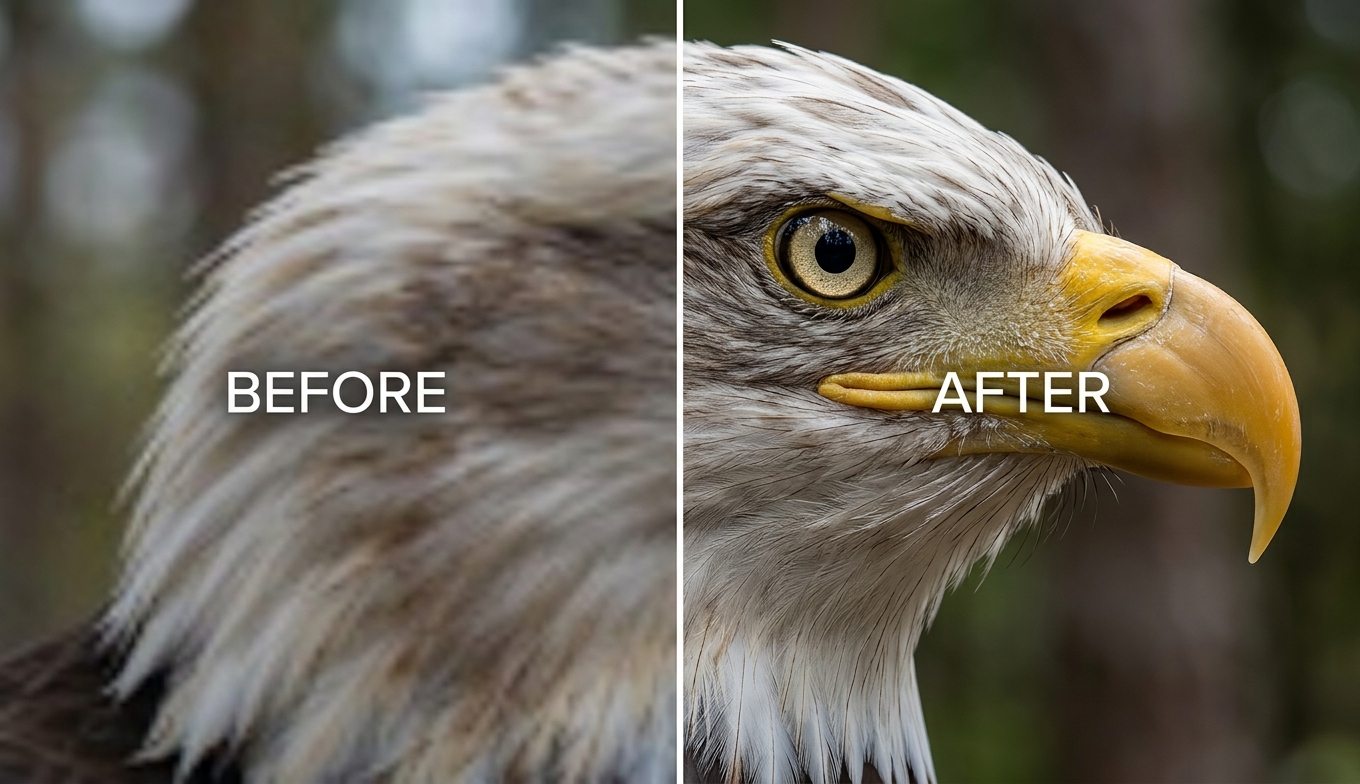
You still match the model to your footage, just without the settings maze:
- Nexa — the general-purpose engine, outputting 720p, 1080p, 1440p, and 4K with a 1×, 2×, or 4× scale.
- Cineva — the cinema-focused model for standard-definition sources up to 1024×540 input, applying a fixed 4× upscale.
It accepts MP4 and MOV files up to 10GB and 4K input, returns an MP4 that stays available for three days, and lets you spend a single credit on a clean five-second preview before the full render. Pricing is credit-based, not a subscription: free trial credits with no credit card, and you pay only for what you process. Across our four footage types it was strongest on general and SD sources; the one honest limit is a 4K ceiling — the right target for almost all footage.
Best for: fast 4K upscales on any computer, no install, genuine try-before-you-buy. Weakness: cloud queue for very long files; 4K max (no 8K).
2. UniFab Video Upscaler AI — Best Desktop All-in-One (Kept Its Lifetime License)
If you want local desktop power but refuse to rent your software, UniFab Video Upscaler AI is the standout — a Windows/macOS app that still sells a one-time lifetime license while Topaz and most rivals went subscription. It's the direct answer for the users Topaz's 2025 pricing change pushed away.
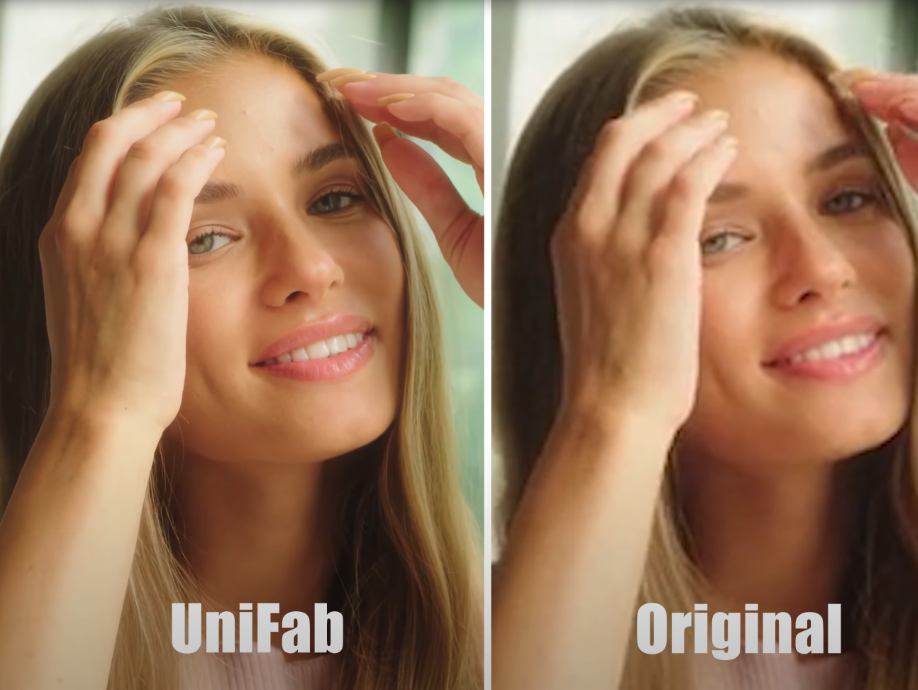
It ships four content-specific engines rather than one general model:
- Equinox (general footage, Fast or High-Quality modes)
- Kairo (anime and cartoons — in blind tests its line-art results edge out Topaz's Gaia)
- Vellum (surface textures and fine detail for landscapes and product shots),
- Titanus (movies and cinematic content, roughly 3× faster than the heavier models).
It upscales from SD, 720p, or 1080p all the way to 4K, 8K, and even 16K on the desktop build, with GPU/CUDA acceleration and batch processing.
The honest trade-off is that it's local power: UniFab recommends around 16GB of RAM, 8GB of VRAM, and an RTX 30-series card or better, and published benchmarks put 1080p→4K at about 3.5× the clip length on an RTX 4070. But a 30-day free trial with full access and no watermark lets you confirm it first, and the lifetime license (around $319.99, covering multiple PCs) pays for itself against a $299/year subscription in about a year.
Best for: desktop horsepower up to 8K/16K with a one-time purchase instead of a subscription.
Weakness: needs a capable machine; local renders take real time.
3. Topaz Video AI — The Professional Benchmark
Topaz is the pro reference: the deepest library of specialized models (Proteus, Iris, Gaia, Nyx, and more) and genuinely excellent restoration on strong hardware. The catch in 2026 is the terms — it moved to a $299/year subscription, ended its perpetual license, demands a capable GPU, and renders its heavier models at just a few frames per second. There's a real learning curve, too. In our footage tests it leaned toward contrast and brightness, occasionally at the expense of the finest detail. It's the right tool for a pro with the workstation and workload to justify it; the Topaz Video AI alternative roundup compares it head to head.
Best for: professional restoration on a powerful workstation.
Weakness: subscription-only, GPU-hungry, steep learning curve.
4. AVCLabs Video Enhancer AI — Model-Rich Desktop
AVCLabs offers 10+ engines (Standard and Ultra with multi-frame variants, Anime, Denoise, Face, Colorize, Motion Compensation, Blur, Stabilization) and aggressive detail recovery that helps on rough footage; its Anime model is a genuine strength. It's also one of the few enhancers that runs on AMD — though NVIDIA is recommended and AMD is noticeably slower. The costs are speed and consistency: on a 30-second 720p→4K test, Ultra Multi-Frame runs around 1.8 fps (over 8 minutes), and testers flag "painterly," over-smoothed textures and unnatural faces on the wrong sources. Pricing runs roughly $199.90 for a lifetime license (often listed near $299.90; monthly available) with a 30-day money-back guarantee and a three-conversion watermarked trial.
Best for: aggressive restoration on a capable (ideally NVIDIA) machine.
Weakness: slow, hardware-hungry, inconsistent faces.
5. HitPaw Video Enhancer — Simple Presets
HitPaw (now branded VikPea) is the friendly, preset-driven pick, built around four core models — General Denoise, Animation, Face (with Sharpen and Soften modes), and Colorize — plus newer detail, low-light, and repair options, all behind an approachable interface. It upscales to 8K on paper. The trade-offs are real: the heavy models are slow (the Face model can take ~5× the clip length and SDR-to-HDR ~18×), the free trial won't export a clean file, and user reports include stability problems — freezes and crashes mid-render. Pricing is steep and tiered: reported 2026 figures are around $85.99/month, $199.99/year, and $699.99 for a lifetime license, with business tiers higher; promotions often lower these, so check the current page.
Best for: casual desktop users who want many presets and don't mind the cost.
Weakness: expensive, slow on heavy models, stability complaints, no clean trial export.
6. Video2X — Best Free and Open-Source
Video2X 6.4 is the best free option, especially for anime. The 2026 release added a Qt6 GUI alongside the command line and orchestrates open-source engines — Real-ESRGAN (live action), Real-CUGAN (the best free anime engine — sharper lines and better texture retention than Real-ESRGAN in blind tests), Anime4K v4 (fast), and RIFE (frame interpolation). It's Vulkan-based, so it runs on NVIDIA, AMD, and Intel, but it needs a capable GPU, has no native Apple Silicon build, and renders about 2–3× slower than commercial tools (a 22-minute 480p anime at 2× Real-CUGAN takes ~45 minutes on an RTX 4070). Free, GPL, no watermark, 100% local.
Best for: technical users who want zero cost and local control, especially for anime.
Weakness: setup, slow, no Apple Silicon, no live preview.
7. TensorPix — Quick Cloud Cleanups
TensorPix keeps you in the browser like VanceAI but with a narrower, one-click emphasis — a few enhancement toggles for fast, low-effort fixes. It's convenient for a quick job, but its model depth is shallower and it runs on a subscription or minutes-based plan, so for serious upscaling with more control and a cheaper way to test, VanceAI's two-model, preview-first approach offers more.
Best for: quick, casual cloud cleanups.
Weakness: shallow models, recurring cost.
Pricing Compared: What You'll Actually Pay
The cheapest headline isn't always cheapest in use. Here's the real picture, and always verify current promos.
| Tool | Model | Roughly | 5-year cost signal |
|---|
| VanceAI | Credit-based, pay per use | Free to start | Scales with usage; cheapest for occasional work |
| UniFab | One-time lifetime | ~$89.99 | One payment, then $0 |
| Topaz | Subscription | ~$299/year | ~$1,495 |
| AVCLabs | Lifetime or monthly | ~$199.90 lifetime (1 PC) | One payment |
| HitPaw | Monthly/yearly/lifetime | ~$85.99/mo · ~$699.99 lifetime | High |
| Video2X | Free (open-source) | $0 | $0 (but costs time + a GPU) |
| TensorPix | Sub / minutes | Recurring | Recurring |
Two honest notes: Video2X's "free" costs time and a capable GPU, and VanceAI's pay-as-you-go is cheapest for occasional use but can run higher than a one-time license for very heavy daily volume — where UniFab's lifetime model wins.
Because we tested across four sources, here's the quick map:
- Old SD home video / VHS: VanceAI's Cineva and UniFab's Equinox both excel at SD-to-near-HD; desktop tools need the right model and patience.
- Compression-damaged social clips: cloud tools remove blocking well with minimal fuss; this is the everyday case.
- Anime: UniFab's Kairo and Video2X's Real-CUGAN lead; avoid live-action models on animation or you get halos.
- Low-light / noisy: denoise-first matters everywhere; heavy desktop denoise (AVCLabs) can over-smooth, so preview before committing.
How to Choose the Right AI Video Upscaler
Start with your situation. On hardware: no strong GPU, a laptop, an AMD card, or an Apple Silicon Mac? A cloud tool (VanceAI, TensorPix) sidesteps the problem entirely; a capable NVIDIA workstation opens the desktop options (UniFab, Topaz, AVCLabs). On budget: occasional upscaling favors VanceAI's pay-as-you-go; heavy daily volume favors a one-time license like UniFab's; zero budget means Video2X. On control: tinkerers and pros want deep libraries (Topaz, AVCLabs, Video2X); most people want a good result with minimal decisions, which is where a two-model tool with a one-credit preview shines. The how to upscale 480p to 1080p guide is a good example of the everyday case.
How to Upscale a Video With VanceAI
- Open VanceAI Video Upscaler in your browser and upload an MP4 or MOV (up to 10GB, up to 4K input).
- Choose your model — Nexa for everyday footage, Cineva for a standard-definition source.
- Set your target resolution or scale factor (720p to 4K, or 1×/2×/4× on Nexa).
- Click Preview to generate a clean five-second sample for one credit and confirm the quality.
- Process the full clip and download your MP4 — it stays available for three days.
Frequently Asked Questions
What is the best AI video upscaler in 2026?
For most people it's VanceAI Video Upscaler: it runs in the browser, needs no powerful GPU, offers free trial credits, and reaches 4K with two purpose-built models. If you want desktop power with a one-time purchase, UniFab Video Upscaler AI is the best all-in-one (up to 8K/16K, lifetime license). Professionals who want the deepest model library may prefer Topaz, and budget-focused technical users can lean on the free Video2X.
What's the best free AI video upscaler?
Video2X 6.4 is the strongest free, open-source option, especially for anime via its Real-CUGAN engine — though it needs a capable GPU and some setup and has no native Apple Silicon build. VanceAI is also free to start (trial credits and a one-credit preview), and UniFab offers a 30-day free trial with no watermark.
What's the best AI video upscaler without a subscription?
UniFab Video Upscaler AI, which kept a one-time lifetime license (around $319.99) while Topaz moved to a $299/year subscription. AVCLabs also offers a perpetual license, Video2X is free, and VanceAI's credit system means you pay only when you process a video rather than on a recurring schedule.
Which AI video upscaler is fastest?
Cloud tools feel fastest because rendering happens on remote servers rather than tying up your machine. Among desktop tools, speed varies widely — UniFab is roughly 3.5× clip length for 1080p→4K on an RTX 4070, AVCLabs' Ultra Multi-Frame is about 1.8 fps, HitPaw's Face model can take 5× the clip length, and Video2X runs 2–3× slower than commercial apps.
Which AI video upscaler is best without a powerful GPU?
A cloud-based one. VanceAI Video Upscaler and TensorPix process on remote servers, so any laptop gets full-quality output. Every desktop tool here — UniFab, Topaz, AVCLabs, HitPaw, Video2X — relies on your local GPU, and several are demanding.
How much does an AI video upscaler cost?
It ranges widely: Topaz is ~$299/year, UniFab is ~$319.99 lifetime, AVCLabs ~$199.90 lifetime, HitPaw ~$85.99/month up to ~$699.99 lifetime, Video2X is free, and VanceAI is credit-based with a free trial. For occasional use, pay-as-you-go usually works out cheapest; for heavy use, a lifetime license wins.
Which AI video upscaler is best for anime?
For free, Video2X's Real-CUGAN engine is the best anime upscaler available. Among paid tools, UniFab's Kairo model is purpose-built for anime and edges out Topaz's Gaia in blind tests, and VanceAI's Cineva handles standard-definition anime well in the browser. Anime needs a model trained on animation, so the engine matters more than the brand.
Can AI video upscalers reach 4K and 8K?
All target at least 4K, the practical ceiling for almost all footage. UniFab and some desktop apps (AVCLabs, HitPaw) advertise 8K and beyond, but pushing past 4K from a low-resolution source mostly enlarges softness while multiplying render time. VanceAI outputs up to 4K by design.
Is a cloud, desktop, or all-in-one upscaler better?
It depends. Cloud upscalers (VanceAI) win for people without strong GPUs and anyone who hates installs. All-in-one desktop tools (UniFab) win for users who want local power, many models, and a one-time purchase. Pure desktop specialists (Topaz) win for pros wanting the deepest control. For most everyday creators, cloud is the simplest and cheapest start.
They work best when the source has real detail to rebuild. A clean 1080p or good SD clip upscales beautifully; a tiny, badly compressed clip has limits no tool can fully overcome. Match the model to the footage — general, SD, or anime — and start from the best available source.
Can I try an AI video upscaler before paying?
Yes, but terms vary. VanceAI offers free credits and a clean one-credit preview; UniFab offers a 30-day no-watermark trial; Topaz, AVCLabs, and HitPaw offer trials that often watermark or block exports; Video2X is simply free. A clean preview or no-watermark trial is the most reliable way to judge real quality.
The Verdict
The best AI video upscaler is the one that matches your hardware, budget, and appetite for control. Professionals with strong workstations get the most from Topaz; technical users chasing zero cost can lean on Video2X; AMD owners and preset lovers have AVCLabs and HitPaw. If you want desktop power without a subscription, UniFab Video Upscaler AI is the all-in-one that kept its lifetime license. But for the largest group — people who just want a clip upscaled to 4K today, on whatever computer they own, without a contract or a long render — VanceAI Video Upscaler is the one to start with, because free trial credits let you prove it on your own footage before you spend a cent.