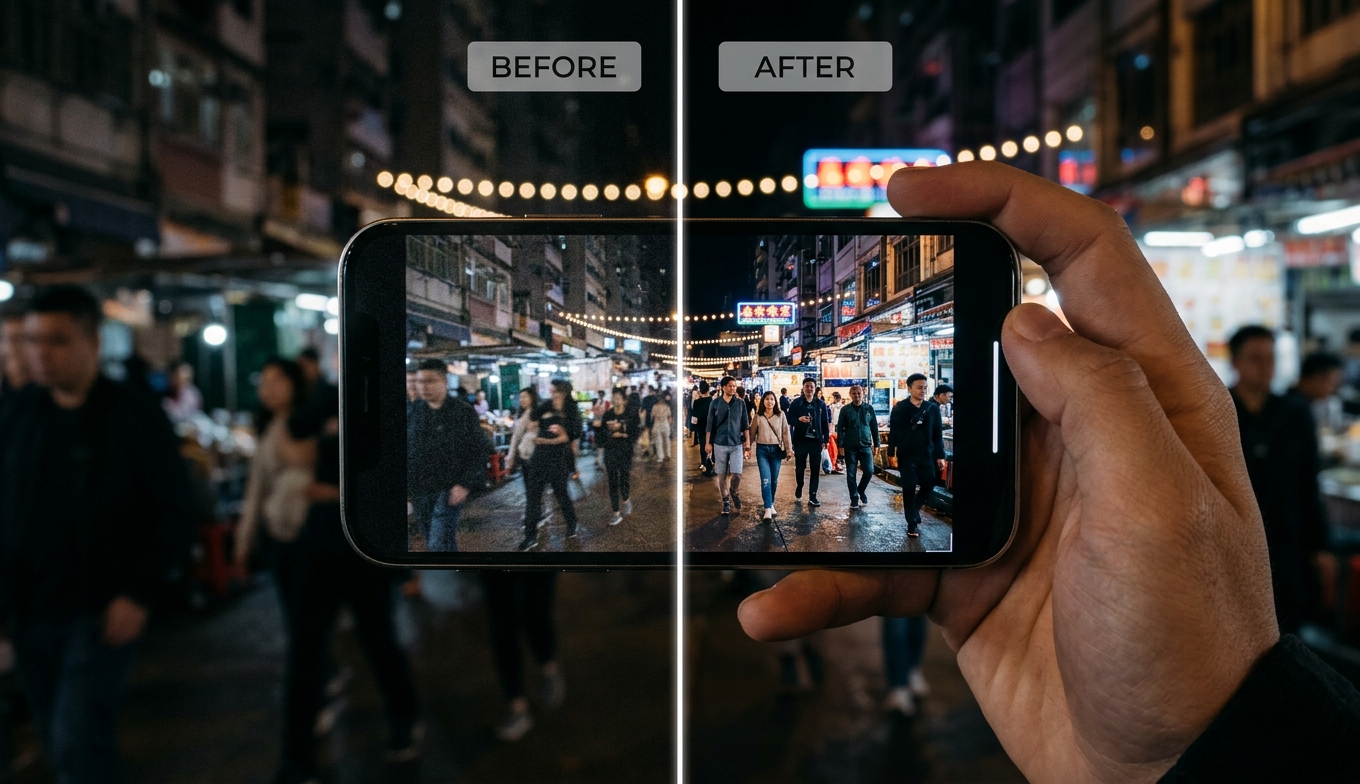
HitPaw Video Enhancer at a Glance
| | HitPaw Video Enhancer (VikPea) |
|---|
| Type | Desktop app (Windows, macOS) |
| Core AI models | General Denoise, Animation, Face (Sharpen/Soften), Colorize (+ detail, low-light, repair) |
| Max output | Up to 8K (marketed) |
| System needs | Windows 11/10 64-bit or macOS 10.15+, 8GB RAM, NVIDIA GTX 950+ |
| Free trial | Yes, but exports are blocked until you pay |
| Pricing (2026) | ~$85.99/mo · ~$199.99/yr · ~$699.99 lifetime (promos vary) |
| Reputation | ~4.2/5 average; recurring stability complaints |
| Best for | Casual desktop users who want presets and don't mind the cost |
Quick verdict: HitPaw is a genuinely approachable desktop enhancer with a useful spread of models, and on the right footage it produces clean results. But it's held back by slow rendering on heavy models, quality that varies model to model, stability complaints (freezes and crashes), a trial that won't export, and premium pricing. It's a fair pick if you specifically want an offline desktop app; if you don't, a cloud tool removes most of that friction.
What HitPaw Video Enhancer Is
HitPaw Video Enhancer is a desktop application for Windows and macOS that upscales and cleans video using a menu of specialized AI models. Its pitch is breadth plus simplicity: rather than one general engine, you pick a model that matches your problem, and the interface stays friendly while doing it. It targets resolutions up to 8K, supports batch processing, and handles the mainstream formats. For how enhancement and upscaling fit together, our video quality enhancer guide maps the landscape.
HitPaw's AI Models Explained
Breadth is HitPaw's headline, so it's worth knowing what each model is actually for:
- General Denoise Model — everyday cleanup and a resolution bump; the default for typical footage.
- Animation Model — tuned for anime and cartoons, aiming to keep line art clean and colors flat.
- Face Model — portrait-focused, with two modes: Sharpen (adds facial detail and contrast) and Soften (smooths). Sharpen restores blurry faces well but can overemphasize texture and look unnatural if pushed.
- Colorize Model — adds color to black-and-white footage.
- Newer builds add Detail Recovery, Low-light Enhancement, SDR-to-HDR, and Video Repair options.
That range is a real strength — few tools cover this many jobs — but breadth isn't consistency: the models vary in quality, and choosing the right one for your source matters more than the marketing suggests.
HitPaw is real desktop software. It targets Windows 11/10 (64-bit) and macOS 10.15+, and in practice wants at least 8GB of RAM and a dedicated GPU — an NVIDIA GTX 950 or better is the commonly cited floor. It imports mainstream formats (MP4, MOV, and similar) and exports common containers. The practical reading: on a modern gaming or creator PC it runs fine; on a thin laptop, an older machine, or a Mac with integrated graphics, you'll feel every render.
How to Use HitPaw Video Enhancer
The workflow is genuinely simple, which is the point:
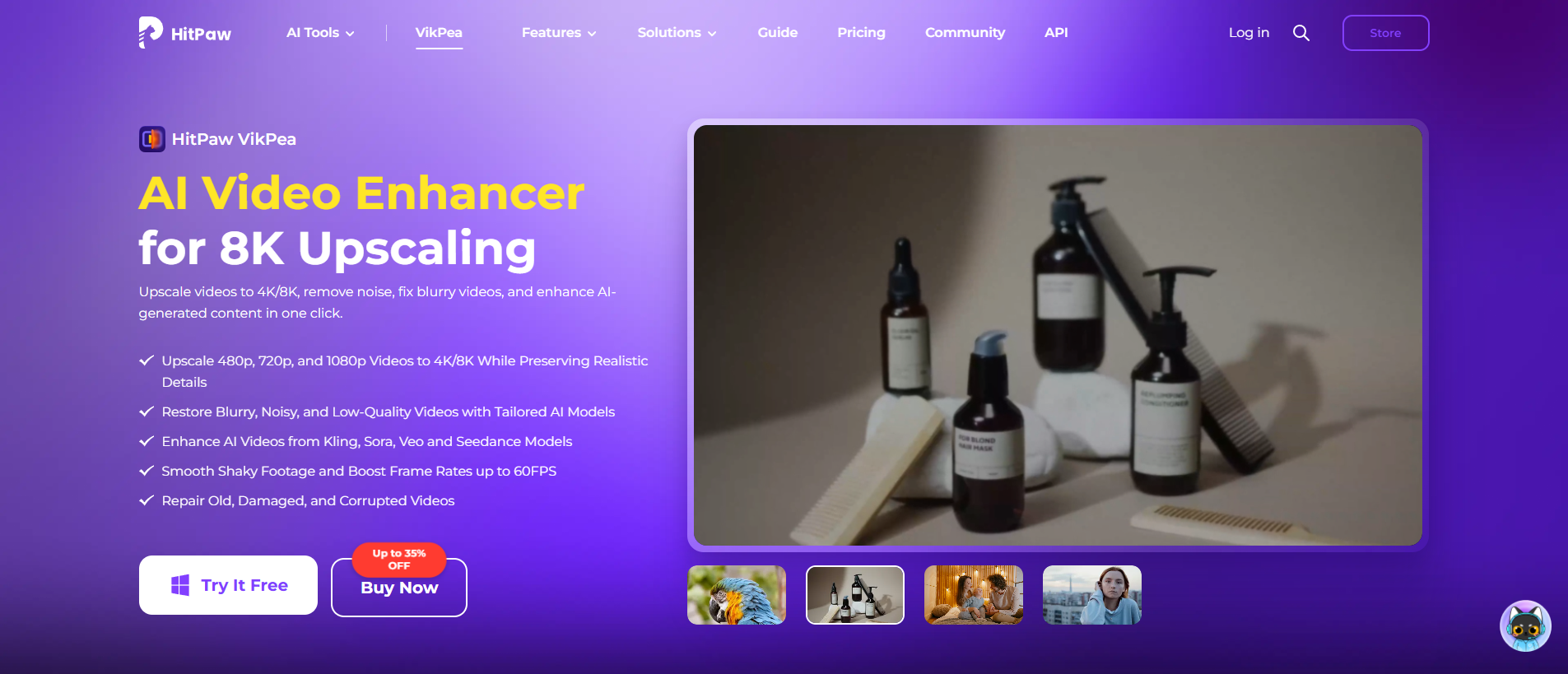
- Download and install HitPaw Video Enhancer for Windows or macOS, then launch it.
- Import your clip by dragging it in or clicking to browse.
- Choose an AI model that matches your footage (General Denoise for everyday clips, Animation for anime, Face for portraits, Colorize for black-and-white).
- Set the output resolution (up to 8K) and preview the result inside the app.
- Click Export to render — note that a clean, watermark-free file requires a paid plan.
A feature list doesn't tell you how a tool behaves, so here's the practical picture across common sources.
Everyday and compressed clips. On modern-but-soft footage and compression-damaged social video, the General Denoise model does respectable work — cleaner edges, less blocking, a usable resolution bump. This is HitPaw at its best.
Old SD home video. It can lift SD toward HD, but results depend on the source; heavily degraded tape benefits more from a model that deinterlaces and denoises together.
Anime. The Animation model is decent on stylized content, though dedicated anime engines (like Real-CUGAN in open-source tools) still tend to hold cleaner line art on tough sources.
Faces. The Face model's Sharpen mode restores blurry portraits well but can tip into unnatural, over-textured skin; Soften helps but can erase detail. Faces are the easiest place to overcook a result.
Speed is the recurring friction. HitPaw's heavy models are slow: in testing on a mid-range RTX 4070-class GPU, the Face model can take roughly five times the length of your video, and SDR-to-HDR has been clocked around eighteen times the clip length. A few minutes of 4K output can occupy your machine for the better part of an hour.
HitPaw Pricing in 2026: The Real Cost
Pricing is what most searches are really asking, and HitPaw sits at the premium end. Reported 2026 figures for individuals are around $85.99 for one month, $199.99 for one year, and $699.99 for a lifetime license, with business plans higher; promotions frequently lower these, so always check the current page. Two things matter more than the exact numbers: the free trial does not let you export a clean file (you can process and preview but must pay for a usable result), and the subscription tiers are recurring, so a lapsed plan means losing access.
Common Problems and Complaints
An honest review names the friction users actually hit:
- Stability. Real user reviews repeatedly cite freezes, crashes, and processing that interrupts mid-render — enough that some call it unreliable on their setup.
- Slow heavy models. Face and SDR-to-HDR renders are long, as noted above.
- Inconsistent quality. Colorization can flicker, HDR can oversaturate, and Face Sharpen can look artificial.
- Restrictive trial. No clean export until you pay, so you evaluate partly on faith.
- Cost. Premium pricing, especially the lifetime tier and Mac licenses.
Pros and Cons
Pros
- Wide model lineup (denoise, animation, face, colorize, plus detail/low-light/repair)
- Beginner-friendly, preset-driven interface
- Batch processing and broad format support
- Targets up to 8K; cross-platform (Windows and Mac)
Cons
- Slow on heavy models (Face ~5×, SDR-to-HDR ~18× clip length)
- Stability complaints — freezes and crashes reported
- Inconsistent quality between models; Face can look over-sharpened
- Trial blocks clean export; premium pricing
- Desktop-only and GPU-dependent
What Users Actually Say
Across review platforms HitPaw averages around 4.2/5, which matches the hands-on picture: broadly positive with clear recurring gripes. Fans praise the easy interface and model variety; critics cite crashes, slow processing, results that miss on tough footage, and the price — especially the trial that won't let you export. It's a "good for what it is, know what you're getting" tool rather than a universal winner.
The Best Alternative: VanceAI Video Upscaler
If your reason for looking at HitPaw is "I just want my video to look better without a hassle," VanceAI Video Upscaler reaches that goal from the opposite direction — and removes the three things that cause the most HitPaw frustration: the install, the GPU dependency, and the pay-before-you-see-it trial. It runs entirely in your browser, processing on VanceAI's servers, so a basic laptop gets the same result as a workstation, there's nothing to crash on your machine, and your computer never gets tied up.
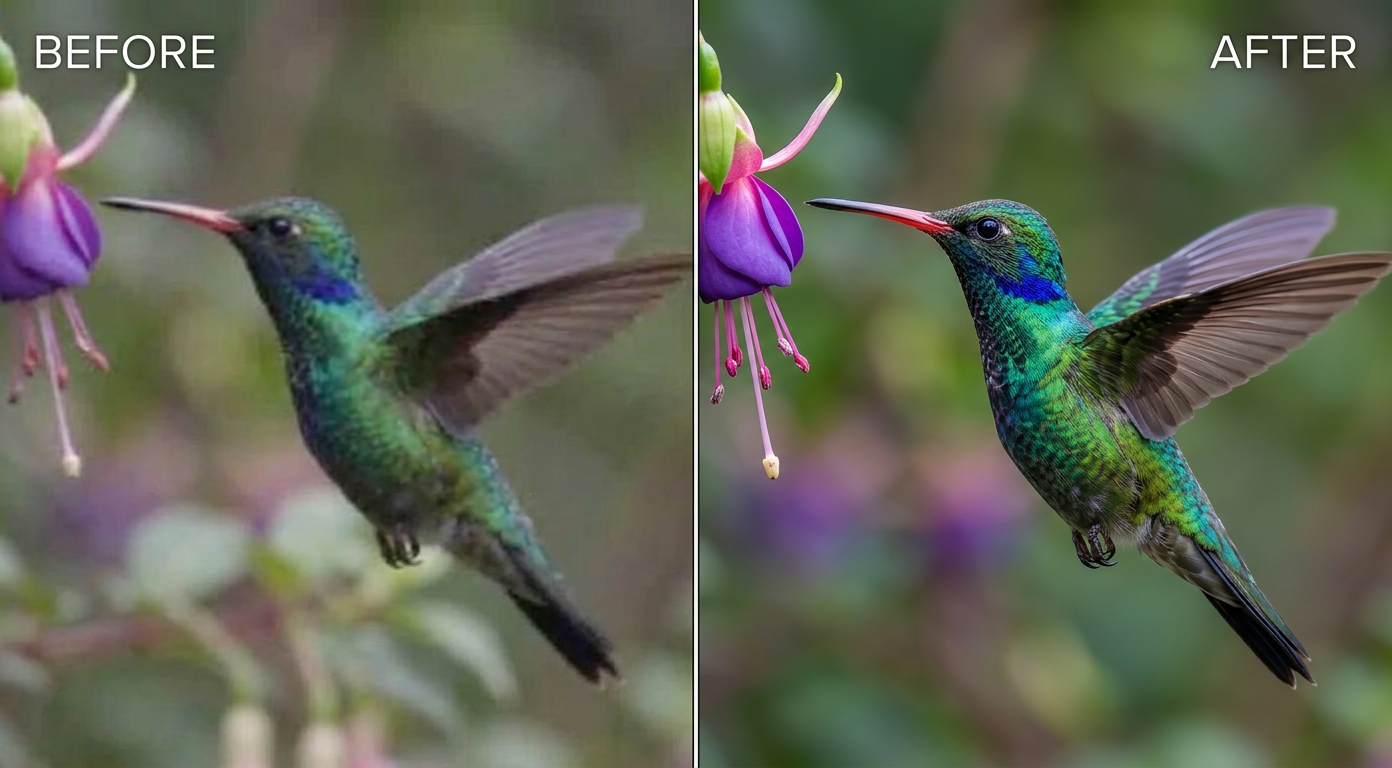
Where HitPaw asks you to pick among many models and hope you chose right, VanceAI keeps it to two purpose-built engines:
- Nexa — the general-purpose engine for everyday footage, outputting 720p, 1080p, 1440p, and 4K with a 1×, 2×, or 4× scale.
- Cineva — the cinema-focused model for standard-definition sources up to 1024×540 input, applying a fixed 4× upscale, ideal for old or very low-resolution clips.
It accepts MP4 and MOV files up to 10GB and 4K input, returns an MP4 that stays available for three days, and — the direct answer to HitPaw's biggest annoyance — lets you spend a single credit on a five-second clean preview before the full render. No watermark, no paying blind, no crash risk. Pricing is credit-based rather than a subscription: new users get free trial credits with no credit card, and you pay only for what you process. The one honest limit is a 4K output ceiling, which suits almost all footage. For the method itself, the how to enhance video quality guide has the steps, and how to upscale video covers the resolution side.
HitPaw vs VanceAI: Side by Side
| Dimension | VanceAI Video Upscaler ⭐ | HitPaw Video Enhancer |
|---|
| Form factor | Browser-based, online | Desktop (Windows/macOS) |
| Hardware | None (runs in the cloud) | GPU required (GTX 950+), 8GB RAM |
| Rendering | Server-side; machine stays free | Local; slow on heavy models |
| Stability | Nothing to crash locally | Freezes/crashes reported |
| Free evaluation | Free credits + clean 1-credit preview | Trial blocks exports until you pay |
| Model choice | 2 focused models | Many models, quality varies |
| Pricing | Credit-based, pay per use | ~$85.99/mo–$699.99 lifetime |
| Max output | 4K | Up to 8K (marketed) |
For a wider field of desktop tools, the Topaz Video AI alternative roundup is worth a look.
Who Should Choose Which
Choose HitPaw if you specifically want an offline desktop app, you own a capable GPU, you value having many specialized models on hand, and a subscription plus a pay-first trial don't bother you — and your machine handles it without stability issues.
Choose VanceAI Video Upscaler if you want results without powerful hardware, you'd rather not install or risk a crash mid-render, you want to judge a clean preview before paying, and you like paying only for what you use.
How to Enhance a Video With VanceAI
- Open VanceAI Video Upscaler in your browser and upload an MP4 or MOV (up to 10GB, up to 4K input).
- Choose your model — Nexa for everyday footage, Cineva for a standard-definition source.
- Set your target resolution or scale factor (720p to 4K, or 1×/2×/4× on Nexa).
- Click Preview to generate a clean five-second sample for one credit and confirm the quality.
- Process the full clip and download your MP4 — it stays available for three days.
Frequently Asked Questions
Is HitPaw Video Enhancer worth it in 2026?
For a casual user who wants an offline desktop app with many models, HitPaw can be worthwhile — the interface is friendly and the lineup is broad. But it renders slowly on heavy models, quality varies, users report crashes, it needs a capable GPU, and its trial won't export. Many people get a smoother, cheaper experience from a browser tool like VanceAI Video Upscaler.
How much does HitPaw Video Enhancer cost in 2026?
Reported individual pricing is around $85.99 per month, $199.99 per year, and $699.99 for a lifetime license, with business tiers higher; promotions often lower these. Mac licenses are typically pricier than Windows. VanceAI, by contrast, is credit-based with a free trial and no subscription.
Does HitPaw Video Enhancer have a watermark?
The paid version exports without a watermark, but the free trial does not let you export a clean file at all — you can preview inside the app but must pay for a usable result. VanceAI lets you check a clean five-second preview for one credit before committing.
Is HitPaw Video Enhancer free?
No. It offers a trial, but a usable export requires a paid plan, and it runs on subscription and lifetime tiers. For a genuinely free start, VanceAI Video Upscaler gives new users free trial credits with no credit card and a clean one-credit preview.
Why does HitPaw Video Enhancer keep crashing?
Stability complaints — freezes, crashes, and interrupted renders — are a recurring theme in user reviews, often tied to heavy models, large files, or specific hardware. Because HitPaw processes locally, these issues depend on your machine. A cloud tool like VanceAI runs on remote servers, so there's nothing to crash on your side.
Why is HitPaw so slow?
It processes locally and its heavier models are computationally intensive — the Face model can take around five times the clip length and SDR-to-HDR around eighteen times. On modest hardware, exports crawl. VanceAI offloads the work to servers, so your machine stays free.
What AI models does HitPaw Video Enhancer have?
Its core models are General Denoise, Animation, Face (with Sharpen and Soften modes), and Colorize, with newer builds adding Detail Recovery, Low-light Enhancement, SDR-to-HDR, and Video Repair. The Face and animation models are the most used; quality varies by model and source.
Can HitPaw Video Enhancer really upscale to 8K?
HitPaw markets up to 8K, but output quality depends on your source and GPU — 8K from a low-resolution clip mostly enlarges softness while dramatically increasing render time. For almost all footage, 4K is the practical ceiling, which is what VanceAI targets.
Do I need a powerful computer to run HitPaw?
Yes. HitPaw wants a dedicated GPU (GTX 950 or better) and at least 8GB of RAM; a modest machine means slow exports and possible instability. A browser tool like VanceAI avoids this by processing on remote servers, so any laptop works.
Does HitPaw Video Enhancer work on Mac?
Yes, there's a macOS version, though Mac licenses are typically priced higher than Windows. If you'd rather not install anything, VanceAI runs in the browser on any operating system, including Mac.
Is HitPaw's Face model good for portraits?
It can restore blurry faces well in Sharpen mode, but it's easy to overcook — over-sharpening creates unnatural, over-textured skin. Soften mode smooths but can erase detail. Previewing carefully helps; a clean preview like VanceAI's one-credit sample lets you catch an unnatural look before a full render.
What's the best HitPaw Video Enhancer alternative?
For most people it's VanceAI Video Upscaler — browser-based, no GPU, no crashes on your machine, and free to try with a clean preview. Desktop-focused alternatives include Topaz Video AI and AVCLabs, which offer deeper control but share the install-and-subscription trade-offs.
Is HitPaw or VanceAI better for beginners?
Both are beginner-friendly, but VanceAI removes more friction: no install, no GPU, no crash risk, a clean preview, and free to try. HitPaw offers more models but adds desktop overhead and a pay-first trial. If "easy" for you includes "nothing to install," VanceAI has the edge.
The Verdict
HitPaw Video Enhancer earns its popularity with a broad model lineup and an approachable interface, and for an offline desktop user with a capable, stable machine it does the job. But the 2026 reality is a tool that renders slowly on heavy models, varies in quality, draws recurring stability complaints, hides a clean export behind payment, and sits at the premium end of the price range. VanceAI Video Upscaler delivers the same beginner-friendly simplicity while removing all of that — browser-based, no GPU, nothing to crash, credit-based with a genuinely clean preview, and free to try on your own footage first. If you want the easiest path to a better-looking video, start there.