What People Actually Mean by "Topaz Anime"
Search "topaz anime" and you are really asking one of two questions, because Topaz Labs has two different tools that touch anime. Topaz Gigapixel upscales still images — anime art, screenshots, wallpapers, manga panels — and has long been a favorite for blowing up a 720p illustration into a poster without turning it to mush. Topaz Video AI upscales footage, and its Gaia model is the one anime fans point to for cleaning up old SD episodes and bumping them toward 4K.
Both can produce genuinely good anime results. Both also got more expensive and more divisive in 2026, after Topaz moved to subscription pricing ($299/year for Video AI's Personal plan) and retired the perpetual licenses people relied on. And both share the same trap: anime is not live-action, and if you upscale it like live-action you will make it worse, not better.
This guide does three things, in order. First, it explains why anime upscaling is its own problem with its own rules. Second, it gives you the actual Topaz settings that work for anime, so if you already own Topaz you get a better result today. Third, it shows the easier Topaz Video AI alternative — including VanceAI Anime Upscaler, which handles anime art in a browser with no model-tuning at all — for the large group of people who want clean anime without a render farm or a yearly bill.
Why Anime Upscaling Is a Different Problem From Live-Action
This is the part most tutorials skip, and it is the reason so many people get bad results. Live-action footage hides detail in texture, grain, and soft focus, and a good upscaler's job is to recover and invent plausible detail — pores, fabric threads, leaves. Anime has none of that. Cel and digital animation are built from clean flat color regions and deliberate line work. There is no hidden skin texture to recover, because the artist never drew any.
Feed anime to a model that is trying to recover live-action detail and four things go wrong, every time:
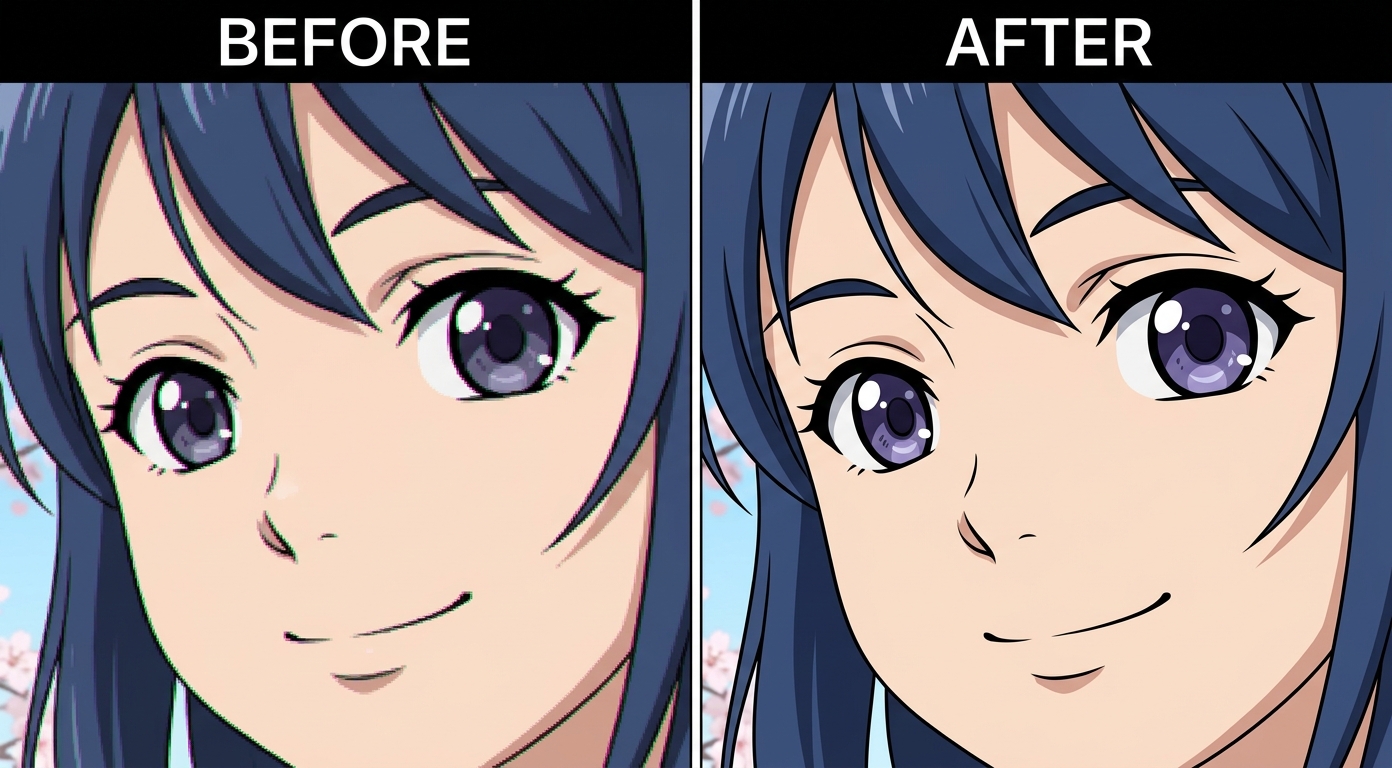
- Halos around the lines. Sharpening crisp line art does not make it sharper; it stamps a bright outline around every edge. The result looks "crunchy" and amateurish.
- Banding in flat colors. A clear sky or a flat-shaded cheek is a smooth gradient. Aggressive processing and low export bitrate break it into visible stair-steps.
- Plastic, over-smoothed faces. Denoise turned up high on a clean source erases the subtle line weight that gives a character expression.
- The soap-opera effect. Turn on frame interpolation for anime and you fight the intentional "on twos" timing animators use; motion starts to look unnaturally smooth and wrong.
The single most useful thing to understand about anime upscaling is therefore counter-intuitive: you want the model to do less, not more. Clean the compression, scale the resolution, and otherwise get out of the art's way. Every recommendation below follows from that one idea.
The Best Topaz Settings for Anime Video (Gaia Model)
If you already have Topaz Video AI, here is the configuration that respects the rules above. The instinct to crank every slider is exactly what ruins anime, so most of this is about turning things down.
| Setting | Recommended value | Why |
|---|---|---|
| Model | Gaia | The Topaz model trained with animation in mind; handles flat color better than Proteus or Iris |
| Output resolution | 4K (3840×2160) | The sweet spot — enough of a jump to matter without over-interpolating a low-detail source |
| Frame rate | Match source | Preserves intentional "on twos" timing; do not interpolate to 60 fps |
| Sharpen | 0 | Anime lines are already sharp; any sharpening adds halos |
| Recover Detail | 0–10 (low) | Cel art has no hidden texture to recover, so high values invent artifacts |
| Reduce Noise | 0–5 | Clean digital sources have little real noise; high denoise flattens line weight |
| Codec | HEVC (H.265) | Holds flat-color regions together better than older codecs |
| Bitrate | ≥30 Mbps at 4K | Low bitrate is the #1 cause of banding in skies and shadows |
The workflow itself is short: import the clip, select Gaia, set the output to 4K, zero out Sharpen and keep Recover Detail and Reduce Noise low, choose HEVC at a high bitrate, and — critically — preview a few seconds before committing. A still preview can look great while motion reveals shimmer on fast cuts, so scrub an action scene, not just a calm shot.
For anime images in Gigapixel, the same philosophy applies: choose its art/illustration-oriented mode rather than the standard photo mode, keep any "detail" or "texture" controls low, and lean on the resolution jump rather than enhancement sliders.
Where Topaz Anime Upscaling Falls Short
Set up correctly, Topaz can do good anime work — so this is not a takedown. But three frictions push a lot of anime fans to look elsewhere, and it is worth being honest about them.
It is slow, and it wants a strong GPU.
Gaia is one of the heavier models. On a mid-range card, a single 720p-to-4K episode can take many minutes per minute of footage, with your machine pinned the whole time. A season is a weekend.
The settings are easy to get wrong.
Everything in the table above is the opposite of the defaults a newcomer reaches for. Plenty of people run Topaz on anime with Sharpen up and Recover Detail high, get haloed, plasticky results, and conclude — not unreasonably — that the tool "made it worse." Some of that frustration is real and shows up in Topaz's own community forums; a lot of it is a settings problem the average user should not have to solve.
The pricing changed.
Topaz Video AI is now $299/year, and a lapsed plan locks you out of the app entirely. For someone who just wants to clean up a few favorite scenes or a handful of wallpapers, an annual subscription to a slow, finicky desktop tool is a hard sell. That is the gap the alternatives fill.
The Easier Way to Upscale Anime: VanceAI
For most people who land on "topaz anime," the honest recommendation is to skip the model taxonomy entirely. VanceAI Anime Upscaler runs in a browser, applies anime-aware processing without asking you to balance eight sliders, and is free to try with no install — which is why it sits at the top of this list for everyday anime work.
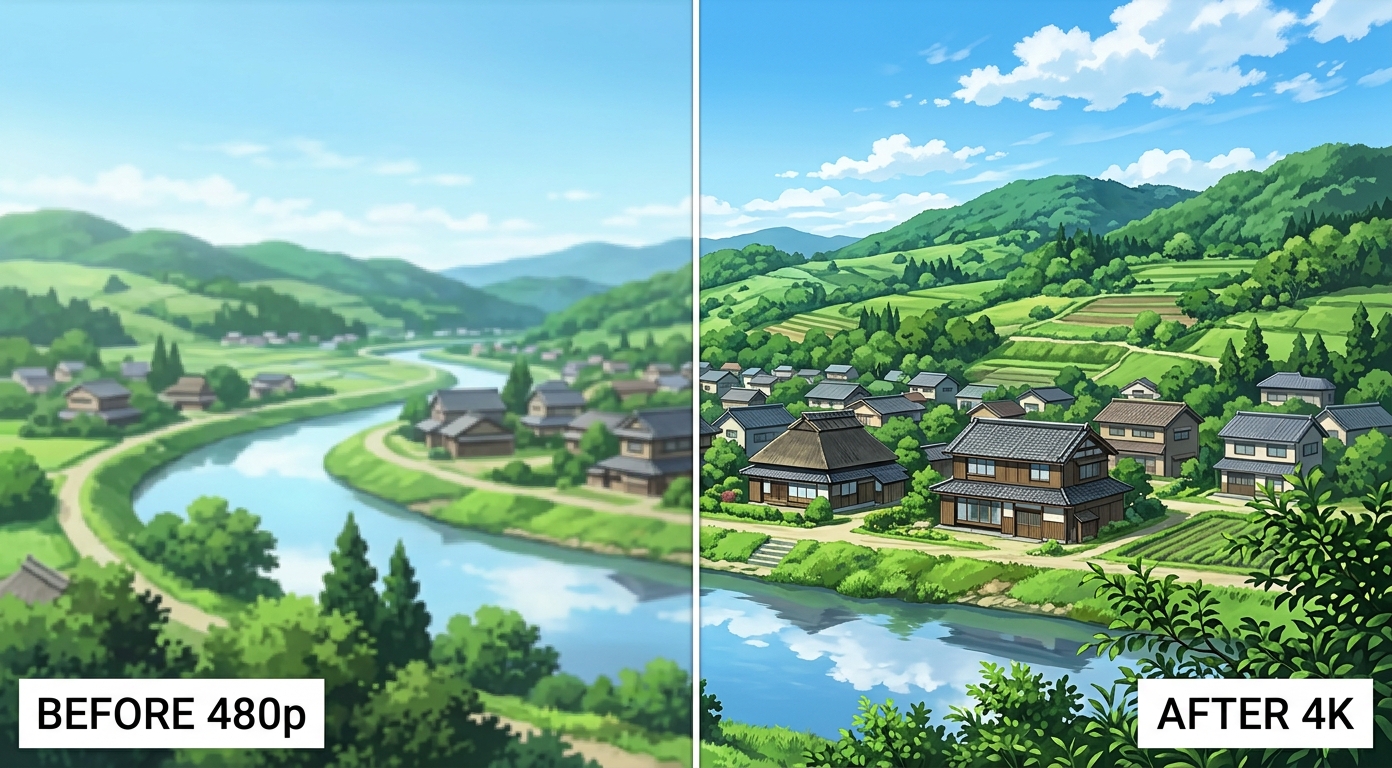
For anime art and images — fan art, screenshots, wallpapers, character sheets — the VanceAI Anime Upscaler is purpose-built. It enlarges illustrations 2×, 4×, and 8× while keeping line work crisp and flat colors clean, and because the processing runs on VanceAI's servers, a basic laptop gets the same result as a workstation. You upload, pick a scale, and download; there is no "which model and what sharpen value" decision to get wrong.
For anime video — episodes, clips, AMVs — VanceAI's Video Upscaler covers the same job with two engines. Nexa handles general footage toward 720p, 1080p, 1440p, or 4K, while Cineva is the cinema-focused model built for standard-definition sources up to 1024×540 input, applying a fixed 4× upscale that suits old SD anime rips heading toward near-HD. It accepts MP4 and MOV up to 10GB, returns an MP4 that stays available for three days, and lets you spend a single credit on a five-second preview before the full render — the same "check before you commit" habit that saves so much grief in Topaz, but without the install or the GPU.
The pricing model is the other relief. VanceAI is credit-based: new users get free trial credits with no credit card, and you pay only for what you process, with no annual subscription and nothing that expires and locks you out. For an anime fan upscaling on and off rather than all day, that matches spend to use far better than a yearly plan.
Other Ways to Upscale Anime
VanceAI is not the only option, and a fair guide names the rest. These each suit a different kind of user.
waifu2x is the original free anime upscaler, and for a quick 2× on a single image it is still genuinely useful. It is browser-based and free, but it is also dated: limited scale factors, no batch to speak of, and results that modern models clearly beat on complex art. Treat it as the lightweight, no-cost option for one-off images.
Real-ESRGAN (and Upscayl) is the open-source engine most serious tinkerers use, and its anime model is excellent on illustrations. Upscayl wraps it in a friendly desktop app for Windows, macOS, and Linux, which removes most of the command-line pain. The trade-off is that it is image-only and runs on your own hardware, so a big batch leans on your GPU and your patience.
Video2X is the open-source answer for anime video, piping frames through Real-ESRGAN or waifu2x. It is free and capable on animation specifically, but expect to install dependencies, edit configuration, and supply a capable GPU — it asks for time instead of money, and it is the wrong tool if you want a result in the next ten minutes.
HitPaw Video Enhancer includes a dedicated animation model behind a simple desktop interface, which makes it a reasonable middle ground for people who want a one-click desktop app and do not mind a subscription. It will not match a tuned Real-ESRGAN setup on difficult art, but it is far easier to drive than Topaz.
Anime Images vs Anime Video: Which Tool for Which Job
The mistake is treating these as one task. They are not, and the right tool depends on what you are holding.
If you have still anime art — a wallpaper, a screenshot, fan art you want to print — reach for an image upscaler first: VanceAI Anime Upscaler for a no-setup browser result, Upscayl/Real-ESRGAN if you want local control and have the GPU, or waifu2x for a fast free 2×. Image upscaling is quick, cheap, and very forgiving, and if your source is a Topaz Gigapixel candidate this Topaz Gigapixel review walks through the still-image side.
If you have anime footage — episodes, clips, AMVs — you need a video tool that understands temporal stability, because the enemy is flicker between frames, not just per-frame sharpness. VanceAI's Cineva model is built for the SD anime sources most people are restoring; Topaz Gaia is the powerful-but-slow desktop route if you own it and have the hardware; Video2X is the free path if you enjoy setup. Whatever you choose, preview a fast-motion scene before rendering the whole thing, and never interpolate the frame rate on hand-drawn animation. The how to upscale 480p to 1080p walkthrough covers the resolution side of that in more detail.
Frequently Asked Questions
What is the best Topaz model for anime?
For anime video in Topaz Video AI, Gaia is the model to use — it handles flat color and line art better than the live-action-oriented Proteus or Iris. For anime still images in Topaz Gigapixel, choose its art/illustration mode rather than the standard photo mode. In both cases, keep sharpening at zero and detail-recovery low, because anime has no hidden texture to reconstruct.
What are the best Topaz settings for anime?
Use Gaia, output to 4K, match the source frame rate, set Sharpen to 0, Recover Detail to 0–10, and Reduce Noise to 0–5. Export in HEVC at 30 Mbps or higher to prevent banding in flat colors. The guiding rule is to make the model do less: clean compression and scale resolution, but do not try to "enhance" art that was already clean.
Is Topaz good for anime upscaling?
It can be, when configured correctly on capable hardware. Topaz's Gaia model produces solid anime results, but it is slow, demands a strong GPU, and is easy to misconfigure — many "Topaz ruined my anime" complaints are really over-sharpening with the wrong settings. For casual use, a browser tool like VanceAI Anime Upscaler is faster and far harder to get wrong.
Can Topaz upscale anime to 8K?
Topaz can target high output resolutions, but 8K is rarely the right call for anime. Most anime sources are low-detail, so pushing far beyond 4K mostly enlarges what is already there without adding meaningful detail, and it multiplies render time. 4K is the practical ceiling for the vast majority of anime upscaling.
Why does my anime look worse after upscaling?
Almost always because the model was set up for live-action. Sharpening adds halos to line art, high detail-recovery invents artifacts, heavy denoise flattens faces, and low export bitrate causes banding in flat colors. Turn sharpening off, keep detail and noise low, and raise the bitrate — or use an anime-aware tool that handles this for you.
What is the best free anime upscaler?
For single images, waifu2x is the classic free option and Real-ESRGAN (via the free Upscayl app) is the higher-quality modern choice. For anime video, the open-source Video2X is free but requires setup and a capable GPU. VanceAI is also free to start, with trial credits and no credit card, if you want anime results without installing anything.
How do I upscale anime images without Photoshop?
Use a dedicated AI upscaler. VanceAI Anime Upscaler runs in a browser — upload your illustration, choose a 2×, 4×, or 8× scale, and download the result, with no editing skills required. Upscayl is a free desktop alternative if you prefer to process locally.
Can I upscale old SD anime episodes to HD?
Yes. For standard-definition anime, VanceAI's Cineva model is designed for sources up to 1024×540 and applies a fixed 4× upscale toward near-HD, which suits old DVD rips well. Topaz Gaia and the open-source Video2X can do the same job, with more control but more setup and slower rendering.
Should I interpolate anime to 60 fps?
Generally no. Hand-drawn animation is intentionally timed, often "on twos," and forcing it to 60 fps creates an unnatural, over-smooth "soap opera" look that fights the animators' intent. Match the source frame rate and focus on resolution and compression cleanup instead.
Is VanceAI Anime Upscaler really free to try?
Yes. New users get free trial credits without entering a credit card, so you can upscale anime art or test a short video clip before paying anything. After that, VanceAI is credit-based — you pay only for what you process, with no subscription and no lock-out.
The Verdict
"Topaz anime" comes down to a simple truth: anime upscaling rewards restraint, and the tools that win are the ones that make restraint easy. If you own Topaz and have the hardware, the Gaia settings above will get you a genuinely good result — turn the sharpening off, keep detail and noise low, and protect your bitrate. But for most people, paying $299 a year for a slow desktop app that is easy to misconfigure is the wrong trade. VanceAI Anime Upscaler handles anime art in a browser with no settings to botch, and its Cineva model brings the same ease to old SD episodes — free to try, credit-based, and impossible to lock yourself out of. Match the tool to whether you are holding an image or footage, preview before you commit, and let the art stay the way the artist drew it.