
"Video enhancer" covers more ground than "upscaler" — a real enhancer doesn't just add resolution, it denoises, deblurs, clears compression, and can even colorize or convert dynamic range. That breadth is why the tools differ so much, and why the right pick depends on what's actually wrong with your footage and what hardware you're on. This comparison ranks six of the strongest AI video enhancers on the things that decide it in practice — enhancement quality, render speed, real pricing, and how easy each is to get a good result from — and links each one to a full review so you can go deeper. The short version: for most people, VanceAI Video Upscaler is the one to start with.
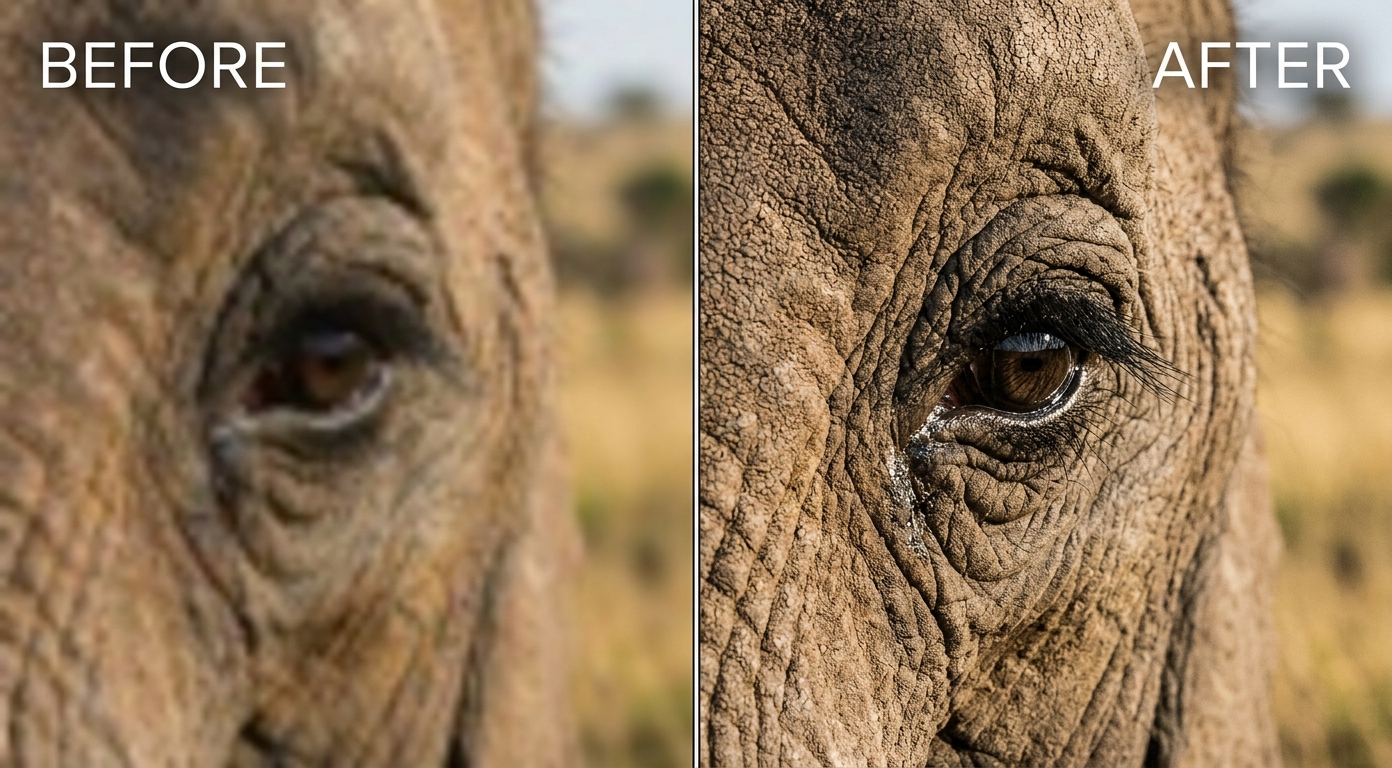
How We Compared Them
A ranking is only useful if you know what it weighs. We looked at four things, because the "best" enhancer for a colorist restoring film is not the best for someone fixing a phone clip:
- Enhancement breadth and quality. Does it genuinely reconstruct detail and clean noise and compression — or just sharpen? And does quality hold up across footage types: soft modern clips, noisy low-light, old SD, and animation?
- Speed on real hardware. Local tools vary from a few frames per second to sub-1 fps on heavy models, which is the difference between a coffee break and an overnight render.
- Real cost. Subscription, one-time, or free — and whether the trial gives you a clean result or a watermarked tease.
- Ease and consistency. How many decisions between upload and a good clip, and how easy it is to overcook the result.
For the fundamentals behind all of this — what enhancement actually does — the video quality enhancer guide is the primer.
At a Glance
| Rank | Tool | Type | Hardware | Pricing | Strongest at |
|---|---|---|---|---|---|
| 1 ⭐ | VanceAI Video Upscaler | Cloud | None | Credit-based, free trial | Fast, clean enhancement anywhere |
| 2 | Topaz Video AI | Desktop | Strong GPU | ~$299/yr | Deep pro restoration |
| 3 | AVCLabs Video Enhancer AI | Desktop | NVIDIA preferred | ~$199.90 lifetime | Aggressive restoration, anime |
| 4 | HitPaw Video Enhancer | Desktop | GTX 950+ | ~$85.99/mo+ | Preset-driven simplicity |
| 5 | Video2X | Free, open-source | Vulkan GPU | Free | Free anime upscaling |
| 6 | TensorPix | Cloud | None | Subscription | Quick one-click fixes |
1. VanceAI Video Upscaler — Best Overall
VanceAI tops the list because it does the full enhancement job — denoise, deblur, clear compression, and upscale — in one browser-based pass, with nothing to install and no GPU to feed. It's the rare tool that removes the two biggest barriers (hardware and setup) without becoming a dumbed-down one-button box.
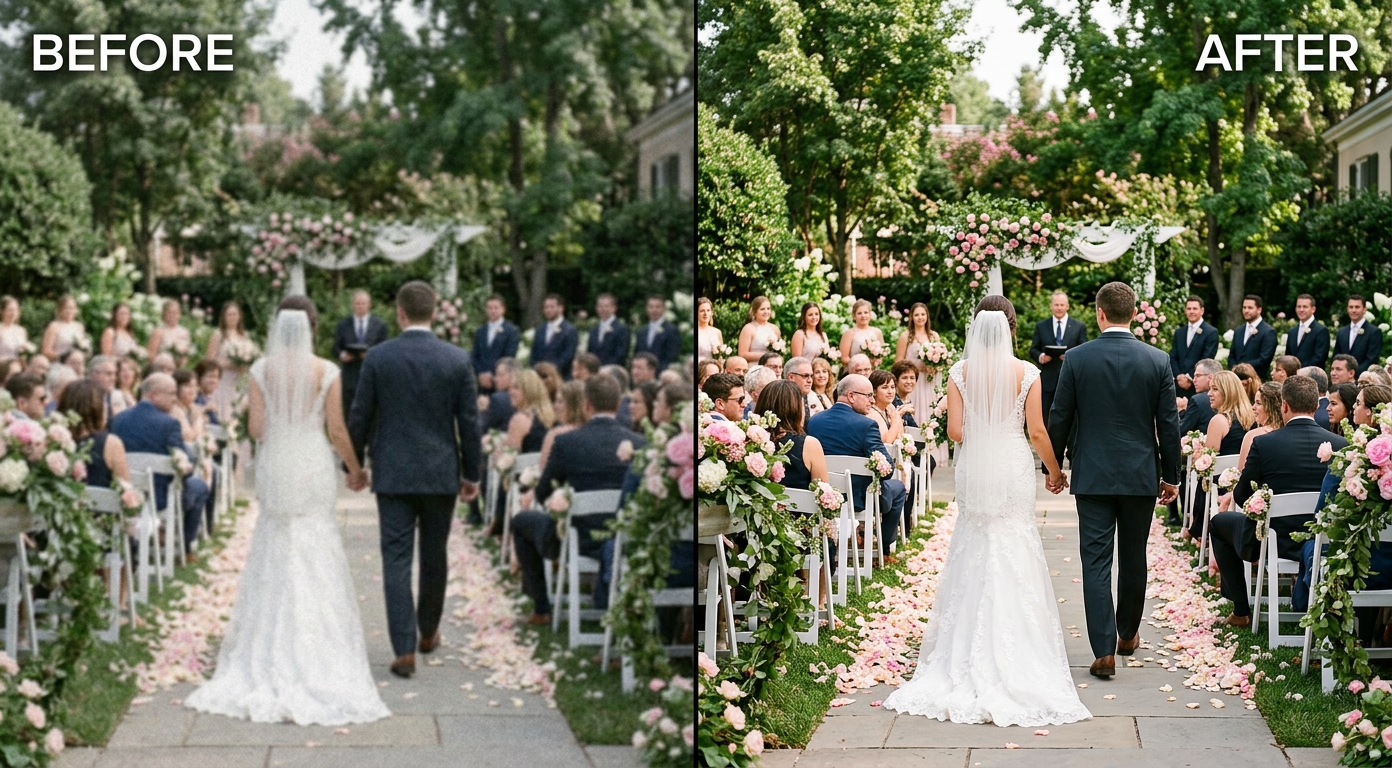
What sets it apart in this field is the honesty of its free tier and the model split: Nexa for everyday footage up to 4K, Cineva for standard-definition sources at a fixed 4×. A single credit buys a clean, watermark-free preview — so unlike trials that stamp a logo on the result, you judge the real output before paying. Pricing is pay-as-you-go rather than a subscription. The one honest limit is a 4K output ceiling, which is the right target for the vast majority of footage. Best for: anyone who wants a clean result fast, on any computer.
2. Topaz Video AI
Topaz is the professional benchmark, with the deepest library of specialized models and the strongest results on genuinely difficult restoration — provided you have the workstation for it. The trade-offs are the reason it's not first for most people: it moved to a ~$299/year subscription, demands a capable GPU, renders heavy models slowly, and has a learning curve. If you're weighing it specifically, our Topaz Video AI alternative comparison breaks down when it's worth it. Best for: pros restoring footage daily on strong hardware.
3. AVCLabs Video Enhancer AI
AVCLabs is the model-rich desktop option — 10+ engines including a genuinely strong anime model and aggressive detail recovery that rescues rough footage. It's also one of the few that runs on AMD, though NVIDIA is recommended and AMD is slower. The costs are speed (heavy models run around 1.8 fps) and consistency (faces can look "painterly"), plus a watermarked trial; the full picture is in our AVCLabs Video Enhancer review. Best for: aggressive restoration on a capable machine.
4. HitPaw Video Enhancer
HitPaw is the friendly, preset-driven pick, with models for denoise, animation, face, and colorize behind an easy interface. It suits someone who wants to drop in a clip and export without learning model taxonomy — but it's slow on heavy models, its trial won't export a clean file, pricing runs steep (around $85.99/month up to ~$699.99 lifetime), and users report stability issues. The details are in our HitPaw Video Enhancer review. Best for: casual desktop users who value simplicity.
5. Video2X
Video2X is the best free option and the go-to for anime, thanks to its Real-CUGAN engine. The 2026 version added a GUI and runs on NVIDIA, AMD, and Intel — but it needs a capable GPU, some setup, has no native Apple Silicon build, and renders 2–3× slower than commercial tools; our Video2X review covers the setup and settings. Best for: technical users who want zero cost, especially for animation.
6. TensorPix
TensorPix keeps you in the browser like VanceAI but with a narrower, one-click emphasis — a handful of toggles for fast, low-effort fixes. It's convenient for a quick job, but its model depth is shallower and it runs on a subscription, so for serious enhancement with more control and a cheaper way to test, VanceAI's two-model, preview-first approach gives you more. Best for: quick, casual cloud fixes.
How the Tools Handle Different Footage Types
"Best" also depends on what you're enhancing, because tools have specialties. Here's how the field sorts by content.
Soft modern footage (phone clips, webcam, older-camera video). The most common job, and where a fast, all-in-one approach shines. VanceAI's Nexa, Topaz, and HitPaw all handle this well; the difference is hardware and cost, not capability. For everyday soft clips, the browser tool is usually the least friction.
Noisy low-light footage. Grain is the enemy, and denoising quality varies. Topaz and AVCLabs have strong dedicated denoise models; VanceAI cleans noise as part of its single pass. The key across all of them is denoising before sharpening, or the grain gets amplified.
Old, standard-definition footage (VHS, camcorder, archival). This is a resolution problem first. SD-focused upscaling — VanceAI's Cineva with its fixed 4×, or Topaz's restoration models — does the heavy lifting, taking a low-resolution source toward clean HD rather than forcing an unrealistic 4K.
Animation and anime. A special case that needs a model trained on animation, since photo-trained models smear anime's flat colors and hard lines. Video2X's Real-CUGAN leads for free, AVCLabs has a capable anime model, and VanceAI's Cineva handles SD anime in the browser.
Compressed social downloads. Artifact removal matters most here. Any of the AI reconstruction tools beat a slider-based enhancer, because the job is cleaning blocking and rebuilding detail, not adjusting contrast.
The takeaway: if your work is dominated by one footage type — say, anime or archival restoration — let that steer your pick more than the overall ranking. For a mix of everyday footage, the all-rounder is the safer default.
How to Choose
Match the tool to your reality, not to the longest feature list. No strong GPU, or on a Mac or AMD machine? A cloud enhancer (VanceAI, TensorPix) sidesteps the hardware entirely. Restoring footage daily on a powerful workstation? Topaz or AVCLabs reward the setup. Zero budget and comfortable with configuration? Video2X is unbeatable on cost, especially for anime. Just want a clip to look better today? Start with the tool that's free to try and needs no install. And if what you actually need is pure resolution rather than cleanup, the sibling best AI video upscaler comparison is the one to read.
The Best AI Video Enhancer by Use Case
The "best overall" pick isn't always the best for your specific job. Here's the shortcut by need.
- Best for most people / everyday clips: VanceAI Video Upscaler — browser-based, no GPU, clean free preview, one pass for denoise, sharpen, and upscale.
- Best for professional restoration: Topaz Video AI — the deepest model library and the strongest results on hard footage, if you have the workstation and accept the subscription.
- Best for anime, free: Video2X — its Real-CUGAN engine leads on animation and costs nothing, provided you have a GPU and don't mind setup.
- Best for aggressive detail recovery: AVCLabs — many models and strong on rough footage, at the cost of speed and occasional over-processing.
- Best for total beginners on desktop: HitPaw — preset-driven and approachable, if you can accept the price and slower renders.
- Best for Mac and AMD users: a cloud tool like VanceAI — most heavy desktop enhancers assume a strong NVIDIA GPU, and Video2X has no native Apple Silicon build, so the browser sidesteps the hardware problem entirely.
- Best for a quick one-click fix: TensorPix — convenient in the browser, though shallower and subscription-based.
Notice how often the answer comes back to hardware and commitment rather than raw quality: several of these tools can produce excellent results, but only some fit your machine and budget.
Cloud vs Desktop: The Real Deciding Factor
For most readers, the single biggest fork isn't which brand — it's cloud versus desktop, because it determines whether a tool is even usable for you.
Desktop tools (Topaz, AVCLabs, HitPaw, Video2X) run on your own hardware. That means full control, no per-clip cost after purchase, and privacy — your footage never leaves your machine. But it also means you need a capable GPU (usually NVIDIA), you'll wait through slow renders on heavy models, and you're managing installs, updates, and sometimes driver quirks. On a Mac, an AMD card, or a modest laptop, several of these simply won't run well.
Cloud tools (VanceAI, TensorPix) run on remote servers. That removes the hardware barrier completely — any laptop, tablet, or phone gets the same output — and there's nothing to install or maintain. The trade-offs are that your footage is uploaded for processing, and you work within the tool's plan rather than unlimited local runs. For the majority of people, who don't own a restoration workstation, cloud is what makes AI enhancement accessible at all.
If you have the hardware and enhance footage constantly, desktop rewards the investment. If you don't, or you value not managing any of it, cloud wins — which is a big part of why VanceAI leads this list.
Understanding What You'll Actually Pay
Sticker prices hide the real cost, which depends on how often you enhance video. Here's the honest breakdown of the models in play:
- Subscriptions (Topaz ~$299/yr; HitPaw monthly). Predictable if you use them constantly, wasteful if you don't — you pay every cycle regardless of how many clips you process.
- One-time licenses (AVCLabs ~$199.90 lifetime). A large upfront cost that pays off only over heavy long-term use, and may not include future major upgrades.
- Free and open-source (Video2X). No money, but a real cost in setup time, a required GPU, and slow renders — "free" in dollars, not in effort.
- Credit-based / pay-as-you-go (VanceAI). You pay only for what you process, after a free trial, so occasional users never pay for idle months.
The practical rule: match the pricing model to your frequency. Occasional or one-off jobs favor pay-as-you-go or free trials; daily professional work can justify a subscription or license. The most common mistake is paying a recurring subscription for a tool you use a few times a year.
How to Enhance a Video With VanceAI
- Open VanceAI Video Upscaler in your browser and upload an MP4 or MOV (up to 10GB, up to 4K input).
- Choose Nexa for everyday footage or Cineva for a standard-definition source.
- Set your target resolution or scale factor and run the one-credit clean preview.
- Confirm the enhancement looks natural, then process the full clip.
- Download the MP4 — it stays available for three days.
Frequently Asked Questions
What is the best AI video enhancer in 2026?
For most people it's VanceAI Video Upscaler: it runs in the browser, needs no GPU, offers a clean free preview, and denoises, sharpens, and upscales in one pass. Professionals on strong workstations may prefer Topaz for its deeper model library, and budget-focused technical users can use the free Video2X, especially for anime.
What's the difference between a video enhancer and a video upscaler?
An upscaler mainly raises resolution; an enhancer also cleans the image — denoising, deblurring, and clearing compression, sometimes with extras like colorization or SDR-to-HDR. Most modern AI tools do both, which is why VanceAI Video Upscaler enhances and upscales in a single pass.
What's the best free AI video enhancer?
Video2X is the strongest free, open-source option, especially for anime — but it needs a capable GPU and setup. VanceAI is also free to start, with trial credits and a clean, watermark-free preview, if you'd rather not install anything.
Which AI video enhancer is best without a powerful GPU?
A cloud-based one. VanceAI Video Upscaler and TensorPix process on remote servers, so any laptop gets full-quality output. Every desktop tool here — Topaz, AVCLabs, HitPaw, Video2X — relies on your local GPU, and several are demanding.
How much does an AI video enhancer cost?
It ranges widely: Topaz is ~$299/year, AVCLabs ~$199.90 lifetime, HitPaw ~$85.99/month up to ~$699.99 lifetime, Video2X is free, and VanceAI is credit-based with a free trial. For occasional use, pay-as-you-go usually works out cheapest.
Which AI video enhancer is best for anime?
For free, Video2X's Real-CUGAN engine leads. Among paid tools, AVCLabs has a strong anime model, and VanceAI's Cineva handles standard-definition anime well in the browser. Anime needs a model trained on animation, so the engine matters more than the brand.
Which is the easiest AI video enhancer to use?
Browser-based tools are easiest — nothing to install and few decisions. VanceAI Video Upscaler is a strong pick: upload, choose a model, preview, download. Desktop tools like HitPaw are approachable too, but add an install, a GPU dependency, and a subscription.
Can AI video enhancers fix noise and blur, not just resolution?
Yes — that's the difference between an enhancer and a plain upscaler. A good AI enhancer denoises and deblurs while rebuilding detail, so soft, grainy footage improves noticeably. The main caveat is restraint, since over-processing looks worse — which is why a preview helps.
Do these tools watermark the free version?
It varies. VanceAI's free trial and preview are clean; Topaz, AVCLabs, and HitPaw trials often watermark or block exports; Video2X is fully free with no watermark. A clean preview or trial is the most reliable way to judge real quality before paying.
Is a cloud or desktop video enhancer better?
It depends. Cloud enhancers win for people without strong GPUs and anyone who hates installs and subscriptions. Desktop enhancers win for professionals with powerful machines and heavy workloads who want deep control. For most everyday creators, cloud is the simplest and cheapest start.
What's the best AI video enhancer for a Mac?
A cloud tool like VanceAI, because most heavy desktop enhancers assume a strong NVIDIA GPU and Video2X has no native Apple Silicon build. Running in the browser sidesteps Mac hardware limits entirely, giving you full-quality output on any MacBook without an install.
What's the best AI video enhancer for beginners?
A browser-based tool with few decisions is easiest for newcomers — VanceAI, where you upload, choose a model, preview, and download. On desktop, HitPaw is the more approachable option thanks to its presets, though it adds an install, a GPU requirement, and a subscription.
How long does AI video enhancement take?
It varies with the tool and clip. Cloud tools process on powerful servers, so speed doesn't depend on your device. Desktop tools depend heavily on your GPU and the model — heavy models can run around 1–2 fps, meaning a short clip can take a long time, while lighter models are much faster.
Do I need to know video editing to use an AI video enhancer?
No. AI enhancers are built to be standalone — you don't need a timeline, keyframes, or editing skills. Upload a clip, let the model process it, and download the result. If you want to combine enhancement with cuts, text, or music, do the enhancement first and add those in an editor afterward.
Which AI video enhancer is best for old or archival footage?
Old footage is a low-resolution problem, so the best tools are those with strong SD-focused upscaling: VanceAI's Cineva applies a fixed 4× built for standard-definition sources, and Topaz has dedicated restoration models. The realistic goal is clean HD from an SD source, not true 4K — start from the best transfer of the original you can get.
Are the "best AI video enhancer" results the same across footage types?
No. Tools have specialties — some excel at anime, others at noisy low-light or archival restoration. A tool that tops the list for everyday soft clips isn't automatically best for animation. If your work is dominated by one footage type, weight that specialty over the overall ranking when you choose.
The Verdict
The best AI video enhancer depends on your hardware, budget, and how much control you want. Topaz is the pro's deep toolkit; AVCLabs and HitPaw suit specific desktop needs; Video2X is the free choice for the technically inclined. But for the largest group — people who just want a clip to look genuinely better today, on whatever computer they own, without a contract or a long render — VanceAI Video Upscaler is where to start, because a clean free preview lets you prove it on your own footage before you spend a cent.